Analyze
Adding somebody to a reporting group does not let them in. Activating them does. Here is the last step.
People you add to a reporting group start out inactive. They cannot open anything until you turn them on. That gap is on purpose, because it means you can build a whole setup, check it over, and only then let people in.
Turning somebody on and telling them about it are two separate choices. Send Group Invite activates people and emails them to say their reporting for the event is ready. Activate just turns their access on with no email, which is handy if you would rather tell people yourself.
That gap between adding and activating is useful. It means you can get everybody staged well ahead of time, permissions set and population access sorted, then open the door when you are actually ready for people to look. No scramble on the day. Say your survey is still open and you want a small team watching response rates but nobody else in yet: build both groups now, activate the first one, and leave the second sitting there until the survey closes.
Check before you commit
As an admin you can shadow an inactive user, which shows you reporting exactly as they will see it. Do that before activating and you will catch a wrong demographic or a missing report before anyone else does.
Activating a user
You can turn on one person or a whole batch. Here is the one person version.
- In the Permissions tab of the Report Editor, click Manage Group on the group you are working with. The Assigned Users tab opens.
- Find the person, then in the Actions column click the three dots icon and choose Activate, or Send Group Invite if you want them to get the email too. View details, with the eye icon, sits just to the left of that menu if you want to check their access first.

Their status flips from Inactive to a green Active badge. If you sent an invite, the email goes out at the same time. The counter at the top of the group tracks how many of your assigned users are active.
Once somebody is active, their menu changes. Send Group Invite becomes Resend Group Invite, which is handy if the first email got lost, and Activate becomes Deactivate.
What the invite email looks like
When you use Send Group Invite or Resend Group Invite, each person gets an email from Perceptyx with the subject line Your team's results are in! It greets them by first name, names your event, and points them to the sign in page and a few help articles.
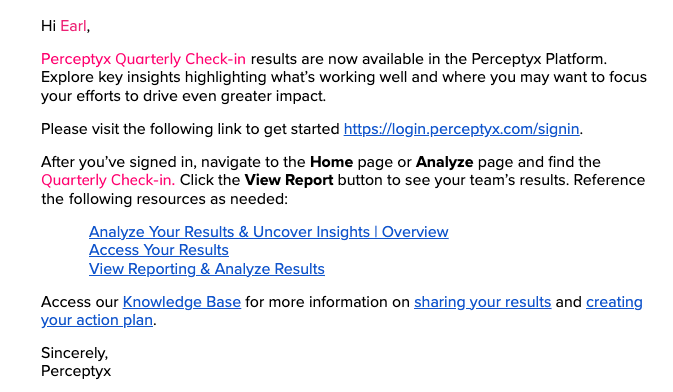
The wording is set by Perceptyx and cannot be edited. If you want to say something different, use the Activate button instead and send your own message.
Taking access away again
For somebody who is already active, the same menu shows Deactivate. That pulls their access without removing them from the group, so their permissions and population access stay set up if you want to switch them back on later. Deactivate works one person at a time. There is no batch version.
Turning on multiple users at once
Got a whole group ready to go? You do not have to do them one by one.
- In the Permissions tab of the Report Editor, click Manage Group on your group. The Assigned Users tab opens.
- Tick the checkbox next to each person you want to turn on. The count next to the user total tells you how many you have selected.
- Click Send Group Invite to activate everyone you picked and email them, or click Activate to turn them on without an email.

Everyone you selected moves to Active, and the counter at the top of the group goes up to match.
You do not have to sort people first. If some of the people you tick are already active, Activate only turns on the ones who are not. If everyone you ticked is already active, Activate is unavailable, since there is nobody left to turn on. Send Group Invite works on everyone you tick, active or not, so it is also the quick way to resend the email to a whole batch.
What comes next
Was this article helpful?
That’s Great!
Thank you for your feedback
Sorry! We couldn't be helpful
Thank you for your feedback
Feedback sent
We appreciate your effort and will try to fix the article