Listen
Not everyone finishes their 360 with enough responses for a report. Here's how to see why, and how to give them another shot.
When a participant's survey ends without meeting the requirements for a report, they land on the Complete - Report Ineligible tab. The tab tells you why, and in most cases you can reopen things so they still get a report.
This article walks through
Opening the tab
- Log in to the Perceptyx platform.
- In the top navigation bar, click Listen.
- In Live Events, click the 360 tab, or find your event in All Events.
- On your 360 event, click Manage Event. The 360 Administrator page opens.
- Click the Complete - Report Ineligible tab.
New to this page? Add Participants to Your Event | 360 walks through all five tabs.
What's on the tab
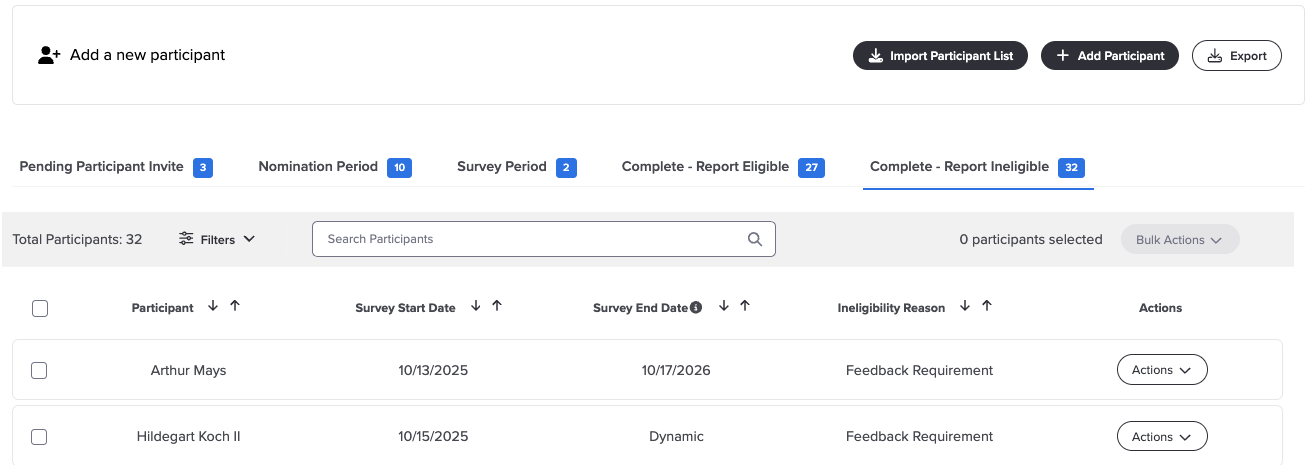
- The participant list. Columns show each person's name, survey start date, survey end date, and Ineligibility Reason. Use the arrows at the top of a column to sort by it.
- Filters. Narrow the list by survey start date, survey end date, or ineligibility reason.
- Search. Find someone by name or email address.
- Actions. Reopen things for one person, or resend their email.
- Bulk Actions. Do the same for several people at once.
Why someone is ineligible
The Ineligibility Reason column shows one of two reasons, and each one has its own fix:
- Inactive Rater Nomination: the participant didn't submit their rater list before their nomination deadline. You'll often see Dynamic in their date columns, since their survey never started. The fix is to extend their nomination deadline.
- Feedback Requirement: the participant's survey ran, but not enough raters finished, or they didn't complete their self-assessment if your 360 requires one. The fix is to extend their survey end date.
Finding a participant
Search
Click the Search Participants box and start typing a first name, last name, or email address. The list updates as you type.
Filter
Filtering on Ineligibility Reason is the quickest way to group people by the fix they need.
- Click Filters, then Add Filter.
- Tick what you want to filter by: Survey Start, Survey Ends, or Ineligibility Reason. Then click Add Filters.
- Click a filter to open it and pick what you want. For a date, pick a range on the calendar. For Ineligibility Reason, tick a reason, or Select All. Then click Apply.
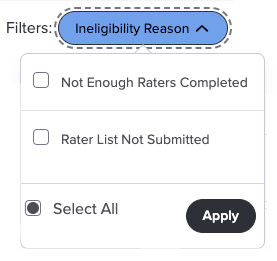
To remove your filters, click Clear Filters at the far right.
Giving someone another shot
Click Actions on the participant's row. What you see depends on their ineligibility reason.
Extend the nomination deadline
For participants with Inactive Rater Nomination. This gives them more time to pick their raters.
- Click Actions on the participant's row, then pick Extend Nomination Deadline.
- Click the date box and pick the new deadline on the calendar.
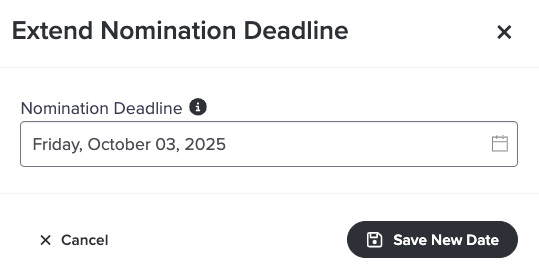
- Click Save new date. The participant moves back to the Nomination Period tab.
Tip
Once they're back on the Nomination Period tab, check their survey end date too. Moving it out makes sure their raters still have enough time once the new nomination period ends. Manage Participants During the Nomination Period | 360 covers how.
Extend the survey end date
For participants with Feedback Requirement. This gives their raters, or the participant, more time to finish.
- Click Actions on the participant's row, then pick Extend Survey End Date.
- Click the date box and pick the new end date on the calendar.
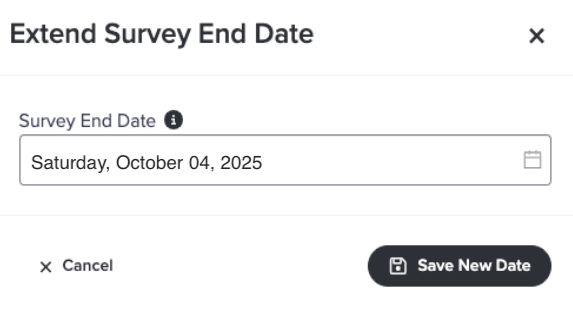
- Click Save new date. The participant moves back to the Survey Period tab.
Then it's worth reminding their raters. Manage Participants During the Survey Period | 360 covers resending rater invites and adding raters.
Note
If the survey end date was set to Dynamic, picking a date turns Dynamic off. The survey then ends on the date you picked.
Resending the report ineligible email
Participants get an email letting them know they didn't get a report. If someone needs it again, you can resend it.
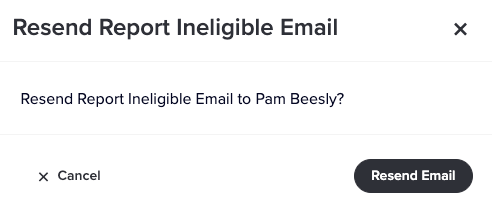
- Click Actions on the participant's row, then pick Resend Report Ineligible Email.
- Click Resend Email to confirm.
Changing several participants at once
Bulk Actions has Extend Survey End Date, Extend Nomination Deadline, and Resend Report Ineligible Email. To extend a date for a group, pick people with the same ineligibility reason. Filtering on Ineligibility Reason first makes that easy. Resending the email works for anyone, whatever their reason.
- Tick the box next to each participant you want. To pick everyone on the tab, tick the box at the top of the list.
- Click Bulk Actions at the top right and pick what you want to do.
- Pick the new date and save, or confirm.
What's next
Once reports are out, the Administrator Dashboard and Reports | 360 shows results across everyone in your event.
Was this article helpful?
That’s Great!
Thank you for your feedback
Sorry! We couldn't be helpful
Thank you for your feedback
Feedback sent
We appreciate your effort and will try to fix the article