Platform setup
Put Perceptyx inside Microsoft Teams, so survey invitations, reminders, and nudges show up right where your people already chat.
The Perceptyx app for Microsoft Teams sends people a chat message when there is something waiting for them in Perceptyx. It uses that chat to:
- Send survey invitations and reminders.
- Let people know when they have been asked to give 360 feedback.
- Tell people when new reports, tasks, or insights are posted to their account.
- Deliver Activate nudges and AI coaching, if your organization has Activate.
This article walks through
Before you install
There are two things Perceptyx has to set up on our side before the app will work for your organization:
- Create your organization's Teams account in Perceptyx, connected to your company email domain.
- Turn on Teams notifications for your organization's self-led listening events.
Note
If someone installs the app before both of these are done, they will get an error and will need to install it again once your account is ready. Check with your Perceptyx Customer Success Manager before you roll it out.
Choosing your installation path
There are three ways the Perceptyx app can end up in someone's Teams. Pick the one that fits how you want to roll it out. The rest of this article covers each one.
| Path | Best for | Who does the work |
|---|---|---|
| Self-install | Pilots, small teams, and individual people opting in | Each person |
| Organization-wide deployment Recommended for a full rollout | Rolling out Perceptyx surveys or Activate to your whole organization | Your Microsoft Teams administrator |
| Group-targeted deployment | Phased rollouts, test groups, and regional pilots | Your Microsoft Teams administrator |
Important: pinning is not installing
Microsoft Teams treats pinned apps and installed apps as two separate things. Pinning only puts the Perceptyx icon in someone's Teams sidebar. It does not install the app for them, and Perceptyx cannot send them anything until it is installed.
If your organization only pins the app, people will see the icon, but clicking it shows the message "You cannot send messages to this bot" and their survey invitations will not arrive in Teams. The Troubleshooting section covers how to fix it.
For an organization-wide rollout, always add Perceptyx to Installed apps (or use Manage apps and then Edit installs), not just Pinned apps.
Installing it yourself
Anyone can install the Perceptyx app for themselves from the Microsoft Teams Store. It is the quickest option for a pilot or for one person. For a full rollout, your IT team will usually install it for everyone instead (see Installing it for your organization).
Step 1: Open the Perceptyx listing
- Open the Perceptyx listing on Microsoft AppSource in your browser, or search for "Perceptyx" in the Teams app store.
- Click Get it now.
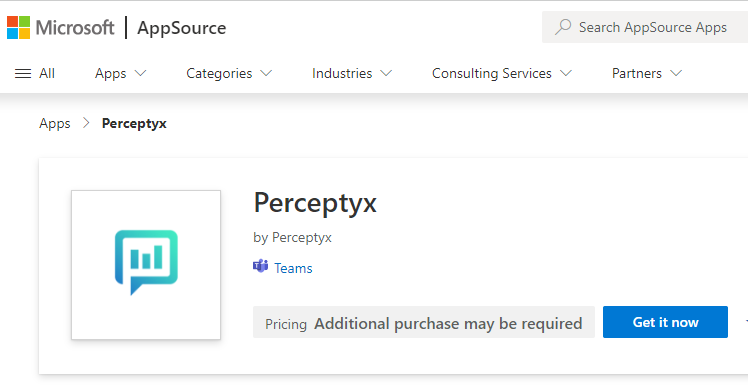
- If your browser asks, allow it to open Microsoft Teams.
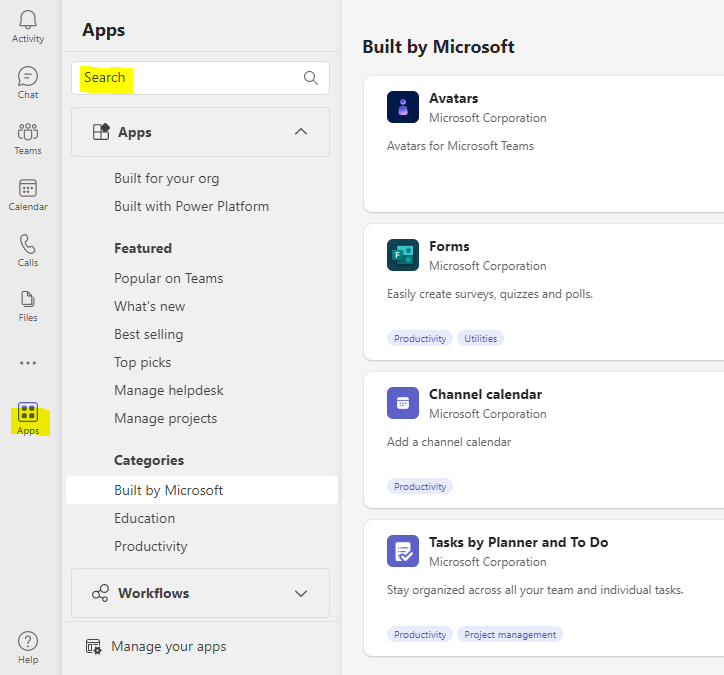
Teams opens and shows the Perceptyx app card.
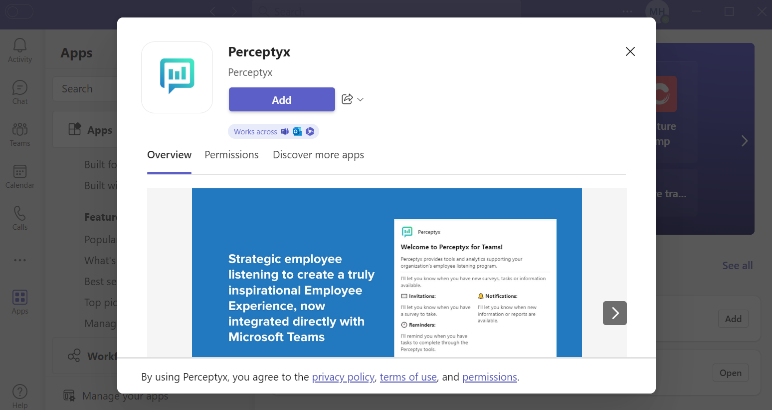
Step 2: Add the app
- Click Add.
- If your organization needs an administrator to approve new apps, follow the prompt to request access. Once it is approved, come back and click Add again.
Step 3: Check it worked
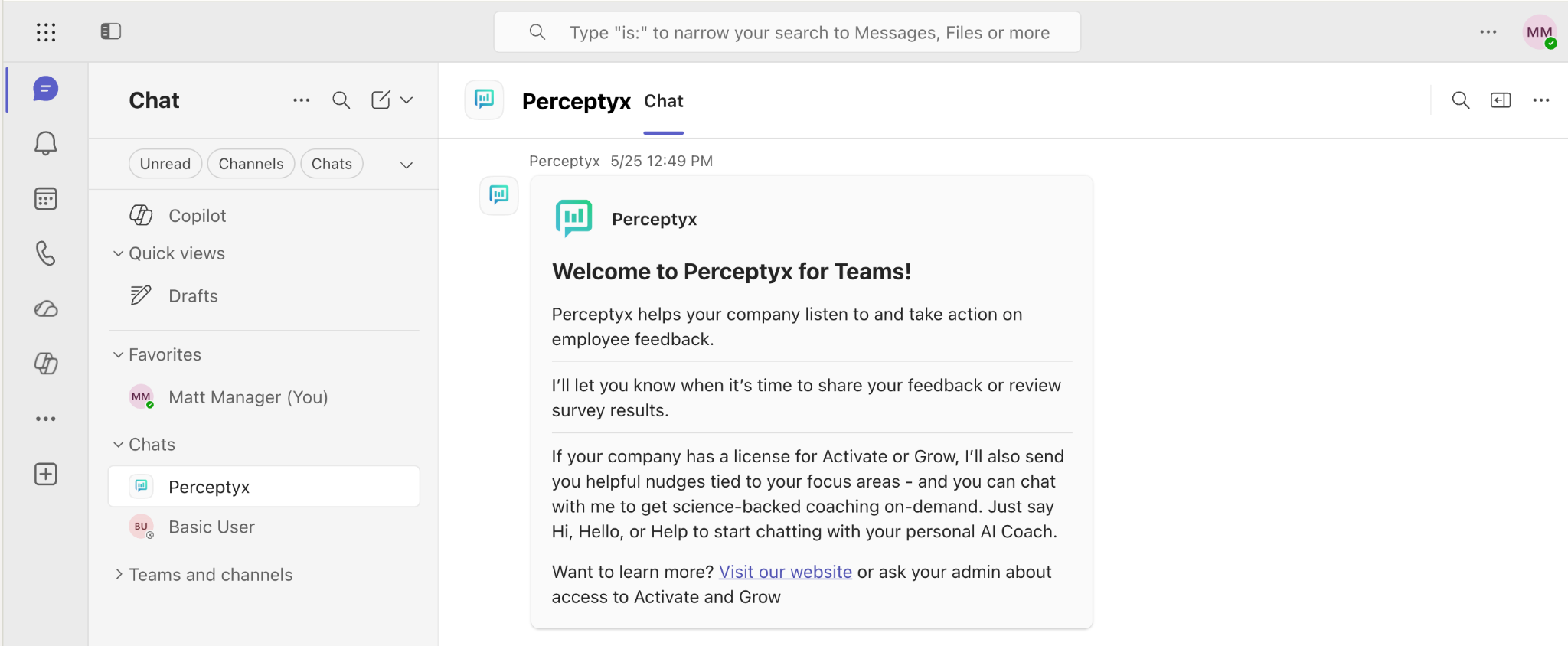
When the install finishes, you get a "Welcome to Perceptyx for Teams" message. That is it, there is nothing else to do. From here on you will get a message in Teams whenever your organization launches a survey or something new is waiting for you.
Installing it for your organization (Teams administrators)
A Microsoft Teams administrator can install the Perceptyx app for everyone, or just for a specific group, which is handy for pilots and phased rollouts. Microsoft is moving organizations between admin experiences, so your Teams admin center will look like one of these three:
- Modern: app-centric management. Each app has its own page, with an Edit installs action on the Users and groups tab.
- Legacy: app setup policies. Installed apps and pinned apps are two separate lists inside a setup policy. This is what older tenants that have not moved over yet will see.
- Newest: unified app management. Apps for Teams, Outlook, and Microsoft 365 Copilot are managed in one place, from either the Teams admin center or the Microsoft 365 admin center. You opt in from a banner at the top of the Manage apps page.
All three get you to the same place: Perceptyx installed for each person, in their own one-on-one chat with the app. The idea is the same whichever screens you see. Pinning makes the icon visible, installing makes the app able to reach people, and you usually want both.
Permissions the app uses
The Perceptyx app asks for these permissions:
| Permission | What it is for |
|---|---|
| Send and receive chat messages with the bot | Required. This is how Perceptyx delivers survey invitations, reminders, coaching messages, and other notifications in the one-on-one chat. |
| Read user profile (basic info: name, email) | Required. This is how Perceptyx matches a person's Teams account to their employee record in Perceptyx. |
The app does not ask for elevated permissions across your tenant, and it does not read messages in any other chat or channel. If your tenant requires admin consent before allowing custom apps, an administrator will be prompted on the first install, or can approve it from pending requests in the Teams admin center.
Allow the app in your tenant
- Sign in to the Microsoft Teams admin center as a Teams Service Administrator or Global Administrator.
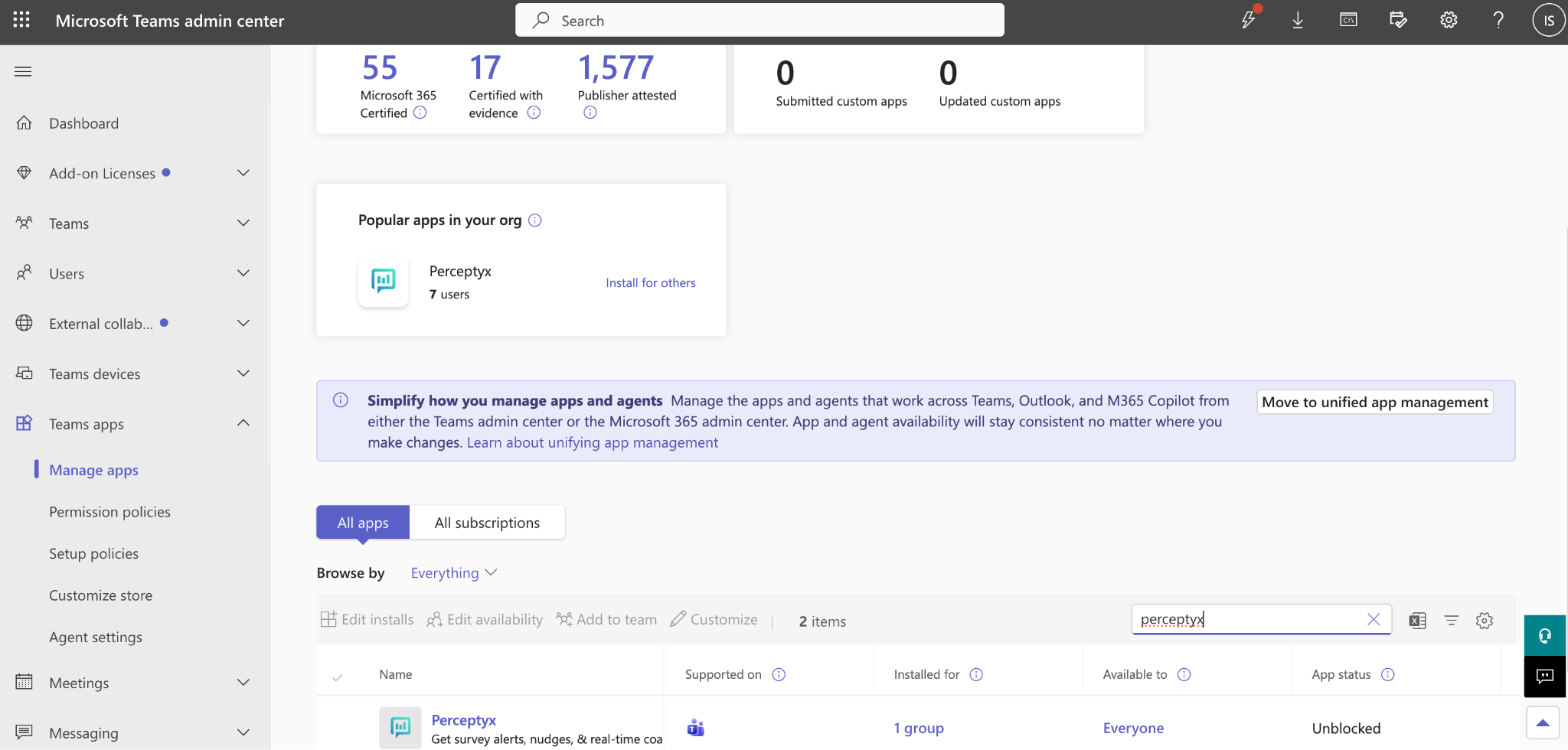
- Go to Teams apps and then Manage apps.
- Search for "Perceptyx" and check that its status is Allowed. If it is blocked, click the row and then click Allow in the top right.
Modern path: app-centric management
If you see an Edit installs action on each app's page, your tenant uses app-centric management. This is the simplest way to install Perceptyx for everyone or for a group.
- In the Microsoft Teams admin center, go to Teams apps and then Manage apps.
- Search for "Perceptyx" and click the app name to open its page.
- Click the Users and groups tab.
- Click Install app, or Edit installs if some people already have it.
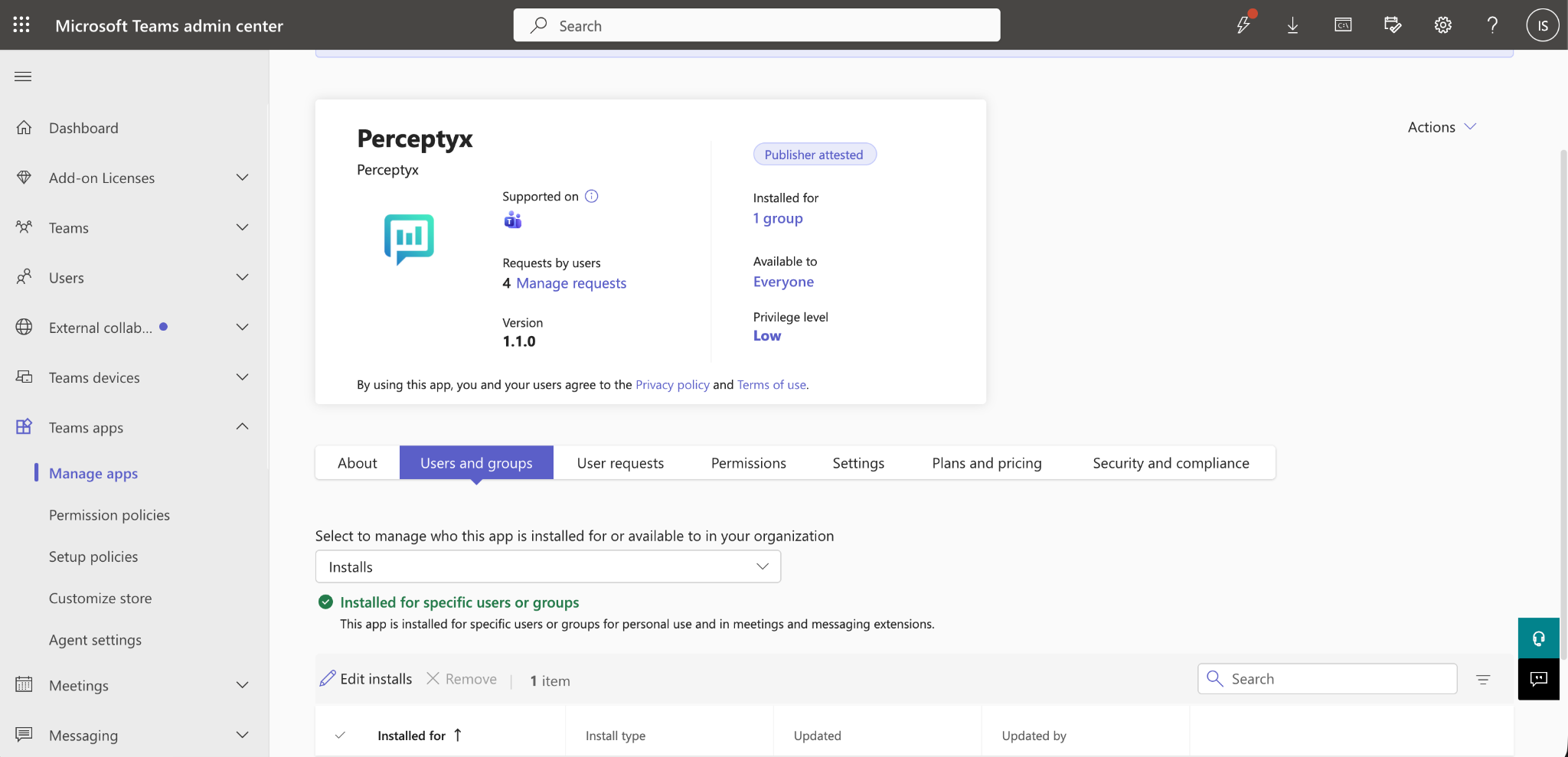
- In the install panel, choose who gets it:
- Everyone to install Perceptyx for your whole organization.
- Specific users or groups to pick a security group, distribution list, or Microsoft 365 group (for example, "Perceptyx Pilot").
- Click Apply.
Microsoft rolls the install out to each person's Teams over the next 1 to 6 hours.
Legacy path: app setup policies
If your tenant has not moved to app-centric management, you set up installs through app setup policies. A setup policy has two separate lists:
- Installed apps are the apps added to someone's Teams when the policy applies to them. This is the list that makes Perceptyx notifications work.
- Pinned apps are the apps that show in someone's Teams sidebar. Pinning on its own does not install anything.
Check for Microsoft's banner first
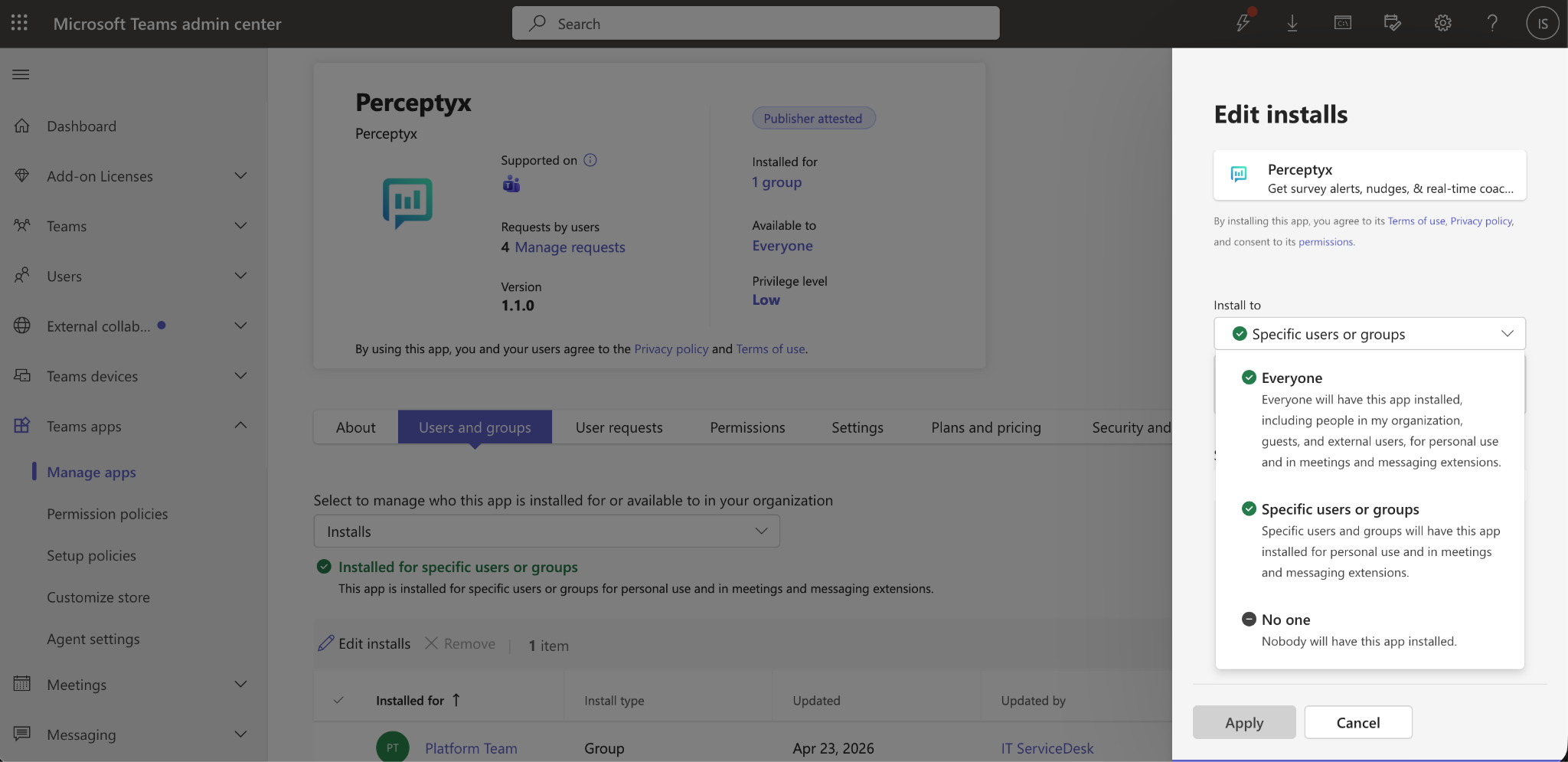
Microsoft has been moving installed apps out of setup policies and onto the Manage apps page. When you open Teams apps and then Setup policies, you may see a banner that says "App setup policies have changed. Now you view and install apps for your users from the Manage apps page."
If you see that banner, setup policies now only control pinned apps. Do the install part using the Modern path above, then use the steps below just for pinning.
If there is no banner and you can still see an Installed apps section in the policy, you can follow all five steps below in one go.
Add Perceptyx to both lists
Perceptyx has to be in Installed apps (or installed through Edit installs if your tenant has the banner above) to send notifications. Adding it to Pinned apps as well puts it in people's sidebars so they can find it. If you only pin it, people see the icon but the app cannot message them, which is the most common reason some people are not getting Perceptyx notifications.
- In the Microsoft Teams admin center, go to Teams apps and then Setup policies.
- Open the policy for the people you want to install Perceptyx for. That is usually Global (Org-wide default) for everyone, or a custom policy for a pilot group.
- Under Installed apps, click Add apps, search for "Perceptyx", select it, and click Add. (Skip this step if there is no Installed apps section. Install Perceptyx using the Modern path above instead.)
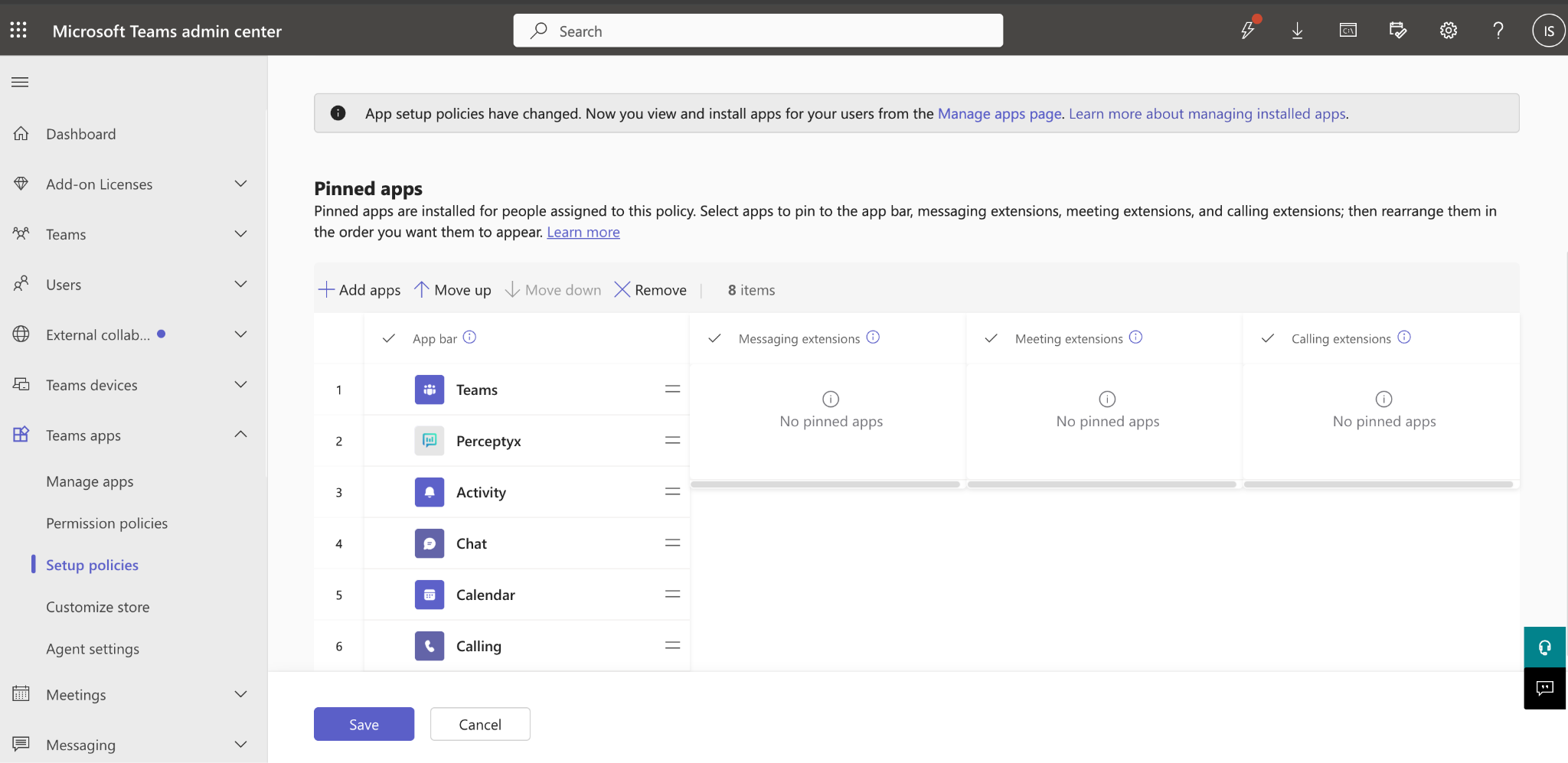
- Under Pinned apps, click Add apps, search for "Perceptyx", select it, and click Add. Drag it to where you want it to sit in people's sidebars.
- Click Save at the bottom of the policy.
If you used a policy other than the global default, remember to assign it to the right people or groups under Group policy assignment in the same Setup policies area.
Newest path: unified app management
Unified app management is Microsoft's newest admin experience. It brings app management for Microsoft Teams, Outlook, and Microsoft 365 Copilot together in one place, and you can reach it from either the Teams admin center or the Microsoft 365 admin center. Whatever you set in one shows up in the other.
Your tenant can move to it when you see a banner at the top of the Manage apps page that says "Simplify how you manage apps and agents", with a Move to unified app management button on the right.

Before you move (a one-time decision)
Moving to unified app management is one way
Microsoft does not document a way back. Once your tenant moves, the admin screens switch to the unified experience for good. If you have a test tenant, try it there first so your IT team gets used to the new layout before you change production.
Who can do it? Only a Microsoft 365 Global Administrator can agree to the move for your tenant. A Teams Service Administrator on their own cannot.
What happens next? Depending on how your Teams and Microsoft 365 app settings have been set up, the move goes one of three ways. Most tenants move straight over with nothing else to do. If your Teams and Microsoft 365 app settings do not match, Microsoft asks you to line them up first (see Microsoft's unified app management overview). Or Microsoft shows you a summary of the changes to acknowledge before it finishes.
For Perceptyx, moving changes nothing about the app or the installs people already have. It only changes the admin screens.
- Sign in to the Microsoft Teams admin center as a Global Administrator and go to Teams apps and then Manage apps.
- Click Learn about unifying app management in the banner and read through Microsoft's notes.
- When you are ready, click Move to unified app management in the banner.
A dialog box titled "Introducing a new unified app management experience" opens.
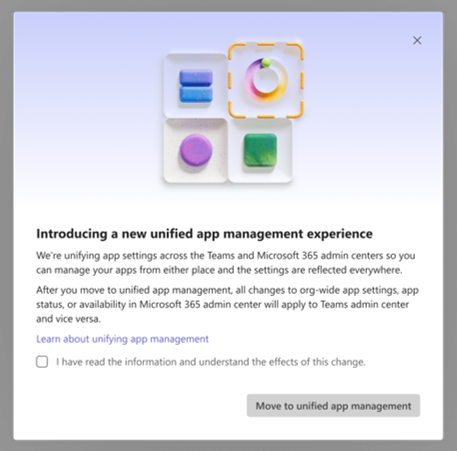
- Read the explanation, then check I have read the information and understand the effects of this change.
- Click Move to unified app management in the dialog box.
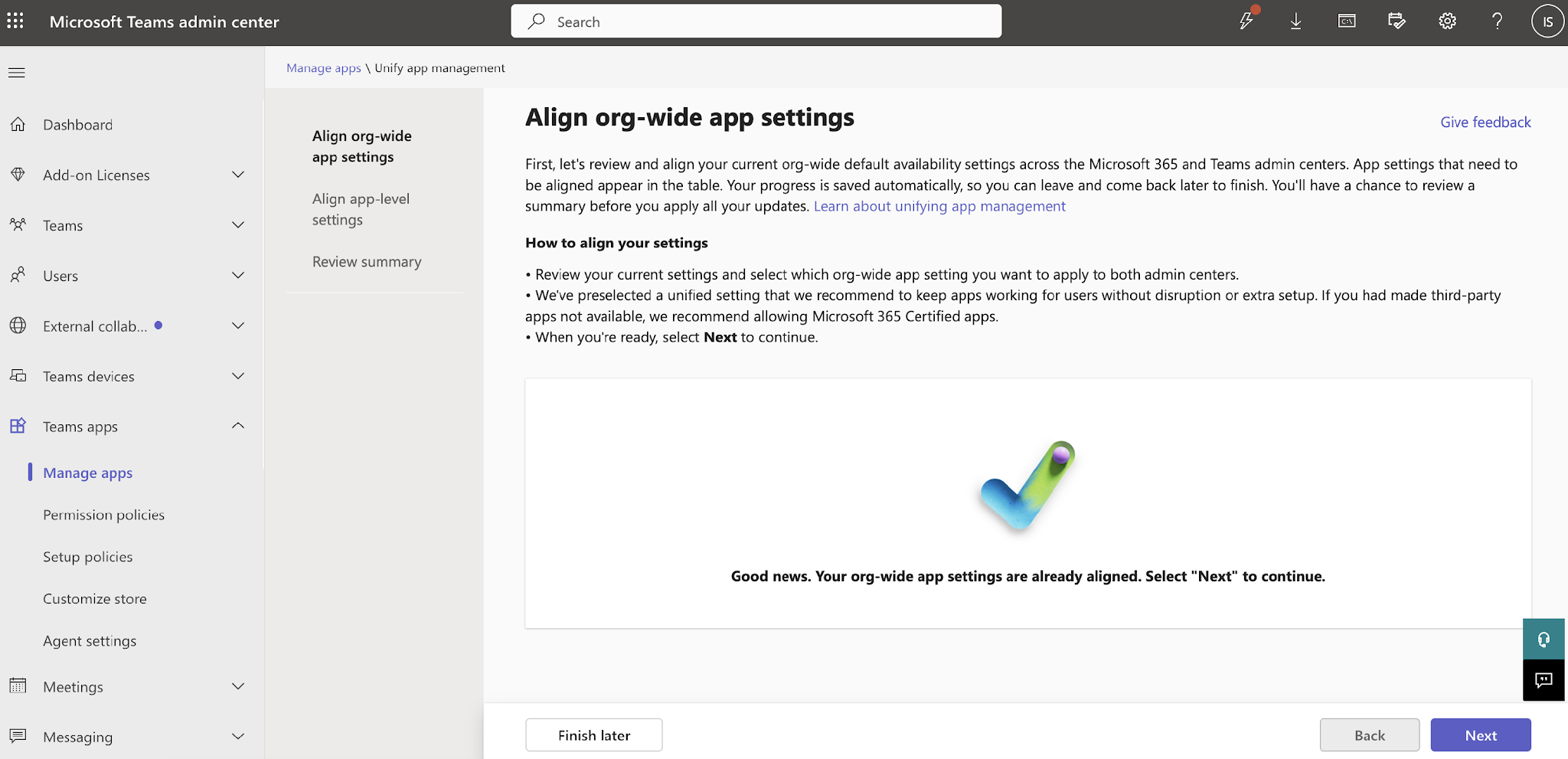
Microsoft applies the move. Most tenants land straight in the new screens. Some go through the settings alignment or review summary steps first.
If your tenant gets the settings alignment step, you will see a screen like this before the move finishes, asking you to line up your Teams and Microsoft 365 app settings.
Install Perceptyx with unified app management
Once you have moved, installing Perceptyx works just like the Modern path above: find the app, open its page, choose who gets it, and apply. There are two small differences:
- You can do it from the Teams admin center or from the Microsoft 365 admin center (admin.microsoft.com, then Settings, then Integrated apps). Changes show up in both.
- An install covers Teams and any other Microsoft 365 app the Perceptyx app supports. Perceptyx works in Teams only, so for now this makes no difference to you.
- Open Manage apps from the Teams admin center or the Microsoft 365 admin center.
- Search for "Perceptyx" and click the app name to open its page.
- On the Users and groups tab, click Install app or Edit installs.
- Choose Everyone or Specific users or groups.
- Click Apply.
Microsoft rolls the install out over the next 1 to 6 hours, the same as the other paths.
You check it worked the same way as the other paths: make sure a test person gets the "Welcome to Perceptyx for Teams" message.
Check the rollout worked
Microsoft rolls installs and policy changes out in the background, and it can take anywhere from about 15 minutes to a few hours. To check:
- Wait at least 30 minutes after saving.
- Pick a test person, sign in to their Teams (web or desktop), and look for Perceptyx in the sidebar.
- Click the Perceptyx icon. The "Welcome to Perceptyx for Teams" message should be there.
- If it has not shown up within an hour, head to Troubleshooting.
- (Optional, administrators only) If you need a definite answer for one particular person, see Confirm an install with Microsoft Graph below.
How to know it reached Microsoft, not just Perceptyx
The welcome message is the best sign. If someone gets it, Microsoft has the app installed for them and Perceptyx can reach them from now on.
If someone can see the Perceptyx icon but has no welcome message, and clicking the icon shows "You cannot send messages to this bot", the app was pinned but not installed. See Troubleshooting.
The Installed for: Everyone label on the Manage apps page shows what the policy is meant to do, not whether each person actually has the app. It can look fine even when some people never got the install. The Microsoft Graph check below is the only reliable way to check one person without having them sign in to Teams.
Confirm an install with Microsoft Graph
Microsoft Graph gives you a definite answer on whether one person has the Perceptyx app installed. It is the same check Perceptyx runs when looking into a problem, so your IT team can confirm things themselves without opening a support ticket.
To check one person:
- Open Microsoft Graph Explorer.
- Sign in (top right) as a tenant administrator with Teams admin permissions. If you see an orange banner saying "You are currently using a sample account", you are not signed in yet.
- Find the person's Entra Object ID. In the Microsoft Entra admin center, go to Users, search for the person, and copy their Object ID (a long string of letters and numbers, like 00000000-0000-0000-0000-000000000000).
- Paste this into the Graph Explorer query bar, swapping {user-object-id} for the Object ID you just copied, and make sure the dropdown next to it is set to GET:
https://graph.microsoft.com/v1.0/users/{user-object-id}/teamwork/installedApps?$expand=teamsAppDefinition - Click Run query.
- Look through the response. It lists every Teams app that person has installed. The field you care about is
teamsAppDefinition.displayName. Look for "Perceptyx".
Reading the result
Perceptyx is there. The install is in place. If the person is still having problems, the issue is on the Perceptyx side. Contact your Perceptyx Customer Success Manager with the person's email address and Entra Object ID.
Perceptyx is not there. The install never finished for this person, even if the Teams admin center says the app is installed for everyone. See Troubleshooting to fix it.
Compare with someone it works for. Run the same check on a colleague who is getting Perceptyx notifications. Seeing Perceptyx in their results and not the other person's is the clearest evidence you can share, because it shows the policy is right overall but did not reach that one person.
If Graph Explorer does not give you what you expect
"You are currently using a sample account. Sign in to access your own data."
Graph Explorer opens in sample mode by default. Click sign in at the top right and use your tenant administrator account. The orange banner goes away and your own avatar shows up.
HTTP 403, "Forbidden", or "permission TeamsAppInstallation.ReadForUser.All required"
You are signed in, but Graph Explorer has not been given permission to read another person's installed apps yet:
- In the response area under the query bar, click the Modify permissions tab.
- Find TeamsAppInstallation.ReadForUser.All in the list. If your organization requires admin consent for new permissions, you may see a Consent button or a Request admin consent link.
- Click Consent and finish the Microsoft prompt. If your account cannot give consent for the whole tenant, ask a Global Administrator to do this once. You will not need to do it again.
- Run the query again.
HTTP 404 or "Resource not found"
This is almost always a typo in the Object ID. Double-check it in the Microsoft Entra admin center under Users. Capital letters do not matter, but the rest has to match exactly, with no extra spaces.
An empty result (the query works but lists no apps)
The person has no Teams apps installed at all, not even Microsoft's built-in ones. That points to a wider problem with their account, and it is worth raising with Microsoft support.
Sending messages through Teams
Once the app is installed, you choose whether each notification goes out through Teams. You set this per notification, not per event, so you can send the invitation by chat and a reminder by email, or any mix you like.
Self-led listening events
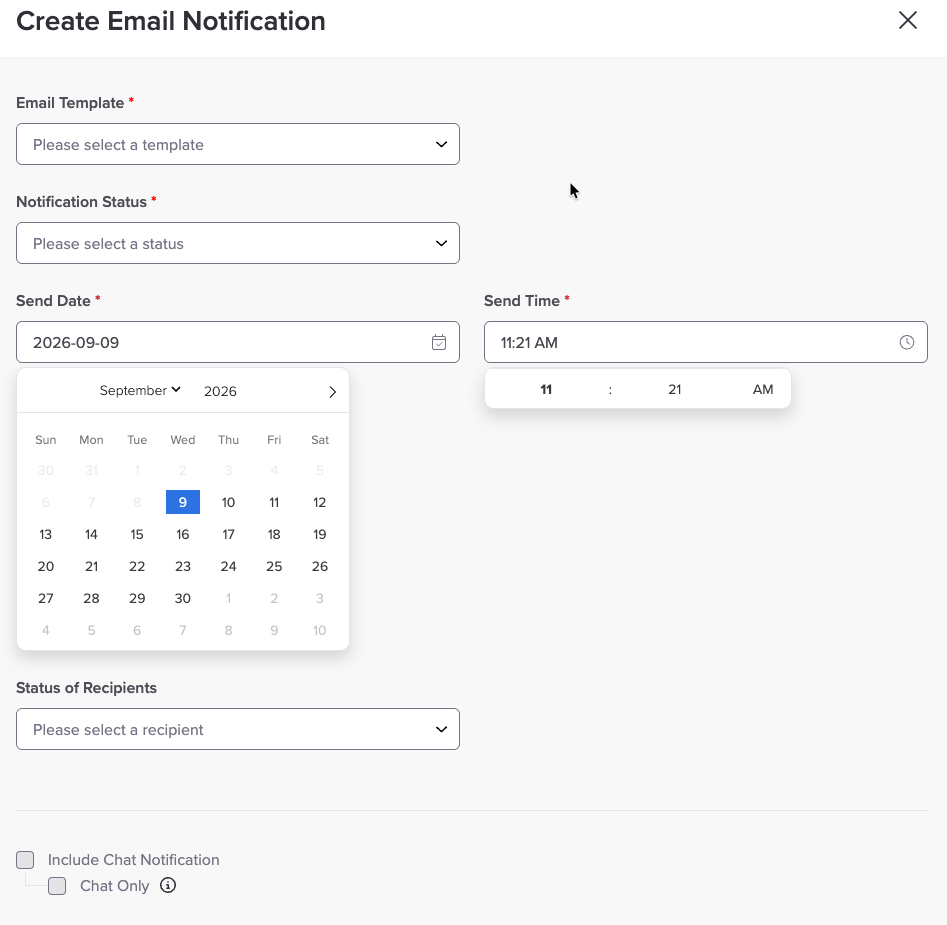
When you create an invitation or reminder in the Launch phase of your event, you will see two check boxes at the bottom of the notification:
- Include Chat Notification sends a Teams message as well as the email. Both go out at the same time.
- Chat Only becomes available once Include Chat Notification is checked. It stops the email, so Teams is the only way the notification is delivered.
Before you use Chat Only
The chat check boxes are available once you have picked an email template for the notification, even if you are sending by chat only. The template is not used and nothing is sent from it, so its wording will not reach anyone.
There is no email backup. Anyone who does not have the Perceptyx app installed in Teams will not get anything while Chat Only is on, so make sure your rollout reached everyone before you switch email off.
For the full walkthrough of creating notifications, see Launch Your Listening Event.
Activate nudges and AI coaching
Needs Activate
Nudges and AI coaching in Teams are part of an Activate subscription.
If your organization has Activate, nudges and coaching come through the same Perceptyx app with no extra setup beyond installing it. To start a coaching session, people just type "Hi", "Hello", or "Help" in their Perceptyx chat.
A note on response rates
Lots of organizations use security tools that check links automatically, before anyone clicks them. Email security tools like Microsoft Defender Safe Links do this, and link protection in Microsoft Teams can interact with links too. When one of these tools checks a survey link, Perceptyx can record it as that person starting the survey, even though they have not opened it.
That can push your response rate higher than the number of people who actually took part, and it can mean someone gets a reminder for a survey they never saw. So read your response rate as a measure of recorded activity rather than an exact count of the people who engaged.
Troubleshooting
"You cannot send messages to this bot"
This is the most common problem when an administrator deploys the app. The person can see the Perceptyx icon in their sidebar, but when they click it the message box is unavailable and they see "You cannot send messages to this bot".
What it means
Perceptyx is pinned for that person, so they see the icon, but it is not installed, so the app cannot send them anything. This is a Microsoft setting rather than a Perceptyx outage. Survey invitations and coaching messages cannot reach anyone in this state.
How to fix it (a Teams administrator needs to do this)
Add Perceptyx to Installed apps as well as Pinned apps, or use Edit installs:
- Modern path: Teams admin center, then Manage apps, then Perceptyx, then Users and groups, then Install app. Choose everyone or the group that is affected.
- Legacy path: Teams admin center, then Setup policies, then the affected policy, then the Installed apps section, then Add apps, then Perceptyx, then Save.
- Newest path: Teams admin center, then Manage apps, then Perceptyx, then Users and groups, then Install app. Or Microsoft 365 admin center, then Settings, then Integrated apps, then Perceptyx, then Edit installs.
After you save, Microsoft needs 1 to 6 hours to roll it out. Once it has, the affected people get the welcome message the next time Teams refreshes, and notifications start coming through.
Microsoft's own documentation on this:
- Send proactive messages (explains why the app has to be installed, not just pinned)
- Preinstall Teams apps for your organization
Some people get notifications and others do not
A common pattern is that people who have been around a while get Perceptyx notifications fine, but newer people, or certain departments, do not. That usually means the setup policy only installed Perceptyx for the people who were there when it was first applied, or that it only pins the app. Newer people never get a real install.
The fix is the same as above: make sure Perceptyx is in Installed apps (or use Edit installs) and that the policy is assigned to everyone who should have it.
"Thanks for your interest in the Perceptyx Microsoft Teams application!"
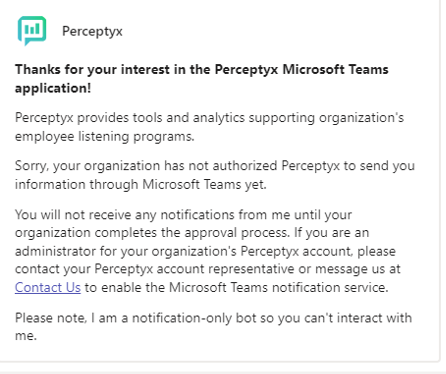
This message means Perceptyx could not yet match the person's Teams account to their employee record. It usually happens when someone installs the app before Perceptyx has finished setting up your organization's account.
Contact your Perceptyx Customer Success Manager with the email address of the person affected. Once the setup is finished on our side, they will automatically get the normal "Welcome to Perceptyx for Teams" message and notifications will start arriving.
Someone cannot see the Perceptyx app at all
If someone cannot find Perceptyx anywhere in Teams, not in the sidebar and not in a search of their apps, check these four things in order:
- Have they signed out of Teams and back in since the policy was applied? Microsoft does not always push changes to a Teams session that is already open. Signing out and back in forces a refresh.
- Does their app permission policy block custom apps? In the Teams admin center, go to Permission policies and check that custom apps are allowed in the policy assigned to them.
- Has the policy actually been applied to them? In the Teams admin center, go to Users, open the person, and check under Policies that their app setup policy is the one that includes Perceptyx.
- For a definite answer, check Microsoft Graph. See Confirm an install with Microsoft Graph above. Whether Perceptyx shows up in the results tells you exactly whether the install finished, whatever the Teams admin center says.
Where to get help
For questions about installing the app, contact your Perceptyx Customer Success Manager. If the problem is messages not being delivered, include the email address of the person affected and roughly when you noticed it, so we can look into it on our side.
Appendix A: Quick reference
Which option to use
| What you want to do | What to do |
|---|---|
| Roll Perceptyx out to the whole organization | Modern: Manage apps, then Perceptyx, then Users and groups, then Install app, then Everyone. Legacy: Setup policies, then Global, then add Perceptyx to both Installed apps and Pinned apps. Newest: Same as Modern, from either the Teams admin center or the Microsoft 365 admin center. |
| Roll out to a pilot group only | Same as above, but install for a specific group, or assign a custom setup policy to that group. |
| Let people install it themselves | Check that Perceptyx is allowed in Manage apps, then send people the link to the Perceptyx listing in the Microsoft Teams Store. |
| Some people have it and some do not | Check the policy assignment, and check that Perceptyx is in Installed apps, not just Pinned apps. Allow 1 to 6 hours for it to roll out. The people affected will get the welcome message automatically. |
Appendix B: Rollout planning questionnaire
Use these questions to plan your Teams rollout. Each answer points to one of the paths in this article, so once you have worked through them, your rollout plan is mostly decided.
How to use this section
Fill this out before your kickoff call with Perceptyx. It makes the conversation shorter and saves a lot of back and forth with your IT team. The check boxes are just there to show the options, so jot your answers down wherever is easiest.
1. Rollout scope
Who in your organization should get Perceptyx notifications in Teams?
- ☐ Everyone in the tenant
- ☐ One specific group (group name): ____________________
- ☐ Phased, starting with a pilot group, then expanding. Pilot group: ____________________
- ☐ Self-install (people opt in themselves from the Microsoft Teams Store)
2. Installation method
How will the app get to people?
- ☐ Administrator push (recommended). IT installs it for people from the Teams admin center.
- ☐ Self-install. People install it themselves from the Teams Store.
- ☐ A mix. Administrator push for some people, self-install for others.
- ☐ Not sure yet. We will set up a follow-up with our IT team.
3. Sidebar pinning
Should the Perceptyx icon be pinned in people's Teams sidebars?
- ☐ Yes, pin it so people can find it (recommended, as well as installing it)
- ☐ No, install only. People will still get notifications without seeing the icon.
Pinning does not replace installing
Pinning on its own does not turn notifications on. Perceptyx has to be in Installed apps (or installed through Edit installs) for the app to send messages. Pinning only controls whether the icon shows in the sidebar.
4. Admin screens
Which admin experience does your tenant use? (Your IT administrator can check by signing in to the Teams admin center.)
- ☐ App-centric management (Modern: Teams admin center, then Manage apps, then Edit installs)
- ☐ App setup policies (Legacy: Teams admin center, then Setup policies, then Installed apps and Pinned apps)
- ☐ Unified app management (Newest: managed from the Teams admin center or the Microsoft 365 admin center, after clicking the Move to unified app management banner)
- ☐ Not sure. IT will check before making the change.
5. Features
Which Perceptyx features will people have?
- ☐ Surveys and reports only
- ☐ Activate nudges
- ☐ Activate AI coaching
6. Admin consent for custom apps
Does your tenant need an administrator to approve custom apps?
- ☐ Yes. IT will approve Perceptyx ahead of time in the Teams admin center under Manage apps.
- ☐ No. Perceptyx is already allowed, or no approval is needed.
- ☐ Not sure. IT will check.
7. Email domains
List every email domain Perceptyx should connect to your Teams setup. We need these to match people's Teams accounts to their employee records. Without them, people see the "Thanks for your interest" message.
Domains (one per line, for example acme.com, acme.co.uk):
____________________________________________
____________________________________________
____________________________________________
8. Microsoft 365 tenant ID
Your Microsoft 365 tenant ID. You can find it at admin.microsoft.com, then Settings, then Org settings, then Organization profile. Or in PowerShell: Connect-MgGraph; Get-MgOrganization | Select Id.
Tenant ID: ____________________________________________
9. Existing installs
Has anyone in your organization already installed the Perceptyx app?
- ☐ No, this is a fresh rollout.
- ☐ Yes, some people have installed it themselves. IT can see how many in the Teams admin center under Manage apps, then Perceptyx, then Users and groups.
- ☐ Not sure
10. Timeline and contacts
- Target go-live date: ____________________
- Your IT or Teams administrator (name and email): ____________________
- Your Perceptyx Customer Success Manager (name and email): ____________________
After you deploy
Make sure one test person gets the welcome message before you announce anything to the wider organization. If they have not seen it within an hour of saving, check Troubleshooting before rolling out further.
Appendix C: Glossary
| Term | What it means |
|---|---|
| Personal scope | A one-on-one chat between a person and an app. Perceptyx sends every notification through each person's one-on-one chat with the Perceptyx app. |
| Pinned apps | A list in a Teams setup policy that controls which apps show in people's sidebars. It does not install the app. |
| Installed apps | A list in a Teams setup policy that controls which apps are actually added to people's Teams. Perceptyx needs to be on it to send messages. |
| Edit installs | The app-centric management version of Installed apps. You find it on each app's page in Manage apps. |
| Welcome message | The first message someone gets from Perceptyx after a successful install. It confirms the app can reach them. |
| App-centric management | Microsoft's Teams admin experience where each app has its own page with an Edit installs action. |
| Unified app management | Microsoft's newest admin experience, turned on from a banner. It manages apps for Teams, Outlook, and Microsoft 365 Copilot in one place, from either the Teams admin center or the Microsoft 365 admin center. |
| Integrated apps | The Microsoft 365 admin center's version of Manage apps, used with unified app management. Find it at admin.microsoft.com, then Settings, then Integrated apps. |
| Tenant ID | Your organization's unique Microsoft 365 identifier, a long string of letters and numbers. Find it at admin.microsoft.com, then Settings, then Org settings. |
What's next
The app is in and your welcome messages are showing up. Launch Your Listening Event walks through sending your invitations and reminders, including how to send them through Teams instead of email.
Was this article helpful?
That’s Great!
Thank you for your feedback
Sorry! We couldn't be helpful
Thank you for your feedback
Feedback sent
We appreciate your effort and will try to fix the article