The Perceptyx App for Slack is an integration that delivers notifications from the Perceptyx Platform directly within Slack. It helps employees and managers stay informed about surveys, reports, and action-planning activities without leaving their Slack workspace.
The Perceptyx app enables organizations to:
Send survey invitations and reminders to employees.
Notify managers when they are invited to participate in a 360 assessment.
Alert managers when new reports are available in their Perceptyx account.
Organizations with an Activate subscription can also:
Provide insights and recommendations that support action planning.
Deliver personalized nudges that promote habit-forming behaviors.
This article walks through:


Prerequisites
Before installing the Perceptyx app, ensure the following requirements are met:
A Slack Workspace Owner must install and approve the integration for workspace members.
Employee email addresses provided through your HRIS must match the email addresses employees use to authenticate with Slack.
The following Slack workspace setting must be disabled:

The Perceptyx integration is not listed in the Slack App Directory, so this setting must be turned off before installation.
Workspace Owners can review this setting in Slack App Management Settings (https://{{WORKSPACE_ID}}.slack.com/apps/manage/settings).


Installing the Perceptyx Slack App
The Perceptyx Slack App can be installed from the Perceptyx Landing page.
Navigate to the Perceptyx Landing page.
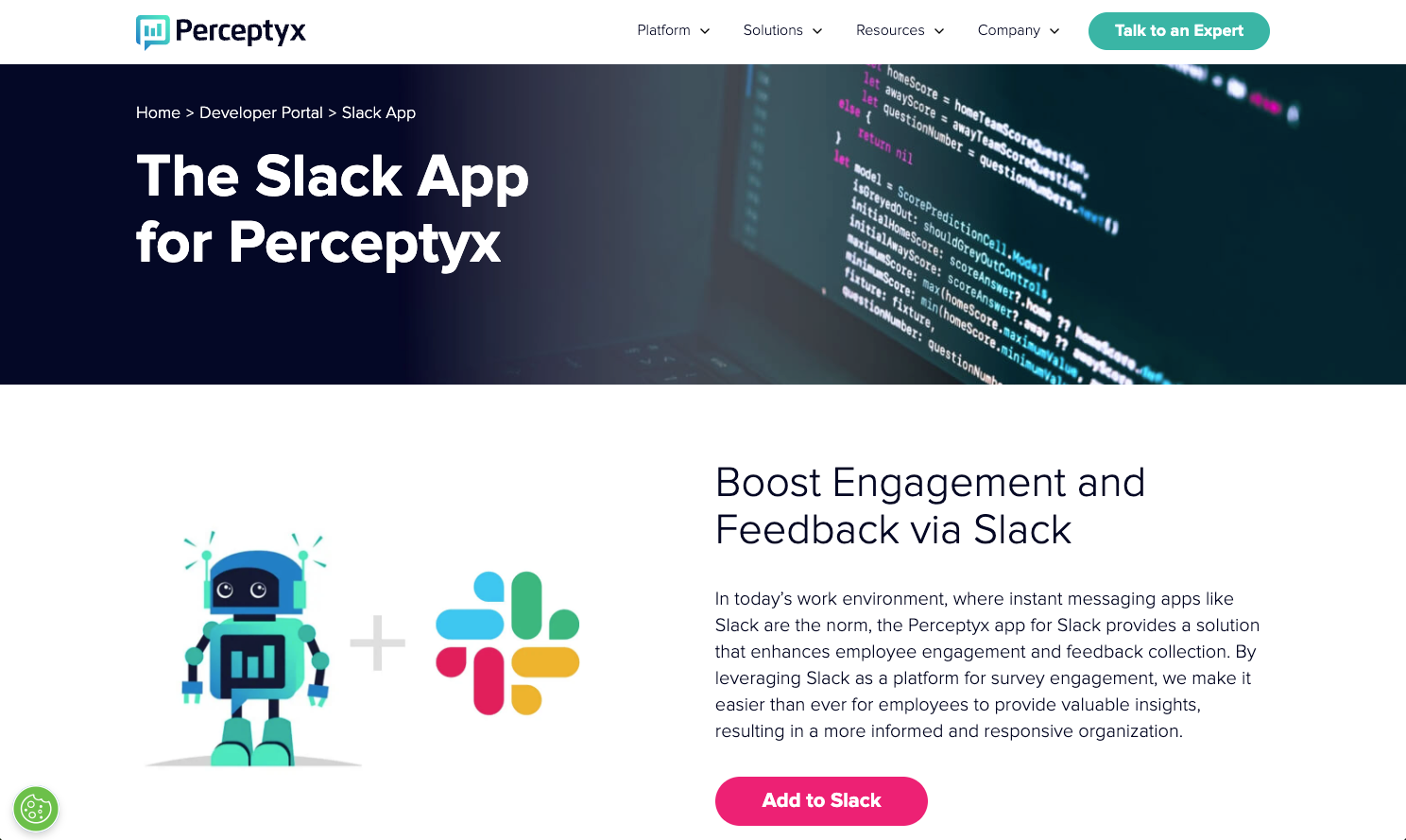
Click Add to Slack.
Follow the Slack prompts to authorize and install the integration.
Once installed, the Workspace Administrator can install the Perceptyx app for all users in the Slack workspace.
No additional setup is required. Employees will begin receiving Slack messages when surveys, reports, or action recommendations become available.


Enabling Notifications Through Slack
To send event notifications through Slack, the event Admin or Creator must first enable the feature for each event to trigger its specific notifications.
For Self-Led Point-In-Time and Lifecycle events: Enable the Include Chat Notification checkbox when scheduling your event invitation and reminder emails. Slack notifications are sent at the same time the emails are delivered.
For detailed information, see the Launch Your Listening Event | Point-In-Time & Lifecycle article.
For 360 Feedback events or your Activate subscription: Contact your Perceptyx Program Manager.


Troubleshooting
If you receive a “Thanks for your interest in the Perceptyx Slack application!” message after installing the Perceptyx App, it means the Perceptyx system was not able to associate your Slack account with your Perceptyx account.
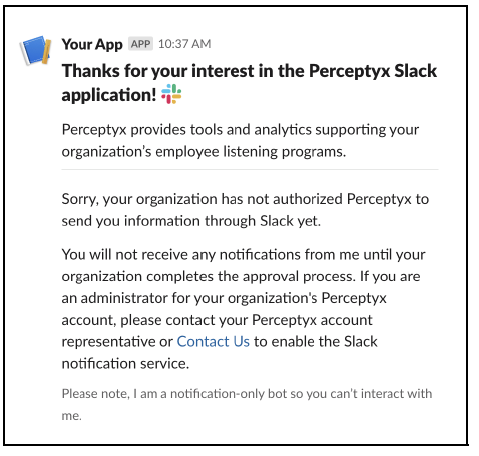
If you are an individual user, please contact your Slack Workspace Administrator.
If you are the Slack Workspace Administrator, please contact your Perceptyx Program Manager or Customer Success Manager and provide the email address of the employee(s) who received the message.
Once your company’s Perceptyx account is configured to recognize your Slack domain, a “Welcome to Perceptyx for Slack” message will be sent to employees who were not previously recognized. Future survey invitations and action or information alerts will then begin to automatically appear for these employees.
Was this article helpful?
That’s Great!
Thank you for your feedback
Sorry! We couldn't be helpful
Thank you for your feedback
Feedback sent
We appreciate your effort and will try to fix the article