Act
How to find your own action plans, check in on the plans your team has made, and download action planning data for a listening event.
Before you start
You can look at your action plans any time you like. Depending on your permissions, you might also be able to see other people's action plans and whether they've finished them. That's handy for spotting which plans are working and who could use a nudge to get started or wrap up. You can also download the details for every action plan in a listening event.
Everything here lives on the Act page. You can get there directly, or jump over from the Advanced Reporting Dashboard while you're looking at your results.
This article walks through
View your own action plans
You can see all of your action plans, including any that someone else assigned to you.
From the Act page
- Log in to the Perceptyx platform.
- In the top navigation bar, click Act. The Act page opens, and the Active action plans section shows a card for each plan you're working on right now.
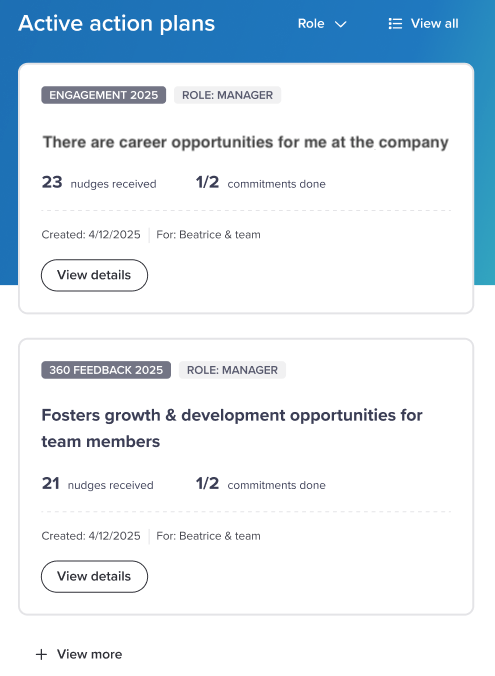
The labels at the top of each card tell you which listening event the plan belongs to and which role you were using when you made it. Some people have more than one role, like Manager and HR Business Partner. If someone assigned the plan to you, the role label reads Assigned to Me.
Got more than one role? Open the Role dropdown, check the roles you want to see, and uncheck the ones you don't. Click anywhere outside the dropdown to close it.
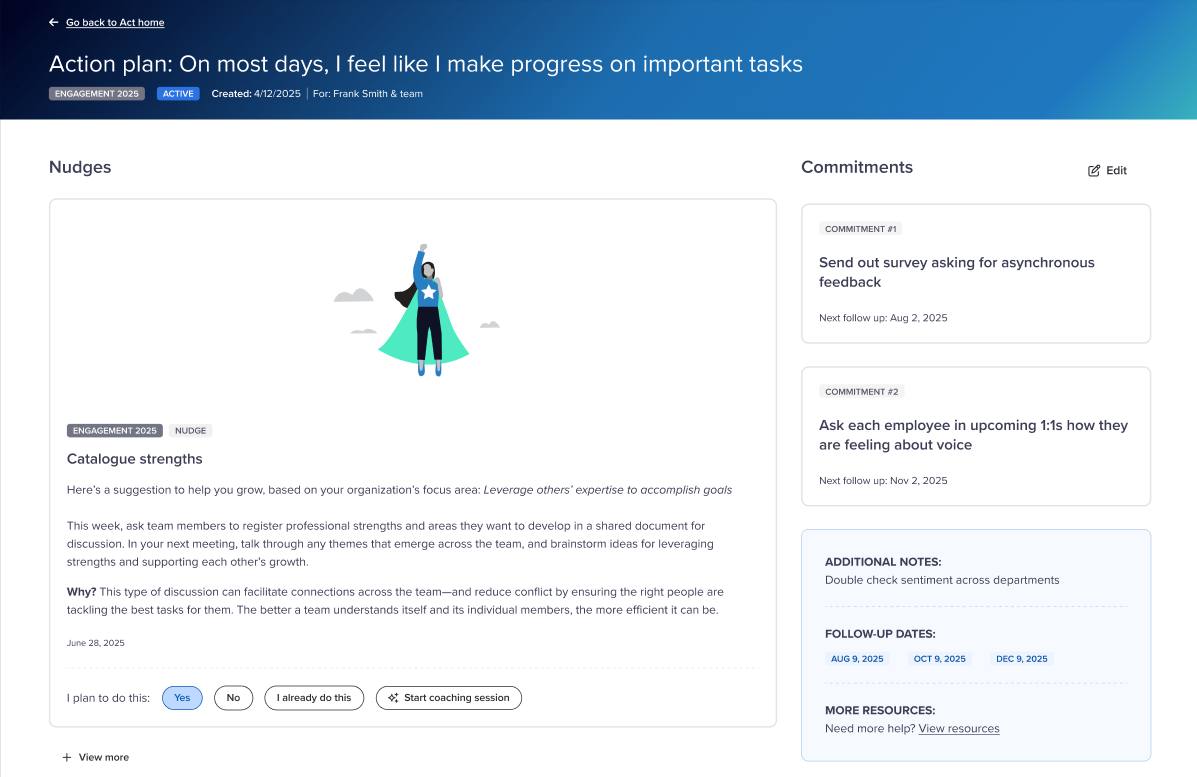
- Click View details on a card to see its commitments, follow-up dates, and any nudges you've received.
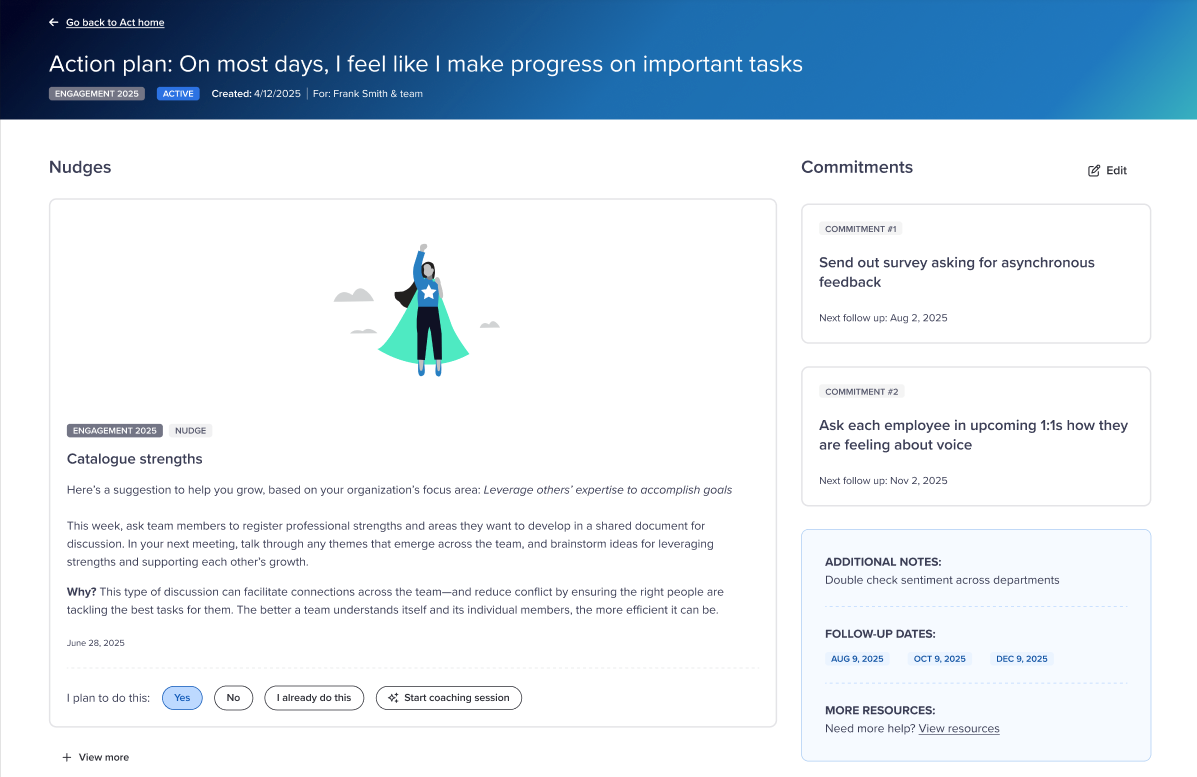
You can also pull up a full list of your action plans, both active and completed.
- Click Go back to Act home in the top left, then click View all in the Active action plans section. Your plans are grouped by listening event.
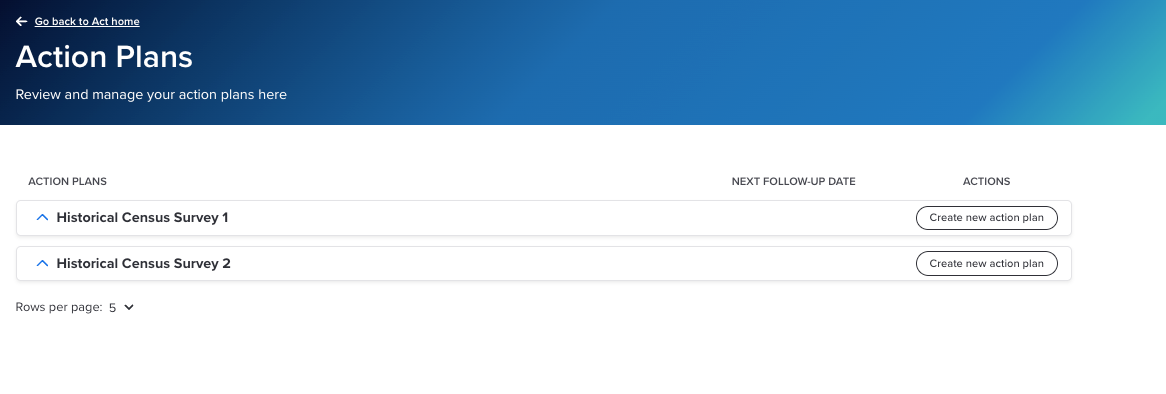
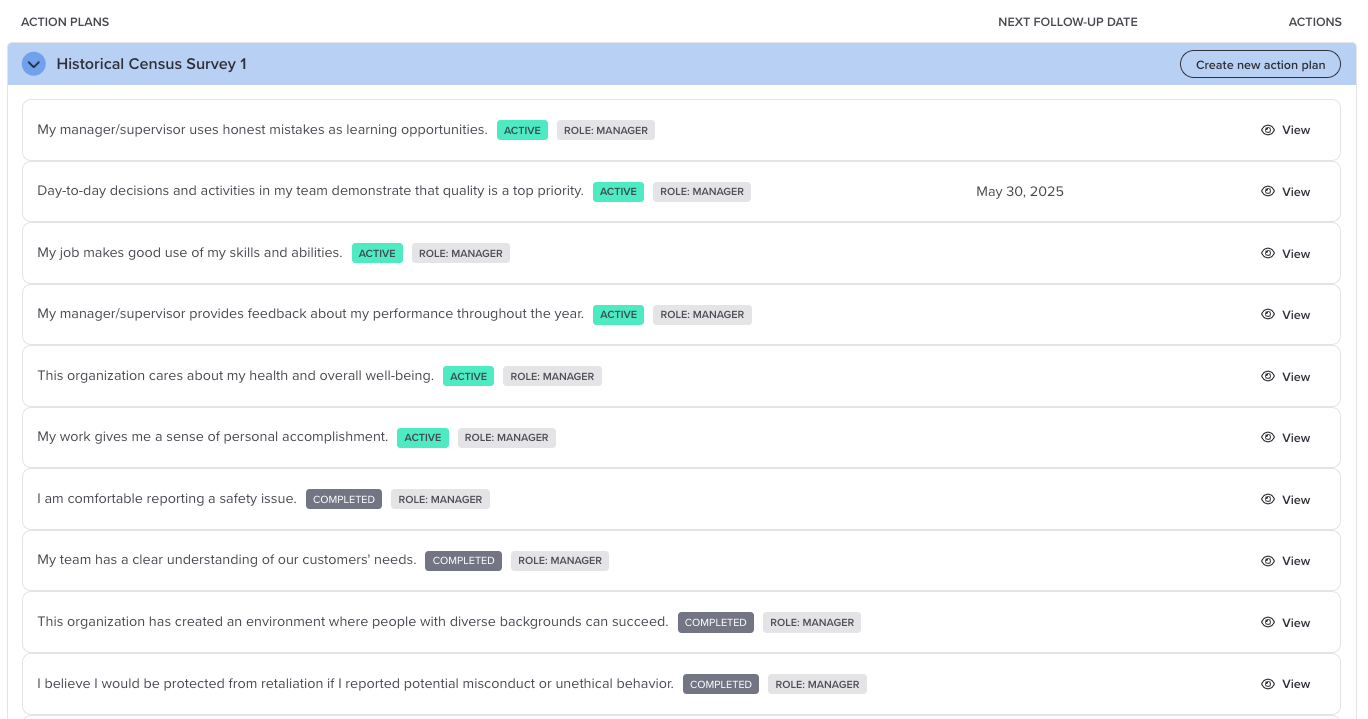
- Click the expand icon next to a listening event to see its action plans.
- Click View on any plan to open it.
From the Advanced Reporting Dashboard
If you're already working in the Advanced Reporting Dashboard, you can open any action plan you've made for that event without leaving your results. Items you've built a plan for show a View Action button. That's true whether you made the plan from a dashboard widget, from the Favorability Report (Point-In-Time and Lifecycle events), or from the Detailed Scores Report (Perceptyx-led 360 feedback events).
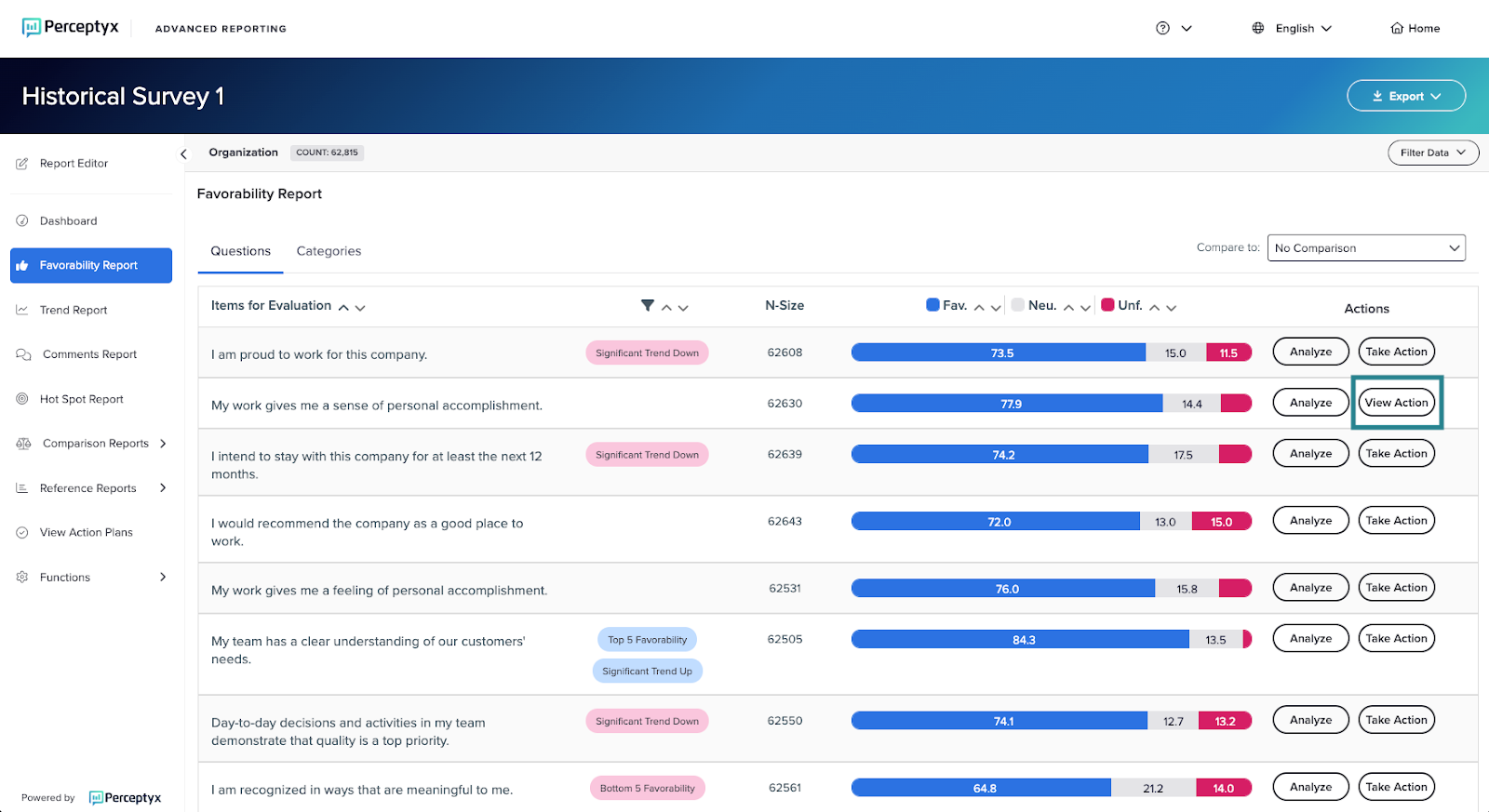
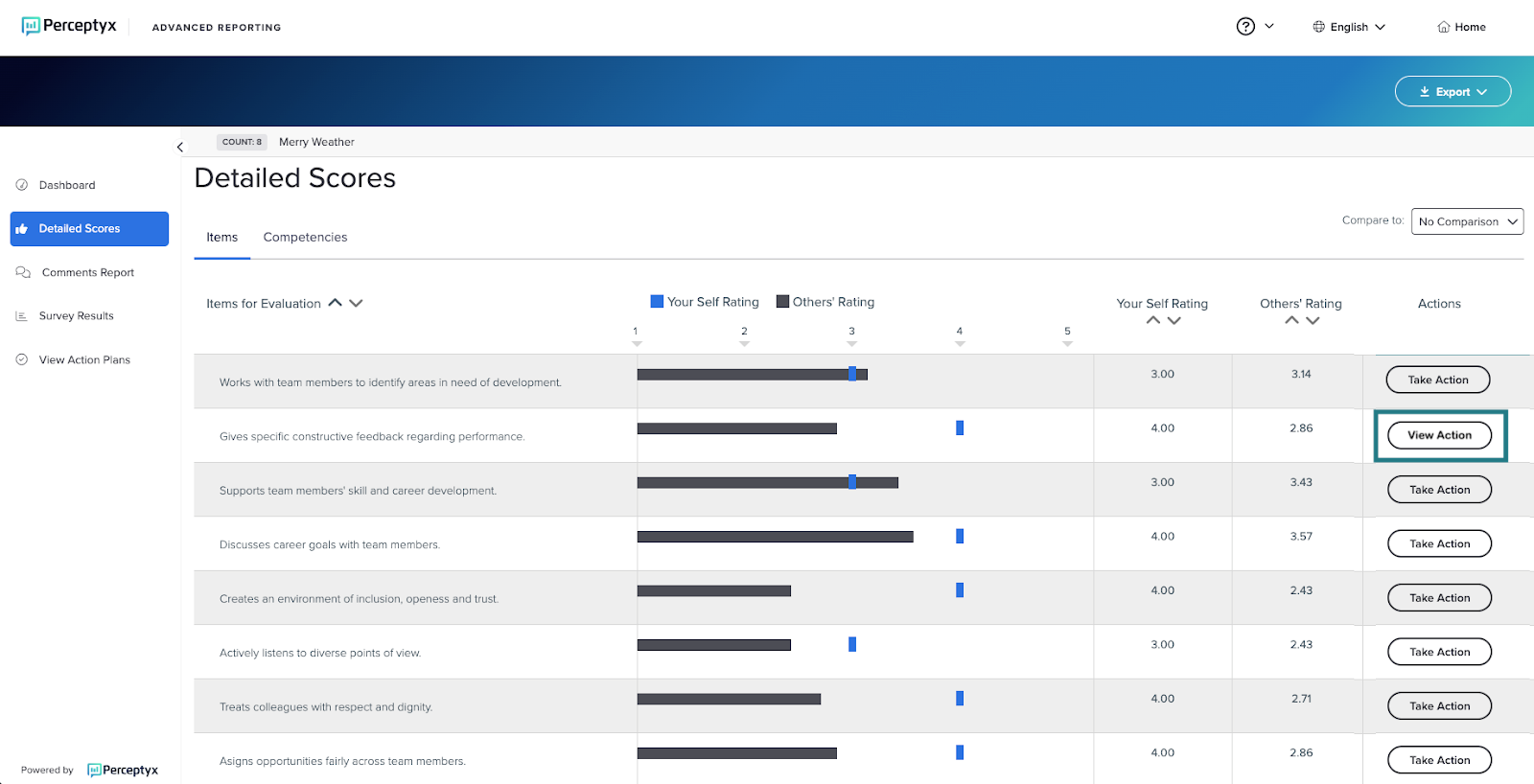
- Go to the Advanced Reporting Dashboard, the Favorability Report, or the Detailed Scores Report, whichever you used to make the plan.
- Click View Action next to the item. The action plan opens on the Act page.
View other people's action plans
If you support teams or have direct reports who make their own action plans, and you have the right permissions, you can look at their plans too. You do this from the Act Metrics dashboard, which you can reach from the Act page or from the Advanced Reporting Dashboard.
From the Act Metrics dashboard
- Go to the Act page.
- Open the Advanced Tools dropdown at the top, then select Act Metrics. The Act Metrics dashboard opens. Pick a listening event to see the top items people are action planning on and a participation breakdown. You can also search for a specific person's action plans.
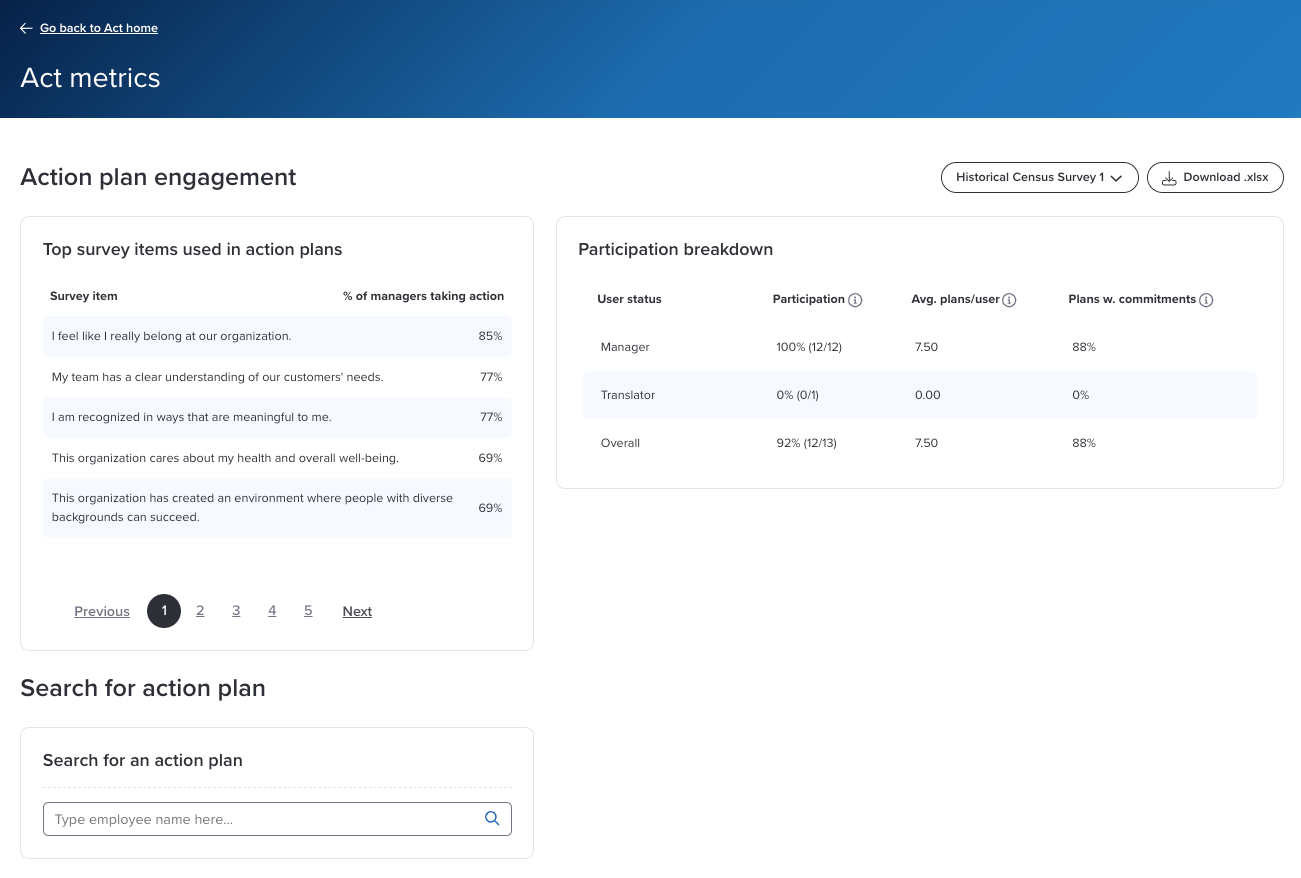
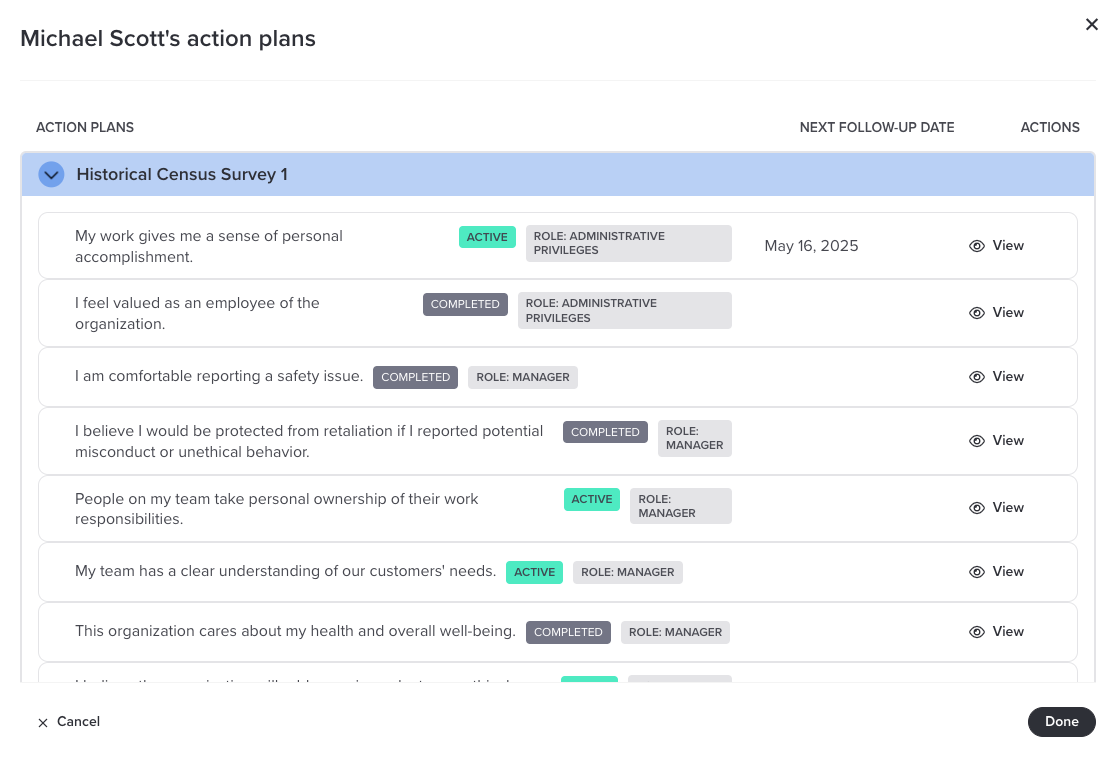
- Click the search box under Search for action plan and start typing the person's name. Pick them from the list as it fills in. A window opens with that person's action plans.
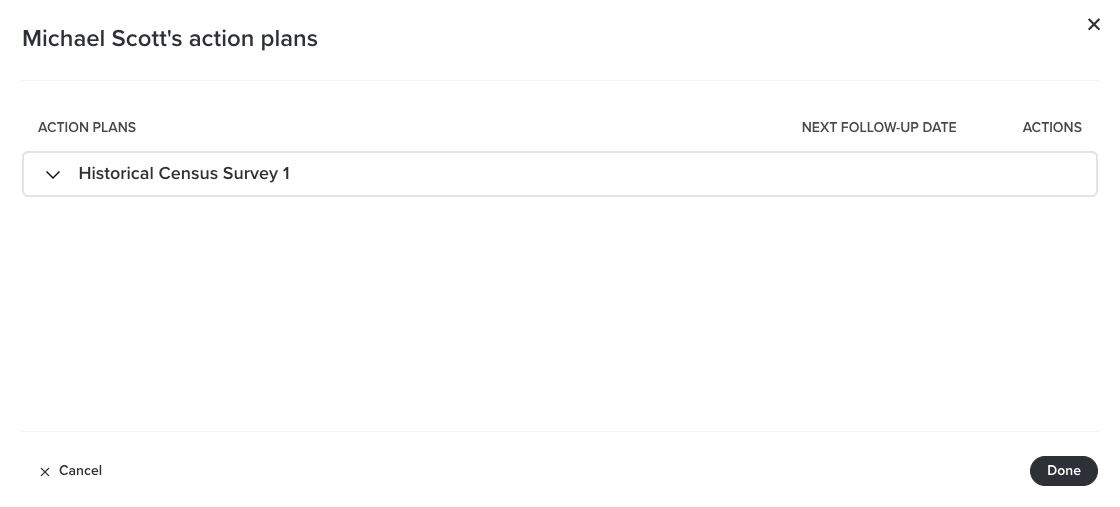
- Click the expand icon next to the listening event you want. Its action plans appear.
- Click View on any plan to see the details.
From the Advanced Reporting Dashboard
- In the side panel, click Functions, then select Act Metrics. The Act Metrics dashboard opens.
Note
Don't see Act Metrics in the side panel? Your dashboard might not be set up to show it. Click View Action Plans instead, which takes you to the Act page. From there, open the Advanced Tools dropdown and select Act Metrics.
- Click the search box under Search for action plan and start typing the person's name. Pick them from the list. A window opens with their action plans.
- Click the expand icon next to the listening event you want.
- Click View on any plan to see the details.
View action plans you've assigned to others
If you've assigned action plans to groups of people, you can see all of them in one place.
- Go to the Act page.
- In the Active action plans section, click View all.
- Click the Action Plans I’ve Assigned to Others tab. You'll see a list of every event you've assigned plans for.
- Click the expand icon next to an event to see the plans you assigned for it.
- Click View on any plan to see the details.
Download action planning data
If you have the right permissions, you can download the action planning data for a listening event as an Excel file. The file has four tabs: participation metrics, the items people are action planning on most, the details for every user and plan, and a list of users who haven't made a plan yet. You can dig into the data right in the file, or bring it into whatever other analytics tools you use.
Depending on how your organization has action planning set up, you'll download from either the Act Metrics dashboard or the Advanced Reporting Dashboard.
From the Act Metrics dashboard
- Go to the Act page.
- Open the Advanced Tools dropdown, then select Act Metrics. The Act Metrics dashboard opens.
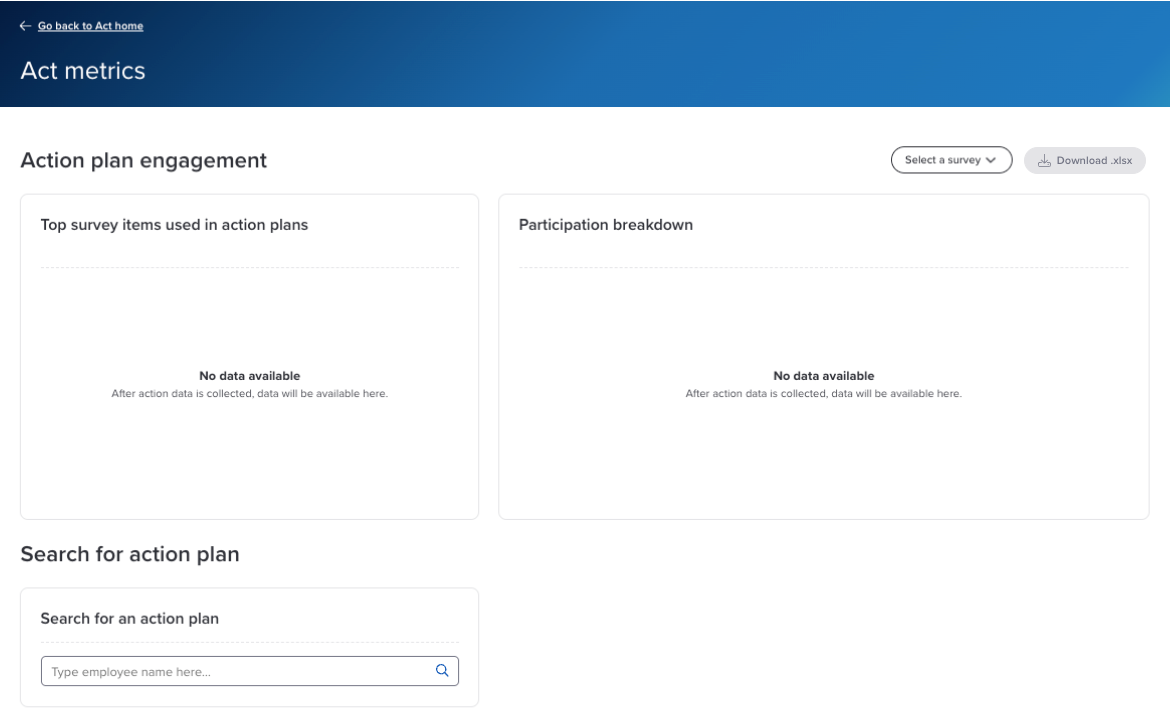
- Click Select a survey in the top right to see the listening events you have access to.
- Click the event you want data for. Its metrics load into the dashboard and the Download .xlsx button becomes active.
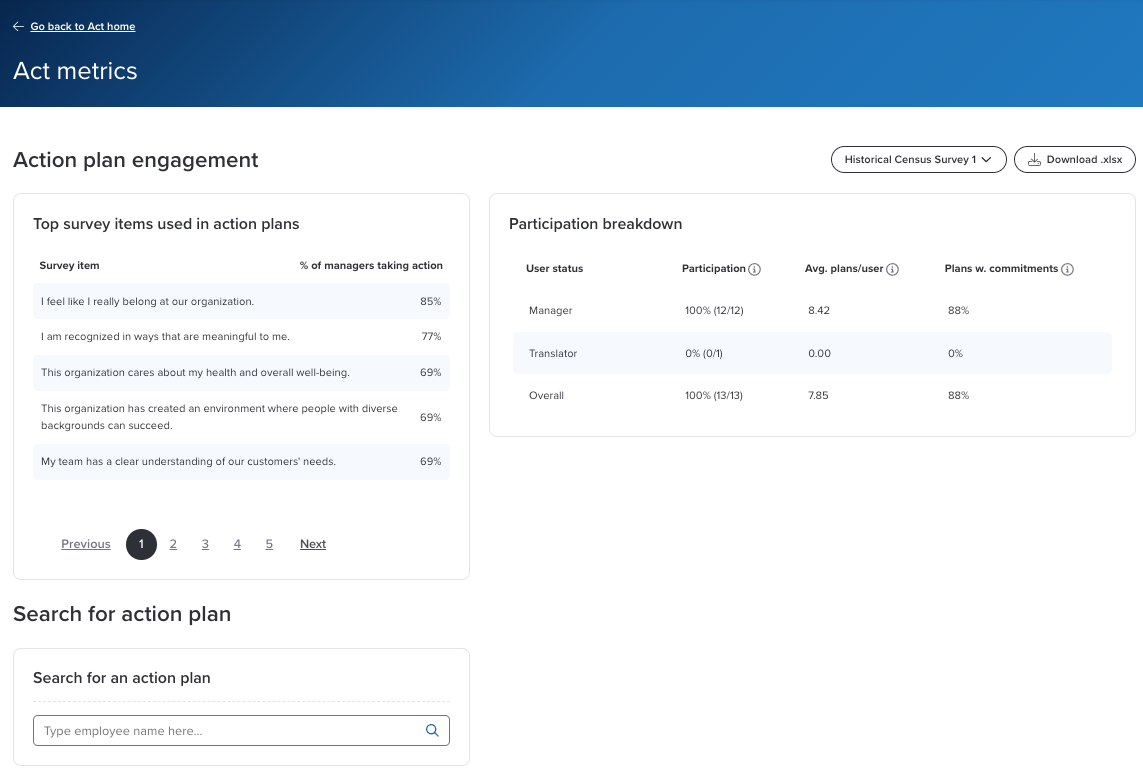
- Click Download .xlsx in the top right. The file saves to your default download location.
- Open the file from your download location.
What's in the file
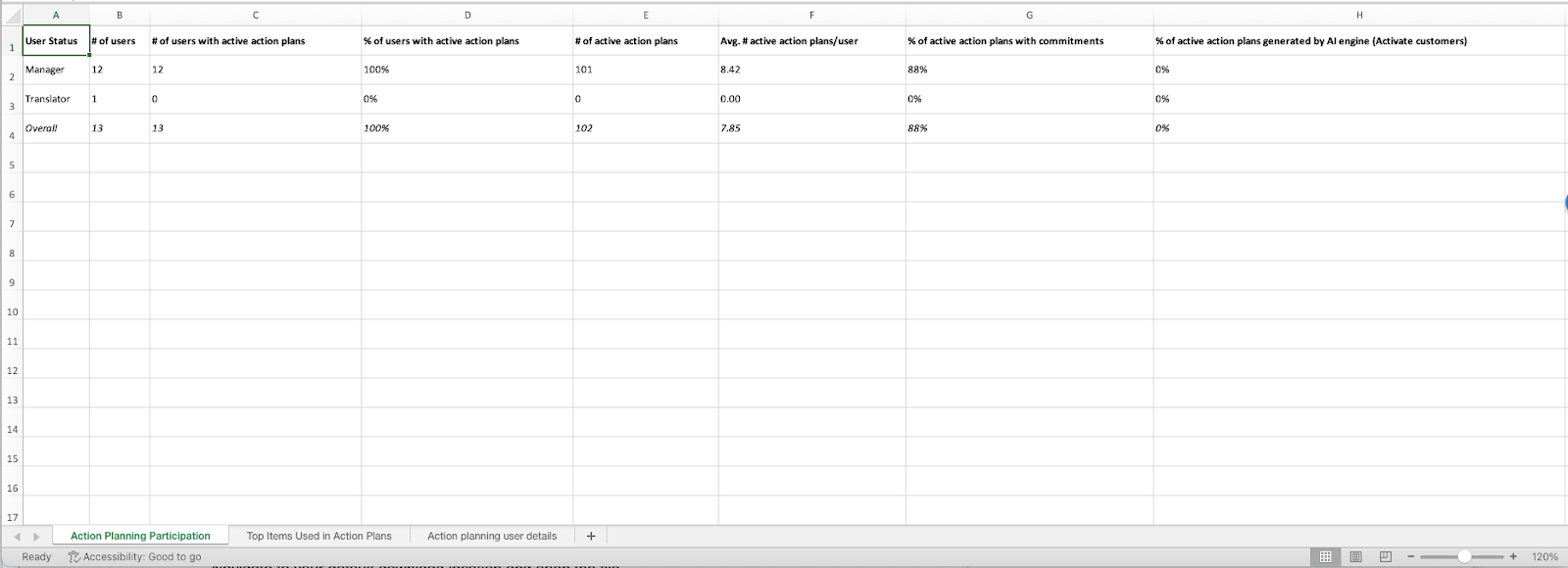
Action Planning Participation. Action planning metrics for each user type: how many and what percentage of users have active action plans, how many active plans there are, active plans per user, the percentage of active plans with commitments, and the percentage of active plans generated by Activate (only for organizations with Activate).
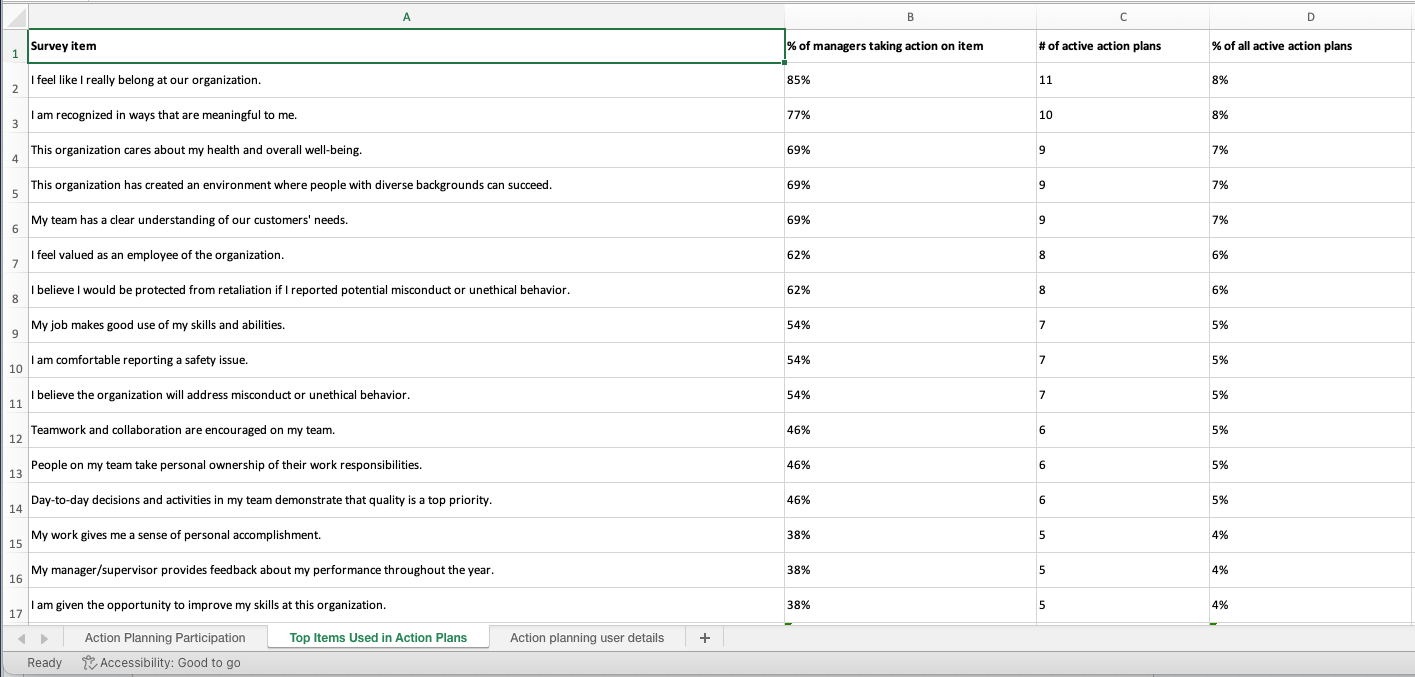
Top Items Used in Action Plans. The items people action plan on most, plus the percentage of managers taking action on each item, the number of active plans for each item, and the percentage of all active plans that use each item.
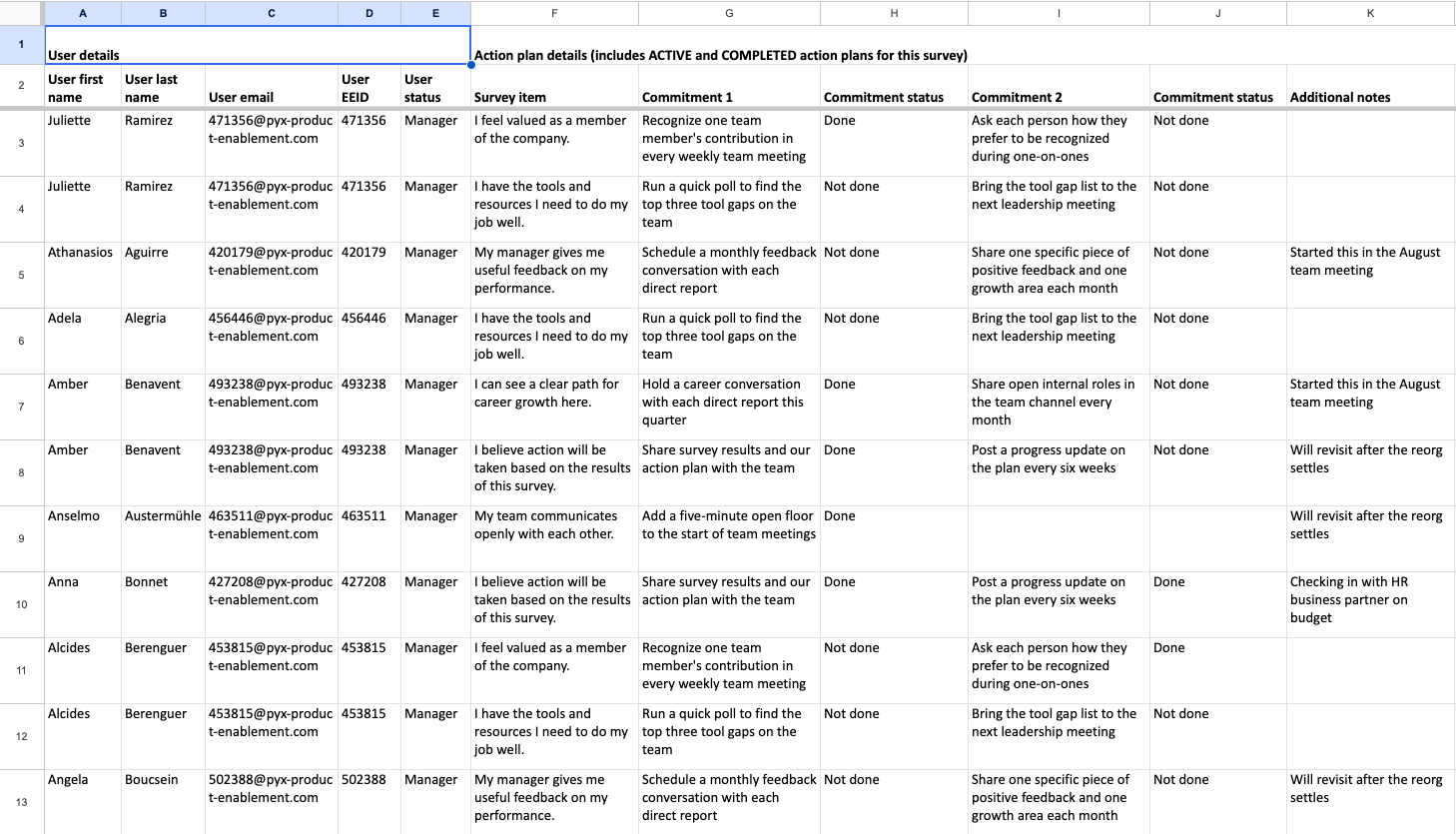
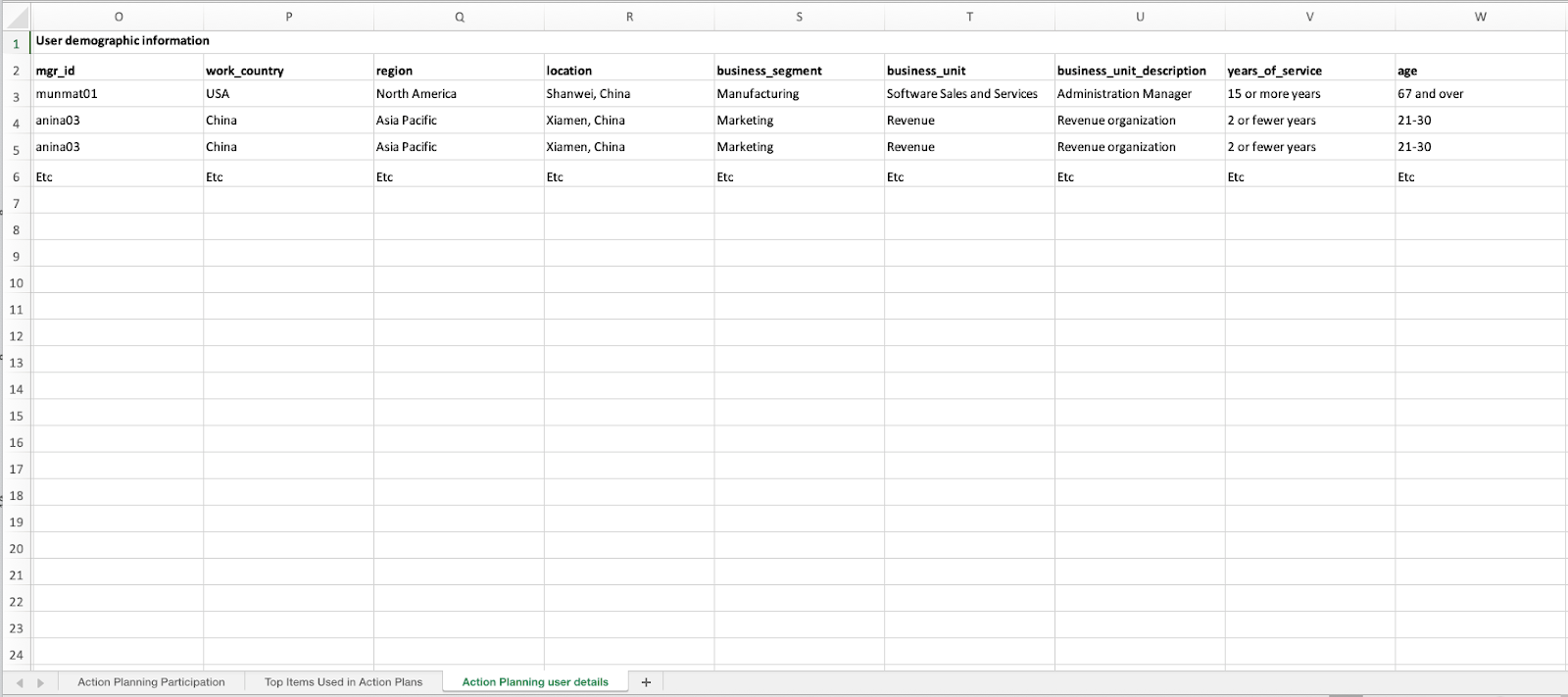
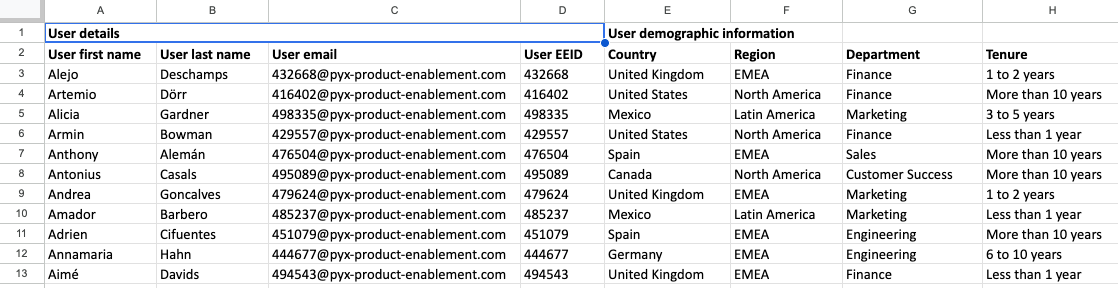
Action Planning User Details. Displays user details and action plan details, including the item used for each action plan, and the commitments, commitment status, additional notes, follow up dates, and action plan status. The Created By column shows who made the plan. That could be the user, someone who assigned it to them, or Activate if the plan was generated automatically. This tab also includes each user's demographic information, so you can look at action planning engagement by group and spot trends across your organization.
Users Without Action Plans. Displays users that have not created an action plan yet regardless of status. This tab also displays demographic information if enabled, enabling analysis of non-participation by group.
From the Advanced Reporting Dashboard
- In the side panel, click Functions, then select Act Metrics. The Act Metrics dashboard opens.
Note
Don't see Act Metrics in the side panel? Your dashboard might not be set up to show it. Click View Action Plans instead, which takes you to the Act page. From there, open the Advanced Tools dropdown and select Act Metrics.
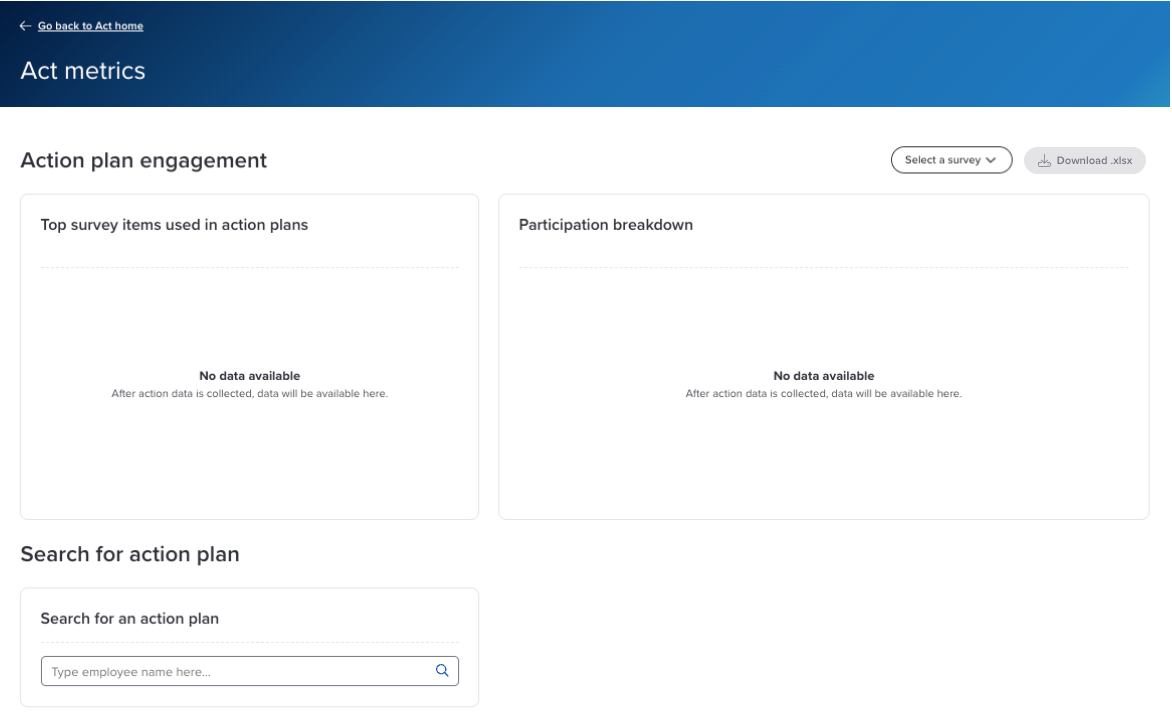
- Click Select a survey in the top right to see the listening events you have access to.
- Click the event you want data for. Its metrics load and the Download .xlsx button becomes active.
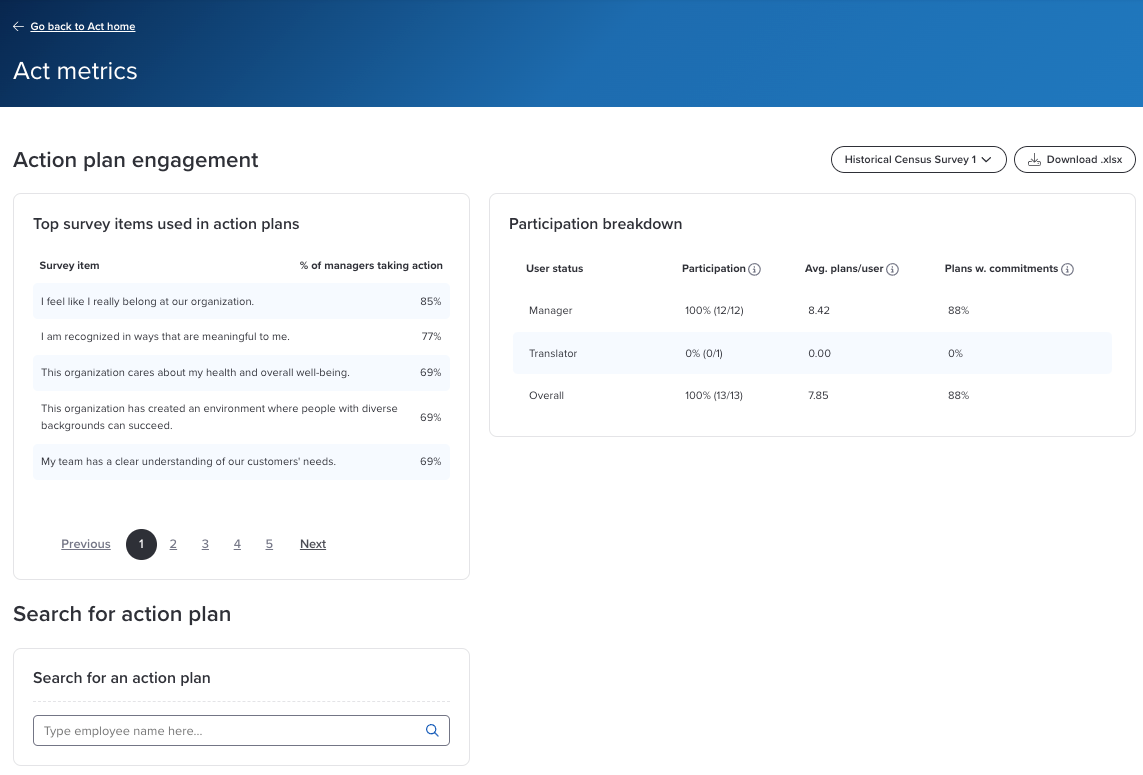
- Click Download .xlsx in the top right. The file saves to your default download location.
- Open the file from your download location. It has the same four tabs described above.
Note
If your organization isn't using Act for action planning, the Advanced Reporting side panel shows View Action Plans instead of Act Metrics. To download your data, click View Action Plans, click Export in the bottom right, then select Export PDF or Export Excel.
What's next
Found a plan that needs a tweak? Edit and Manage Action Plans walks through updating a plan once it's underway.
Was this article helpful?
That’s Great!
Thank you for your feedback
Sorry! We couldn't be helpful
Thank you for your feedback
Feedback sent
We appreciate your effort and will try to fix the article