Listen
Your Lifecycle event is built. This is where you turn it on and set up the emails that go out on their own, every time someone reaches a milestone.
A Lifecycle event works differently from a one-time survey. Every weekday morning, the platform checks your employee data for people who have just qualified, using the rules you set up when you built the event. Those rules are called sensors, and they add people to your event automatically, like new hires or people leaving. Anyone new gets their invitation that day, and reminders follow on the schedule you set until they finish.
The Launch phase is where all of that gets switched on. You make the event active, then set up the recurring notifications that invite and remind people. Before you do, it is worth a quick check, from the Invite phase, that your sensors pick up the right people.
Before you start
Build your emails first, in the Communications phase. That means your invitation plus any reminders you want, and a separate version of each for any group that should get different wording. Create and Test Your Listening Event Communications walks through it.
This article walks through
Get to the Launch phase
There are two ways in, and everything else in this article happens from the page they take you to.
From within the Event Builder
- Click Launch in the left panel.
From Listen
- In the Live Events section or the All Events section, click Manage Event for the event you want to launch.
The Event Builder opens, displaying the Overview page. - In the left panel, click Launch.
The Review tab appears, showing a high-level summary of your event.
Check who will be invited
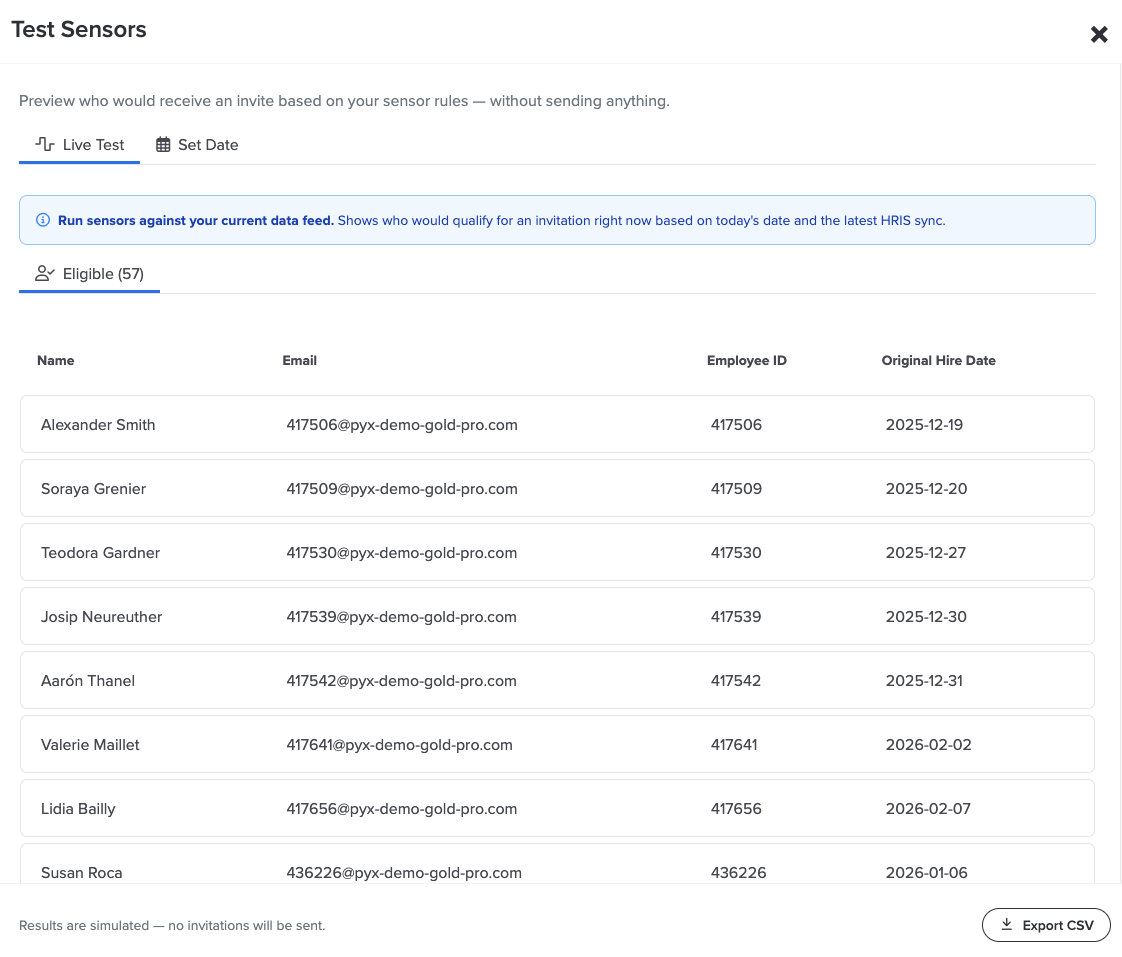
Before you go live, it is worth checking that your sensors pick up the right people. A sensor with the wrong date field or filter can quietly invite people who should not get a survey, which matters a lot for something like an exit survey. Test Sensors shows you exactly who would be invited, without sending anything.
Test Sensors sits in the Invite phase, next to your sensors, rather than in Launch. You can run it any time, before or after your event is active.
- In the left panel, click Invite.
The Sensors page opens, showing the rules that decide who receives your event. - Click Test Sensors at the top right.
The Test Sensors window opens on the Live Test tab. It runs your sensors against today's date and your latest employee data, and the Eligible list shows the name, email, and employee ID of everyone who would be invited right now. - To check a different day, click Set Date, pick a date under Run sensors as if today were, then click Run Test.
The Staged list shows who would qualify on that date. This is handy for rolling windows like a hire date in the next 15 days, or when nobody happens to qualify today. - To keep a copy of the results, click Export CSV. Close the window with the X when you are done.
Nothing is sent and nothing is saved
Test Sensors is a preview only. No invitations go out, and the results are not kept, so export them if you want a record. Testing is also optional. It does not stop you from making your event active.
Making your event active is what switches it on. From then on, your sensors start adding people, and your recurring notifications start inviting them. Until you set up a notification, people who qualify are added to the event but are not emailed, so plan to do the next section straight away.
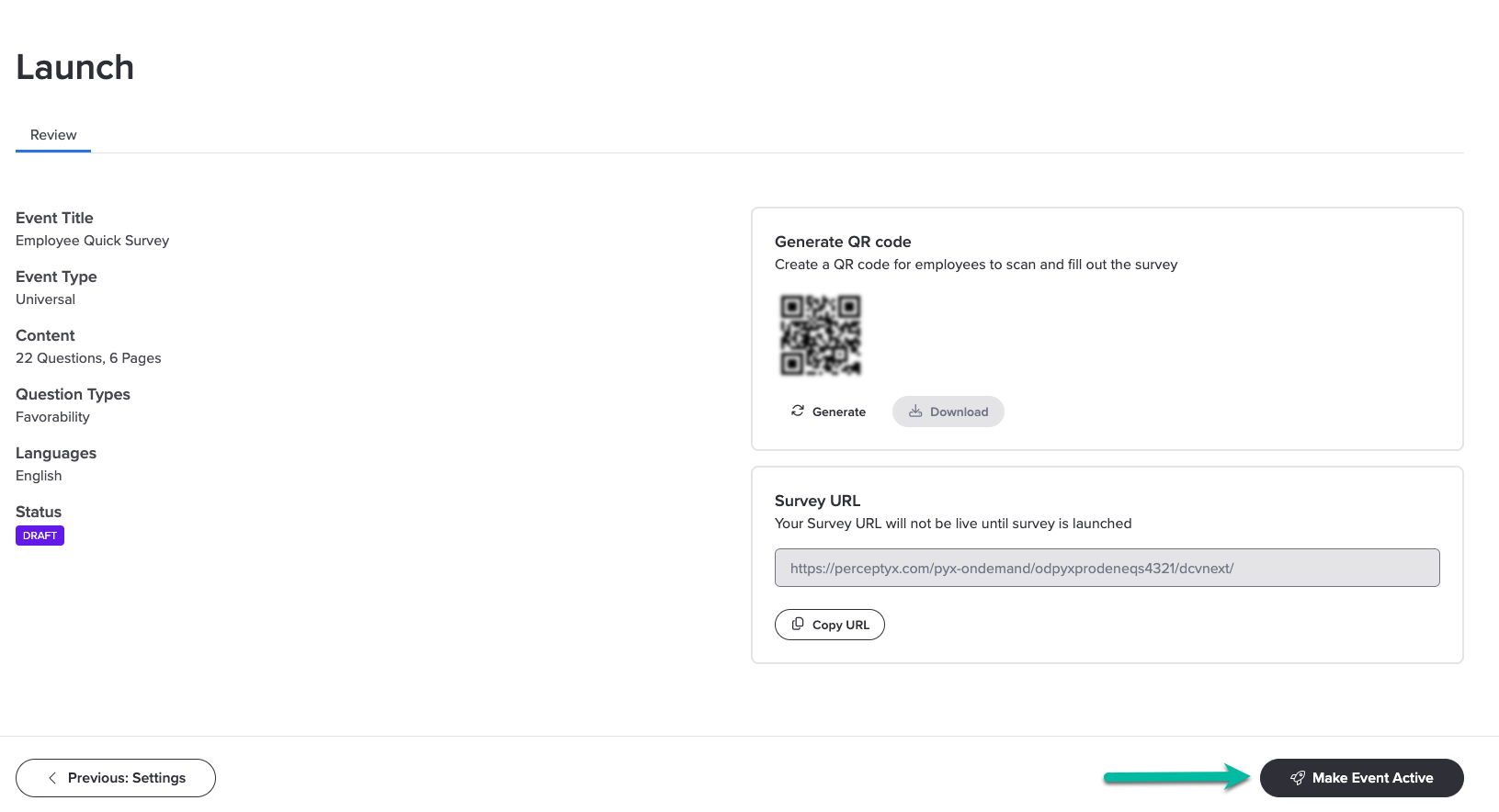
- Review the details for your event, then click Make Event Active at the bottom right.
A confirmation message appears. - Click Confirm.
A message appears asking whether you want to keep working on the event or head back to Listen. - Close the message by clicking the X icon to stay on the Launch page.
The event is now active.
Lifecycle events do not usually close
A Lifecycle event is meant to keep running, so you do not need to set a close date. If you ever do want it to stop, click Schedule Closed Date on the Review tab and pick a date and time. Once it closes, nobody new is added or invited.
How Lifecycle notifications work
A recurring notification is an invitation plus the reminders that follow it. Three things are worth knowing before you build one:
- You can have more than one. Each notification can be aimed at a different group of people, with its own emails and its own reminder schedule.
- One notification can catch everyone else. A notification without a demographic goes to everyone who does not match any of your other notifications. You can only have one of these, and it is what makes sure nobody gets missed.
- Invitations go out once each weekday. As people qualify, they get their invitation that day. There is no send time or time zone to pick for Lifecycle notifications.
If your event only needs one invitation and one set of reminders for everybody, you only need one notification, with no demographic.
Create a recurring notification
- On the Launch page, click the Send tab.
Your recurring notifications are listed in a table. - Click + Add Recurring Notification.
The Create Recurring Notification panel opens. - In Name Recurring Notification, give it a name you will recognize later, like Onboarding invitation, Mexico. This only shows in your table. Participants never see it. If you skip it, the table shows a short summary of the email and group instead.
- Pick the email template for the invitation.
- Add your reminders, if you want any. Set up reminders covers how they work.
- To send this notification to a specific group only, pick a demographic and its values. Leave it empty to make this the notification that goes to everyone else. Send different emails to different groups explains the choice.
- If you want it delivered through chat, use the check boxes described in Send through chat instead of email.
- Click Save.
The notification appears in the table and starts running right away.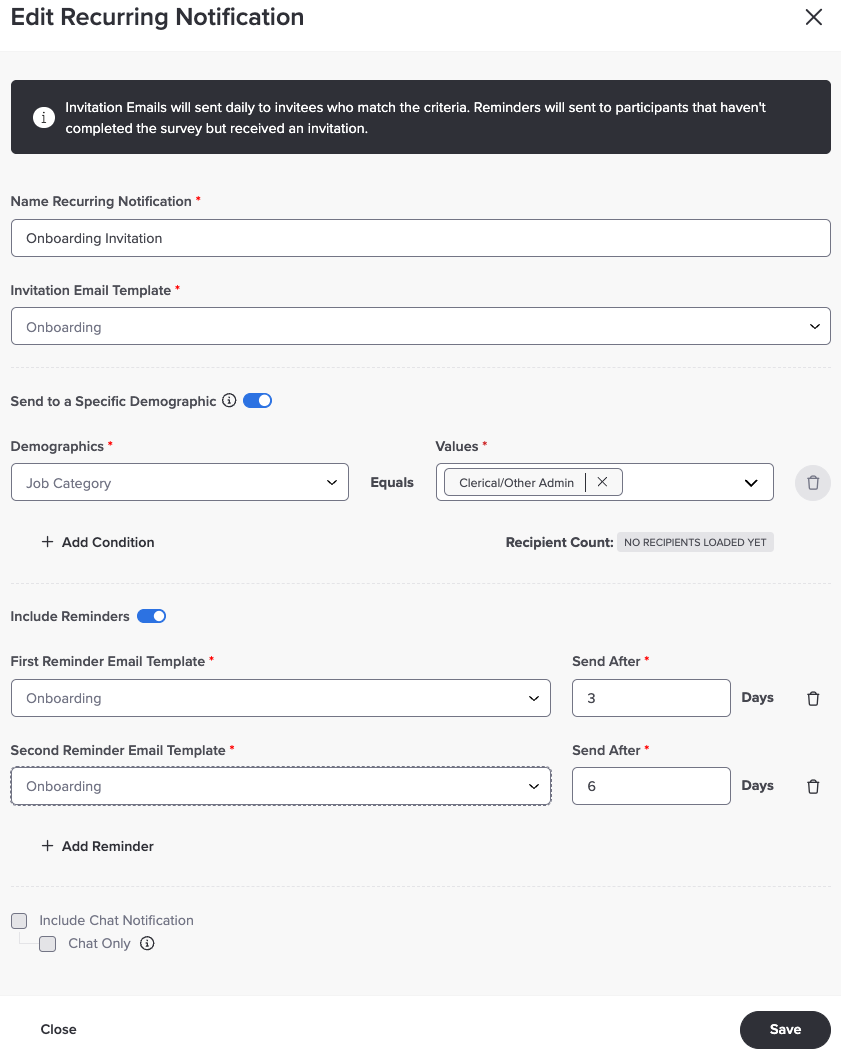
Set up reminders
Each reminder is its own step, with its own email template and a number of business days. Reminders only go to people who have not finished, so anyone who has submitted stops hearing from you.
Using a different template for each step means you can start gentle and end firmer, instead of sending the same invitation over and over. You can add up to five reminders.
How the days are counted
The number of days on each reminder counts from the invitation, not from the reminder before it. Business days only, so weekends do not count.
| Reminder | Days entered | When it goes out |
|---|---|---|
| First reminder | 3 | 3 business days after the invitation |
| Second reminder | 6 | 6 business days after the invitation |
| Third reminder | 10 | 10 business days after the invitation |
If you enter the steps out of order, they still go out shortest first.
Adding and removing reminders
- New reminders are added to the end of the list. You cannot drag them into a different order.
- If you remove a reminder from the middle, the ones after it move up.
- Remove every reminder and the notification sends the invitation only.
Already had reminders turned on?
If your event was sending reminders before, you will see them here as two reminder steps, three business days apart, using your invitation email. You can keep them as they are, or change the templates and timing however you like.
Send different emails to different groups
You might want new hires in one country to get an invitation in their own language, or frontline teams to get a shorter, simpler email than office staff. To do that, give each group its own notification.
Picking a group
You pick one demographic, like Country or Department, and then one or more values from it. Anyone who has any of those values gets the notification. You can only use one demographic per notification, so a group like people in Mexico and in Sales is not something a single notification can do. The list comes from your organization's employee data, so the demographics you can pick depend on what your organization sends to Perceptyx.
Matching uses each person's employee data at the moment they qualify.
The notification for everyone else
Leave the demographic empty on one notification, and it becomes the catch-all. It goes to everyone who did not match any of your other notifications, so they get one email, never two.
Say you have a notification for Country: Mexico with a Spanish invitation, and a notification with no demographic using your standard invitation. New hires in Mexico get the Spanish one. Everyone else gets the standard one.
If nobody is catching everyone else
Without a notification for everyone else, anyone who does not match a group gets no invitation at all. A warning appears in the panel when that is the case. To fix it, add a notification with no demographic.
People who match two groups get both emails
Only the notification for everyone else checks whether someone has already been emailed. Notifications for specific groups each send to everyone they match. If you have one for Country: United Kingdom and another for Department: Sales, a salesperson in the United Kingdom gets both invitations, and both sets of reminders.
Tip
Build all your group notifications on the same demographic. If they are all split by Country, nobody can match two of them.
Send through chat instead of email
If your organization uses the Perceptyx app for Microsoft Teams or Slack, a recurring notification can arrive as a chat message. Two check boxes in the notification panel control this, and they do different things.
Include Chat Notification Adds a chat message on top of the email. Everyone in the audience gets both. |
Chat Only Becomes available once Include Chat Notification is checked. It holds back the email, so the chat message is the only thing that goes out. |
Chat Only is worth using for people who do not sit at a desk, rarely open email, or spend their whole working day in Teams or Slack. On an always-on survey it also saves people from getting every invitation and reminder twice.
You set this per notification, so you can send your frontline teams a chat message and your office staff an email from the same event.
Before you can use it
Your organization needs the Perceptyx app for Microsoft Teams or Slack set up, or a webhook connection to another messaging service. Without one, chat delivery is not available for your events, and emails go out as normal. If you are not sure where your organization stands, your Perceptyx contact can tell you.
Worth knowing before you turn on Chat Only
- There is no email backup. Anyone in the audience who does not have the chat app will not receive this notification at all, so check that your audience is set up for chat before you rely on it.
- Nothing here is permanent. Clear Chat Only and that notification goes back to normal email delivery. There is nothing to rebuild.
Keep track of your notifications
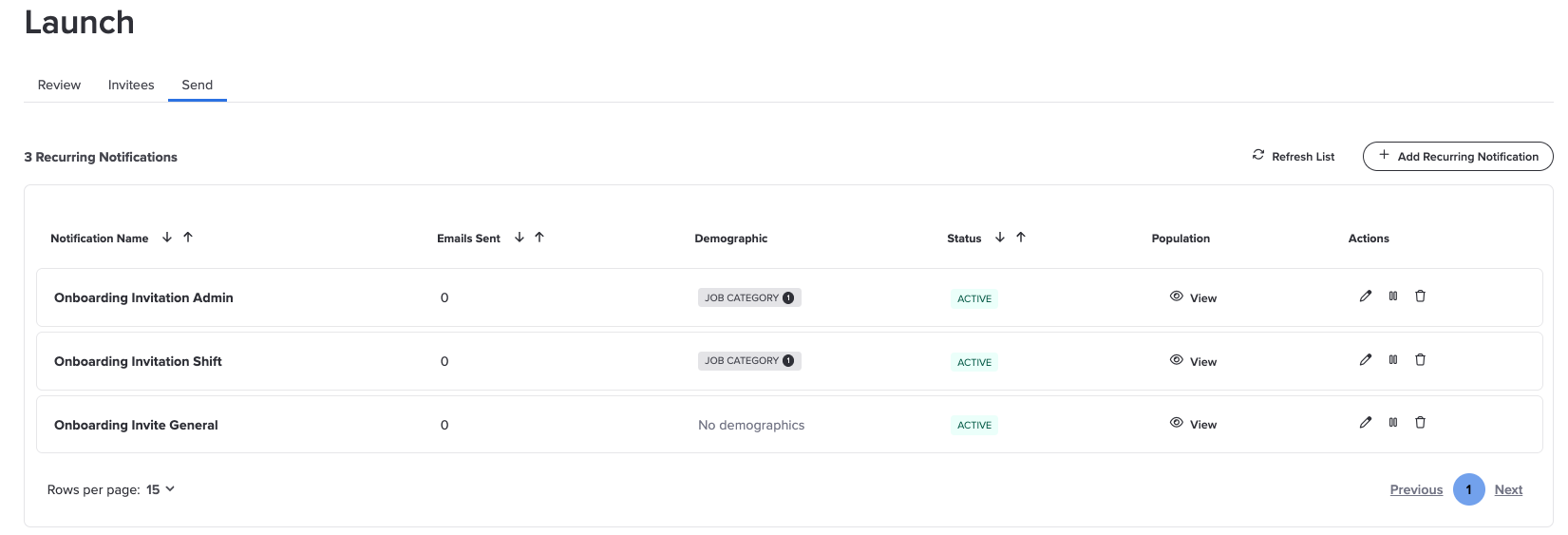
The table on the Send tab shows every recurring notification on your event.
| Column | What it shows |
|---|---|
| Notification Name | The name you gave it, or a short summary if you did not name it. |
| Emails Sent | How many emails this notification has sent so far, invitations and reminders together. |
| Demographic | The group it is aimed at. Empty means it is the notification for everyone else. |
| Status | Whether it is running or paused. |
| Population | A View link to everyone this notification has emailed. |
| Actions | Pause, resume, and delete. |
See who got what
Click View in the Population column to open a list of every email that notification has sent. Each row shows the person's name, employee ID, which email they got (like Invitation or First Reminder), their demographic, and its status. Hover over a status to see exactly when it was sent.
Someone who got an invitation and two reminders shows up three times, once for each email. You can search, sort by any column, and click refresh to pick up anything sent since you opened it.
Pause or delete a notification
Use the icons in the Actions column.
Pause Stops the notification from sending anything until you resume it. The icon changes to a play button. Click it to resume. |
Delete Removes the notification completely. Emails it already sent are not affected, but it will not send anything else. If you only want to stop it for a while, pause it instead. |
Before you pause or delete your notification for everyone else
While it is paused or gone, anyone who does not match one of your group notifications gets no invitation.
What's next
Your event is live and your notifications are running. To see everyone your sensors have added, and to resend an invitation to one person, use the Invitees tab. Support Participants covers what you can do there.
Was this article helpful?
That’s Great!
Thank you for your feedback
Sorry! We couldn't be helpful
Thank you for your feedback
Feedback sent
We appreciate your effort and will try to fix the article