Listen
When a participant's survey ends with enough responses, they get a report. Here's where to find those participants, download their reports, and nudge anyone who hasn't opened theirs.
A participant lands on the Complete - Report Eligible tab once their survey has ended and they've met every requirement for a report. That means they submitted their rater list, enough raters finished their surveys, and they completed their self-assessment if your 360 asks for one.
This article walks through
Opening the tab
- Log in to the Perceptyx platform.
- In the top navigation bar, click Listen.
- In Live Events, click the 360 tab, or find your event in All Events.
- On your 360 event, click Manage Event. The 360 Administrator page opens.
- Click the Complete - Report Eligible tab.
New to this page? Add Participants to Your Event | 360 walks through all five tabs.
What's on the tab
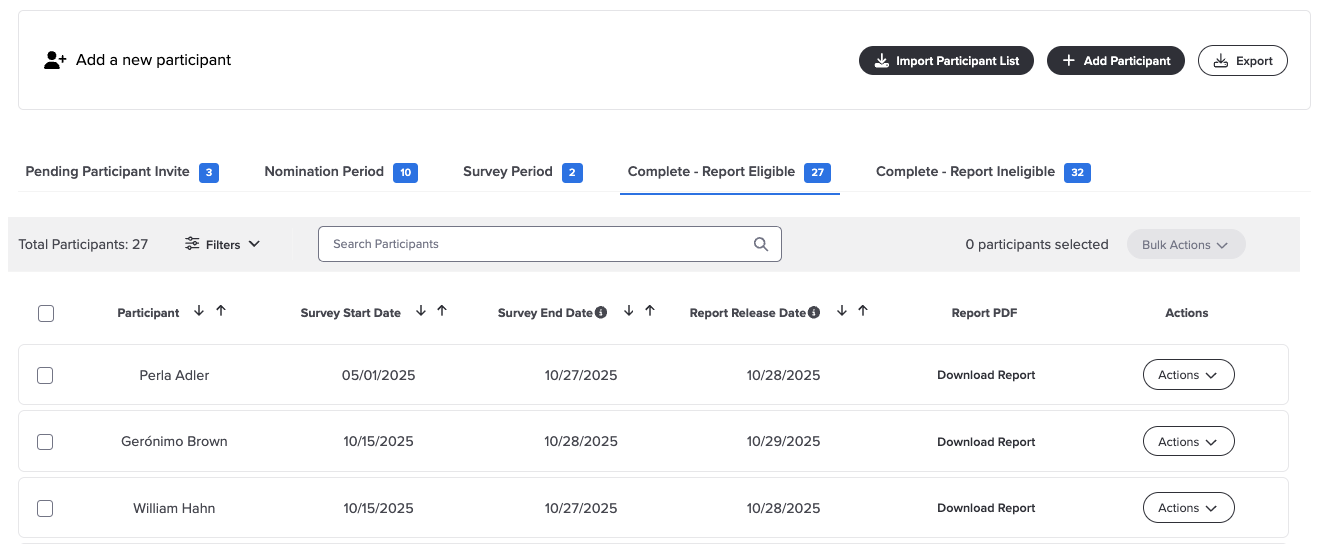
- The participant list. Columns show each person's name, survey start date, survey end date, and report release date. Use the arrows at the top of a column to sort by it.
- Report PDF. A Download Report link for each participant.
- Filters. Narrow the list by survey start date, survey end date, or report release date.
- Search. Find someone by name or email address.
- Actions. Resend someone's report email, or change when their report is released.
- Bulk Actions. Do the same for several people at once.
Downloading a participant's report
Click Download Report on the participant's row. Their report downloads as a PDF to your usual downloads folder.
To look at results across the whole group instead of one person, use the 360 reporting dashboard. Administrator Dashboard and Reports | 360 walks through it.
Finding a participant
Search
Click the Search Participants box and start typing a first name, last name, or email address. The list updates as you type.
Filter
- Click Filters, then Add Filter.
- Tick what you want to filter by: Survey Start, Survey Ends, or Report Release Date. Then click Add Filters.
- Click a filter to open it, pick a date range on the calendar, then click Apply.
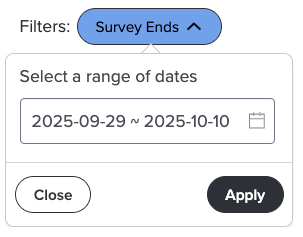
To remove your filters, click Clear Filters at the far right.
Resending the report email or changing the release date
Click Actions on the participant's row. You can:
- Resend Report Eligible Email: send the participant their email with the link to their report again. Handy if they can't find it or haven't opened their report yet.
- Edit Report Release Delay: change how long after the survey ends their report is released.
Resend the report email
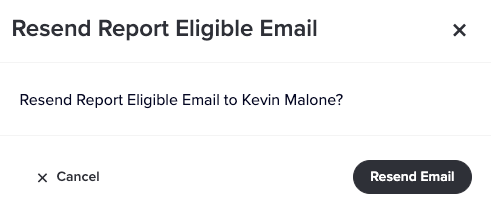
- Click Actions on the participant's row, then pick Resend Report Eligible Email.
- Click Resend Email to confirm.
Change the report release delay
Click Actions on the participant's row, then pick Edit Report Release Delay. Choose the new option from the dropdown and click Save.
Changing several participants at once
Both actions work in bulk too.
- Tick the box next to each participant you want. To pick everyone on the tab, tick the box at the top of the list.
- Click Bulk Actions at the top right and pick Resend Report Eligible Email or Edit Report Release Delay.
- Confirm, or pick the new option and save.
What's next
Some participants didn't get enough responses? Manage Report Ineligible Participants | 360 covers how to help them get a report.
Was this article helpful?
That’s Great!
Thank you for your feedback
Sorry! We couldn't be helpful
Thank you for your feedback
Feedback sent
We appreciate your effort and will try to fix the article