In this update, you’ll find high-level summaries of the latest platform features and enhancements. We’ve also included links to Knowledge Base articles for detailed instructions on how to make the most of these updates.
Unless otherwise noted, the following features support Perceptyx Platform 2.5 and are available based on permissions and subscriptions purchased.
Come explore the new features in our platform workspaces:
We’d love to hear your thoughts on these new features and improvements. Share your feedback with us!
User Roles: Event Admins, Creators
Required Subscription(s): Platform, Lifecycle
Now you can capture feedback from Lifecycle events at the moment it matters most. Real-Time Survey Eligibility allows employees to access Lifecycle surveys instantly using a shared link or QR code, without requiring respondent uploads or sensor configuration.
What’s New
Real-time access without pre-invitation: Employees can start an event immediately without being preloaded or targeted through sensors.
Flexible distribution options: Share events through a unique URL or QR code, and embed them where employees do their work, such as HRIS platforms, LMS courses, intranet pages, or internal tools.
Automatic respondent creation: Employees authenticate via SSO and are added as respondents instantly, with demographic data populated automatically.
Dynamic demographic handling: New demographic values are created as needed, ensuring smooth participation without data dependency issues.
Works alongside sensors (optional): Combine real-time access with sensor-based invitations to support both in-the-moment and follow-up outreach.
How it Works
This feature simplifies Lifecycle event distribution by allowing employees to initiate participation at the point of experience (for example, in a resignation form or after a training course), without requiring preconfigured audiences.
Enable the feature: Turn on the Real-Time Survey Eligibility toggle in the Invite > Settings tab when building the Lifecycle event.
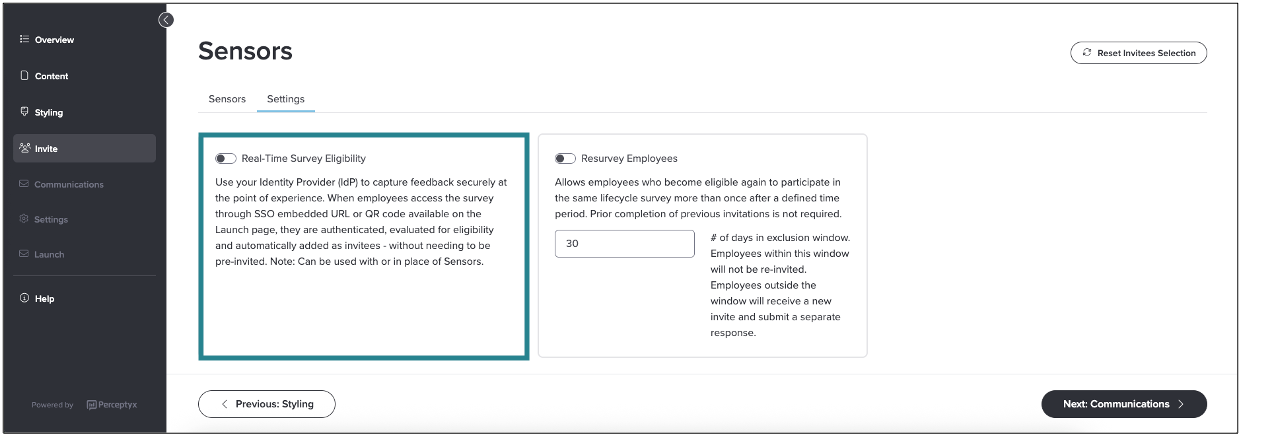
Distribute the survey: Once the event is active, copy the generated link or QR code from the Launch page and embed it in existing workflows.
Employee authentication: When employees access the survey, they sign in through SSO for secure identification.
Instant participation: Eligible employees are automatically added as respondents and taken directly into the event.
Flexible usage: Use Real-Time Survey Eligibility on its own or alongside sensors to expand coverage and improve response rates.
For more details and step-by-step instructions, see the Add Participants | Point-In-Time & Lifecycle Knowledge Base article.
➡️ Scaled Items for Conversational Listening Events
User Roles: All Participants
Required Subscription(s): Platform, Lifecycle
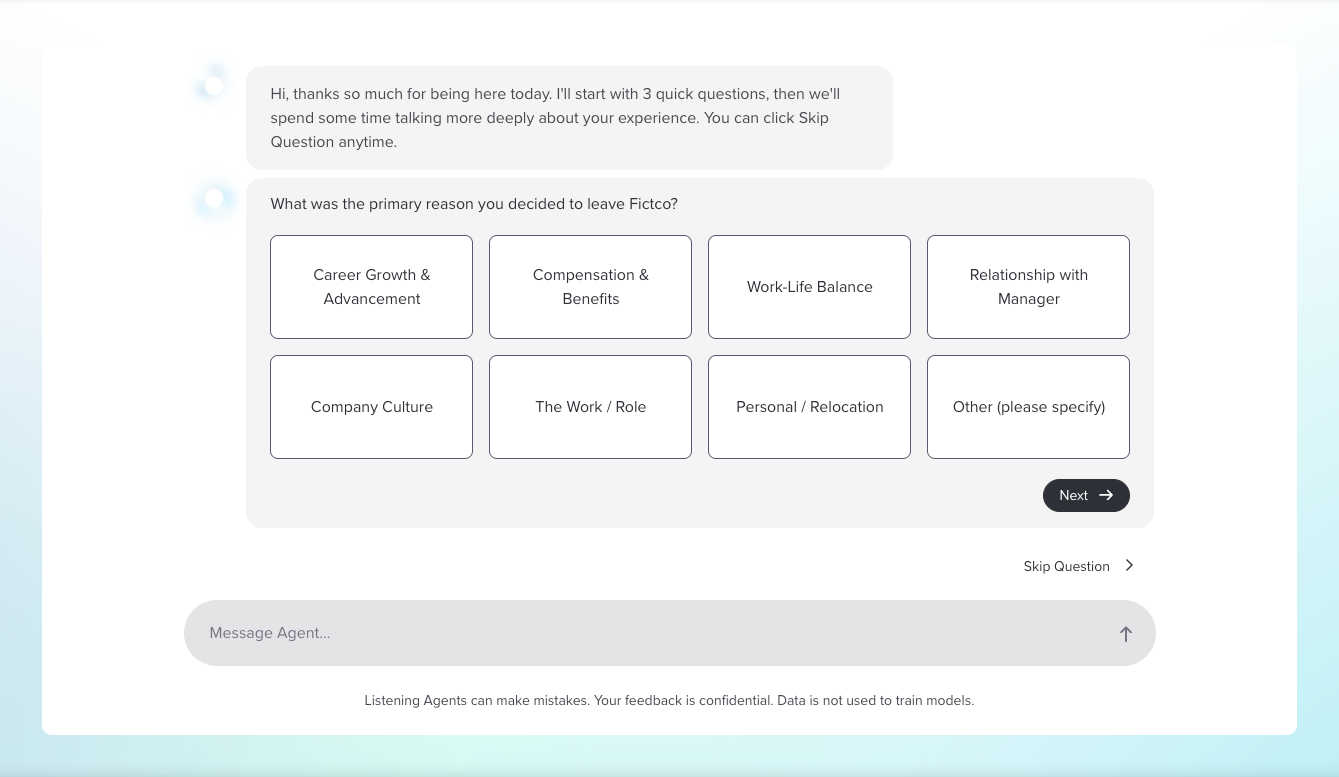
Conversational listening events now support scaled questions along with its open-ended conversational format. Participants answer a short set of structured questions at the start of the conversation, allowing you to collect quantitative and qualitative feedback in a single experience.
What’s New
Combined quantitative and qualitative insights: Collect structured metrics and open-ended feedback in one conversation.
Multiple question types: Available types include favorability, single-select, multi-select, NPS, and demographic questions.
Streamlined participant experience: Present a short set of questions before transitioning into the conversational portion of the event.
Robust reporting for scaled data: Analyze responses for scaled items in Advanced Reporting using standard widgets, filters, trending, and benchmarks.
Comment analysis in the Comments Report: Analyze themes and sentiment and view transcripts of agent-employee dialogue for a given topic.
How it Works
Participants complete a short set of structured questions before moving into the conversational experience.
Start with scaled questions: The agent introduces a brief set of questions at the beginning of the conversation.
Select responses: Participants choose answers from predefined options, with the ability to skip or update responses.
Transition to conversation: After completing the questions, participants move seamlessly into the open-ended dialogue.
Analyze results: Use Advanced Reporting and the Comments Report to explore scaled data and review conversational feedback. If enabled, use Comment Copilot for additional AI-driven analysis.
For more details and step-by-step instructions, see the Participate in a Conversational Listening Event Knowledge Base article.
➡️ Progress Indicator for Conversational Listening Events
User Roles: All Participants
Required Subscription(s): Platform, Lifecycle
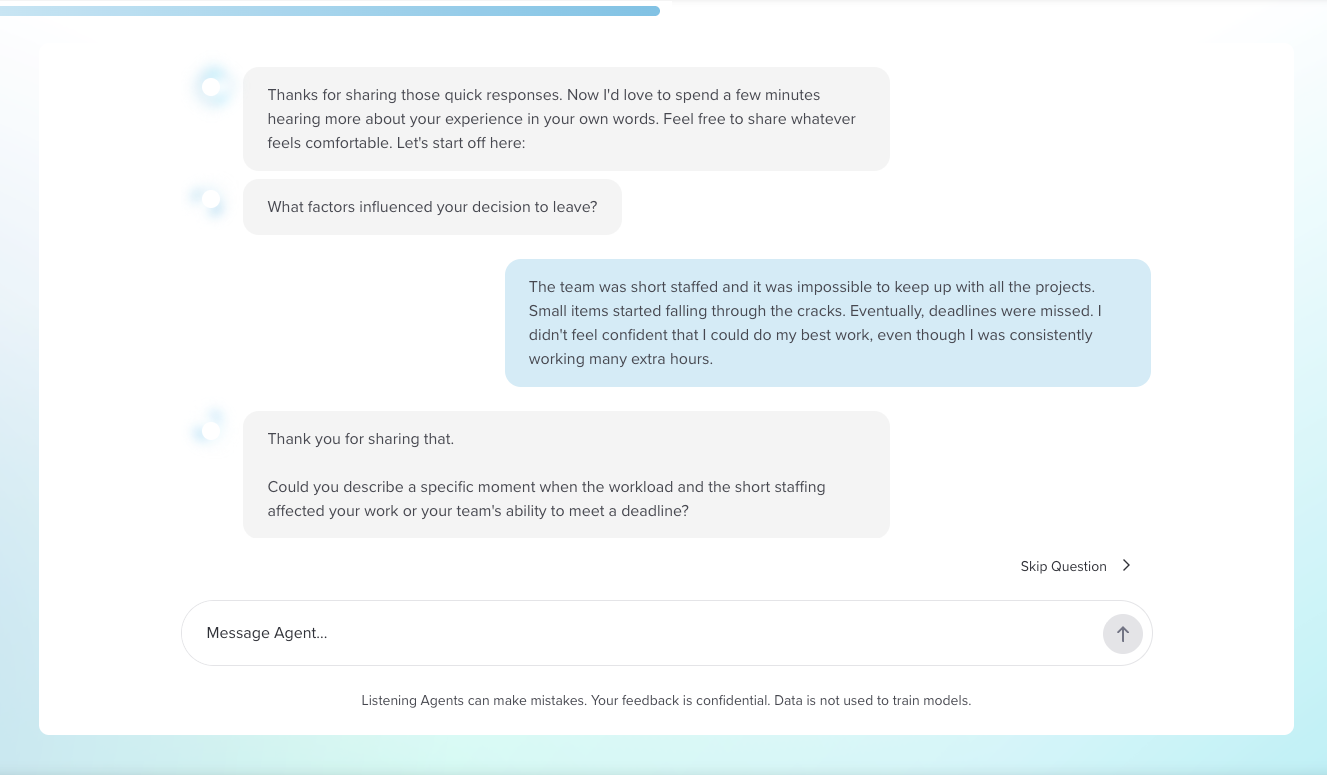
Conversational listening events now include a progress indicator that helps participants understand what to expect and how far along they are in a conversation. A welcome message introduces the topics and estimated duration, and a progress bar provides a real-time sense of progress as participants respond.
What’s New
Clear expectations upfront: A welcome message introduces the conversation topics and provides an estimated duration.
Real-time progress tracking: A progress bar updates as participants move through the conversation.
Seamless experience: The progress indicator appears automatically in all conversational listening events.
How it Works
Participants see progress throughout the conversation experience.
Welcome message: When participants open the event, they see an introduction with the conversation topics and an estimated duration.
Start conversation: Participants begin the conversation after reviewing the welcome message.
Progress tracking: A progress bar appears at the top of the chat and updates as participants respond.
For more details and step-by-step instructions, see the Participate in a Conversational Listening Event Knowledge Base article.
User Roles: Admins, Creators
Required Subscription(s): Platform, Point-In-Time/Lifecycle
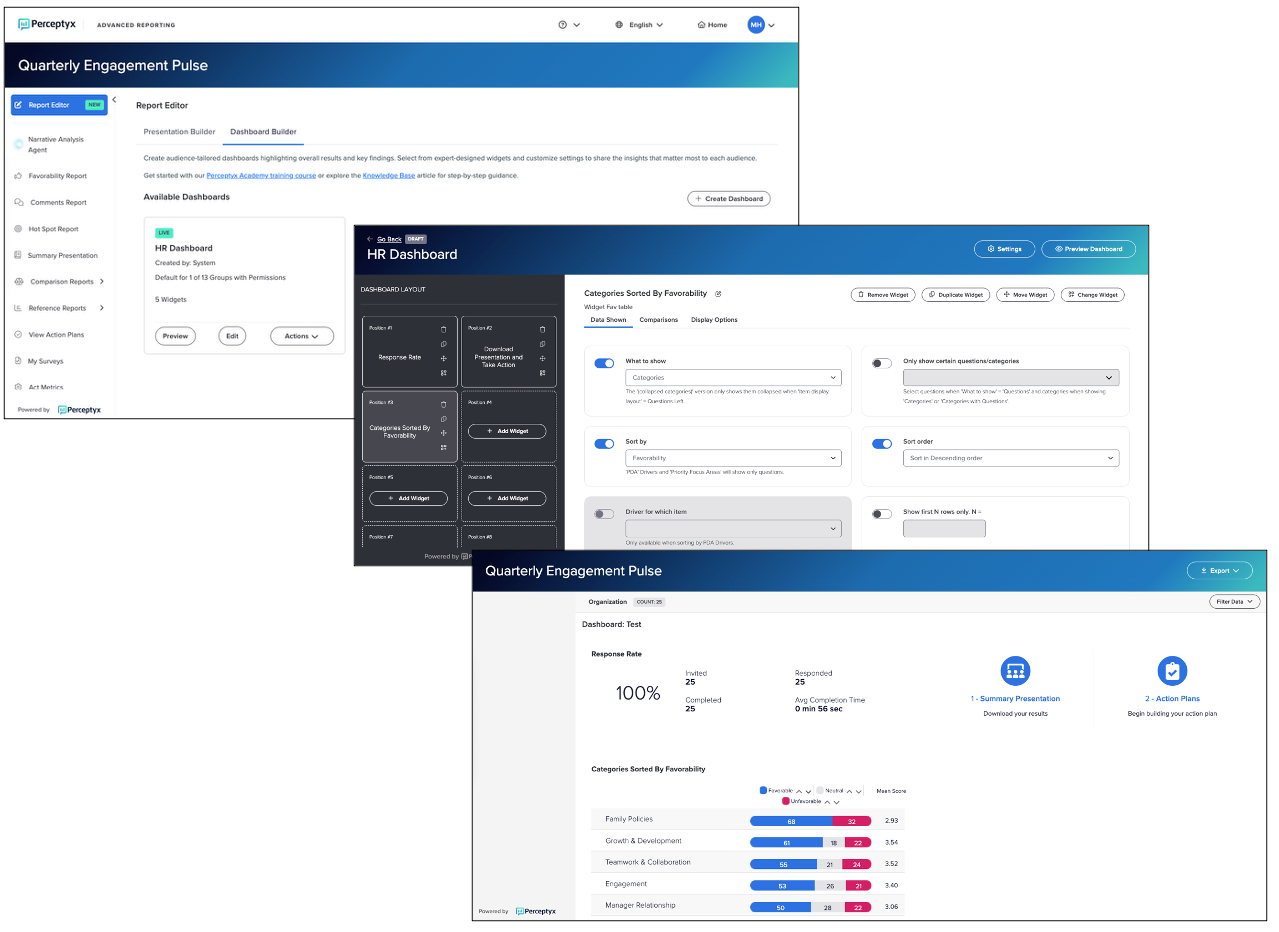
Dashboard Builder is now available in Advanced Reporting, allowing Admin and Creator users to create, customize, and manage dashboards for Point-In-Time and Lifecycle events directly within the platform. Previously, dashboard creation required support from the Perceptyx team. Now, Admins and Creators can build and manage dashboards end to end, reducing turnaround time and providing more control over the reporting experience.
What’s New
Self-service dashboard creation: Build and manage dashboards directly in Advanced Reporting.
Interactive dashboard editor: Create dashboards using flexible layouts and a curated widget library.
Draft and Live status: Build and refine dashboards before making them visible to report users.
Permission-based access: Control which roles can view each dashboard and assign default dashboards by role.
Streamlined navigation: Dashboards appear automatically in the reporting menu based on user access.
How it Works
Dashboard Builder enables Admins and Creators to create and manage dashboards directly within Advanced Reporting.
Access Dashboard Builder: Open Advanced Reporting, navigate to the Report Editor, and then to the Dashboard Builder.
Create a dashboard: Start with the default dashboard, duplicate an existing one, or create a new dashboard.
Customize layout and widgets: Select or adjust a layout, then add and configure widgets to display key insights.
Preview and refine: Review the dashboard and make updates as needed.
Set access and publish: Control visibility with Draft or Live status and assign access by user role.
For more details and step-by-step instructions, see the Meet the Dashboard Builder and Use the Dashboard Builder to Edit the Default Dashboard or Create a New Dashboard Knowledge Base articles.
User Roles: Admins, Creators
Required Subscription(s): Platform/Comment Copilot/Narrative Analysis Agent
We’ve updated the Analyze page to simplify navigation, improve naming clarity, and streamline access to reporting and analysis tools. This release includes updates to how users access cross-survey dashboards, third-party comment analysis, and AI-powered reporting tools, as well as changes to where key analysis features are accessed.
What’s New
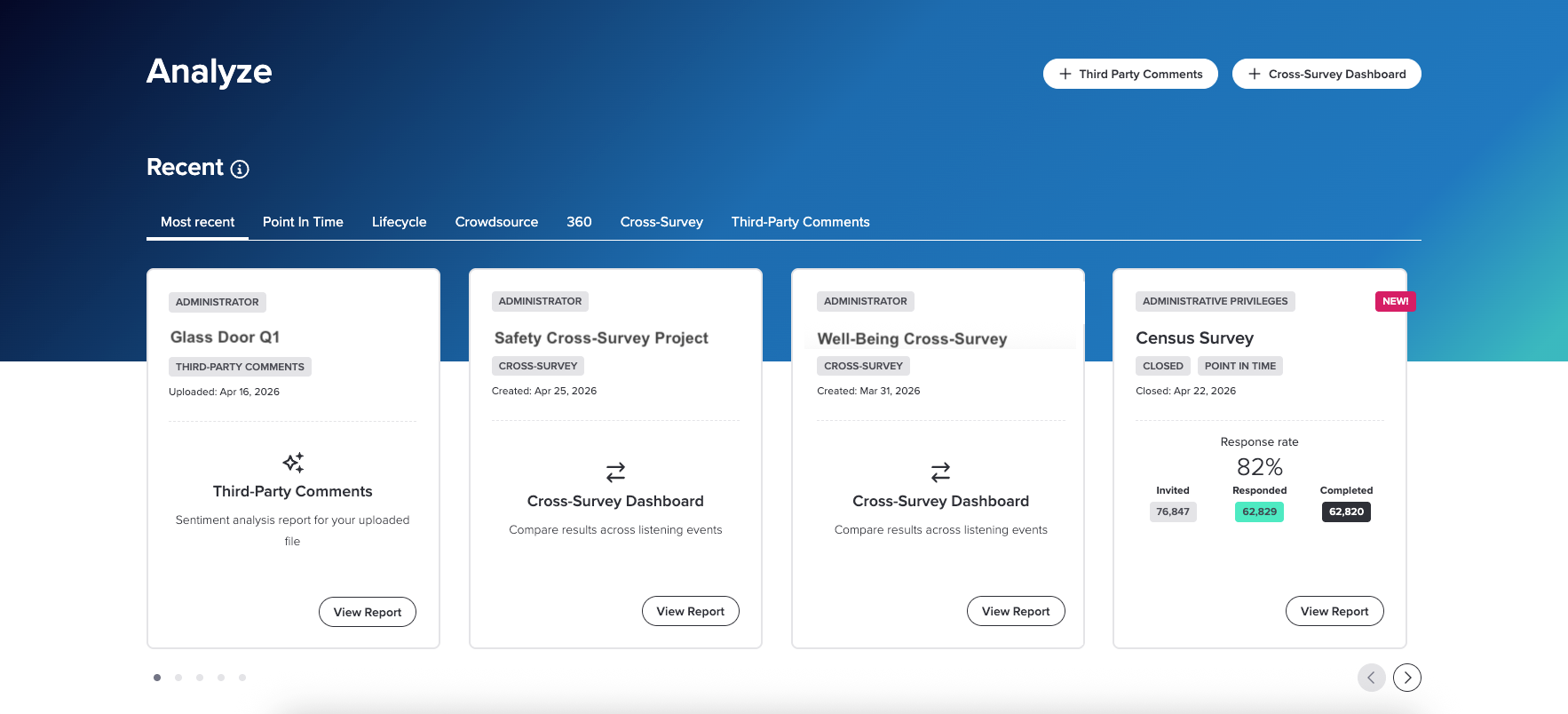
Report Eligible section renamed to Recent: The Report Eligible section has been renamed to Recent to better reflect its purpose as a quick-access area for recently available reporting items.
Analytics Studio and AI Hub have been renamed:
AI Hub is now Third-Party Comments (no change to functionality).
Analytics Studio is now Cross-Survey Dashboards, and is now used exclusively for cross-survey analysis.
Users with appropriate permissions can now create single event dashboards using the Dashboard Builder in Advanced Reporting.
Comment Copilot and Narrative Analysis Agent moved to Advanced Reporting:
Previously, users accessed these tools through Analytics Studio. They are now accessed directly within Advanced Reporting, using the left navigation panel.
This applies to both Perceptyx-led and self-led events, where enabled.
This change makes these tools available directly in the reporting experience, reducing context switching and keeping analysis within the report workflow.
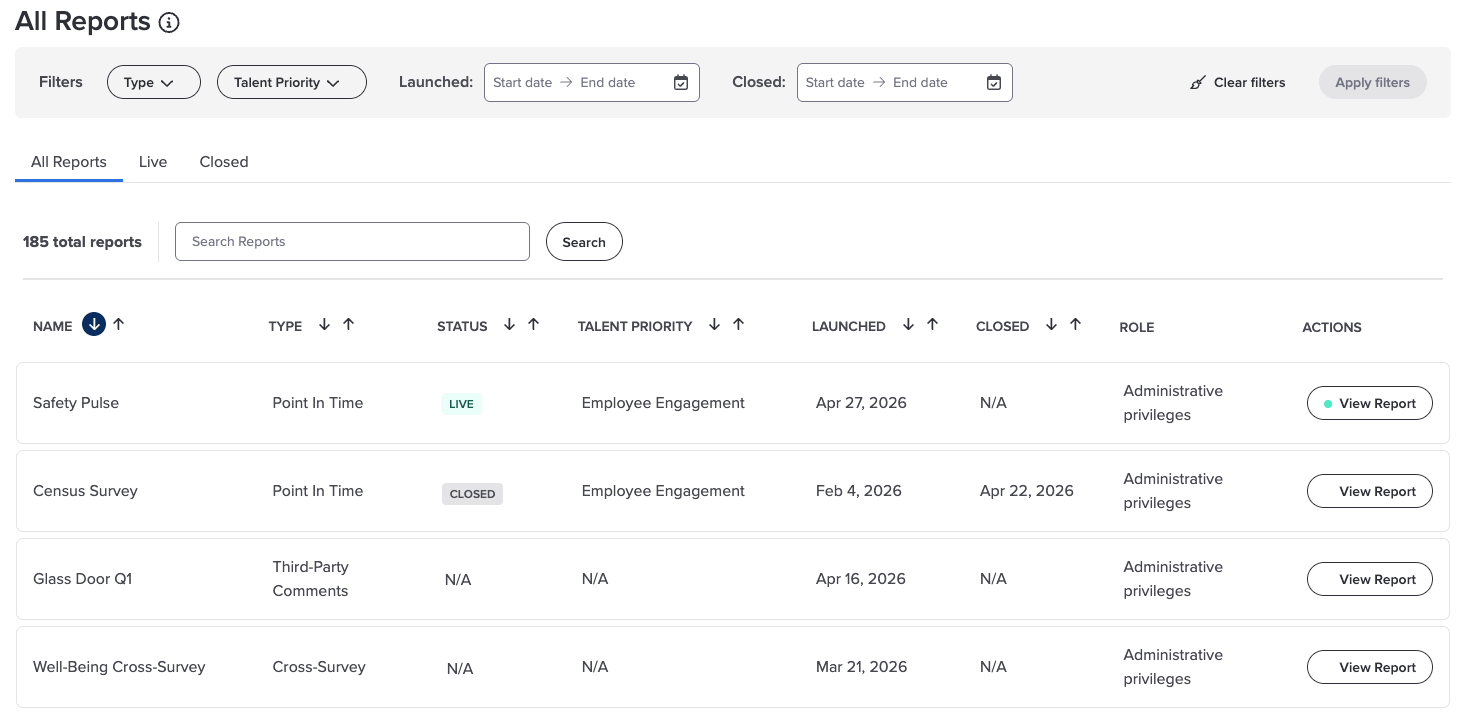
All reporting items/outputs are now accessed consistently from Analyze: Reports, cross-survey dashboards, and third-party comment analyses are now surfaced together in Analyze, making it easier to find and reopen work.
Items appear as cards in the Recent section when they become available.
Items also appear in the All Reports table for full access and search.
Across both areas, you can open anything by clicking View Report.
How it Works
The Analyze page provides a single place to create and open reporting and analysis outputs.
Create new analysis or dashboards:
Click + Third-Party Comments to upload external comment data and generate a new analysis report.
Click + Cross-Survey Dashboard to create a new dashboard for comparing multiple listening events.
Open existing reports, dashboards, and analyses:
Use the Recent section to access recently available items.
Use the All Reports table to search, filter, and open any available item.
This includes standard reports, third-party comment analyses, and cross-survey dashboards.
Work with AI analysis in Advanced Reporting:
Open a report in Advanced Reporting, then use the left navigation panel to access Comment Copilot or Narrative Analysis Agent.
These tools are available when enabled for the event.
For more details and step-by-step instructions, see the Analyze, Use Comment Copilot, and Use Narrative Analysis Agent Knowledge Base articles.
User Roles: Admins, HRBPs
Required Subscription(s): Platform, Point-In-Time/360
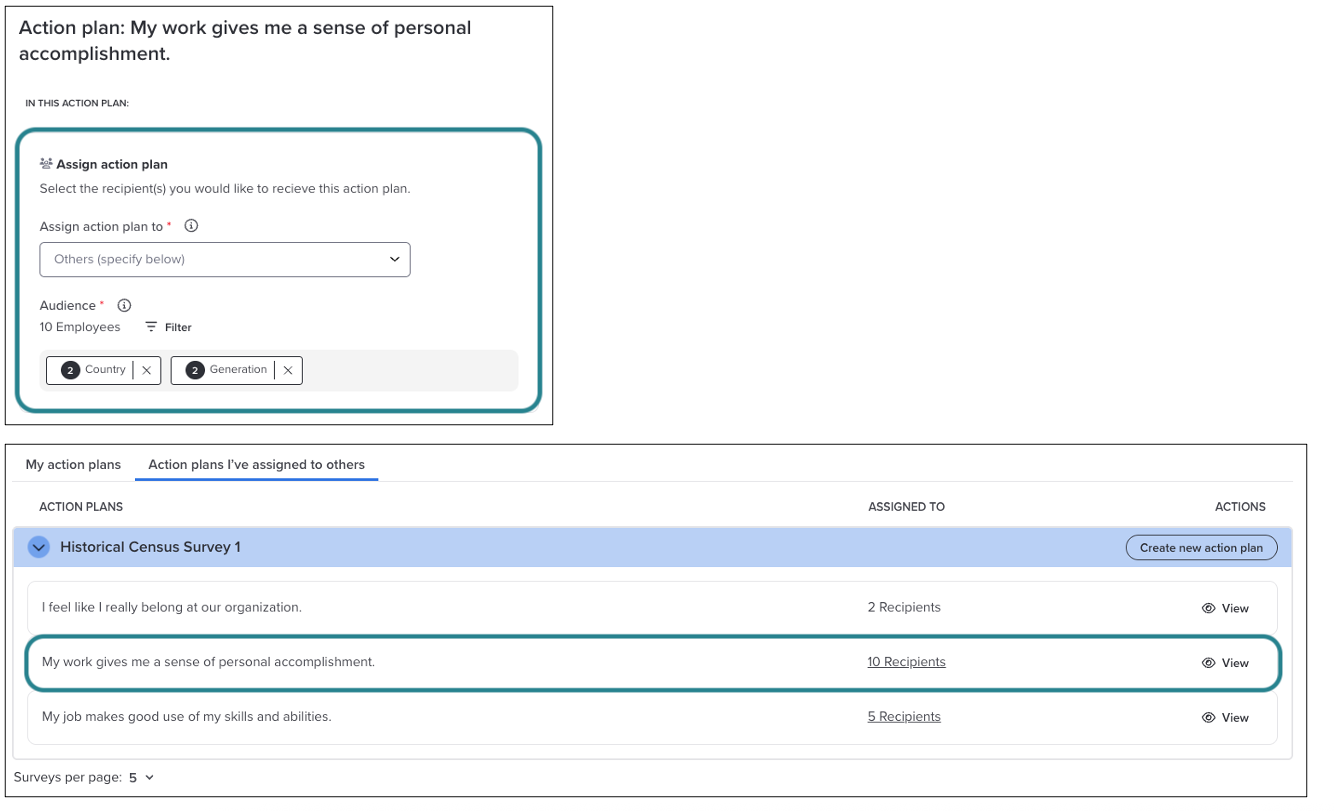
HRBPs and administrators can now create an action plan and distribute it directly to a targeted group of employees. Instead of requiring each manager to create their own plan, you can define an audience and push a fully configured plan at scale.
What’s New
Targeted plan distribution: Create an action plan and deliver it to a defined group of employees based on demographic filters.
Scalable action planning: Eliminate the need for managers to create plans individually or for admins to create them one by one.
Full-featured plans: Include commitments, follow-up dates, and AI coaching when assigning an action plan.
Flexible audience selection: Define audiences using demographic filters aligned with your reporting access.
Clear plan visibility: Assigned plans are labeled so recipients can distinguish them from plans they create themselves.
Enhanced reporting: View how plans were created with a new “Created by” field in the Act Metrics download.
How it Works
Create and distribute an action plan to a targeted audience in a few steps:
Create a plan: Start in Advanced Reporting, select an item, and configure your action plan.
Define your audience: Use demographic filters within the action plan workflow to define the appropriate group of employees.
Assign the plan: Push the plan to all eligible users who match your criteria and have access.
Recipient experience: Employees can view and edit the plan as if they created it themselves.
Track and report: Use Act Metrics to understand how plans were created and distributed.
For more details and step-by-step instructions, see the Create an Action Plan Knowledge Base article.
➡️ Listening Event Nudge Refresh
User Roles: All Nudge Recipients
Required Subscription(s): Platform, Point-In-Time/360, Activate
Activate now prioritizes nudges based on each user’s most recent listening event data. Nudges are generated only from action plans tied to the user’s latest Point-in-Time/360 Feedback event(s), helping ensure guidance stays relevant, timely, and aligned with current feedback.
What’s New
More relevant nudges: Nudge delivery now focuses on action plans tied to each user’s most recent listening event data.
Automatic prioritization: The platform selects the appropriate events for each user based on event close date.
No disruption to existing plans: Older action plans remain active and accessible, but no longer generate nudges.
No configuration required: This update is applied automatically with no changes to settings or workflows.
How it Works
Nudges are automatically scoped to the most recent listening events with active action plans for each user.
Event selection: The platform identifies the most recent Point-In-Time/360 Feedback event(s) where the user has active action plans, based on event close date.
Nudge eligibility: Only action plans from the identified events generate nudges; plans from older events are excluded from nudge delivery.
Alternate event selection: If a user’s most recent listening event does not have any active action plans, the next most recent event with active plans is used.
Plan availability: All action plans remain visible and editable in the platform, regardless of whether they generate nudges.
User Roles: API Users
Required Subscription(s): Platform (API), Enterprise tier required for full access
The Perceptyx External API now supports user management, allowing API users to create, update, and manage platform users (Platform Administrators, Event Administrators, and Event Creators) programmatically. This makes it easier to keep user data in sync across systems and automate user-related workflows.
What’s New
Programmatic user management: New API endpoints support creating, updating, deleting, and retrieving platform users.
Bulk user operations: Manage multiple users at once with bulk create, update, and delete capabilities.
Automatic platform updates: Changes made via the API are reflected across the platform, including user availability in areas like Event Builder.
New tiered access model: All API customers now receive read-only access by default, with full read and write capabilities available through the Enterprise tier.
How it Works
User management is available through the External API with tiered access.
Access level: All API customers can retrieve and search for users using read-only endpoints.
Enterprise capabilities: Enterprise tier users can create, update, and delete users, including bulk operations.
Platform sync: Changes made through the API automatically update user availability across the platform.
Questions?
If you have questions about the Perceptyx Platform functionality or the latest updates, please reach out to the Customer Care Team or your Customer Success Manager.
Was this article helpful?
That’s Great!
Thank you for your feedback
Sorry! We couldn't be helpful
Thank you for your feedback
Feedback sent
We appreciate your effort and will try to fix the article