A conversational listening event gives you the opportunity to share feedback through a natural, chat-style conversation. You can participate in the language you are most comfortable using. The Conversational Listening Agent guides the discussion and helps you express your thoughts in your own words.
Instead of completing a traditional survey, you engage in an interactive dialogue focused on your experiences, perspectives, and what matters most to you.
At the start of the event, you’ll see an overview of the topics that will be covered and an estimate of how long the conversation will take. A progress bar is visible throughout the experience so you always know how far along you are in the process.
Conversational listening is available for a wide variety of events, including onboarding, anniversary, focused check-in (pulse), exit, and more.
This article walks through:
- Access the Event
- Choose Your Language
- Start the Conversation
- Answer Quick Selection Questions
- Share Your Feedback
- Skip Questions
- End the Listening Event Early
- Complete and Submit the Listening Event
- Return to a Partially Completed Conversation
To view an overview video:

Access the Event
You can access a conversational listening event from any device, including a desktop computer, laptop, tablet, or mobile phone. Simply click the link in your invitation email to begin.
Open your invitation email.
Click the link for the listening event.
The chat interface opens.

Choose Your Language
If the listening event is available in multiple languages, the first screen that displays is the Select Your Language screen, which you use to select your preferred language.
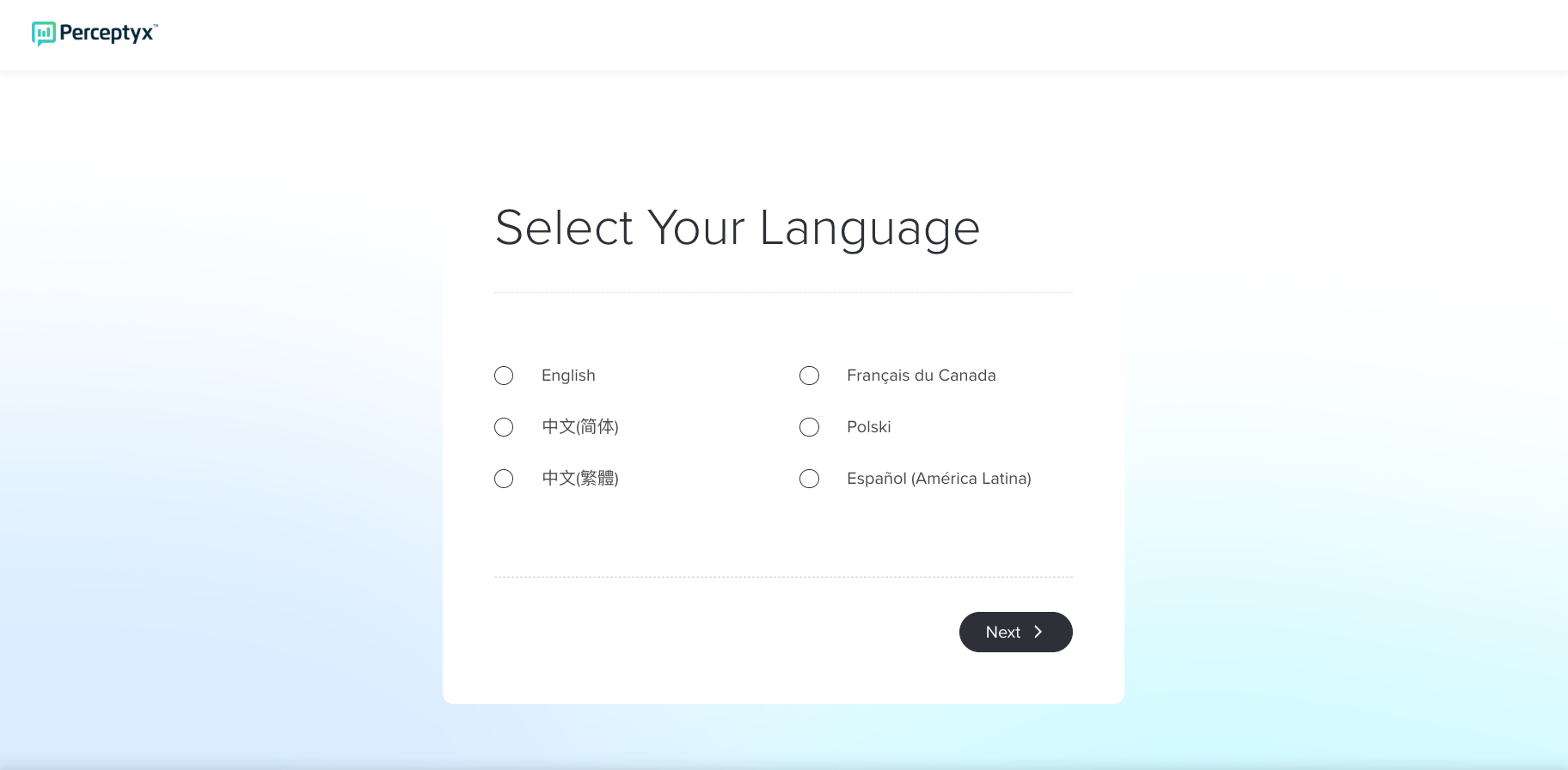
Note: If your event is not available in multiple languages, proceed to the Start the Conversation section of this article.
Select your preferred language from the available options.
Click Next to display the welcome screen.
You can respond in the language you are most comfortable using at any time. If you begin typing in a different language during the conversation, the Conversational Listening Agent will detect that change and adapt to continue the conversation in that language.
Note: Changing the language of your responses does not change the platform’s navigation or interface language.

Start the Conversation
The event begins with an introduction that includes:
The topics that will be covered
An estimate of how long the conversation will take
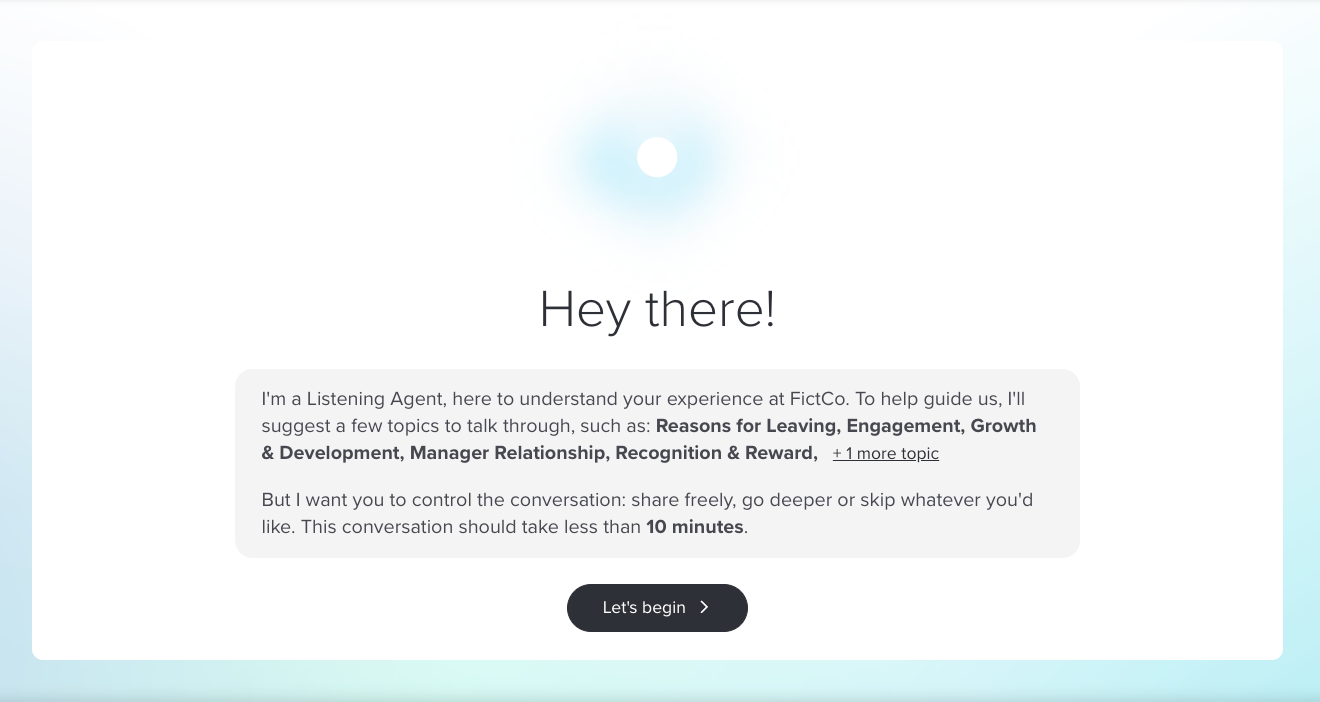
To start the conversation:
Click Let’s Begin.

Answer Quick Selection Questions
Some conversational listening events may begin with a small number of quick questions that use pre-defined answer options.
These questions:
Are part of the same conversational experience
Ask you to select from options (such as rating scales or multiple choice) instead of typing a response
Help provide context for the conversation that follows
You can:
Skip any question
Change your answer at any time prior to submitting the completed event
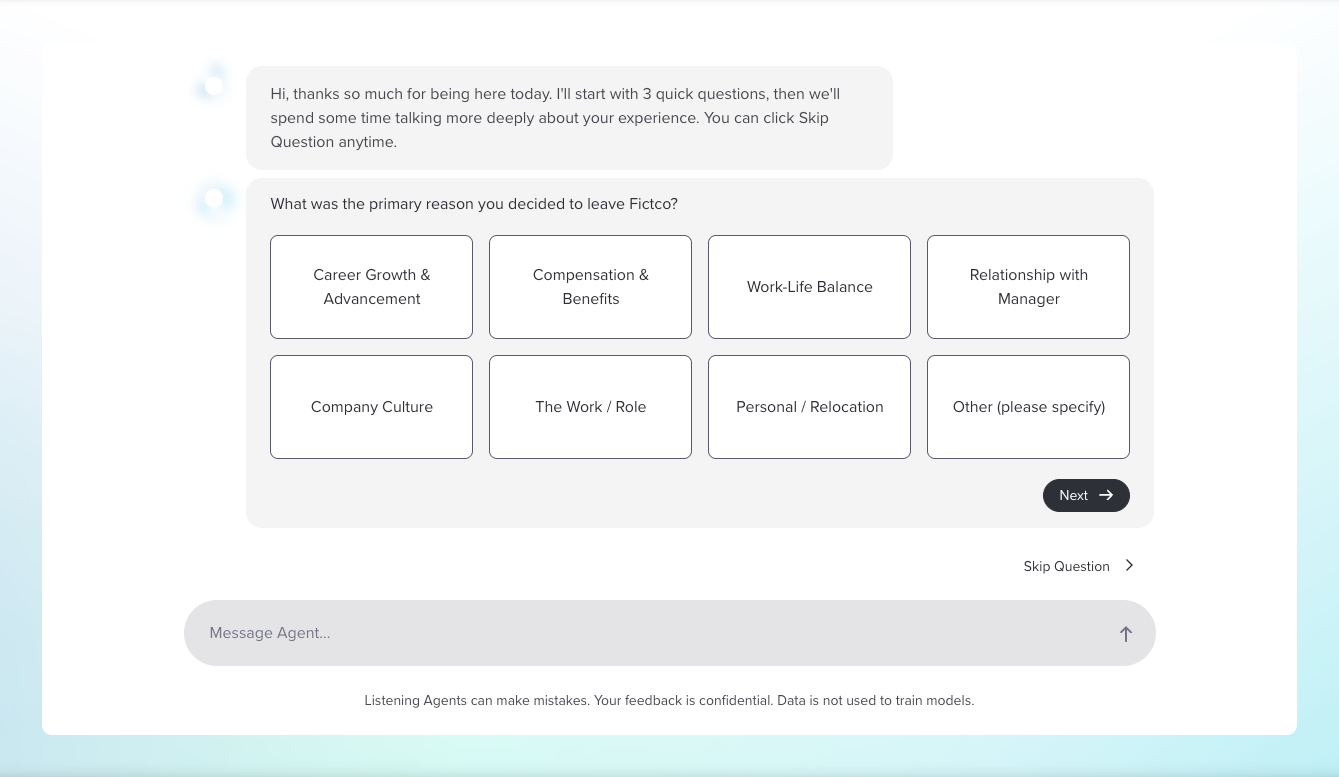
To respond to a question:
Click your answer(s) from the available options.
Click Next to save your response and display the next question.
After you answer the first question, a progress bar appears at the top of your screen and updates as you progress through the event.
To change an answer:
Scroll up to the question and answer, then click Change Answer to redisplay the response options.
Select a different answer, then click Update Answer.
After the selection questions, the conversation continues as a natural, open-ended discussion where you can share your feedback in your own words.

Share Your Feedback
The agent guides the conversation by asking questions about your experiences and your reasons for leaving. You can respond naturally, using short phrases or longer explanations. The progress bar at the top of the chat shows how far you are in the conversation and updates as you move through each topic.
Based on your responses, the agent may ask follow-up questions, such as:
“Could you tell me what part of the workload made this especially challenging for you?”
“Could you share a recent example that shows how this affected you?”
Follow-up questions help the agent gather context so your organization receives meaningful insights. The number of follow-up questions varies depending on how much information you provide.
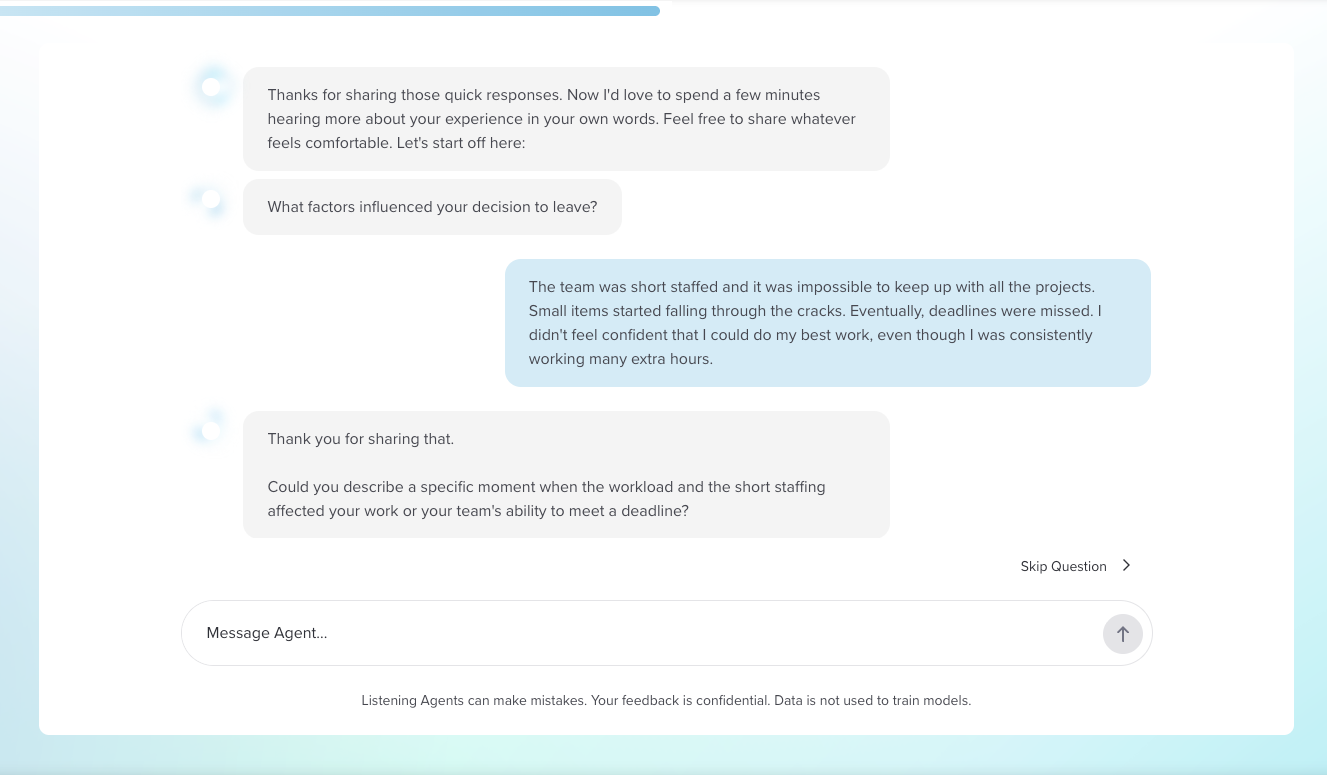
Once a topic is complete, the agent thanks you for your thoughts and moves to the next subject.

Skip Questions
If there is a question you prefer not to answer, you can skip it by clicking Skip Question or typing something like:
skip
I’d rather not answer that
next
The agent will acknowledge your request and continue with the next topic.

End the Listening Event Early
You can end the conversation at any time by clicking End Conversation (top right) or typing something like “I’m done.” Your responses up to that point will be saved. If you choose to end the conversation through End Conversation, you will not be able to return later. If you simply close your browser or navigate away, you can resume the conversation when you return to the link.
Click End Conversation.
A confirmation message appears.
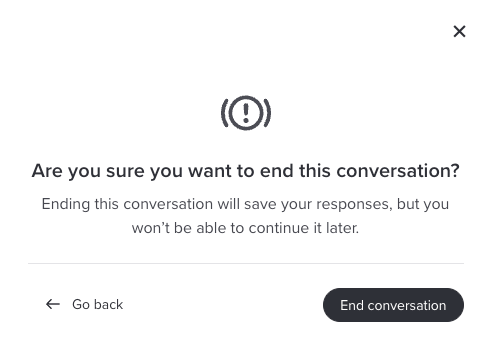
If you want to continue the conversation, click Go Back.
If you are certain you want to end the conversation, click End Conversation.

Complete and Submit the Listening Event
The agent guides you through the entire experience and always gives you the option to skip a question or end the conversation early. When you reach the end, the agent confirms that the conversation is complete and displays a Close Conversation button.
Type your responses in the Message Agent box and press Enter to move to each new question.
Skip questions you don’t want to answer by clicking Skip Question.
When you reach the end of the conversation, click Close Conversation to submit your responses and end the session.

Return to a Partially Completed Conversation
If you close your browser or navigate away from the listening event before the conversation is complete, you can return to it later. When you access the link again, a Welcome back message appears and gives you the option to continue where you left off.
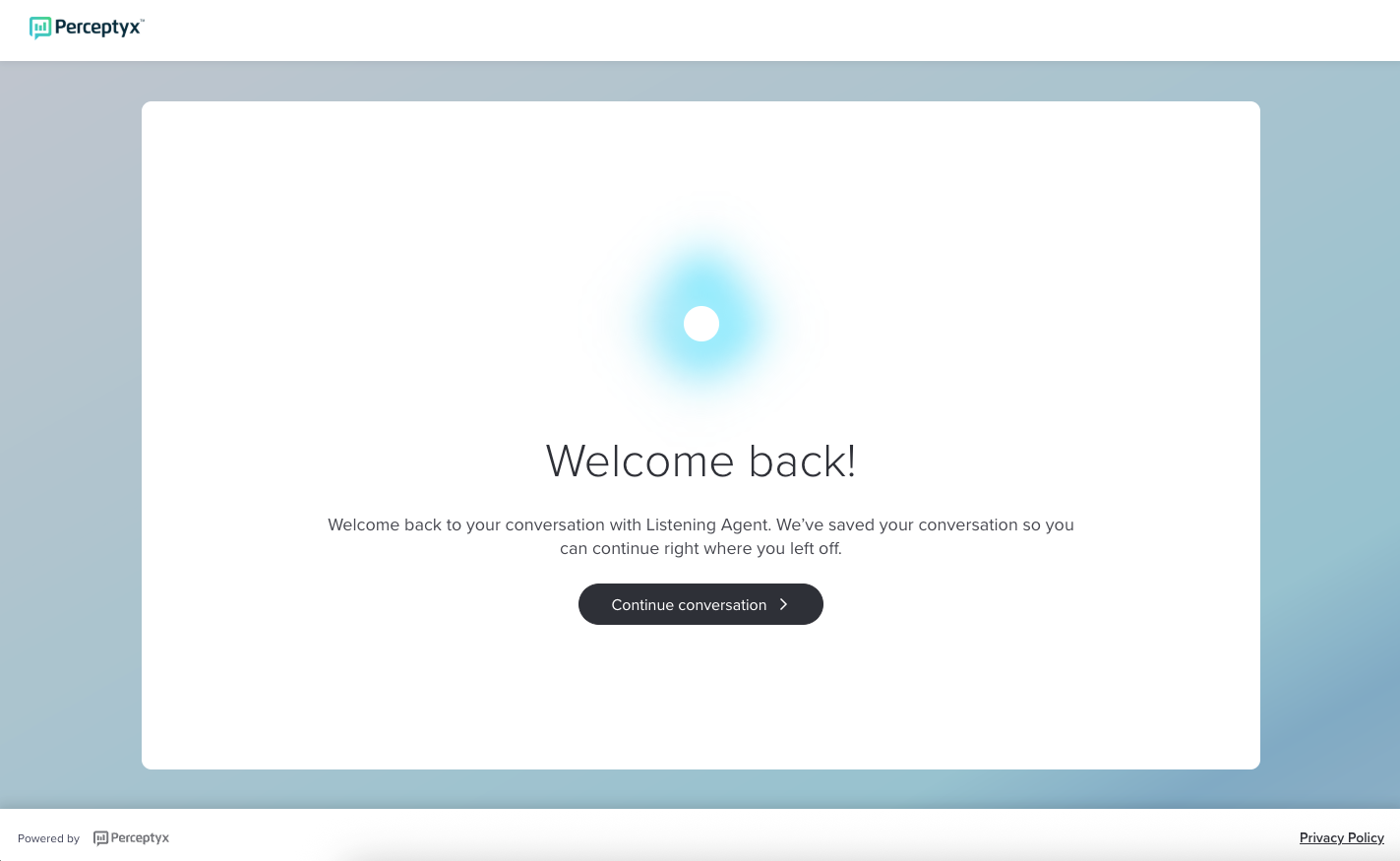
This can happen if you:
Close the browser
Refresh the page
Navigate away and return
Re-click the link in your invitation email
Your progress is saved until you choose to end the conversation or until the full conversation is complete.

Overview Video
Was this article helpful?
That’s Great!
Thank you for your feedback
Sorry! We couldn't be helpful
Thank you for your feedback
Feedback sent
We appreciate your effort and will try to fix the article