In this update, you’ll find high-level summaries of the latest platform features and enhancements. We’ve also included links to Knowledge Base articles for detailed instructions on how to make the most of these updates.
Unless otherwise noted, the following features support Perceptyx Platform 2.5 and are available based on permissions and subscriptions purchased.
Come explore the new features in our platform workspaces:
We’d love to hear your thoughts on these new features and improvements. Share your feedback with us!
User Roles: Admin, Creator
Required Subscription(s): Platform, Point-In-Time
You can now add participants to a listening event after it has launched with even greater confidence in your reporting. Late invitees’ responses are now seamlessly aligned with their HR-sourced demographic data, supporting more complete and consistent insights.
What’s New
Demographic information for late invitees added to active listening events is automatically applied when they complete the listening event.
Responses from late invitees appear in reporting with full demographic context.
Reporting remains consistent for all participants, whether they were invited before or after event launch.
This enhancement helps ensure accurate segmentation and analysis across your listening programs.
How it Works
When you add participants to an active listening event, the platform automatically manages demographic alignment behind the scenes.
Use the existing Add Late Invitee functionality within your event.
When the participant completes the event, their responses are matched to their HR-sourced demographic data.
Their results are reflected in reporting with the same demographic detail as other participants in the event.
No additional configuration is required. Demographic alignment happens automatically to support reliable, end-to-end reporting.
For more details and step-by-step instructions, see the Support Participants | Point-In-Time & Lifecycle Knowledge Base article.
User Roles: Participants
Required Subscription(s): Platform, Lifecycle
The Conversational Listening Agent now supports multiple participant-facing languages, making it easier for global workforces to engage in conversations in the language they’re most comfortable using. The agent automatically detects and adapts to participant language in real time while maintaining existing reporting and platform behavior.
What’s New
The Conversational Listening Agent now supports a fully multilingual conversation experience.
Real-time multilingual conversations: The agent can understand and respond in multiple participant-facing languages.
Automatic language adaptation: The agent detects language changes and adjusts responses automatically to keep conversations natural and uninterrupted.
Broader global accessibility: Employees can participate in their preferred language, helping organizations gather more representative feedback.
Consistent reporting experience: Responses are captured in the participant’s original language and translated into English for reporting and analysis.
Conversation language tracking: Language usage is recorded throughout each conversation to support deeper insight into participant interactions.
How it Works
Participants choose their preferred language when starting a listening event, and the Conversational Listening Agent handles the rest.
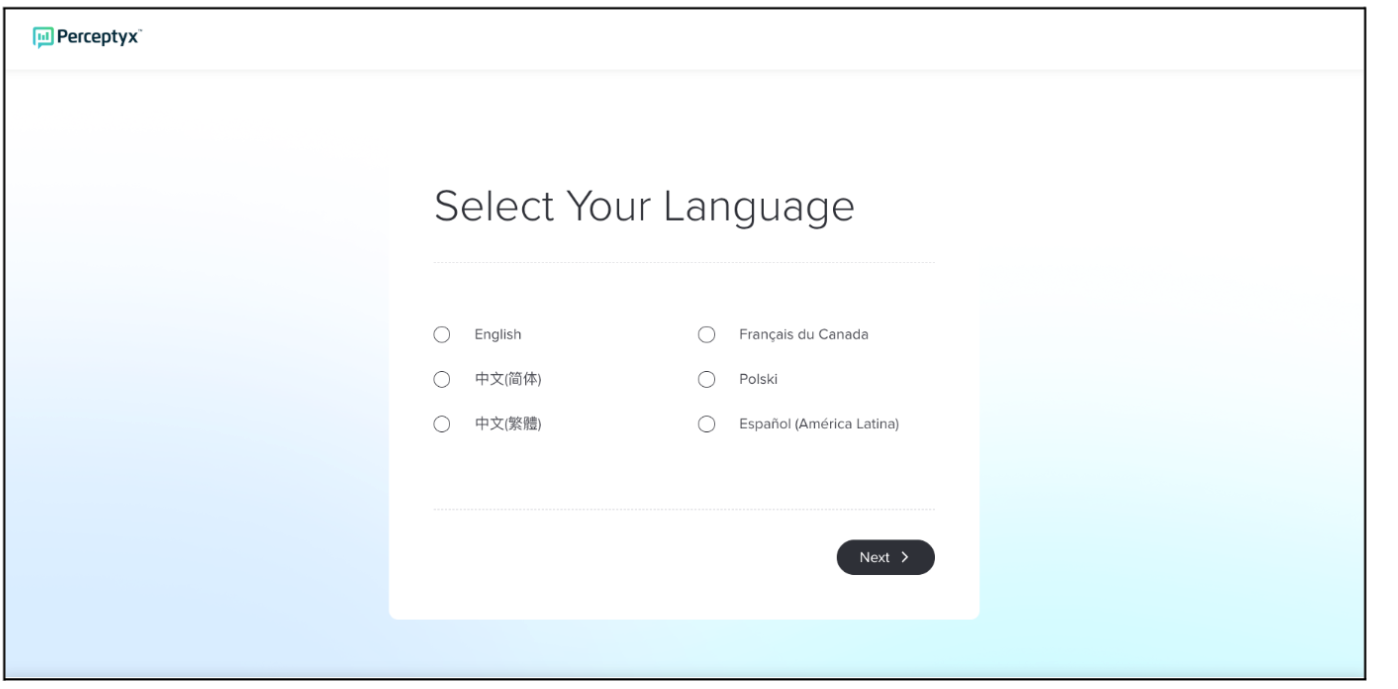
When multiple languages are available, participants select their preferred language at the start of the event.
The agent greets them and begins the conversation in the selected language.
Participants can reply in any supported language at any time.
If a participant switches languages, the agent automatically detects the change and continues in the new language.
Changing the conversation language does not affect the platform’s navigation or interface language.
Responses are stored as provided and translated into English for reporting.
For more details and step-by-step instructions, see the Participate in a Conversational Listening Event Knowledge Base article.
User Roles: Reporting Users
Required Subscription(s): Platform
We have updated how the eNPS mean score is calculated so that it aligns directly with the survey’s 0–10 rating scale. This change improves consistency and accuracy in reported results.
What’s New
New surveys now calculate the eNPS mean score using the survey scale of 0–10.
Existing surveys are not automatically impacted, but you can optionally apply the updated calculation.
The improved calculation is automatically applied to trended survey data, ensuring mean score differences are calculated correctly.
How it Works
Previously, the eNPS mean score was calculated using the response value ranging from 1–11, rather than the survey’s displayed 0–10 rating scale.
With this update, the mean score calculation now uses the same 0–10 rating scale respondents see in the survey. This ensures the reported mean score directly reflects the actual rating values provided.
For survey trends, the system applies the improved calculation consistently across datasets so that mean score comparisons remain accurate and aligned.
User Roles: Reporting Users
Required Subscription(s): Platform
You can now sign out directly from Advanced Reporting without leaving the reporting experience. This update makes it faster to end your session when you finish working with reports while helping ensure secure session management.
What’s New
Advanced Reporting now includes a built-in sign out option.
Sign out without leaving Advanced Reporting: End your session directly from the reporting interface without navigating back to the platform.
Improved productivity: Finish your work and sign out with fewer steps.
Stronger session control: Quickly end active sessions while maintaining secure workflows.
Consistent experience: The sign out control works the same way as the platform sign out option.
How it Works
A sign out option is now available on every Advanced Reporting screen.
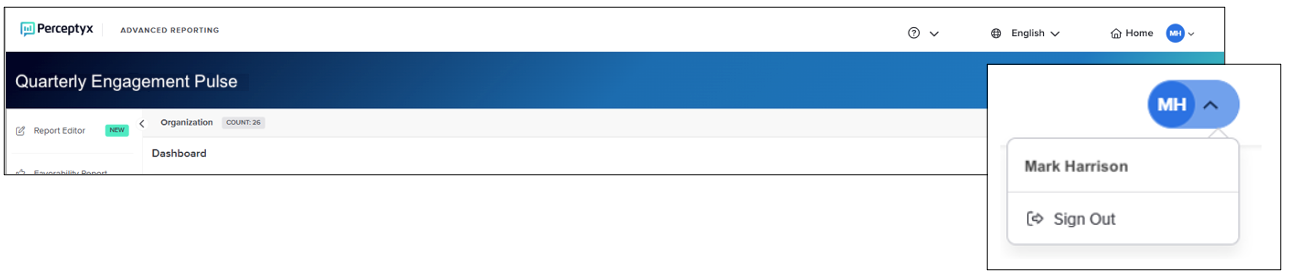
Your user initials appear in the top-right corner of the screen.
Click your initials, then click Sign Out to log out of Advanced Reporting and the platform.
Note: This update applies only to listening events using the Platform 2.5 reporting style introduced in 2025.
User Roles: Admin
Required Subscription(s): Platform, Activate
Custom Knowledge enables organizations to tailor Activate’s coaching experience to their unique culture, language, and ways of working. By providing key organizational context, such as frameworks, terminology, and internal resources, Activate can deliver coaching conversations that feel more relevant, consistent, and aligned for employees.
What’s New
Activate now supports Custom Knowledge, allowing administrators to define company-specific information that shapes how coaching conversations are delivered. This includes organizational context, coaching methodology, preferred terminology, and internal resource recommendations, which help Activate better reflect your company’s culture and practices.
How It Works
Custom Knowledge is accessed from the Advanced Tools dropdown on the Act Page and is organized into four configurable areas:
Organizational Context and Frameworks: Capture company values, leadership or competency frameworks, and industry context to inform how Activate frames guidance and feedback.
Coaching Methodology: Define your internal coaching philosophy, including tone and style, so Activate mirrors your organization’s approach to coaching.
Terminology: Specify preferred language, role titles, and key terms to ensure conversations use familiar and consistent phrasing.
Resource Recommendations: Link to internal programs, learning tools, and HR resources so Activate can direct employees to relevant support when appropriate.
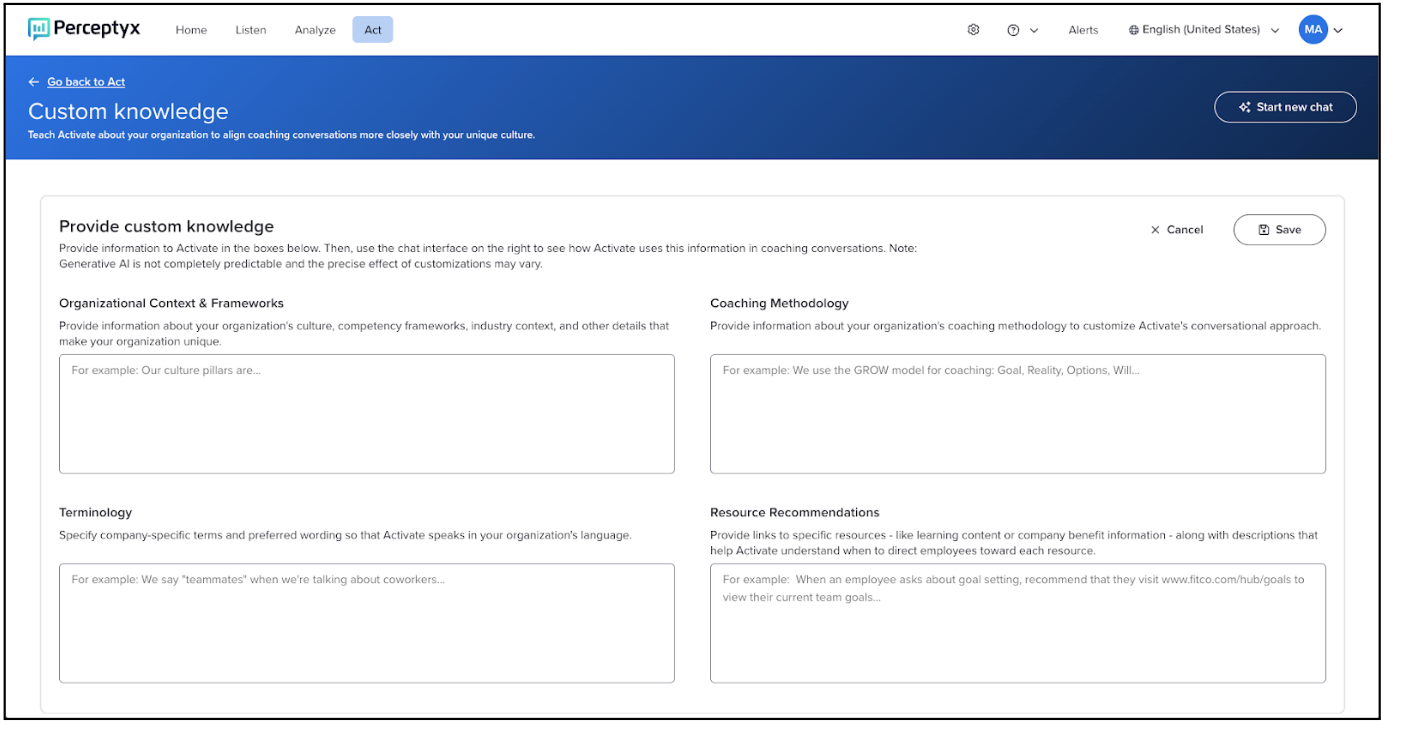
Custom Knowledge can be updated at any time, allowing the experience to evolve as your organization grows and changes.
For more details and step-by-step instructions, see the Configure Custom Knowledge in Activate (Admins Only) Knowledge Base article.
Check back next month!
Questions?
If you have questions about the Perceptyx Platform functionality or the latest updates, please reach out to the Customer Care Team or your Customer Success Manager.
Was this article helpful?
That’s Great!
Thank you for your feedback
Sorry! We couldn't be helpful
Thank you for your feedback
Feedback sent
We appreciate your effort and will try to fix the article