As an Admin or Creator user, you can access the Dashboard Builder in Advanced Reporting after launching a self-led Point-In-Time or Lifecycle listening event to configure the dashboard(s) that reporting users can access. For an overview of the Dashboard Builder, see the Meet the Dashboard Builder | Point-In-Time & Lifecycle article.
The Perceptyx-curated default dashboard includes best-practice widgets and is ready to use as-is, but you can customize it as needed by reordering widgets, adjusting settings, and adding or removing widgets.
We recommend editing the default dashboard while the event is still live and before granting reporting access. Survey data is required to preview data-driven widgets, and your event must meet the minimum response threshold.
Note: For information on managing reporting access, see the Add & Manage Reporting Users for an Event | Point-In-Time & Lifecycle article.
You can also create new dashboards, if needed, by duplicating and modifying the default dashboard or creating one from scratch. The default will still be available to reporting users with access permissions.
This article walks through:
- Configure Dashboard Settings
- Configure Widget Settings
- Move, Add, Duplicate, Change, and Remove Widgets
- Modify Permissions
- Make the Dashboard Live
- Create a New Dashboard
- Revert to Draft
- Remove a Dashboard

Configure Dashboard Settings
Dashboard settings are settings that apply to the entire dashboard. The Dashboard Settings dialog box contains two tabs with options for the dashboard title and layout.
You can preview your changes at any time by closing the Dashboard Settings dialog box and then clicking Preview Dashboard (top right) in the Dashboard Layout Editor.
Access Dashboard Settings
Log in to the Perceptyx Platform.
Navigate to the Analyze page.
Find the listening event you want to work with, then click Live Report (if the event is visible in the Report Eligible section) or display the Actions dropdown and select Live Report.
Advanced Reporting opens.
In the left panel, click Report Editor to open the Report Editor.
Click the Dashboard Builder tab.
In the Available Dashboards section, click Edit for the default dashboard.
The Dashboard Layout Editor opens.
Click Settings (top right) to display the Dashboard Settings dialog box.
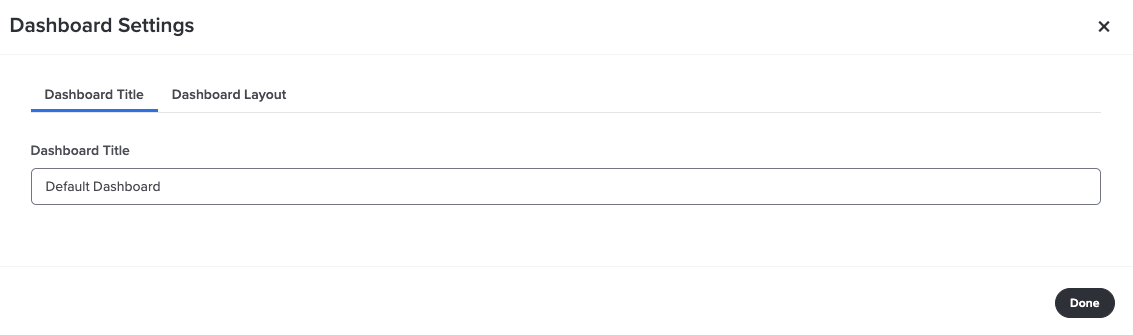
Dashboard Title
The dashboard title is the name of the dashboard as it appears in the left navigation panel of Advanced Reporting.
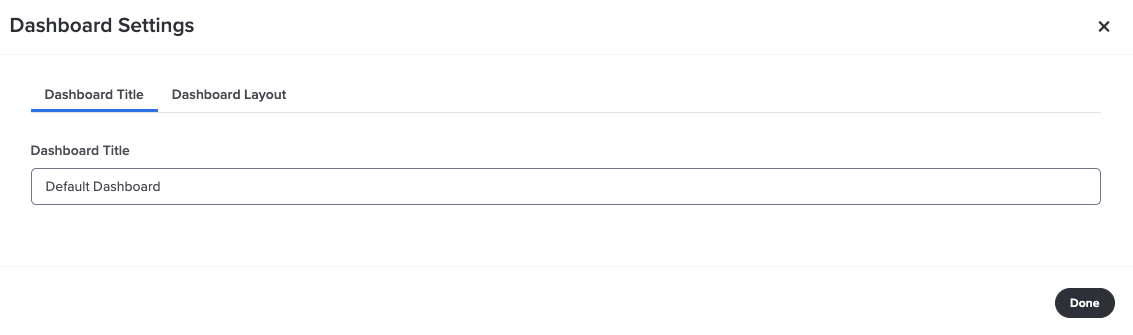
Click the Dashboard Title tab, if necessary.
Type a name for the dashboard in the Dashboard Title box.
Note: Your changes automatically save as you make changes in the Dashboard Settings dialog box.
Dashboard Layout
You use the Dashboard Layout tab to specify the pattern used for the dashboard layout.
A pattern determines the number of widgets in the dashboard and how they are arranged.
The pattern doesn’t determine the types of widgets in the dashboard, just the number and placement of the widgets.
Each pattern option includes a representative image.
If a pattern indicates a grid, the widgets are aligned vertically and horizontally, like cells in a table.
If a pattern indicates floating cells, the widgets are placed freely, filling available space without strict alignment.
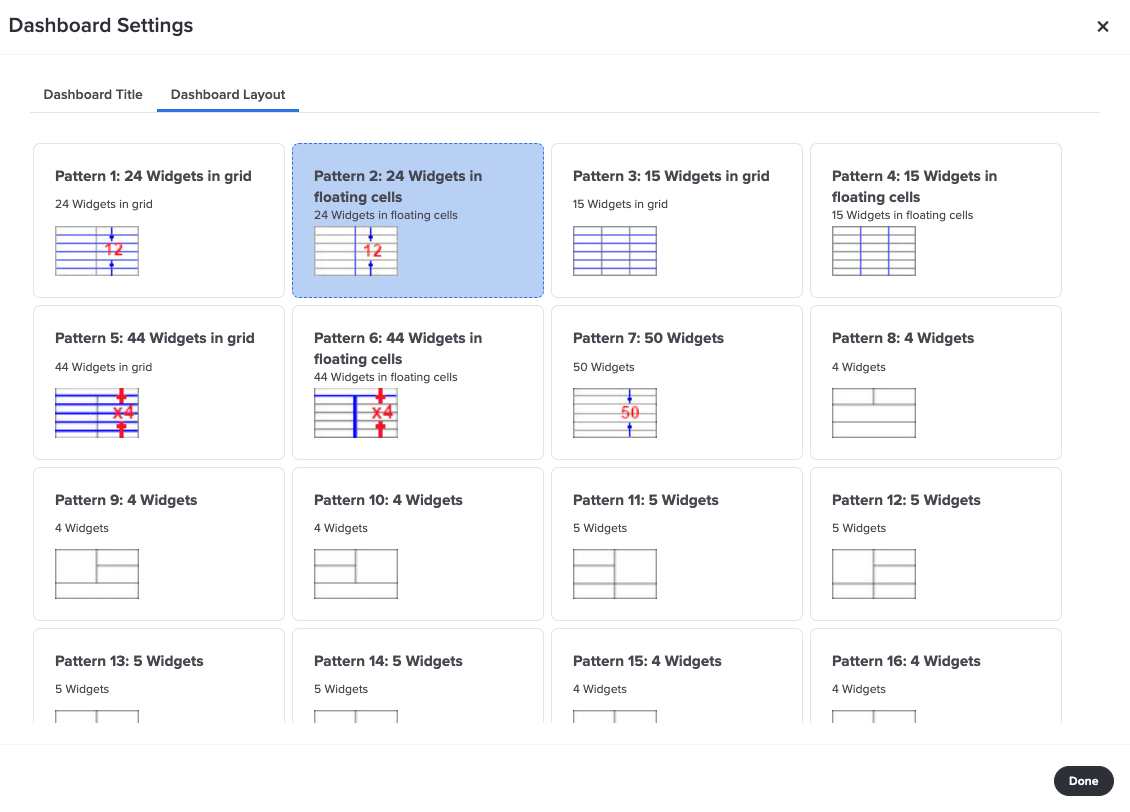
Important: If you switch to a pattern with fewer widgets, only the number of widgets supported by the new pattern will carry over, starting from the first widget and continuing in sequential order from left to right. Any additional widgets and their associated data will not be retained.
Example: If your current pattern has 15 widgets and you switch to a pattern with 5 widgets, only the first 5 widgets in sequence and their associated data will be preserved.
Click the Dashboard Layout tab.
Click the pattern you want to use.
Click Done to close the dialog box.

Configure Widget Settings
When you select a widget in the Dashboard Layout panel, its configuration settings appear in the Widget Settings panel. These settings control what data the widget displays, how results are evaluated, and how the widget appears in the dashboard.
Available settings vary by widget type.
Some options may appear or change based on your selections.
Your changes save automatically as you work.
How Widget Configuration Works
Although individual settings differ by widget, most widgets follow the same configuration process:
Choose what data to display: Select items, filters, or sorting options
Configure comparisons (if applicable): Define how results are compared or calculated
Adjust display settings: Control formatting or layout
Preview and refine: Review results and adjust settings as needed
Not all widgets require every step.
Preview Dashboard Changes
You can preview the dashboard at any time to review how widget settings affect the displayed results. Previewing allows you to confirm that the correct data appears and that widgets display information clearly.
To preview the dashboard:
In the Dashboard Layout Editor, click Preview Dashboard (top right) to open the preview in a new browser tab.
Review the dashboard in the preview tab.
Close the preview tab, return to the editor, and adjust settings as needed.
Preview your dashboard after making configuration changes to ensure the results appear as expected.
To see how widgets configured to show the “Overall Comparison” group will appear, set a filter in the preview tab to view the comparison:
Preview the dashboard.
Display the Filter Data dropdown (top right), then select New Filter to display the New Filter dialog box.
Display the Select a Demographic dropdown, then select a demographic to display its available options.
Select the option(s) you want to include in the filter, then click Submit Filter.
The filter is applied and the comparisons for the selected demographic display in parentheses next to each item. The filter remains in effect until you clear it.
To clear the filter, display the Filter Data dropdown, then select Clear Filter.
For more detailed information about using filters, see the Filter Your Data article.
Understanding Settings Categories
Widget settings are typically grouped into the following categories.
Data Shown: Controls what data appears in the widget, including the type of data displayed, filtering options, sorting, and result limits.
Comparisons: Defines how data is evaluated or compared, such as trends, benchmarks, or overall results.
Display Options: Controls visual presentation, including layout, formatting, labels, or other display elements.
Note: Not all widgets include all categories, and available options depend on the widget type and listening event configuration. For complete details about settings for a specific widget, see the Dashboard Builder Widget Library Overview Deck.
Data Shown
The Data Shown category controls which data the widget displays and how it is organized. These settings typically allow you to choose the type of data to display, limit results, or organize how information appears.
Available options vary by widget.
Example: Data Shown Settings
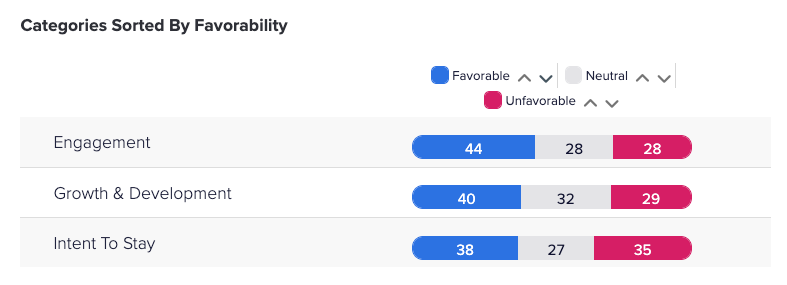
The following example shows configured data settings for the Widget Fav Table widget. In this example, the widget is configured to display results for three categories (Engagement, Growth & Development, and Intent to Stay), sorted by Favorability percentage.
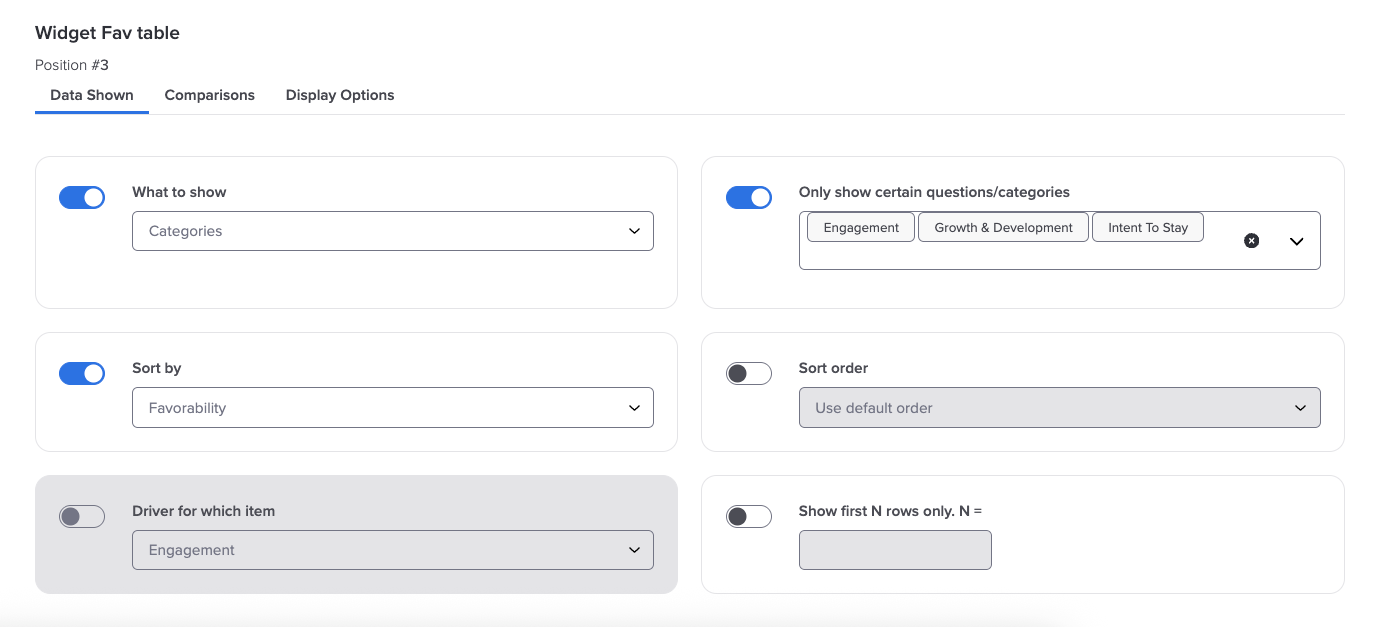
When previewed, the widget displays as shown below.
To configure Data Shown settings:
In the Dashboard Layout panel, select the widget you want to configure.
Click the Data Shown tab.
Select the type of data to show.
Optionally limit results using available filters or selection options.
Configure sorting or result limits, if available.
If additional options appear based on your selections, configure them as needed.
Preview the dashboard to review your changes and refine settings as needed.
For detailed descriptions of available comparison options for a specific widget, see the Dashboard Builder Widget Library Overview Deck.
Comparisons
The Comparisons category controls how widget results are evaluated against other data. Depending on the widget and listening event configuration, comparisons provide additional context for the data that is shown.
For example, comparisons may allow you to:
Compare results across time and events (trend)
Compare results to overall or benchmark data
Highlight differences between groups or views
Show changes in scores or metrics
Available comparison options vary by widget and by the data available for your listening event.
Note: Some widgets do not include comparison settings.
Example: Comparison Settings
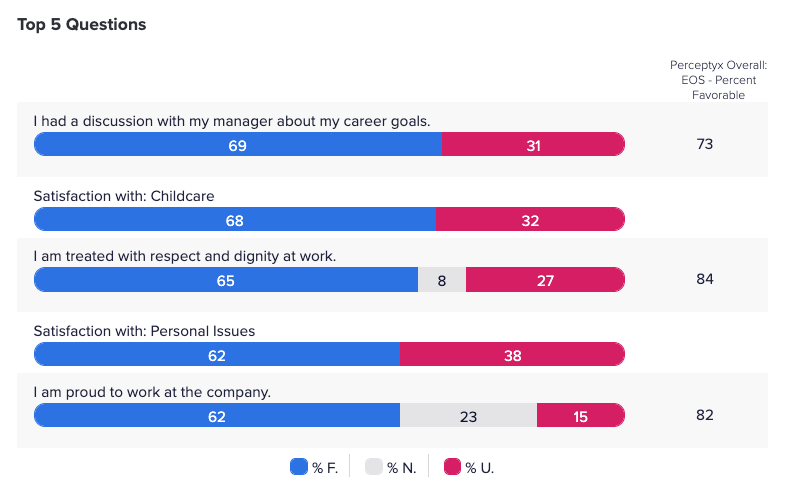
The following example shows configured comparison settings for the Widget Fav Table widget. In this example, the data shown settings were set to display the top 5 questions by favorability score. The Comparison settings specify that the widget will display the Perceptyx Overall percent favorable benchmark beside the question scores.
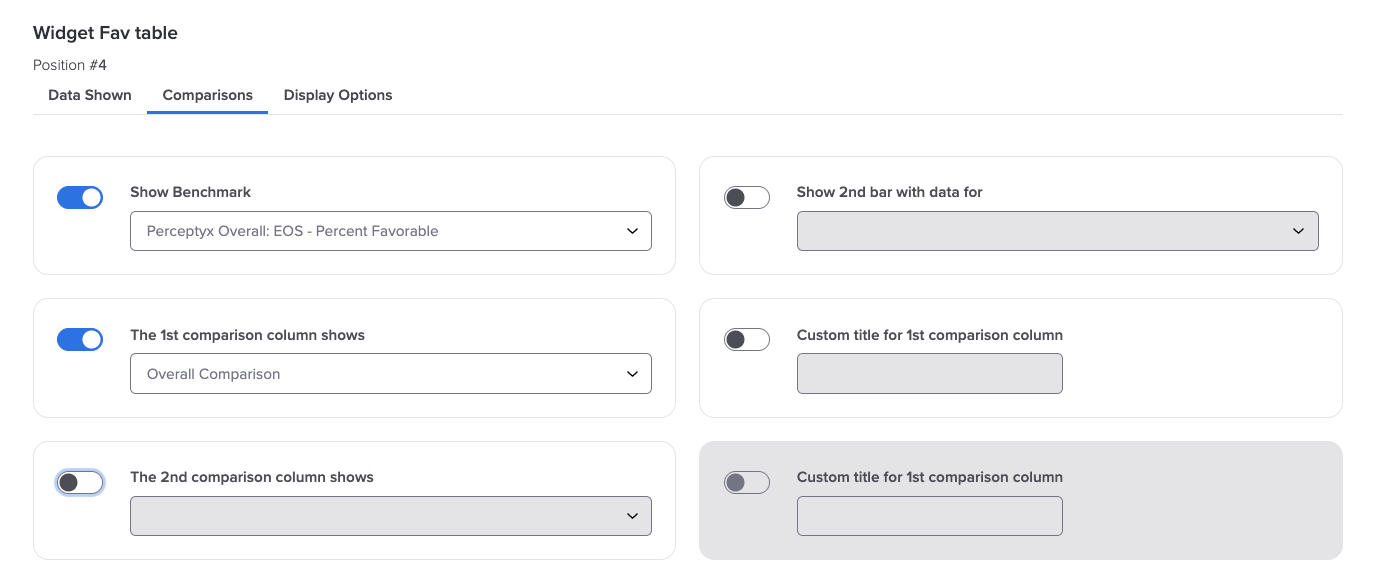
When previewed, the widget displays as shown below.
To configure Comparisons settings:
In the Dashboard Layout panel, select the widget you want to configure.
Click the Comparisons tab, if available.
Display the comparison dropdowns, then select the comparison data you want to show.
Repeat for additional comparison fields, if applicable.
Preview the dashboard and adjust your selections as needed.
For detailed descriptions of available comparison options for a specific widget, see the Dashboard Builder Widget Library Overview Deck.
Display Options
The Display Options category controls how information appears in a widget. These settings affect the visual presentation of data rather than the data itself.
Depending on the widget, display options may affect:
Layout and formatting
Visible labels or information
How values or changes are presented
Visual elements like color or grouping
The amount of information shown
Available display options vary by widget type.
Example: Display Options Settings
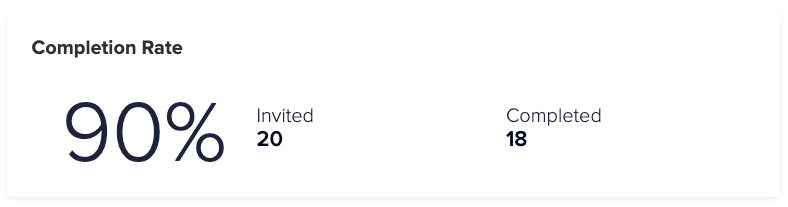
The following example shows configured display options settings for the Widget Response Rate widget. In this example, the settings specify that the widget will display the custom title “Completion Rate,” and will be outlined as a box on the dashboard. In addition to the response rate, it will show the number of employees invited and the number who responded.
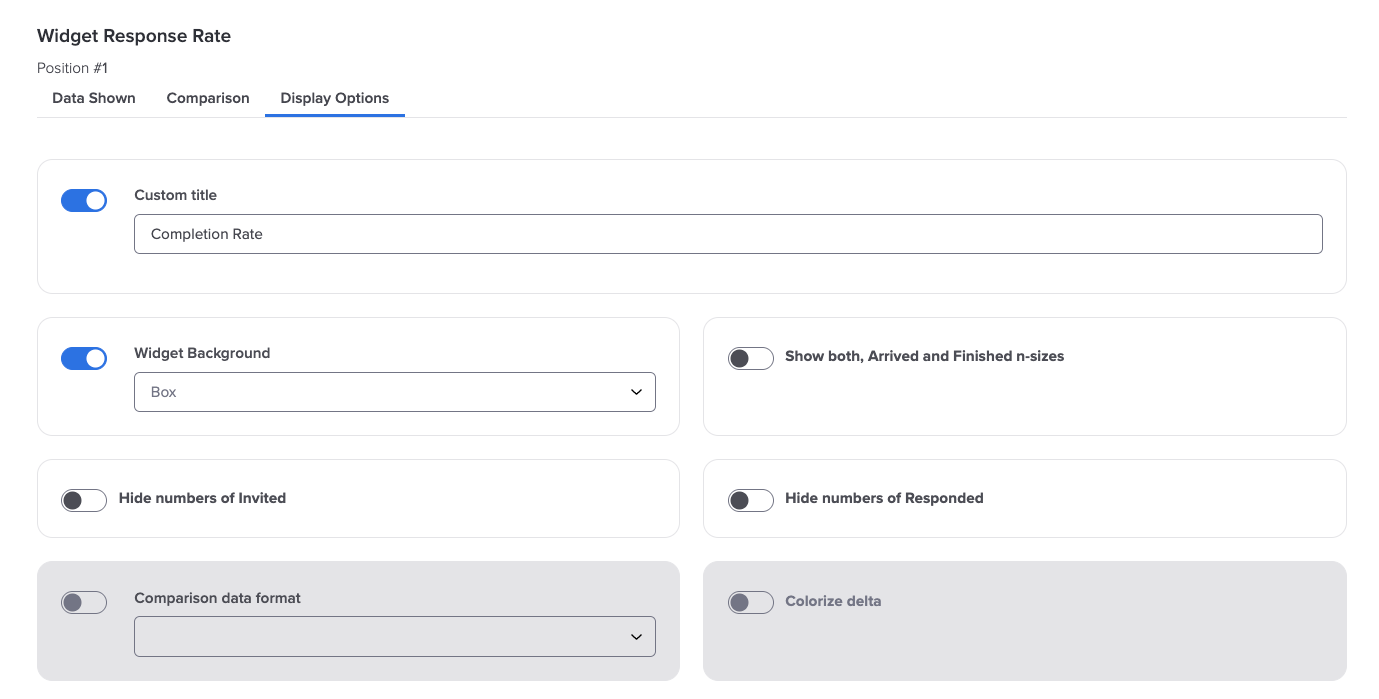
When previewed, the widget displays as shown below.
To configure Display Options settings:
In the Dashboard Layout panel, select the widget you want to configure.
Click the Display Options tab, if available.
Turn settings on or off using toggles, or display dropdowns and select the desired options.
Preview the dashboard and adjust your selections as needed.
For detailed descriptions of available display options for a specific widget, see the Dashboard Builder Widget Library Overview Deck.

Move, Add, Duplicate, Change, and Remove Widgets
You can further customize the default dashboard by rearranging the widgets and by adding and deleting widgets.
Move a Widget
You can move a widget in the Dashboard Layout panel by selecting a different layout position. The widget swaps places with the selected position.
In the Dashboard Layout panel, click the widget you want to move.
Click the Move Widget icon (four arrows) in the Dashboard Layout panel or click Move Widget in the workspace panel.
The Move Widget dialog box appears.
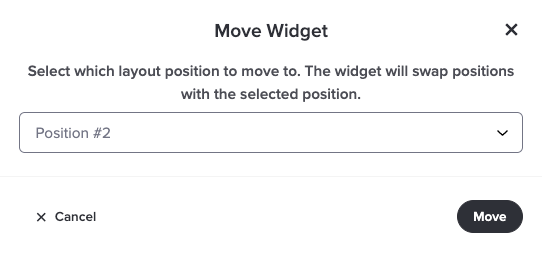
Display the Position # dropdown, then select the new position for the widget.
Click Move.
The widget swaps places with the widget in the selected position.
Preview the dashboard and make adjustments as needed.
Add a Widget
If you want to present different information than what is available in the default dashboard, you can add widgets from the pre-configured Dashboard Builder Widget Library. This library offers a variety of widget templates designed for specific use cases, along with important settings to configure, all to help simplify your selection process.
You can view descriptions, use cases, and settings for the available widgets in the Dashboard Builder Widget Library Overview Deck. After reviewing the options and making your choice, be sure to note the widget name so you can easily add it to your dashboard. Added widgets automatically inherit the configured dashboard settings.
Note: The widget name shown in the overview deck and widget library is used to identify the widget in the Dashboard Layout panel while editing. It does not determine the title displayed on the dashboard. To set the widget’s title, use the Custom Title option in the widget’s Display Options tab.
In the Dashboard Layout panel, click + Add Widget in the position where you want to add the widget.
The Widget Library opens.
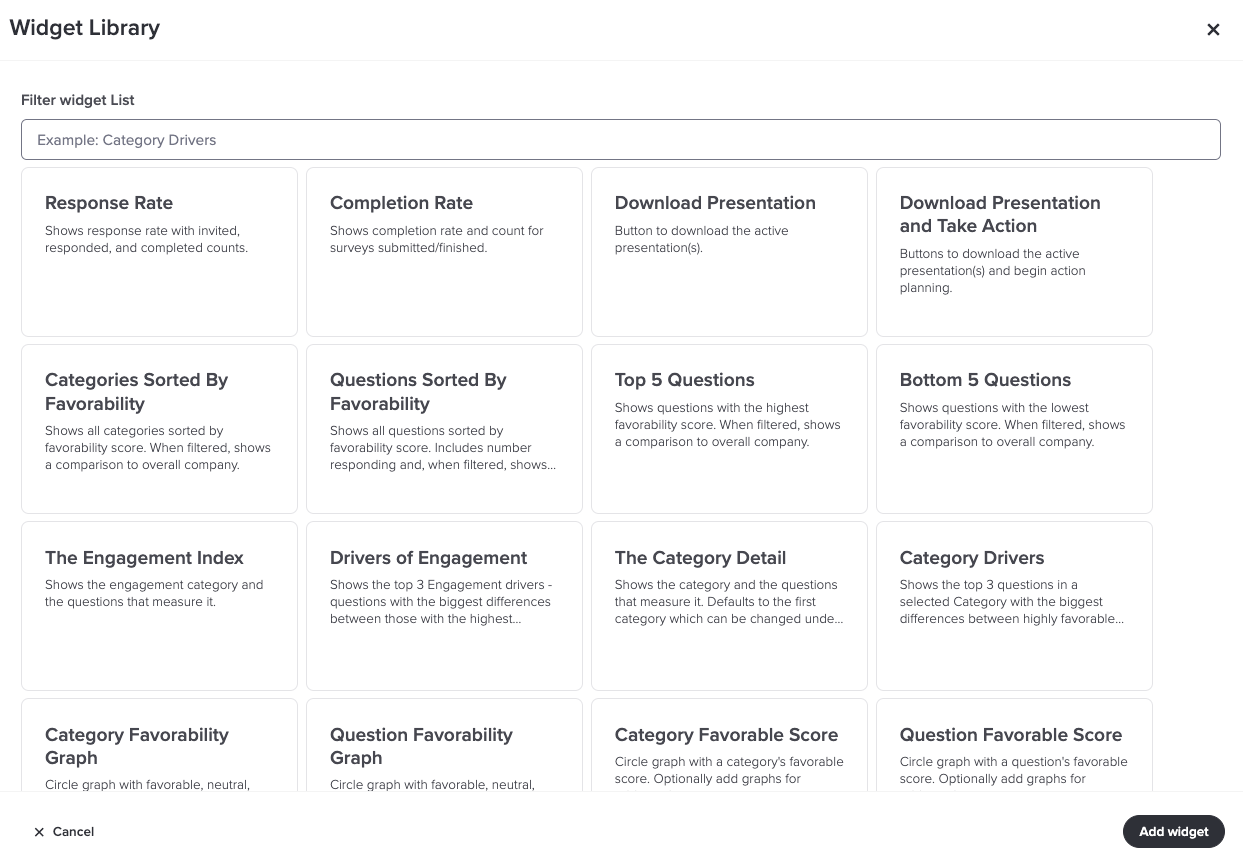
Navigate to the widget you want to add or find it by typing a key word or phrase in the Filter Widget List box.
Click the widget you want to add, then click Add Widget.
Update the widget settings as needed.
Duplicate a Widget
If needed, you can save time building your dashboard by duplicating a widget and tweaking its settings to create a new widget. This can be helpful when you need similarly configured widgets.
In the Dashboard Layout panel, click the widget you want to duplicate.
Click the Duplicate Widget icon in the Dashboard Layout panel or click Duplicate Widget in the workspace panel.
The Duplicate Widget dialog box appears.
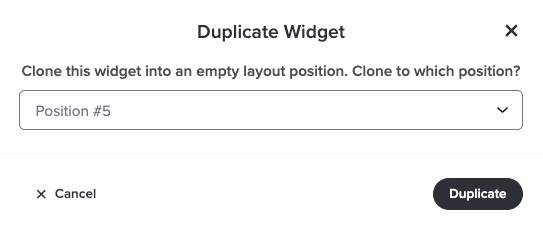
Display the Position # dropdown, then select the position for the duplicate widget.
Click Duplicate.
Adjust the settings for the duplicated widget as needed.
Change a Widget
You can easily change a widget if needed.
In the Dashboard Layout panel, click the widget you want to change.
Click the Change Widget icon in the Dashboard Layout panel or click Change Widget in the workspace panel.
The Widget Library appears.
Select a widget from the library, then click Replace Widget.
Adjust the settings for the new widget as needed.
Remove a Widget
You can easily remove widgets from the dashboard. Be aware that deletions are permanent.
In the Dashboard Layout panel, click the widget you want to delete.
Click the Remove Widget icon in the Dashboard Layout panel or click Remove Widget in the workspace panel..
A confirmation message appears.
Click Remove.

Modify Permissions
Permissions define who is able to access the dashboard. You manage these settings in the Permissions dialog box.
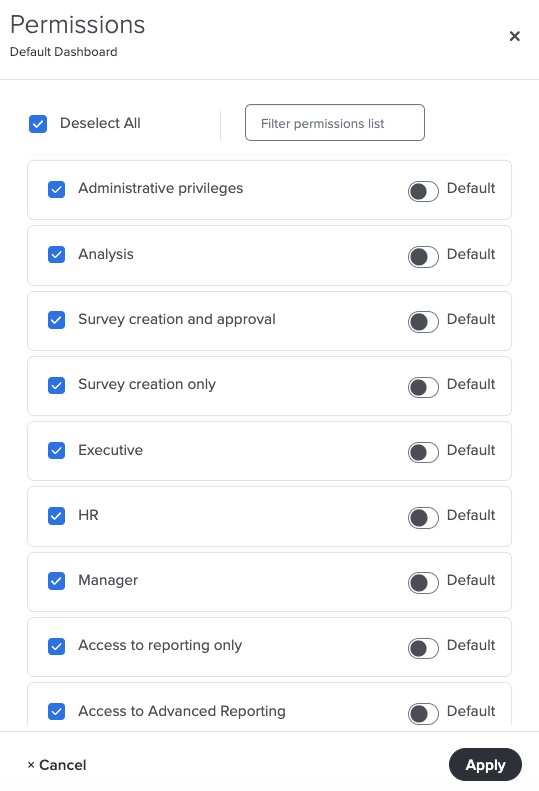
By default, all available statuses are selected and have access. You can:
Exclude specific statuses: Uncheck the box next to any status you want to exclude.
Allow only certain statuses: Click Deselect All, then check only the statuses you want to include.
Filter the list: Use the Filter Permissions List box to quickly find a specific status.
Assign as a default: Toggle the Default option on to make the dashboard the default dashboard for a selected status. The default dashboard is the first reporting screen the user sees when they log in.
Open the Report Editor, then click the Dashboard Builder tab.
Display the Actions dropdown for the default dashboard, then select Permissions to display the Permissions dialog box.
Clear the checkbox for any status(es) you want to exclude from accessing the dashboard or click the Deselect All checkbox and then select the checkbox for each status you want to include.
To find a specific status quickly, type its name in the Filter Permission List box. The list updates as you type.
Turn on the Default toggle for one or more statuses to make the dashboard their default dashboard.
When you are done, click Apply to save your changes.

Make the Dashboard Live
When you are ready to make the dashboard available to the users with access permissions, you make the dashboard live.
Note: The default dashboard is initially provided in Draft mode. Until you make it live, it is not visible to reporting users and does not appear in the left navigation panel in Advanced Reporting.
Open the Report Editor, then click the Dashboard Builder tab.
Display the Actions dropdown for the default dashboard, then select Go Live.
Note: If you need to edit the dashboard after it is live, you can:
Edit it while it is live. The changes will be seen immediately by reporting users.
Revert to draft (display the Actions dropdown, then select Revert to Draft), make your changes, and then make the dashboard live again.

Create a New Dashboard
If you need a dashboard for a different audience or want to tailor the content for specific stakeholders, you can create a new dashboard. You can create a new dashboard in one of two ways:
Duplicate and modify an existing dashboard
Create an empty dashboard and add widgets
Duplicate and Modify an Existing Dashboard
The process can be broken down into four steps:
Duplicate a dashboard (the default dashboard for your first one).
Modify the dashboard as needed. Just like the default dashboard, you can:
Add or remove widgets
Rearrange the widget order
Adjust settings for the dashboard or individual widgets
Specify permissions to control who can access the new dashboard in Advanced Reporting.
Preview and publish the dashboard so it's available to your selected users.
Step 1: Duplicate the Default Dashboard
Initially, the default dashboard is the only one available. You can create a new dashboard by duplicating and modifying the default dashboard. After you create a new dashboard, you can use it as the basis for other new dashboards or still duplicate the default dashboard.
Open the Report Editor, then click the Dashboard Builder tab.
Display the Actions dropdown for the default dashboard, then select Duplicate.
The Duplicate Dashboard dialog box appears.
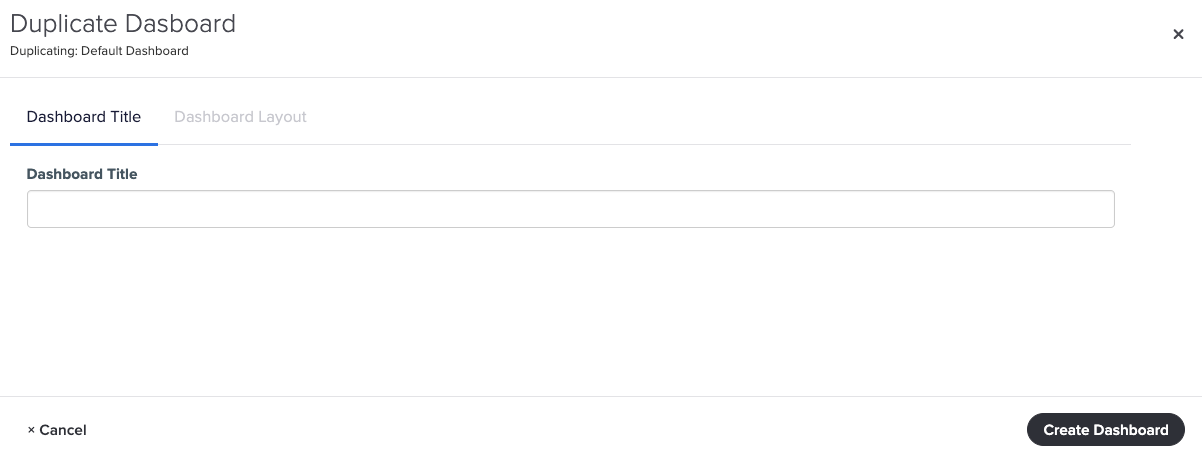
Type a name for the dashboard in the Dashboard Title box, then click Create Dashboard.
The duplicate dashboard is created and displayed in the Available Dashboards area in Draft status.
Step 2: Modify the Dashboard
Just as you can edit the default dashboard, you can edit your new duplicate dashboard. You can:
Configure dashboard settings
Move, add, duplicate, change, and delete widgets
Set widget options
In the Available Dashboards section of the Dashboard Builder, click Edit for the new dashboard.
The Dashboard Layout Editor opens.
Make your changes as needed. For detailed instructions, refer to the appropriate sections of this article.
When you’re done, click Go Back (top left) to return to the Dashboard Builder.
Step 3: Specify Permissions
As with the default dashboard, you can specify who can access the new dashboard via permissions.
Display the Actions dropdown for the dashboard, then select Permissions to display the Permissions dialog box.
Clear the checkbox for any status(es) you want to exclude from accessing the dashboard or click the Deselect All checkbox and then select the checkbox for each status you want to include.
To find a specific status quickly, type its name in the Filter Permission List box. The list updates as you type.
Turn on the Default toggle for one or more statuses to make the dashboard their default dashboard.
When you are done, click Apply to save your changes.
Step 4: Preview and Publish the Dashboard
New dashboards remain in Draft status until you publish them (make them live). Although you likely previewed the new dashboard along the way, it’s recommended that you preview the entire dashboard prior to publishing.
In the Available Dashboards section, click Preview for your new dashboard to open a preview in a separate browser tab.
Scroll to review each widget.
When you are done, close the preview browser window.
Make any additional changes, if needed, then preview again, until you are satisfied with the content.
To publish, display the Actions dropdown for the dashboard, then select Go Live.
The status changes from Draft to Live.
Create an Empty Dashboard and Add Widgets
The process can be broken down into four steps:
Create an empty dashboard.
Add and modify widgets. As with any dashboard, you can:
Add or remove widgets
Rearrange the widget order
Adjust settings for the dashboard or individual widgets
Specify permissions to control who can access the new dashboard in Advanced Reporting.
Preview and publish the dashboard so it's available to your selected users.
Step 1: Create an Empty Dashboard
When creating an empty dashboard, you specify a dashboard title and the layout.
Open the Report Editor, then click the Dashboard Builder tab.
Click + Create Dashboard (top right).
The Create a New Dashboard dialog box appears.
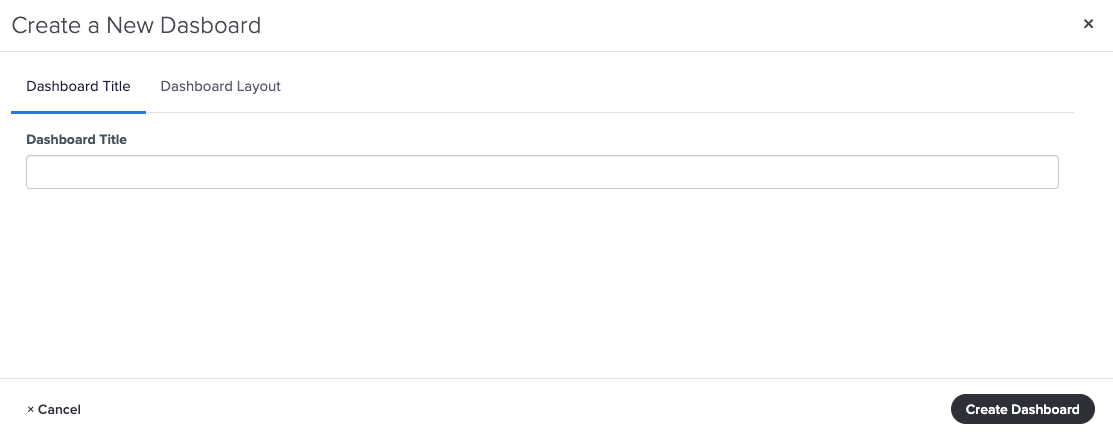
Type a name for the dashboard in the Dashboard Title box, then click the Dashboard Layout tab to display layout pattern options.
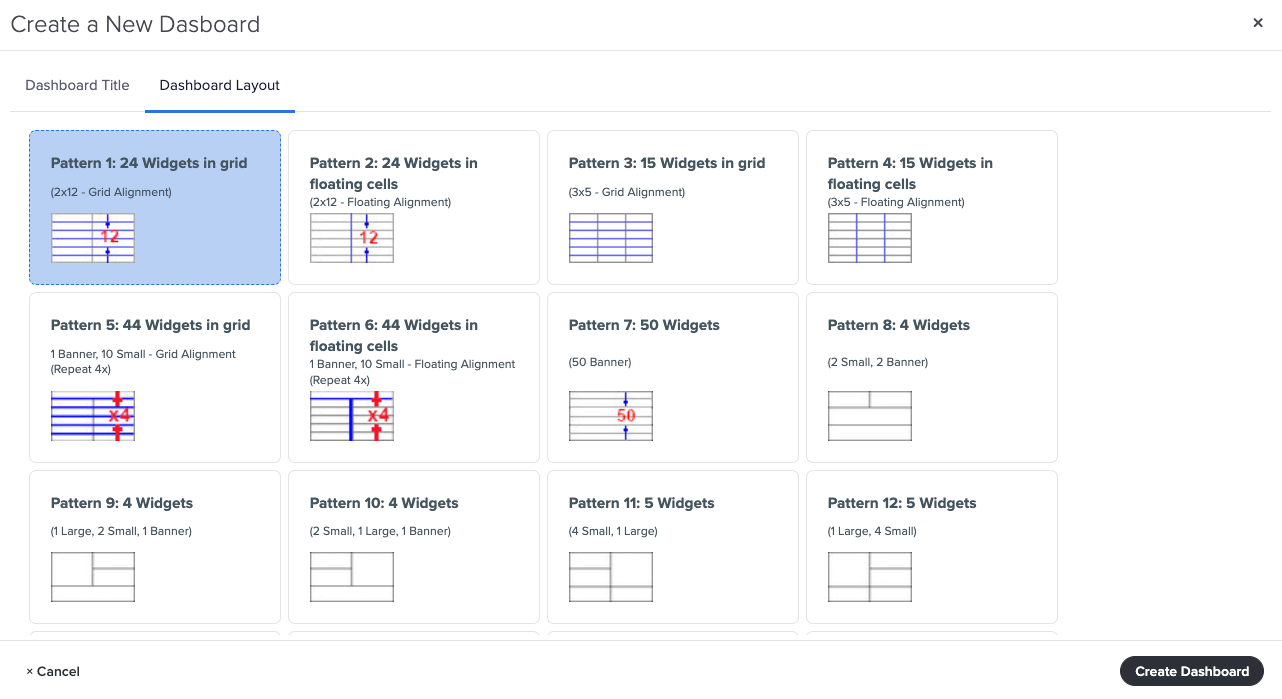
Click a pattern option, then click Create Dashboard.
The empty dashboard is created and displayed in the Available Dashboards area in Draft status.
Step 2: Add and Modify Widgets
Once your dashboard is created, you can add and work with widgets. You can:
Move, add, duplicate, change, and delete widgets
Set widget options
In the Available Dashboards section of the Dashboard Builder, click Edit for the new dashboard.
The Dashboard Layout Editor opens.
Add your widgets and modify them as needed. For detailed instructions, refer to the appropriate sections of this article.
Preview the dashboard as you work to ensure the widgets display the information you want to show.
When you’re done, click Go Back (top left) to return to the Dashboard Builder.
Step 3: Specify Permissions
As with any dashboard, you can specify who can access the new dashboard via permissions.
Display the Actions dropdown for the dashboard, then select Permissions to display the Permissions dialog box.
Clear the checkbox for any status(es) you want to exclude from accessing the dashboard or click the Deselect All checkbox and then select the checkbox for each status you want to include.
To find a specific status quickly, type its name in the Filter Permission List box. The list updates as you type.
Turn on the Default toggle for one or more statuses to make the dashboard their default dashboard.
When you are done, click Apply to save your changes.
Step 4: Preview and Publish the Dashboard
New dashboards remain in Draft status until you publish them (make them live). Although you likely previewed the new dashboard along the way, it’s recommended that you preview the entire dashboard prior to publishing.
In the Available Dashboards section, click Preview for your new dashboard to open a preview in a separate browser tab.
Scroll to review each widget.
When you are done, close the preview browser window.
Make any additional changes, if needed, then preview again, until you are satisfied with the content.
To publish, display the Actions dropdown for the dashboard, then select Go Live.
The status changes from Draft to Live.

Revert to Draft
You can change the status of a live dashboard back to Draft if you need to make changes, and then republish. When in Draft status, users will not be able to see the dashboard.
Note: If you click the Edit option for a live dashboard, you are prompted to revert to draft; however, doing so is optional. If you choose to edit a live dashboard, the changes are immediately visible to reporting users when the changes are saved.
Display the Actions dropdown for the dashboard, then select Revert to Draft.
The status changes from Live back to Draft.

Remove a Dashboard
If needed, you can remove a dashboard from the Dashboard Builder. Removal is a permanent action; it cannot be undone.
Display the Actions dropdown for the dashboard, then select Remove.
A confirmation message appears.
Click Remove.
Was this article helpful?
That’s Great!
Thank you for your feedback
Sorry! We couldn't be helpful
Thank you for your feedback
Feedback sent
We appreciate your effort and will try to fix the article