Listen
How to add Reporting users to a listening event, limit what data they can see, and edit, clone, or delete them later.
Before you start
A Reporting user is someone who can view survey results but cannot build or launch a listening event. As the need arises, you can add new Reporting users to your event, decide which slice of the data each one can see, and edit, clone, or delete them.
Instructions on this page are only relevant to Reporting users. If you are a Platform Administrator and you want to add other Platform Admin, Event Admin, or Creator users, see See Manage User Roles and Access (Platform Admins Only) instead.
What this article covers
Add a Reporting user to an event
If you are an Admin or a Creator on the event, you can add Reporting users to it yourself, and you can come back later to change what each one is allowed to see.
One thing to know up front: a Reporting user you add can see all the results in that event by default. If you want to narrow that down, you do it after the fact, in the Limit what a Reporting user can see section below. You can add the user while you are still building the event, but you cannot set their data limits until the event is active.
Worth knowing
Reporting users added during event launch can see results in real time, as soon as their access email arrives. If you would rather they only see final numbers, wait until the event has closed and add them then.
- Go to the Listen page.
- Click Manage Event on the event you want to add the user to. The Event Builder opens.
- Click Event Options, then select Add/Edit Users. The User Management window for that event appears.
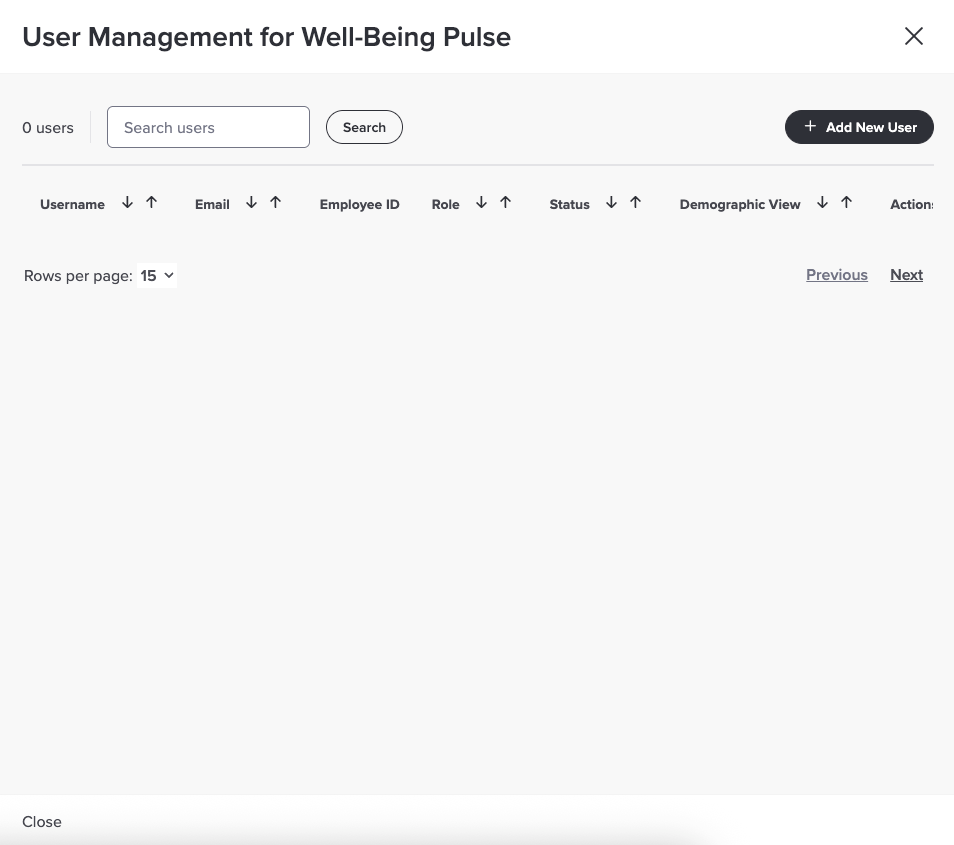
- Click +Add New User in the top right. The window switches to the Personal Data tab, with empty fields for the new person.
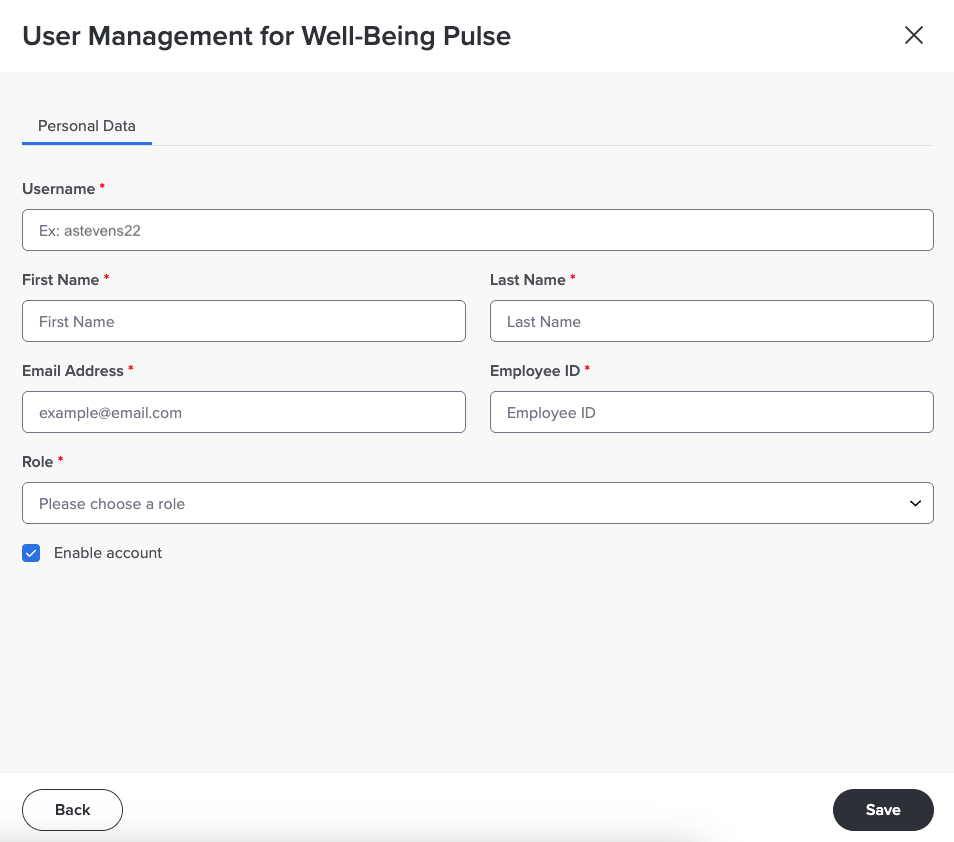
- Fill in every required field: Username, First Name, Last Name, Email Address, and Employee ID.
- Open the Role dropdown and choose Reporting - Access to Reporting Only.
- Make sure the Enable Account checkbox is selected, then click Save. The new user is added to the event.
- Click Close to head back to the Event Builder.
Limit what a Reporting user can see
A demographic is any attribute you loaded with your employee data, like Country, Department, or Job Level. For Reporting users, you can use those attributes to hand out a slice of the results instead of the whole thing. If Country is part of your event reporting, for example, you can set a user up to see results for Canada and Mexico only.
Timing matters
The event has to be active before you can set demographic access for a Reporting user. If the event is still in the builder, add the person now and come back to this step after launch.
- Go to the Listen page.
- Click Manage Event on the event you added the Reporting user to. The Event Builder opens.
- Click Event Options, then select Add/Edit Users. The User Management window appears.
- Use the Search box to find the user by username, email address, or employee identification number.
- Open the Actions dropdown for that user and select Edit User. The window fills in their personal data and a Demographic Access tab appears.
If you cannot find Actions
The Actions dropdown sits at the far left of the user row. You may need to scroll the table sideways to see it.
- Click the Demographic Access tab.
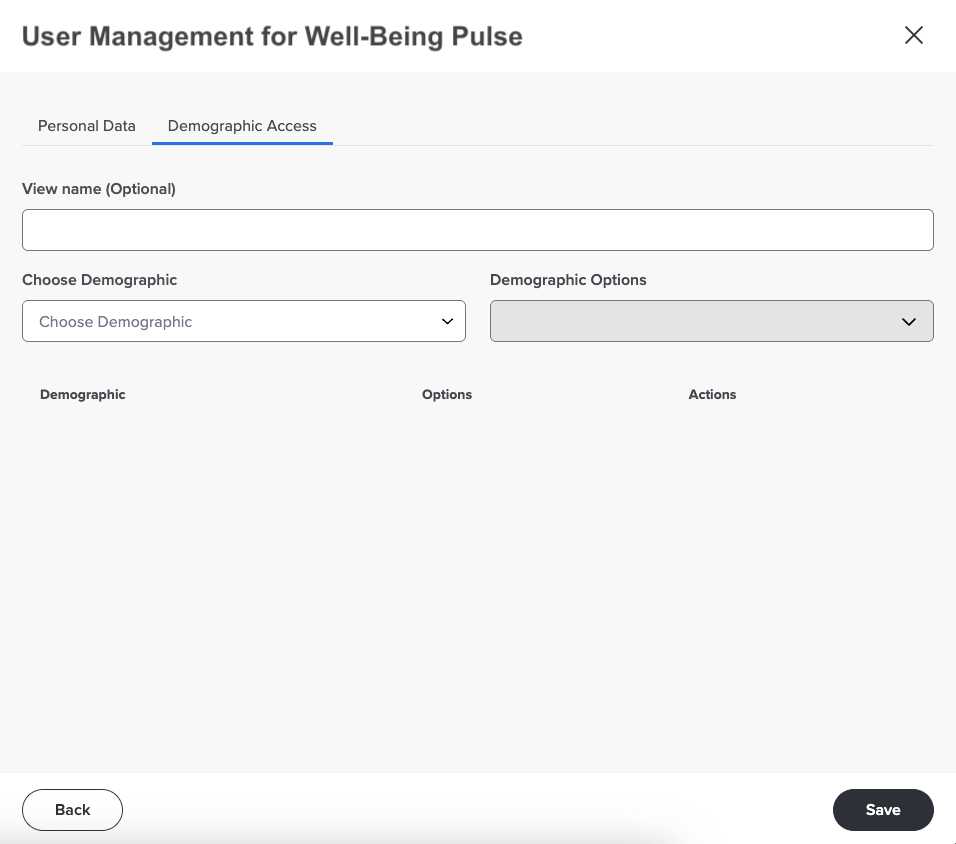
This tab is where you pick demographics and their options from your data file. You can choose more than one demographic, and you can give the whole set of choices a name so it is easier to recognize later.
- Open the Choose a Demographic dropdown and pick a demographic.
- Open the Demographic Options dropdown and check the box for each option you want to give the user access to.
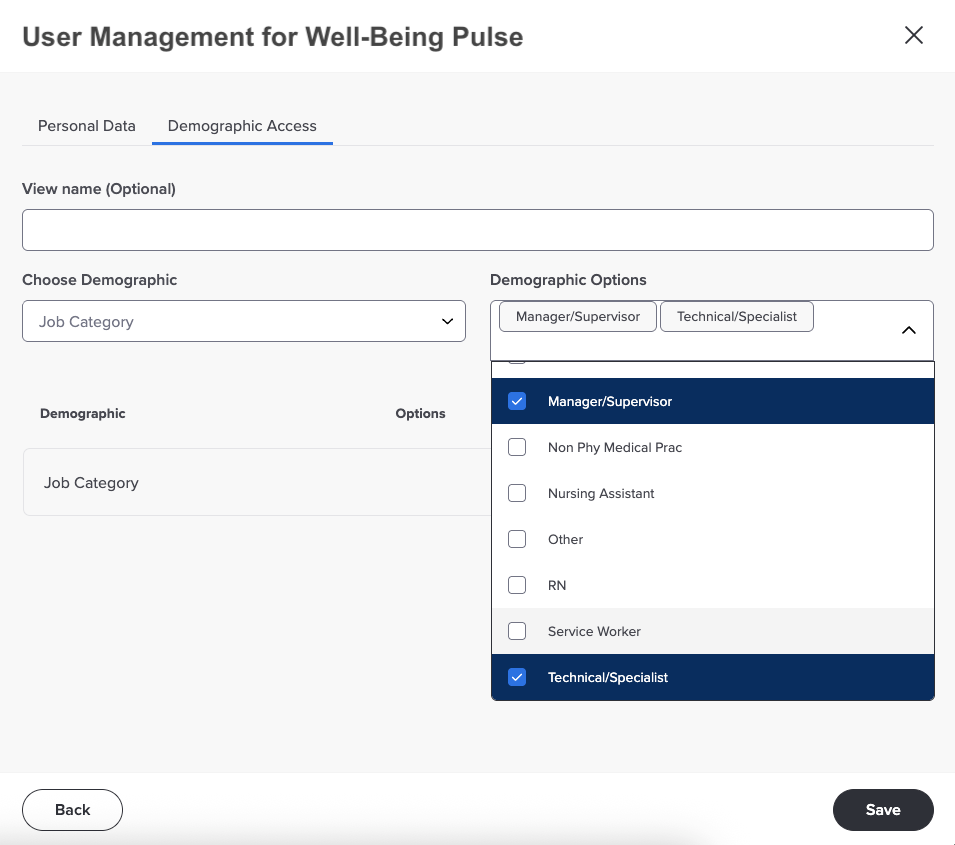
- Click anywhere outside the list to close it. Your choices show up in the table below the dropdowns.
- Repeat steps 7 through 9 for any other demographics you want to open up to this user.
- If you want to name this set of access, type it in the View Name box.
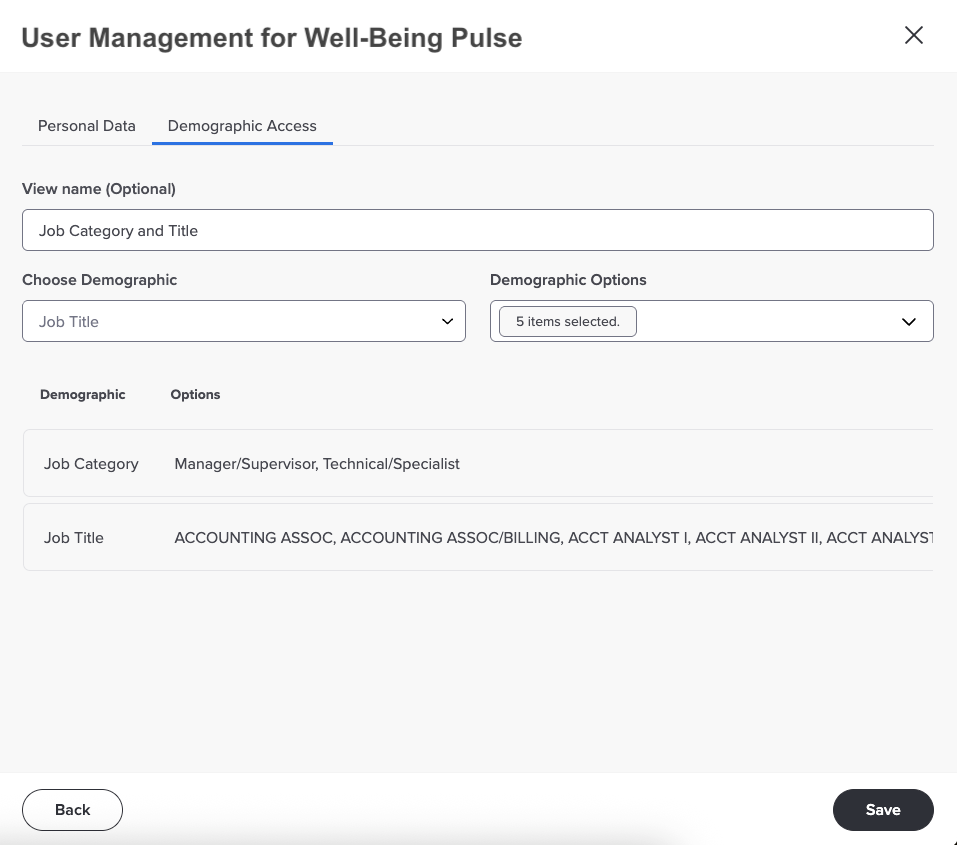
Changed your mind
Click the x to the right of any choice in the table to remove it.
- Click Save.
- Repeat for any other Reporting users who need their access narrowed.
- Click Close to close the User Management window.
Edit, clone, or delete a Reporting user
Once someone is on the event, the same Actions dropdown handles the rest of their lifecycle. Cloning is handy when you need several users with nearly identical access.
- Go to the Listen page.
- Click Manage Event on the event you want to work with.
- Click Event Options, then select Add/Edit Users. The User Management window appears.
- Use the Search box to find the user by username, email address, or employee identification number.
- Open the Actions dropdown next to that user and pick what you want to do.
Edit User Change their details, or their demographic access if they are a Reporting user. |
Clone Copy everything about the user, so you can spin up someone similar without starting from scratch. The employee identification number, email address, and username still have to be unique. |
Delete Remove the user from the event. |
- Follow the on-screen prompts for whichever option you picked.
- Click Close to return to the Event Builder.
Looking for something else
Need to add or update Admin or Creator users rather than Reporting users? See Platform Groups and Permissions.
Was this article helpful?
That’s Great!
Thank you for your feedback
Sorry! We couldn't be helpful
Thank you for your feedback
Feedback sent
We appreciate your effort and will try to fix the article