As an Admin or Creator user, once you launch a Point-In-Time or Lifecycle listening event, you can access the Dashboard Builder in Advanced Reporting. This tool allows you to configure dashboards for the event.
The Dashboard Builder enables you to create reporting dashboards tailored to key stakeholders. It includes customizable widgets, relevant insights, and access controls to show report users key results to help them make informed, data-driven decisions.
This article walks through:
- Access and Explore the Dashboard Builder
- Preview the Default Dashboard
- Explore the Dashboard Layout Editor

Access and Explore the Dashboard Builder
You access the Dashboard Builder for your listening event via the Report Editor option in Advanced Reporting.
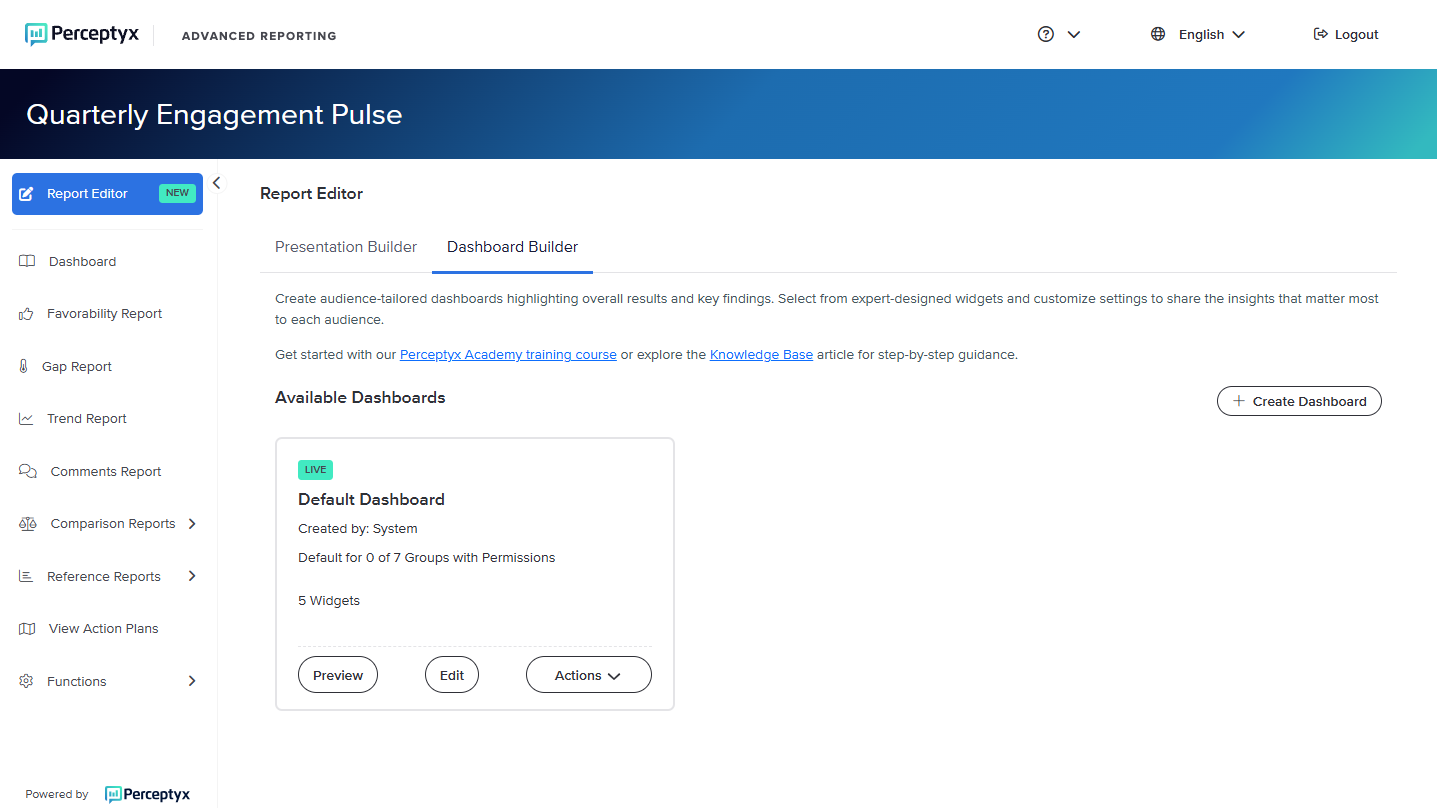
The Available Dashboards section always displays the Default Dashboard, which is Perceptyx’s best practice dashboard. You can use it as is or modify it to meet your specific requirements.
You can also create additional dashboards for specific purposes or audiences (e.g., manager dashboard, HR dashboard, etc.) by:
Duplicating and modifying the Default Dashboard, or
Clicking + Create Dashboard to create a dashboard from scratch
As you create additional dashboards, they also appear in the Available Dashboards section.
For more details about creating new dashboards, see the Use the Dashboard Builder to Edit the Default Dashboard or Create a New Dashboard article.
Dashboard Options
The following information and options display for each dashboard:
Status: Live or Draft. When a dashboard is live, any changes you make are immediately visible to report users. When a dashboard is in draft mode, it is not visible to reporting users and does not appear in the left navigation panel in Advanced Reporting, allowing you to safely make changes until you choose to publish them.
Note: The default dashboard is initially provided in draft mode, meaning users won’t see it until you make it live.
Title: The title that appears at the top of the dashboard page. If the user has access to multiple dashboards, this title displays as a dashboard option in the left navigation panel of Advanced Reporting. If the user has access to only one dashboard, it displays in the left navigation panel simply as “Dashboard.”
Created By: The user who created the dashboard.
Default for Groups: The number of reporting groups, if any, for which the dashboard is the default.
Number of Widgets: The total number of widgets in the dashboard.
Preview: Opens the dashboard in preview mode in a separate browser tab.
Edit: Opens the dashboard in edit mode so you can make changes.
Note: For Perceptyx-led projects, the Edit option is disabled for any dashboards created by the Perceptyx team.
Actions: Displays the action options that are available for the dashboard:
Go Live: Publish a draft dashboard
Revert to Draft: Return a published dashboard to Draft mode
Duplicate: Make a copy of a dashboard as the basis for a new one
Permissions: Specify which statuses can view the dashboard
Remove: Permanently delete the dashboard
Log in to the Perceptyx Platform.
Navigate to the Analyze page.
Find the listening event you want to work with, then click Live Report (if the event is visible in the Report Eligible section) or display the Actions dropdown and select Live Report.
Advanced Reporting opens.
In the left panel, click Report Editor.
Click the Dashboard Builder tab.

Preview the Default Dashboard
The Perceptyx-curated default dashboard offers our best practice widgets and configuration. Previewing the default dashboard helps you determine which widgets you may want to edit or remove, and whether you need to add other widgets.
Click to view best practice widget selections for:
Administrators and HR Professionals
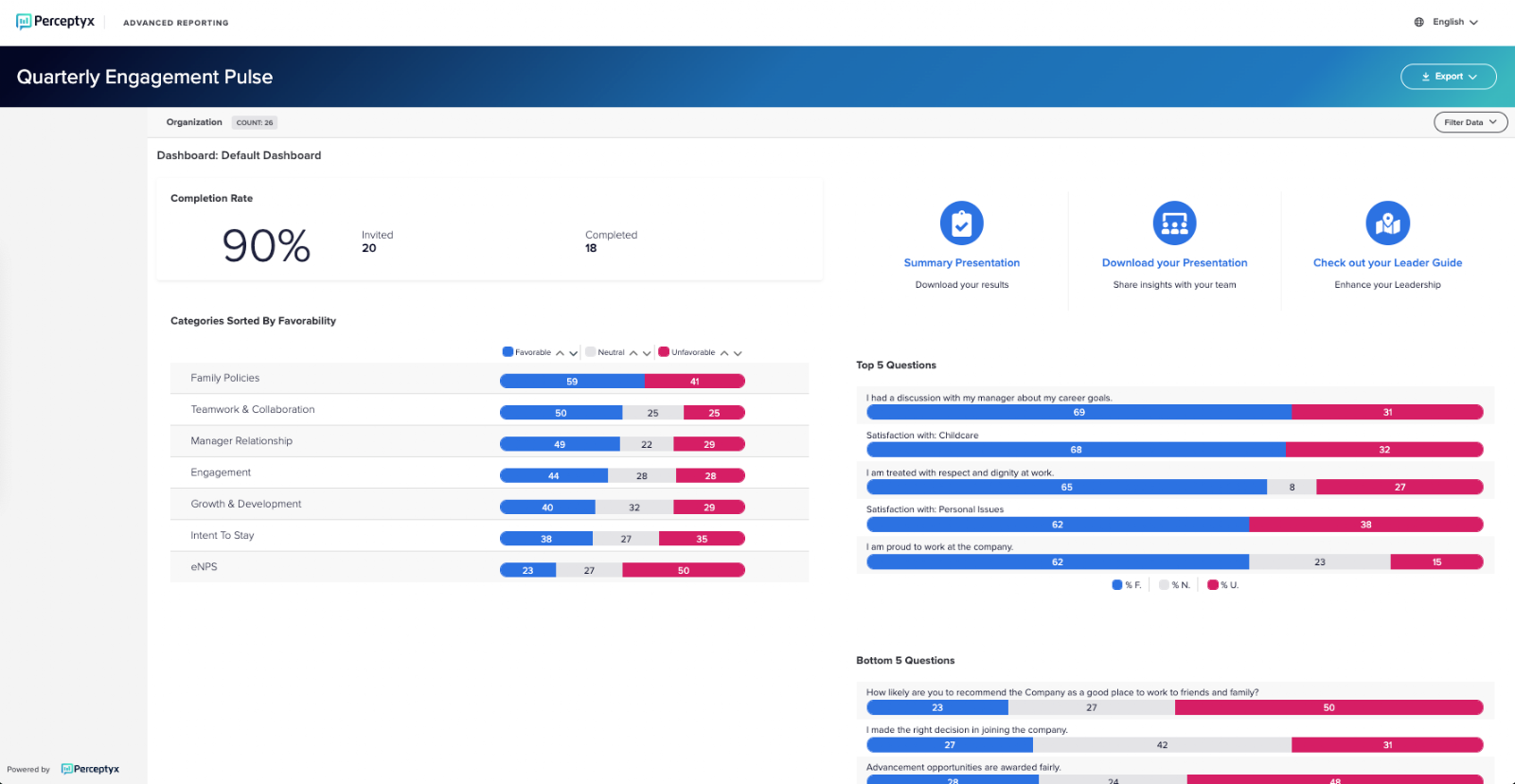
The default dashboard contains the following widgets:
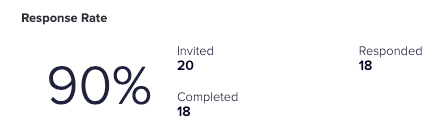
Widget Response Rate: Displays the response rate for the event, with options to include the number of participants invited, how many responded, the completion time, and more.
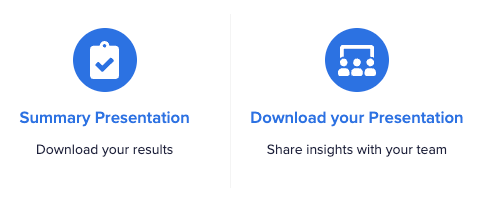
Widget 3 Steps: Displays up to 3 icons for post-event steps - 1) Summary Presentation (to download team results), 2) Download Your Presentation (to share with the team), 3) Available for a downloadable presentation used in special cases where a demographic hierarchy is included.
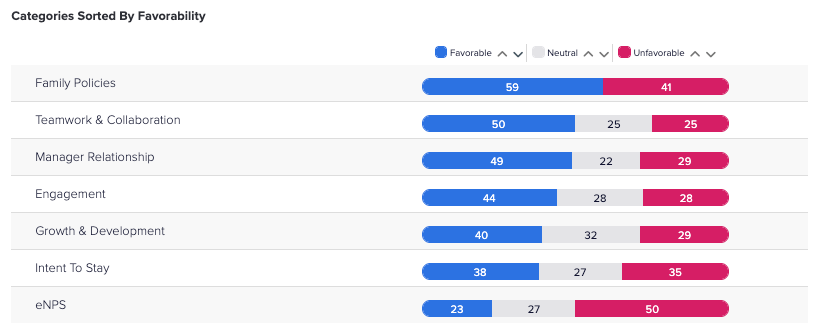
Widget Fav Table - Categories: Displays top-level results by category in a table format with color-coded histograms.
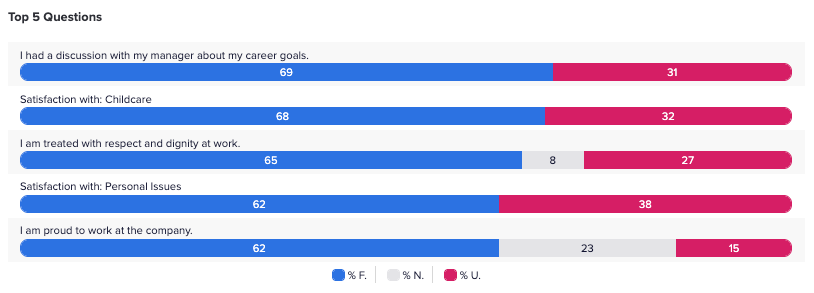
Widget Fav Table - Top 5 Questions: Displays top-level results in a table format with color-coded histograms for the 5 questions with the highest percentage of favorable responses.
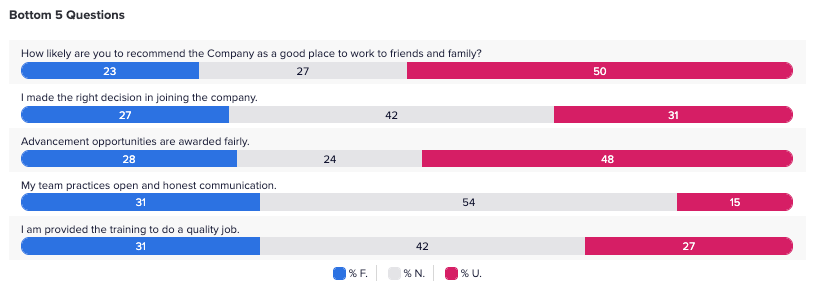
Widget Fav Table - Bottom 5 Questions: Displays top-level results in a table format with color-coded histograms for the 5 questions with the lowest percentage of favorable responses.
Navigate to the Report Editor, then click the Dashboard Builder tab.
In the Available Dashboards section, click Preview for the default dashboard.
The preview opens in a separate browser tab.
Scroll to view each widget.
To exit the preview, close the browser tab.
For details and step-by-step instructions for editing the default dashboard, see the Use the Dashboard Builder to Edit the Default Dashboard or Create a New Dashboard article.

Explore the Dashboard Layout Editor
You can modify the default dashboard or duplicate it to create a new dashboard that you can then modify. You use the Dashboard Layout Editor to modify the widgets in a dashboard.
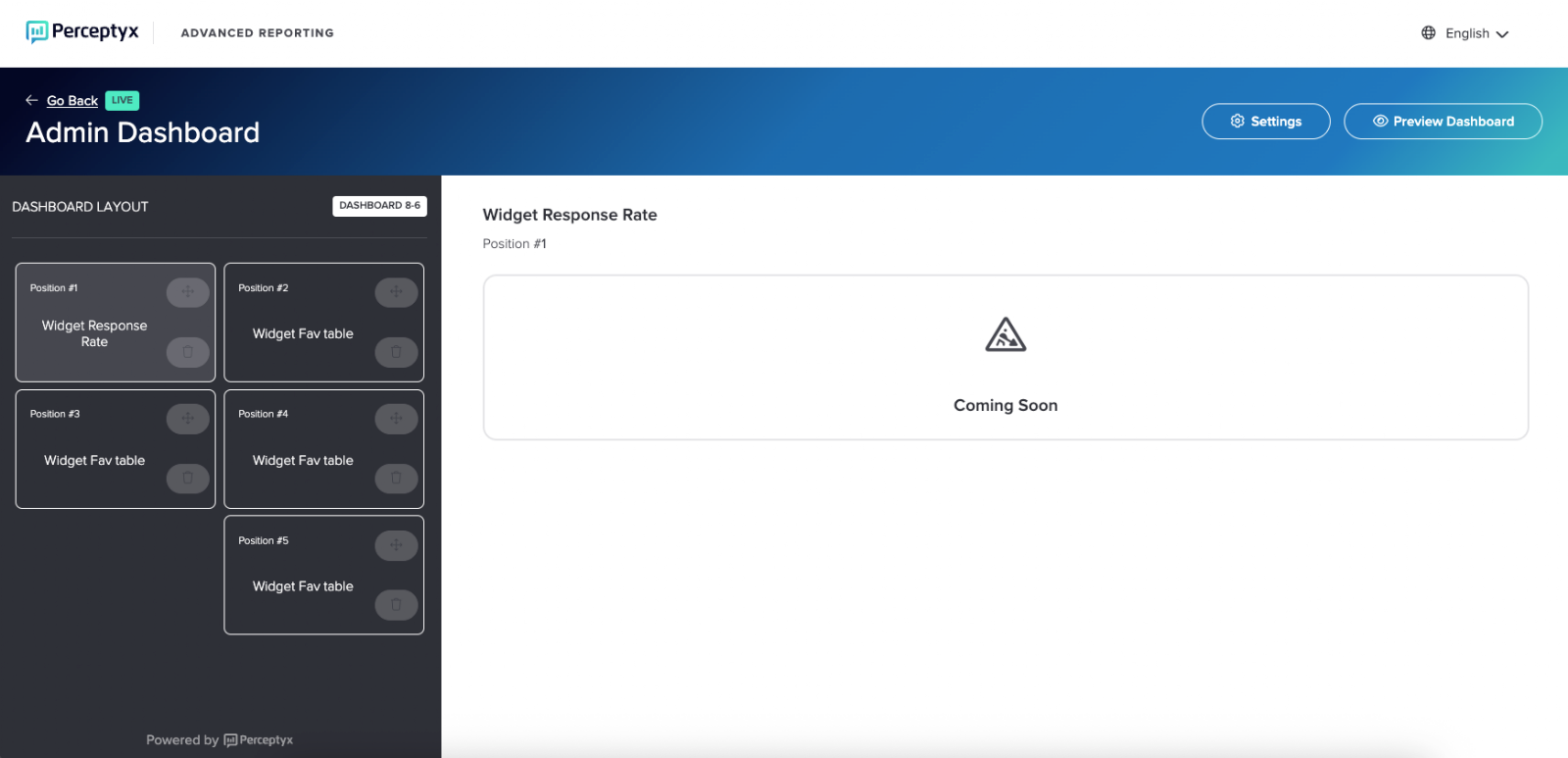
The Dashboard Layout Editor has four main components:
Settings
Displays settings for the dashboard title and layout.

Preview Dashboard
Displays the entire dashboard in preview mode.

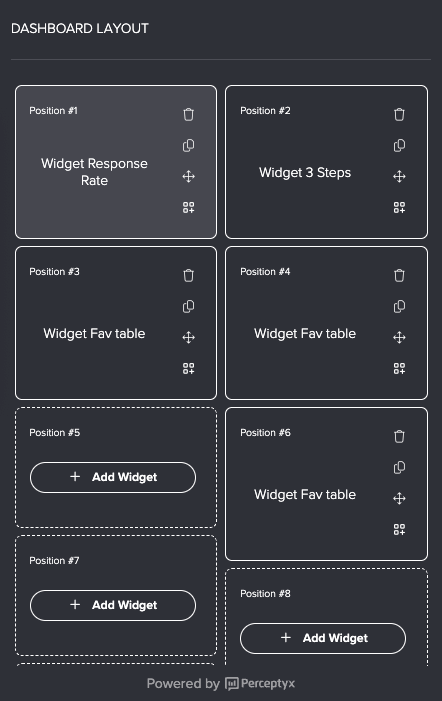
Dashboard Layout Panel
Located on the left side of the screen, this panel provides a place where you can click to view individual widgets, change their position in the dashboard, or duplicate, add, or remove widgets.
Workspace Panel
Displays the settings for the widget selected in the Dashboard Layout Panel. Depending on the widget, you can configure the data shown, comparisons, and display options.
Settings are organized into tabs, and available options vary by widget type.
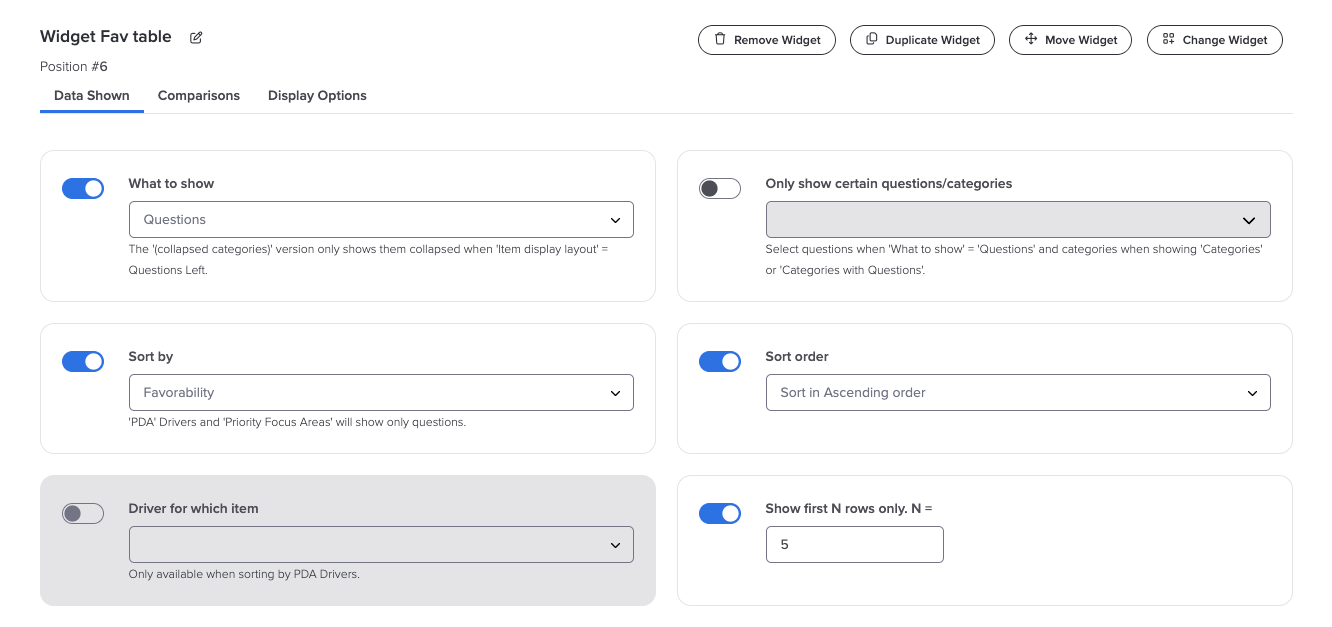
Data Shown: Specifies what data displays in the widget (for example, response rate, questions, categories, etc.) and corresponding elements, such as labels, sort order, etc.
Comparisons: Specifies which comparisons, if any, are displayed in the widget (for example, scores for the company overall, mean score, benchmark, etc.).
Display Options: Specifies how each element in the widget appears (for example, alignment, labels, descriptions, etc.).
The Workspace panel also includes options for removing, duplicating, moving, and changing widgets.
Was this article helpful?
That’s Great!
Thank you for your feedback
Sorry! We couldn't be helpful
Thank you for your feedback
Feedback sent
We appreciate your effort and will try to fix the article