Develop
Your course goes live the moment it is created, so the review you do now is the only review there is. Here is what you can change, and when it is smarter to start over.
Why you should look before you share
There is no draft state in Develop. A course is live as soon as it is generated. Nobody can reach it until you hand out a link or send invitations, so nothing is on fire, but it does mean your review needs to happen before you share rather than before you publish.
To get started, click Manage Course on the Develop home screen. That opens the Content screen, which is where all of this happens.
What you can change here
- The course title, description, and which files learners can download
- The order of your modules
- Module titles and learning objectives
- Adding a new module, or grouping modules into sections
- A preview of the whole thing as a learner sees it
Title, description, and file downloads
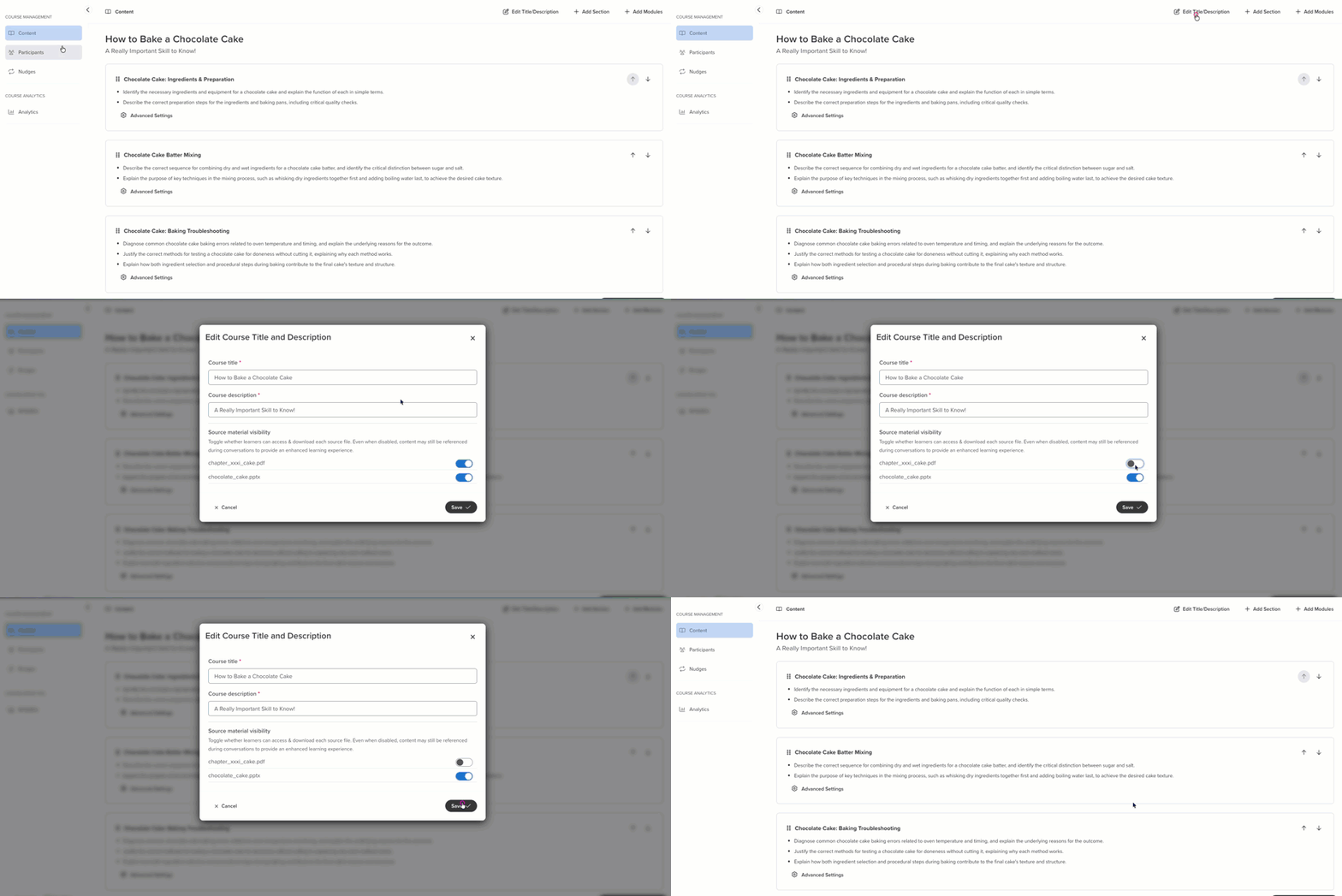
Worth a second look, because the title and description are the only things a learner sees before they commit to the course.
- Click Edit Title/Description in the top right.
- Update the Course title or Course description.
- Check the Source material visibility toggles. Turn off any file you do not want learners downloading.
- Click Save.
Reorder your modules
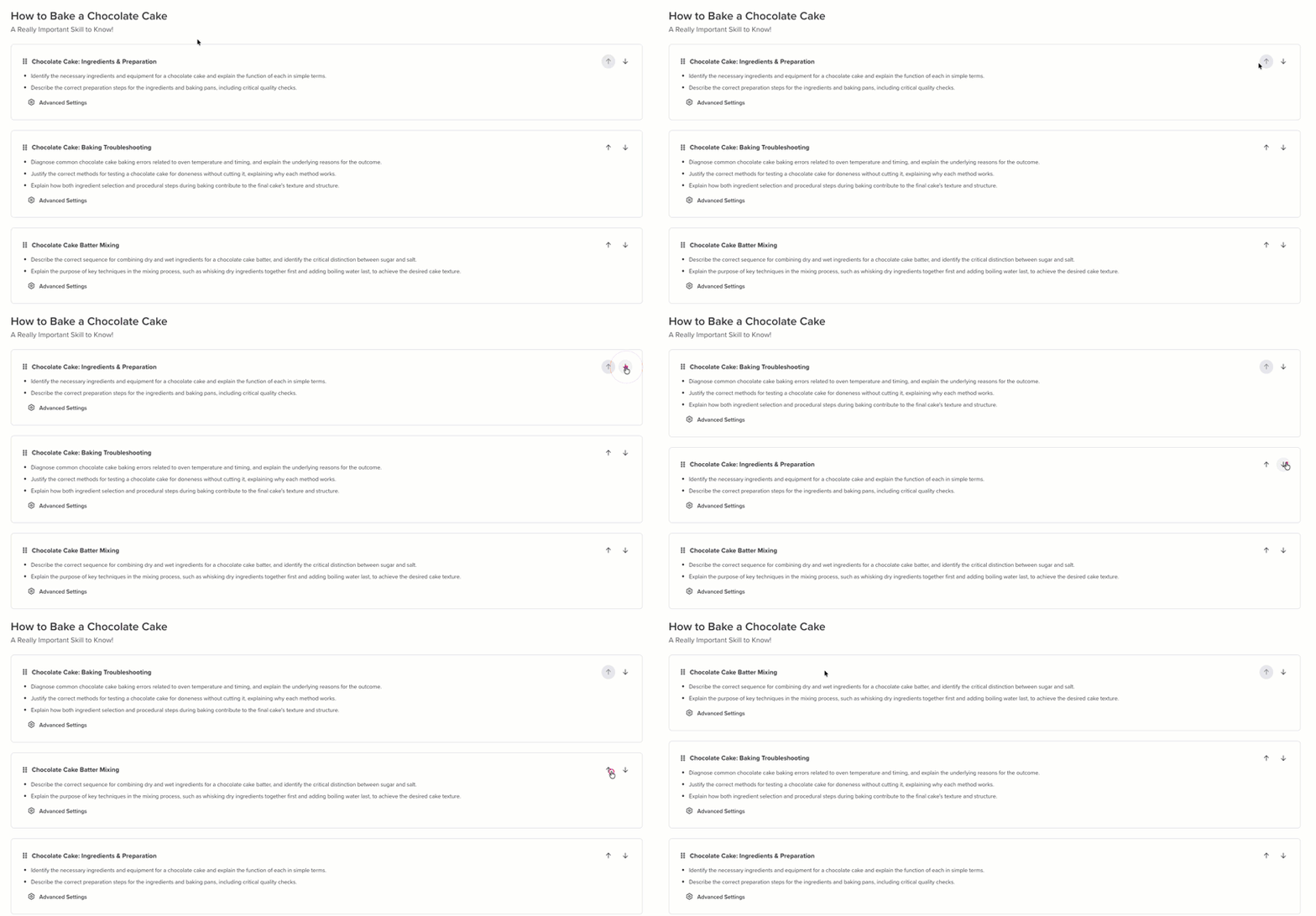
Use the up and down arrows on the right side of each module card. Develop will initially order modules in a way that makes sense in the context of the course, but you can reorder them as necessary depending on your needs.
Edit a module
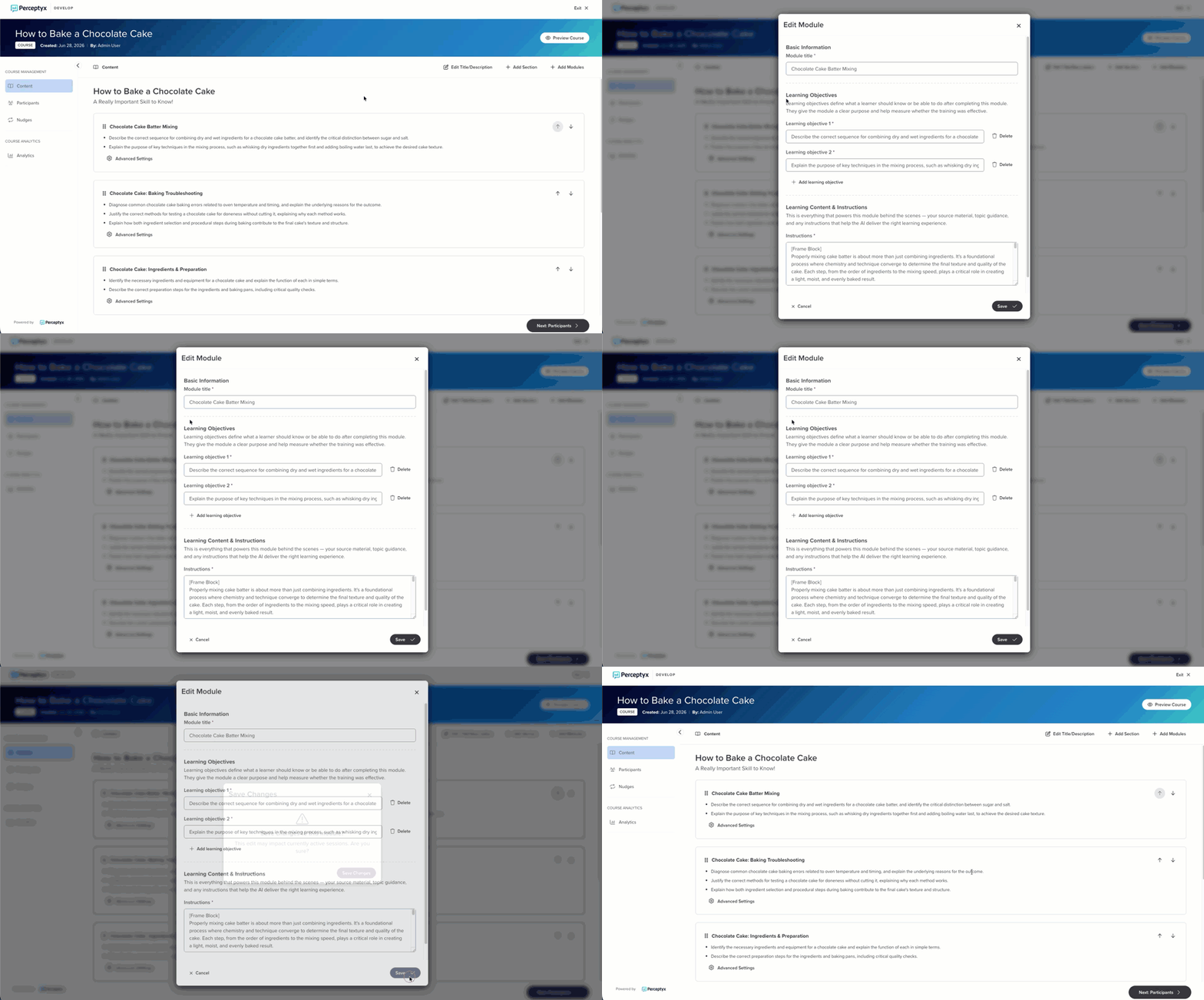
Each module card shows its title, its learning objectives, and an Advanced Settings link. The learning objectives are the useful thing to edit here, because they are what Develop measures learners against. Tightening an objective changes what the conversation actually pushes for.
- On the module card, click Advanced Settings.
- Update the Module title if you want to.
- In Learning Objectives, edit an objective in place, remove one with the delete icon, or click + Add learning objective.
- Click Save.
Leave this one alone unless you know what you are doing
The Learning Content & Instructions field holds the instructions that drive the module's conversation. It is there for expert users, and editing it badly can make a module behave in ways you did not intend. If a module is not working, rebuilding the course with better setup answers is almost always the faster fix.
Add a module
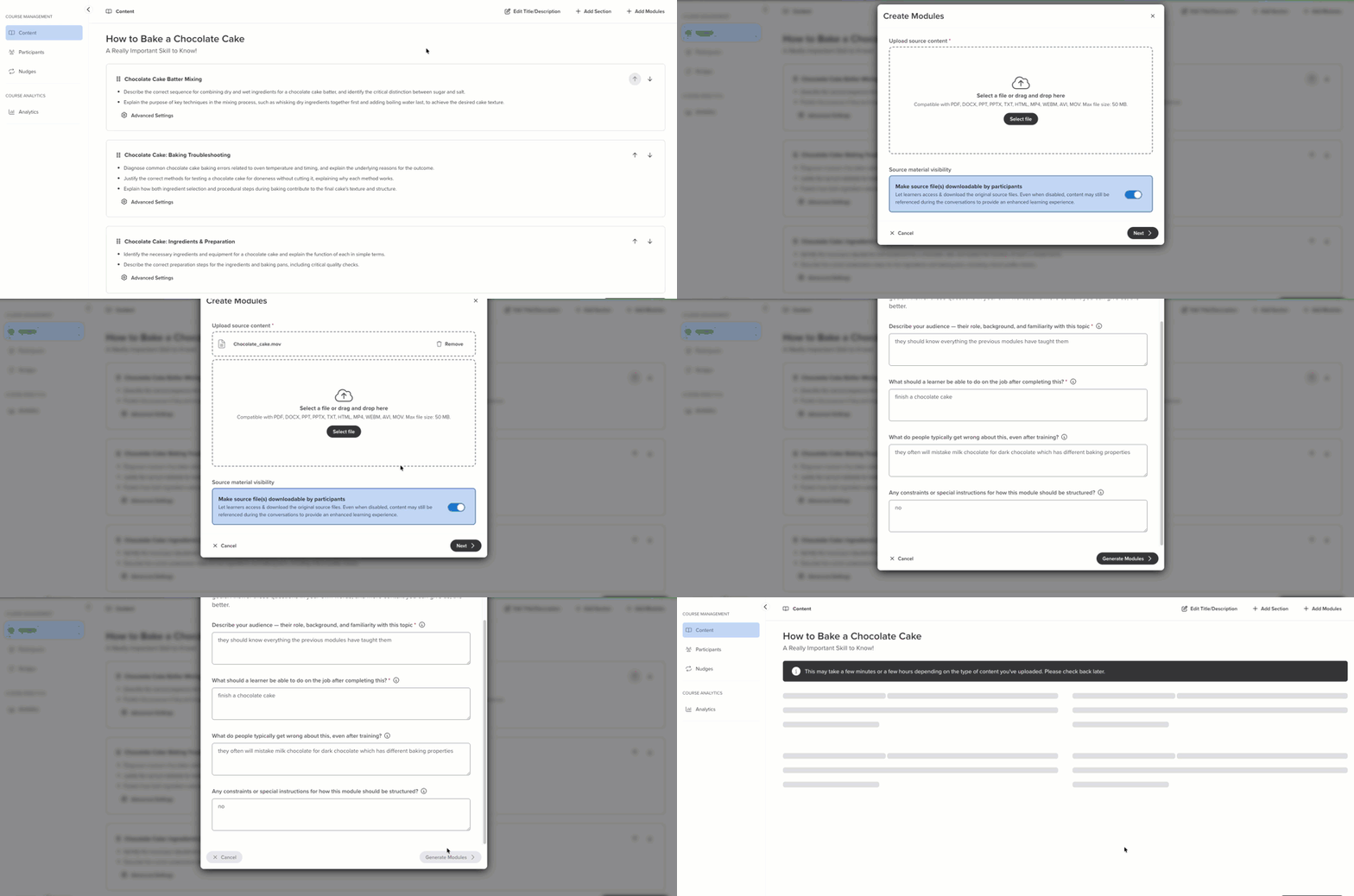
If you spot a gap, click + Add Module in the top right. It works like creating a course: upload source material, answer the setup questions, and let it generate. Develop knows what your existing modules cover and will not repeat them.
It builds one module at a time, though. If you find yourself needing three or four new ones, that is a sign the original setup answers missed the mark. Rebuilding the whole course will be quicker and the result will hang together better.
Group modules into sections
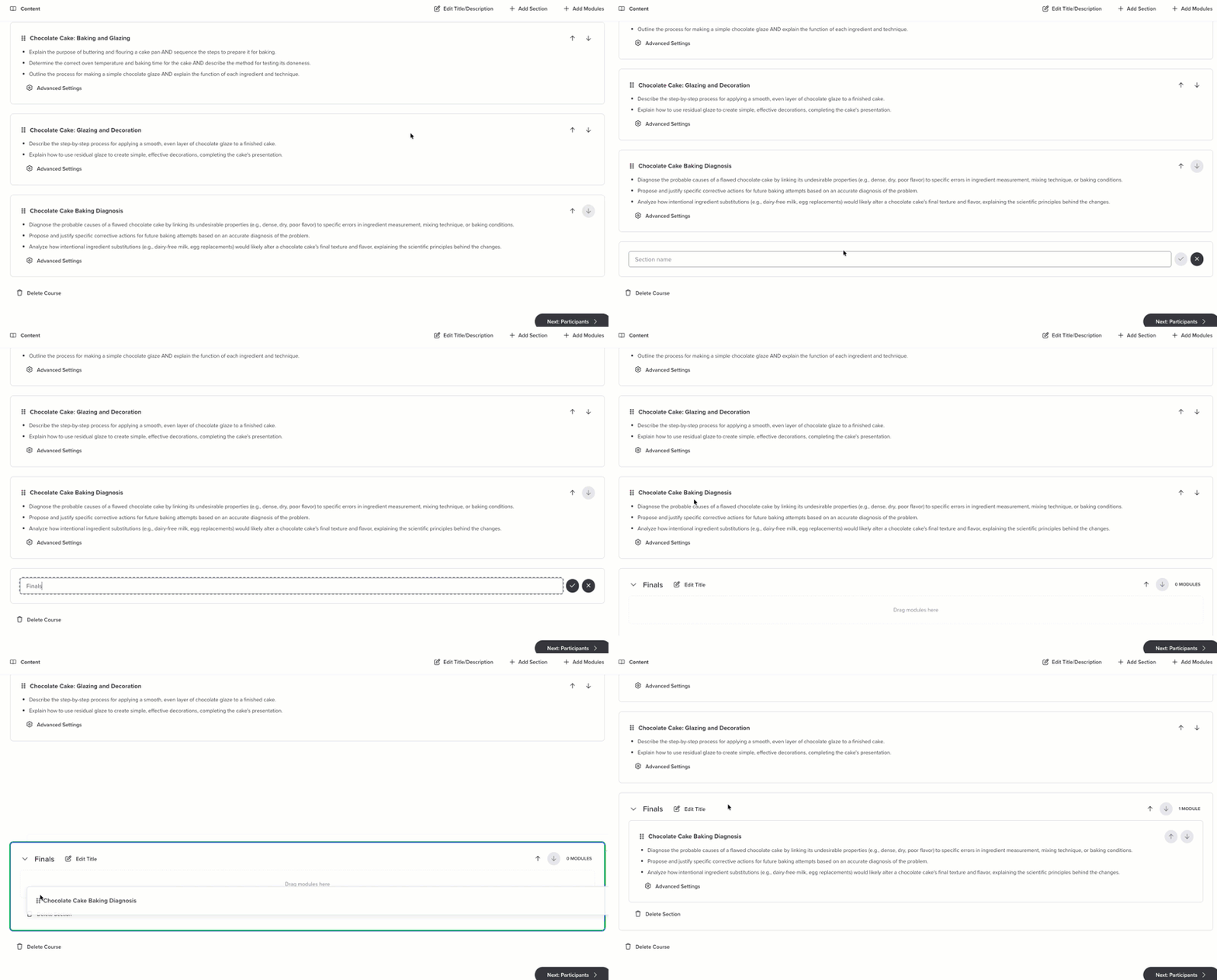
Sections are optional containers for related modules, and learners use them to navigate. Handy once a course gets long enough that a flat list stops being helpful.
- Click + Add Section in the top right.
- Give the section a name.
- Drag modules into it.
Was this article helpful?
That’s Great!
Thank you for your feedback
Sorry! We couldn't be helpful
Thank you for your feedback
Feedback sent
We appreciate your effort and will try to fix the article