Develop
Reading a module card tells you what a module is about. Sitting through the conversation tells you whether it works. This is the only way to find that out before your learners do.
Rather watch than read? The video above walks through the preview.
Why the preview is worth your time
A Develop course is a conversation, and you cannot really judge a conversation from an outline. The preview drops you into the learner seat so you can see how a module opens, how it responds when someone is confident, and how it responds when someone is lost.
One thing to keep in mind while you are in there: no two learners get the same conversation. Everyone is measured against the same learning objectives, but the path there depends on what they say. So you are not checking a script. You are checking whether the course handles a range of people well.
Open the preview
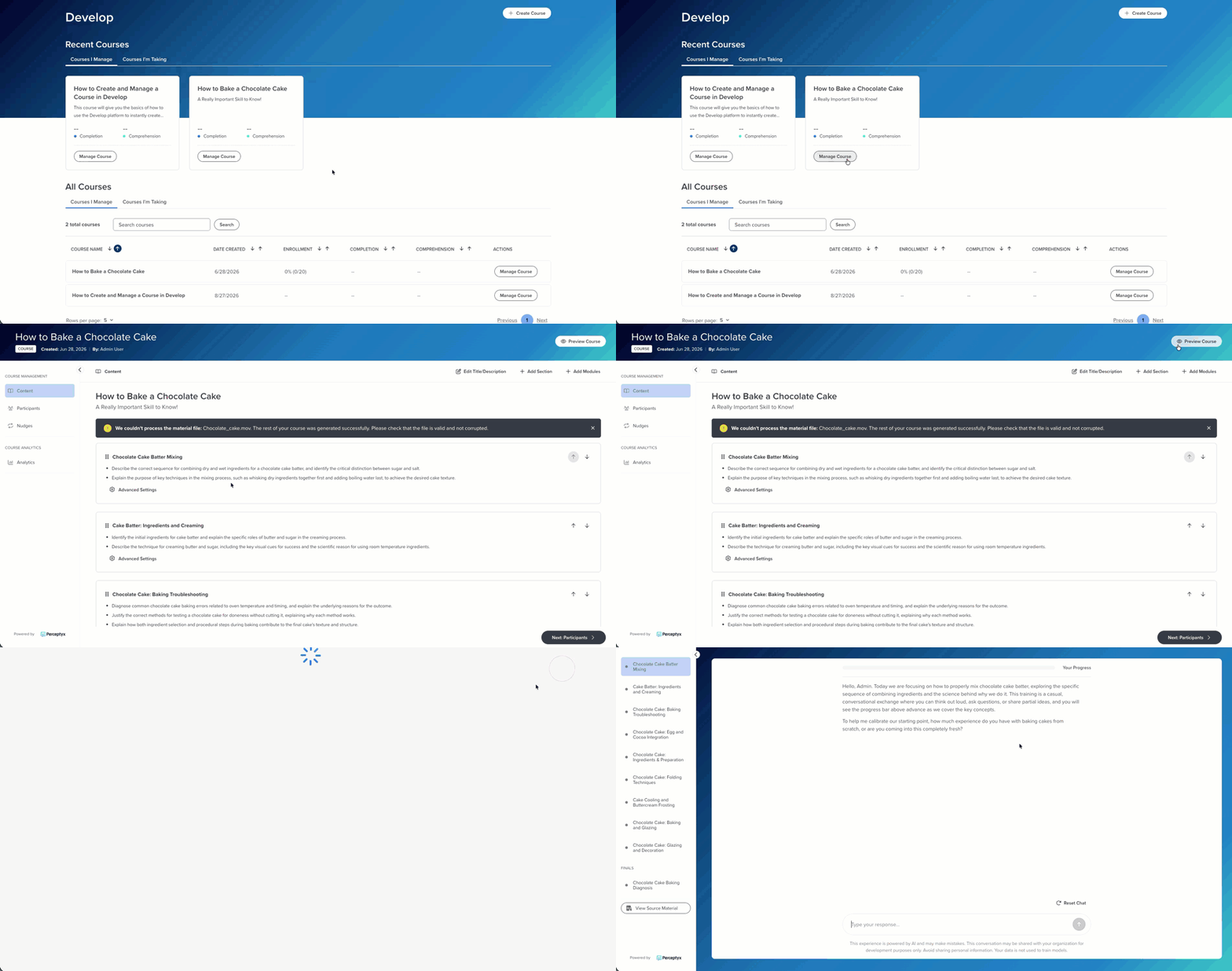
- Go to the Develop page.
- Find your course and click Manage Course to open the Content screen.
- Click Preview Course in the top right.
Getting around
The left pane lists every module, grouped by section if you added any. Click whichever one you want. You do not have to go in order, and you do not have to preview all of them.
Every module opens with a question that gauges how familiar the learner already is with the topic. That is deliberate: Develop wants to know where to start before it starts teaching. As you answer, the progress bar at the top fills in to show how many of the module's learning objectives you have covered.
The trick that makes previewing useful
Run the same module twice. Once answering like your sharpest learner, once answering like someone who is guessing. If it pushes the first one forward and slows down for the second, it is doing its job. If both conversations feel identical, your learning objectives are probably too loose.
Start a module over
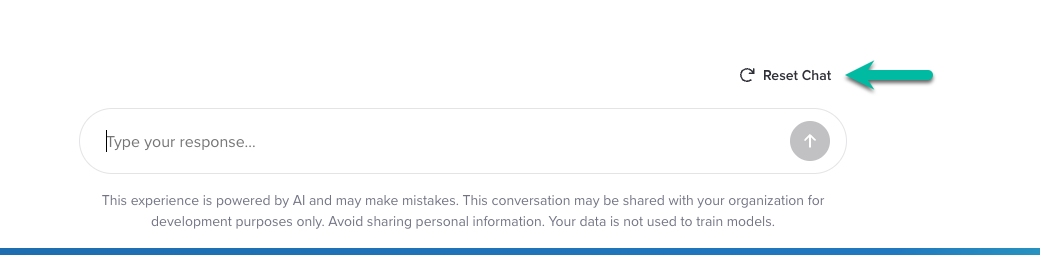
Click Reset Chat at the bottom right of the conversation to remove your progress and start over. That is how you run a module more than once with different answers.
Get back out
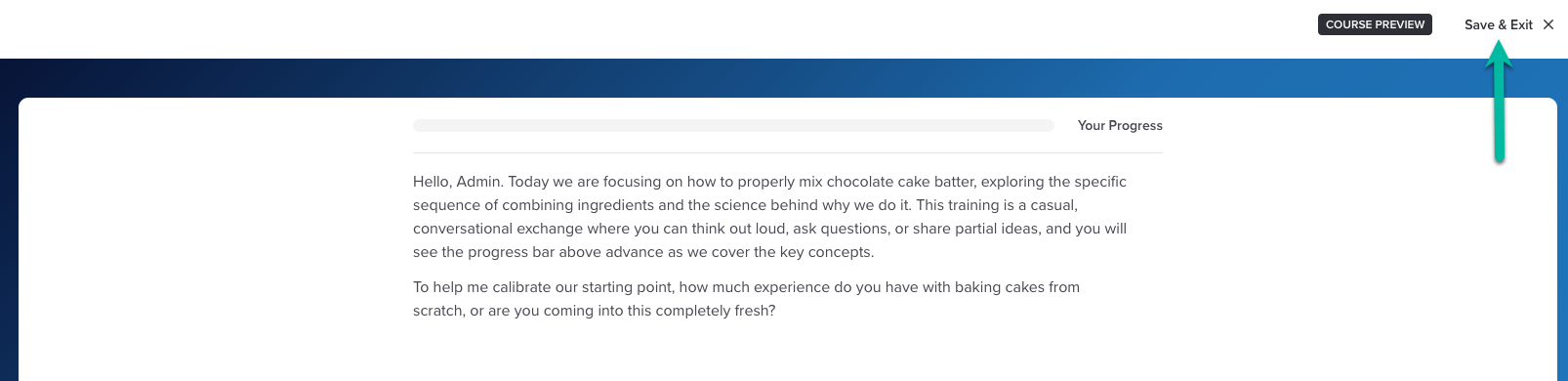
Click Save & Exit in the top right to leave the preview and return to the Content screen.
How close is the preview to the real thing?
Identical, with two exceptions. A Course Preview label sits in the top right so you know where you are, and Reset Chat is available to administrators only. Learners do not get to start over.
What's next
Was this article helpful?
That’s Great!
Thank you for your feedback
Sorry! We couldn't be helpful
Thank you for your feedback
Feedback sent
We appreciate your effort and will try to fix the article