Develop
Don't have your own training material for a course, or only have some of it? Develop can search the web for credible sources on your topic and show you the best ones. You decide which of them, if any, your course gets built from.
This article walks through
What the web search does
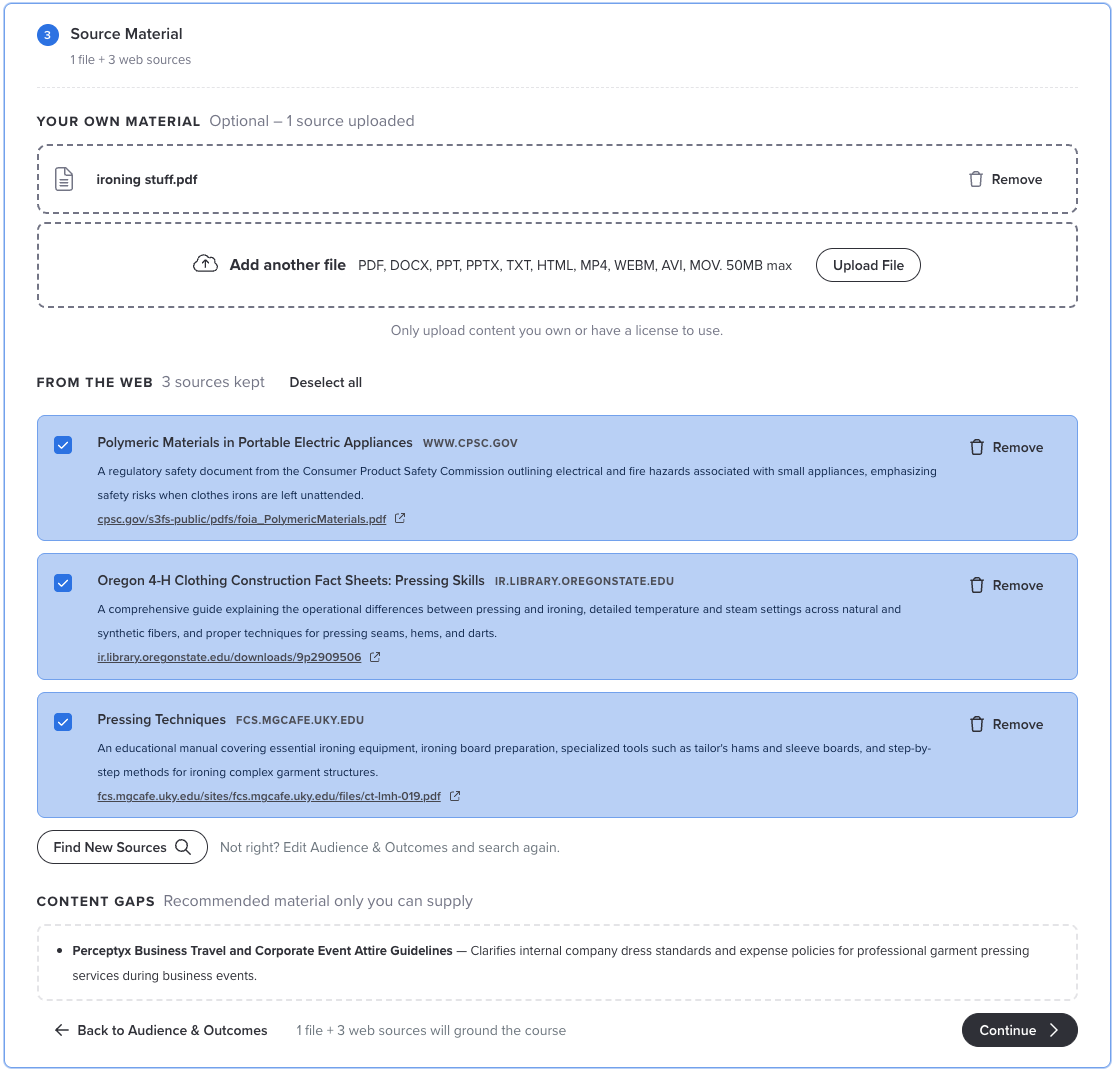
The web search is part of the Develop course builder. You will find it in step 3, Source Material, in the section called From the Web.
It reads your answers from the Audience & Outcomes step, plus any files you have uploaded, and then searches the public internet for documents that fill in what your course needs. It opens the most promising ones, reads them, and returns a short list of sources it has actually read. Each one comes with a title, the website it came from, a one line summary, and a link so you can read it yourself.
Nothing is added to your course automatically. You choose which sources to keep, and your course is built only from the sources you keep plus any files you uploaded.
Alongside the sources, Develop also lists any content gaps. These are things your course still needs that only your organization can supply, like your own policy or process.
Good to know
The web search is optional. If you already have all the material you need, you can upload your files and skip the web search entirely. You can also use both: upload what you have, and let the web search fill in around it.
How it picks sources
Develop filters sources in two passes.
First, is it credible?
A source has to come from a professional, credible publisher, such as a standards body, a regulator, a university, or an established professional organization. Blogs, vendor marketing, and thin web pages are left out.
Second, is it useful for training?
Among the sources that pass, it ranks and picks the ones with the most substance a course can teach from: real procedures, worked examples, and evidence.
It also matches the kind of source to your topic. For something like compliance training it will lean on regulators. For most other topics it favors business focused material over government pages.
Find sources for your course
Here is how a search works from start to finish.
- Complete the first two steps of the course builder, Course Basics and Audience & Outcomes. The search runs from your answers, so the more specific they are, the better your results.
- In Source Material, upload any files you have under Your Own Material first. Develop looks at those before it searches and focuses on what is missing. If you have nothing to upload, click Skip, the link telling the builder you don't have your own sources.
- Under From the Web, click Find Web Sources. The search can take a few minutes.
- Read through the results. Click the link under each source to open it and check it covers what you need.
- Check the box next to each source you want to keep, or click Select all. Click Remove to take a source off the list.
- If the results are not right, click Edit on Audience & Outcomes and change your answers, then come back and click Find New Sources. Editing first is the important part. See the note below.
- Look over the Content Gaps section below the results, and upload anything it suggests if you have it.
- Click Continue. On the Review step you will see the web sources you kept listed next to any files you uploaded.
Change your answers before you search again
Find New Sources reruns the search using your current Audience & Outcomes answers. If you click it without changing anything, you may get some of the same sources back. When the results are off target, the real fix is better answers, so go back and make your audience or outcome more specific first.
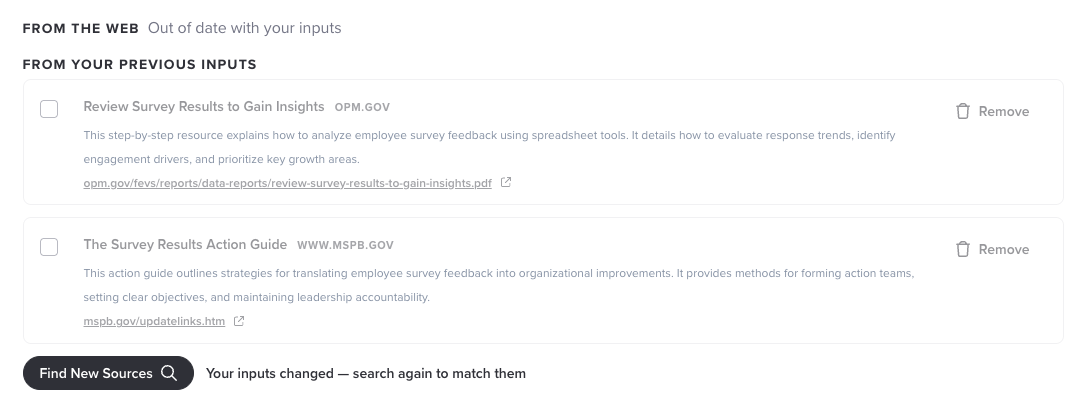
Once you have edited your answers and come back to Source Material, the From the Web section is marked as out of date with your inputs. Your earlier results are greyed out under From Your Previous Inputs, and a message next to Find New Sources reminds you to search again so your sources match your new answers.
Heads up
To move on from Source Material you need at least one uploaded file or one kept web source.
Reading the content gaps
Public sources cover public things: regulations, established practices, and general skills. Anything specific to your organization, like your own policy, reporting chain, or escalation process, has to come from you. The Content Gaps section tells you what that is for your course.
For example, say you have no files and ask for a course on giving performance feedback. the search might return research and practical guides on feedback conversations, then note that the course is still missing your company's own review cycle and rating scale.
If your sources cover everything you described in Audience & Outcomes, the section says so.
Tips for better results
- Upload first, then search. The search builds around what you already have, so a search after uploading is more focused than one before.
- Be specific in Audience & Outcomes. Those answers are what the search runs on. A clear audience and a concrete outcome give it much more to work with than a broad topic.
- Read every source before you keep it. A credible source can still need adapting for your people, and it is much easier to catch a poor fit now than after the course is built. You know your audience better than any search does.
- Keep fewer, better sources. One thorough source on your topic beats several that only skim it. Only keep what genuinely supports your outcomes.
- Fill the gaps yourself. Even a short internal document covering what the content gaps flag will make the course feel like it was made for your organization.
Limits to know about
| Limit | What it means for you |
|---|---|
| Public web only | The search cannot reach anything behind a login or a paywall. |
| No internal content | It cannot find your organization's own policies, processes, or documents. Those always come from you. |
| Results can vary | It searches the live internet, so running the same search twice can return slightly different sources. For a meaningfully different list, change your Audience & Outcomes answers first. |
| Up to three sources per search | If you want other options, change your Audience & Outcomes answers and search again. |
| Full page screenshots | When a learner sees a reference to a web source, it can show a screenshot of the whole page, including parts unrelated to the point being made. These cannot be cropped, which is one more reason to read a source before you keep it. |
Usage rights
The search does not know a source's license or terms of use. The rule is the same as for anything you upload: only use content you have the right to use.
Review before you launch
The web search uses AI, and AI can make mistakes. Preview your course before you invite learners.
When results are not what you expected
It didn't find a source I expected
There are usually three reasons: the source is behind a login or paywall, it did not clear the credibility bar, or another source covered the same ground in more usable detail. If you have the document, upload it under Your Own Material instead.
The results look wrong
Go back to Audience & Outcomes, make your answers more specific, and then click Find New Sources. Searching again without changing your answers may bring back much the same list. If the results still look off, contact your Perceptyx team with the course topic, anything you uploaded, and screenshots of the results you got.
What's next
Finish the Review step and create your course. The full walkthrough is in Prepare Your Content and Create Your Course.
Was this article helpful?
That’s Great!
Thank you for your feedback
Sorry! We couldn't be helpful
Thank you for your feedback
Feedback sent
We appreciate your effort and will try to fix the article