Platform setup
How to set your Perceptyx password the first time you log in, and how to reset it whenever you forget it.
Before you start
Some companies sign in to the Perceptyx platform with their own company login, called single sign-on. Others sign in with an email address and a password. This article is for the second group.
The good news is that setting your password for the first time and resetting a forgotten one are the same process. You ask for a reset email, click the link inside it, and choose a new password. It takes a couple of minutes.
Note
If your company uses single sign-on, you don't have a separate Perceptyx password, so there's nothing to set or reset here. The link in your welcome email takes you to your company's login page, or straight into the platform. If you can't get in, reach out to your platform administrator.
This article walks through
Set or reset your platform password
The first time you use the platform, whether that's to take a survey, build a listening event, or look at results, you'll need to set a password. It all starts with the welcome email Perceptyx sends you, which has a link to the platform.
Ask for a reset email
- Open your Perceptyx welcome email.
- Click the link in the email. The Sign In screen opens.
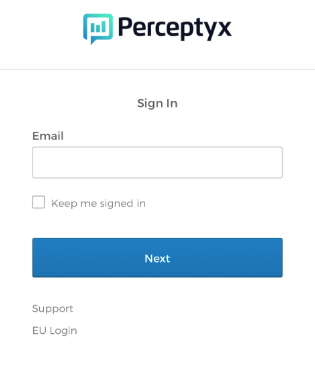
- Type your email address in the Email box, then click Next. The Verify with your password screen opens.
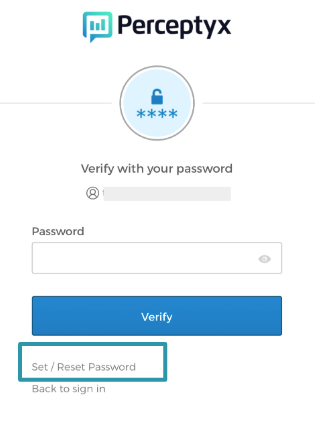
- Click Set / Reset Password under the Verify button. The Get a verification email screen opens.
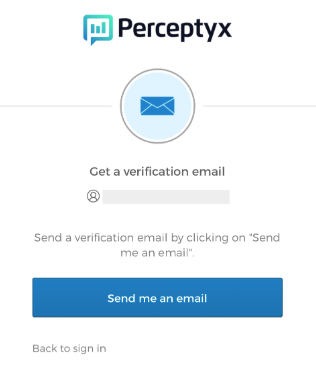
- Click Send me an email. The screen updates to let you know the email is on its way.
Choose your new password
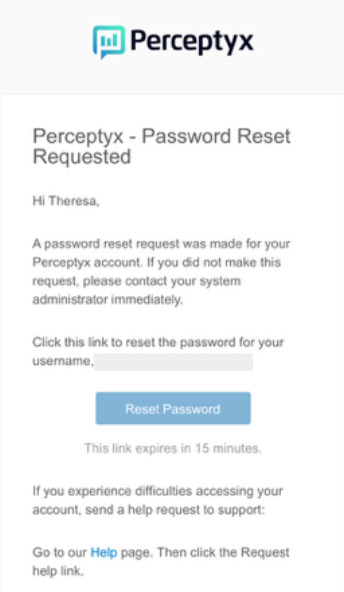
- Go to your inbox and open the email called Perceptyx - Password Reset Requested.
Note
Some companies use security software that checks links in email before you open them. If yours does, you might be asked to enter a verification code on the reset page before you can keep going.
- Click Reset Password in the email. The Reset your Perceptyx password screen opens.
Heads up
The link in the reset email only works for 15 minutes. If it runs out before you get to it, no problem. Just go back to go.perceptyx.com/login and ask for a new one.
The reset screen lists what your password needs. Your password has to have:
- At least 8 characters
- A lowercase letter
- An uppercase letter
- A number
- No parts of your username
It also can't match any of your last four passwords.
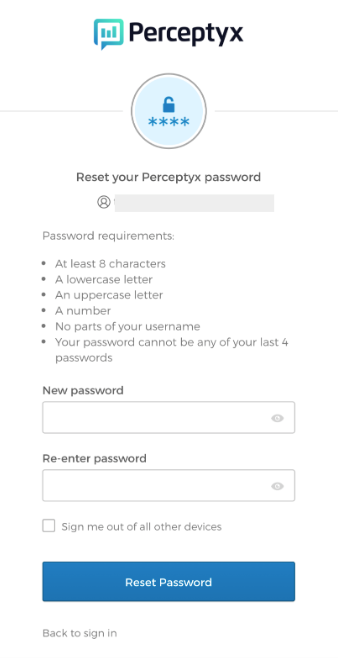
- Type your new password in the New password box.
- Type the same password again in the Re-enter password box.
- Click Reset Password. The platform login screen opens.
There's also a Sign me out of all other devices checkbox. It's optional. Check it if you think someone else might be signed in to your account somewhere.
Log in with your new password
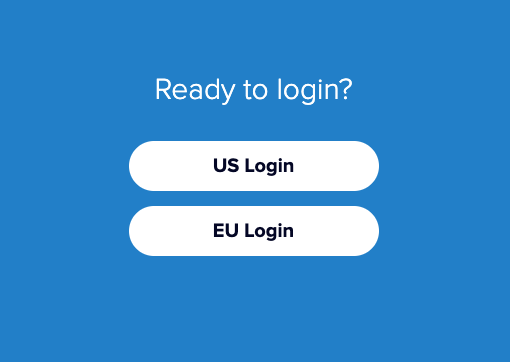
- Click US Login or EU Login, depending on which region your organization's platform is in. Not sure which one? Your platform administrator can tell you. The Sign In screen opens.
- Type your email address in the Email box, then click Next.
- Type your new password in the Password box, then click Verify. You're in.
Reset your password later on
Forgot your password down the road, or just want to change it? You don't need the welcome email. Go to go.perceptyx.com/login, click US Login or EU Login, and follow steps 3 through 10 above. Once your new password is saved, log in the same way you did in steps 11 through 13.
Note
Looking for your Advanced Reporting password instead? That one has its own reset steps. See Advanced Reporting Password Reset.
If something goes wrong
- The reset email never showed up. Give it a few minutes, then check your spam or junk folder. Still nothing? Head back to go.perceptyx.com/login and send another one.
- The link says it has expired. Reset links only last 15 minutes. Ask for a new email and use the link right away.
- You got a verification code prompt. That's your company's link security software. Enter the code it asks for and carry on.
- You still can't get in. Reach out to your platform administrator. They can check how your account is set up and help from there.
For platform administrators
Helping someone who's stuck? Troubleshooting Platform Access Issues is written for admins working through login trouble with someone on their team.
What's next
Now that you're in, take a quick tour. Welcome to the Platform walks you through the main areas of the platform and how to get around.
Was this article helpful?
That’s Great!
Thank you for your feedback
Sorry! We couldn't be helpful
Thank you for your feedback
Feedback sent
We appreciate your effort and will try to fix the article