Third-Party Comments

Modified on Wed, 29 Apr at 2:08 PM

Third-Party Comments is designed to help you easily discover insights in your comment data collected from sources outside of the Perceptyx platform (e.g., Glassdoor, LinkedIn, customer feedback). You simply upload a file with the comment data and the tool applies proprietary AI models to automatically analyze your data and generate a simple report you can use to quickly identify what’s going well and where you might need to focus action. 


Note: Third-Party Comments is available only for Administrator users.


This article walks through:


To view an overview video:



Access Third-Party Comments

There are two ways to access Third-Party Comments, depending on what you want to do:


  • Upload a file

  • View a report for an uploaded file


  1. Log in to the Perceptyx Platform. 

  2. In the navigation bar, click Analyze.

  3. Choose an access method:

    1. If you want to upload a file, click + Third-Party Comments (top right) to open the Upload Data screen.

    2. If you want to view a third-party comment report, click View Report for a file in the Recent section or in the All Reports table to open the File Manager screen.


Third-Party Comments is organized into five main sections: 


Side Navigation Panel 

Navigate easily using the side navigation panel, which is expanded by default (you can click the arrow to collapse it). This panel enables you to access the Third-Party Comments menu options: 


  • Overview

  • Upload Data

  • File Manager

  • Help


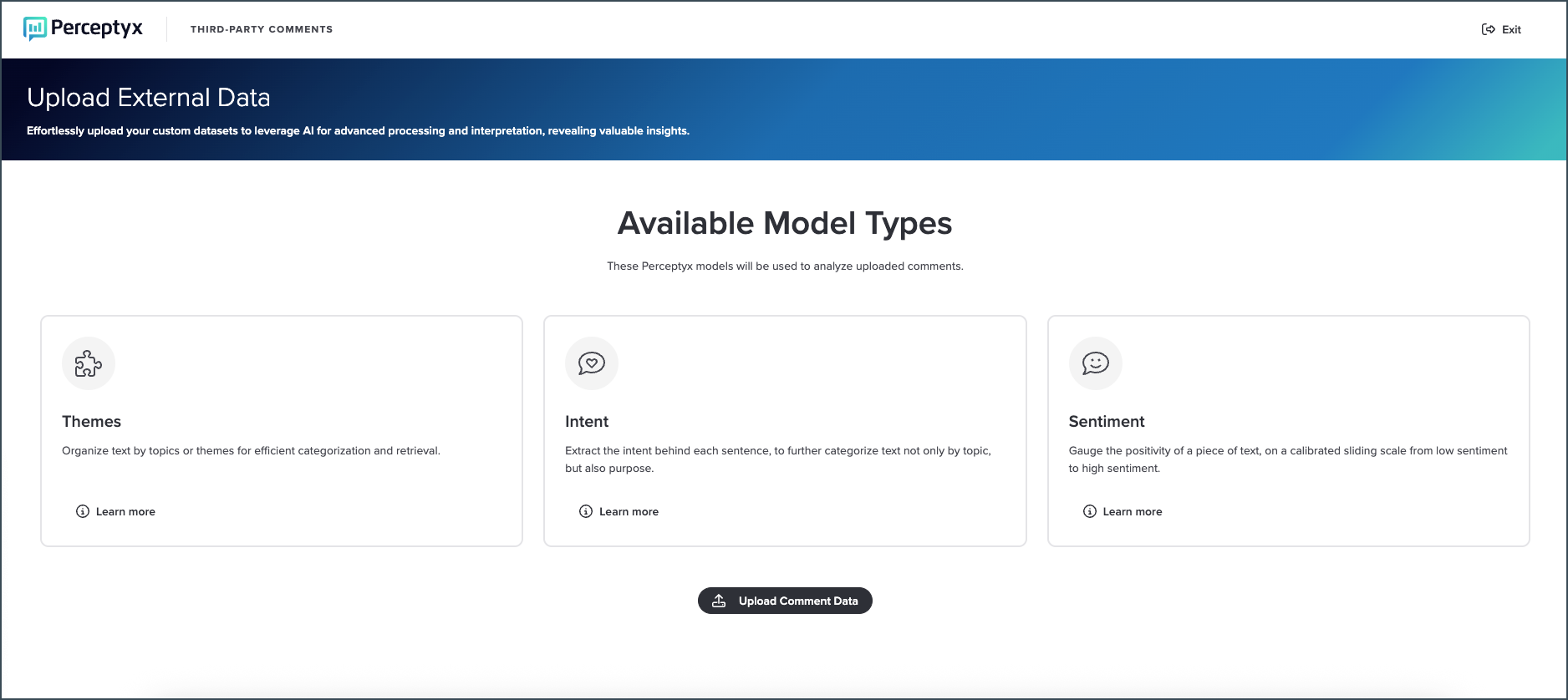
Overview 

The Overview area provides information about the model types used to analyze comment data. Click Learn More for a model type to display details.


You can also click Upload Comment Data or File Manager to access those areas.


Upload Data

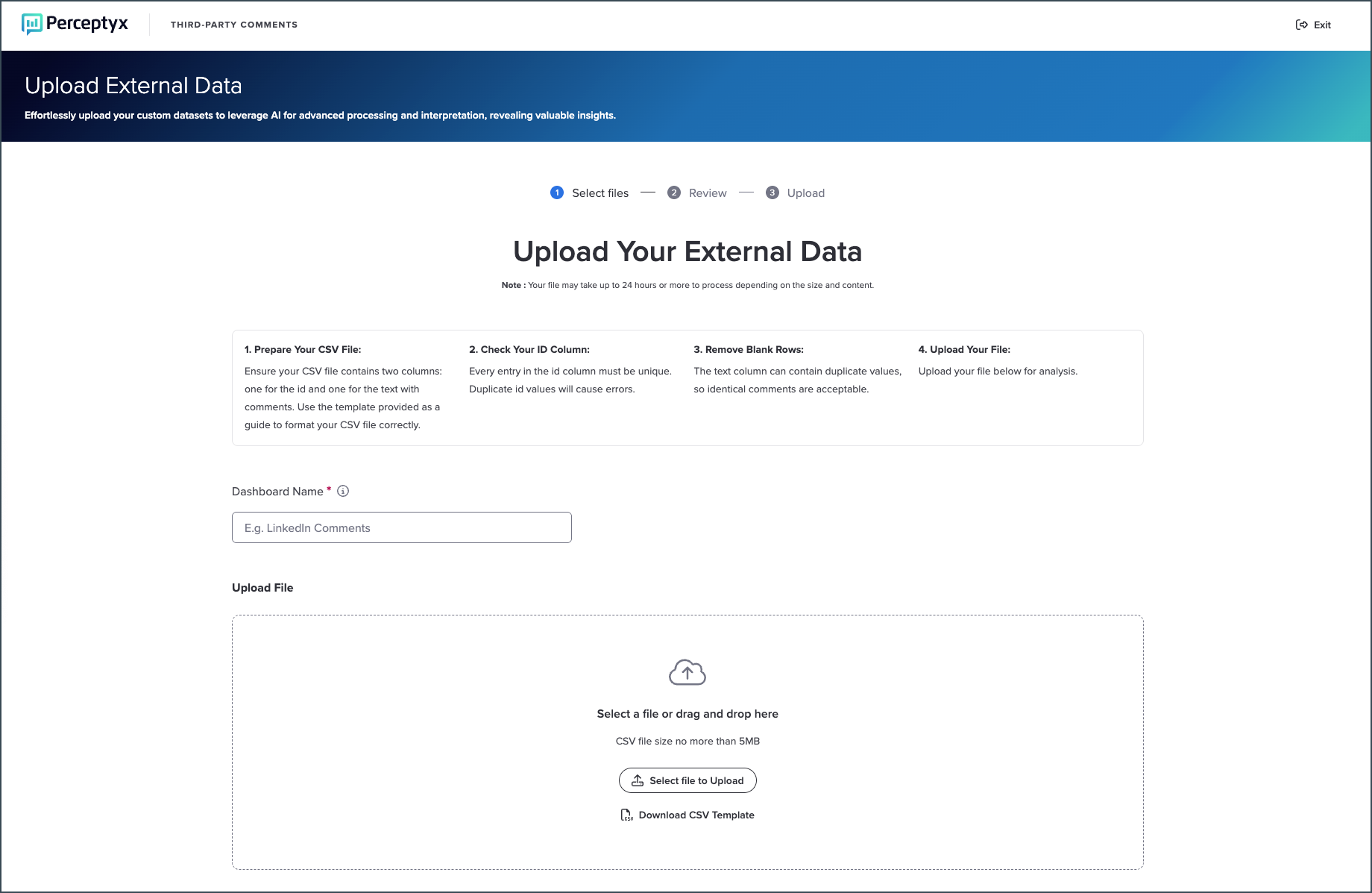
You can upload your data for analysis in the Upload Data page, which provides instructions for preparing your data file and a link to download a template you can use as a guide. 


Using the Select File feature, you:


  • Select your prepared file

  • Review your selection

  • Upload the data


Once the data is uploaded, the file is processed to interpret the data, revealing patterns and trends. A progress indicator at the top of the page updates as you work through the upload process. 


File Manager

Use File Manager to review, download, rename, or delete your uploaded files.


Your files are displayed in a list that includes their status, upload date, and available actions. You can sort the list by file name, status, or upload date using the arrows in each column.


To take action, you can:


  • Select an individual file, or

  • Select multiple files and apply the same action at once


Help

Clicking the Help option opens the Perceptyx Customer Care portal in a separate browser window. You can use the portal to submit and track support tickets and to access Knowledge Base articles (how-to instructions and best practices).


Upload Data for Analysis

On-screen steps help you walk through the process to upload external comment data for analysis. The upload process is guided by a step indicator at the top of the screen.


Before You Upload

You can upload your own file or use a template.


  • If this is your first upload, we recommend using the template to ensure the correct format.


File requirements:


  • Must be in .csv format

  • Must include two columns:

    • Comment ID (0–X)

    • Text (comment content)


To use the template:


  1. Click Download CSV Template.

  2. Open the file and add your data.

  3. Save the file in .csv format.


Select Files


  1. Navigate to the Analyze page.

  2. Click + Third-Party Comments.

The Upload Your External Data page appears.

  1. Click Select File to Upload.

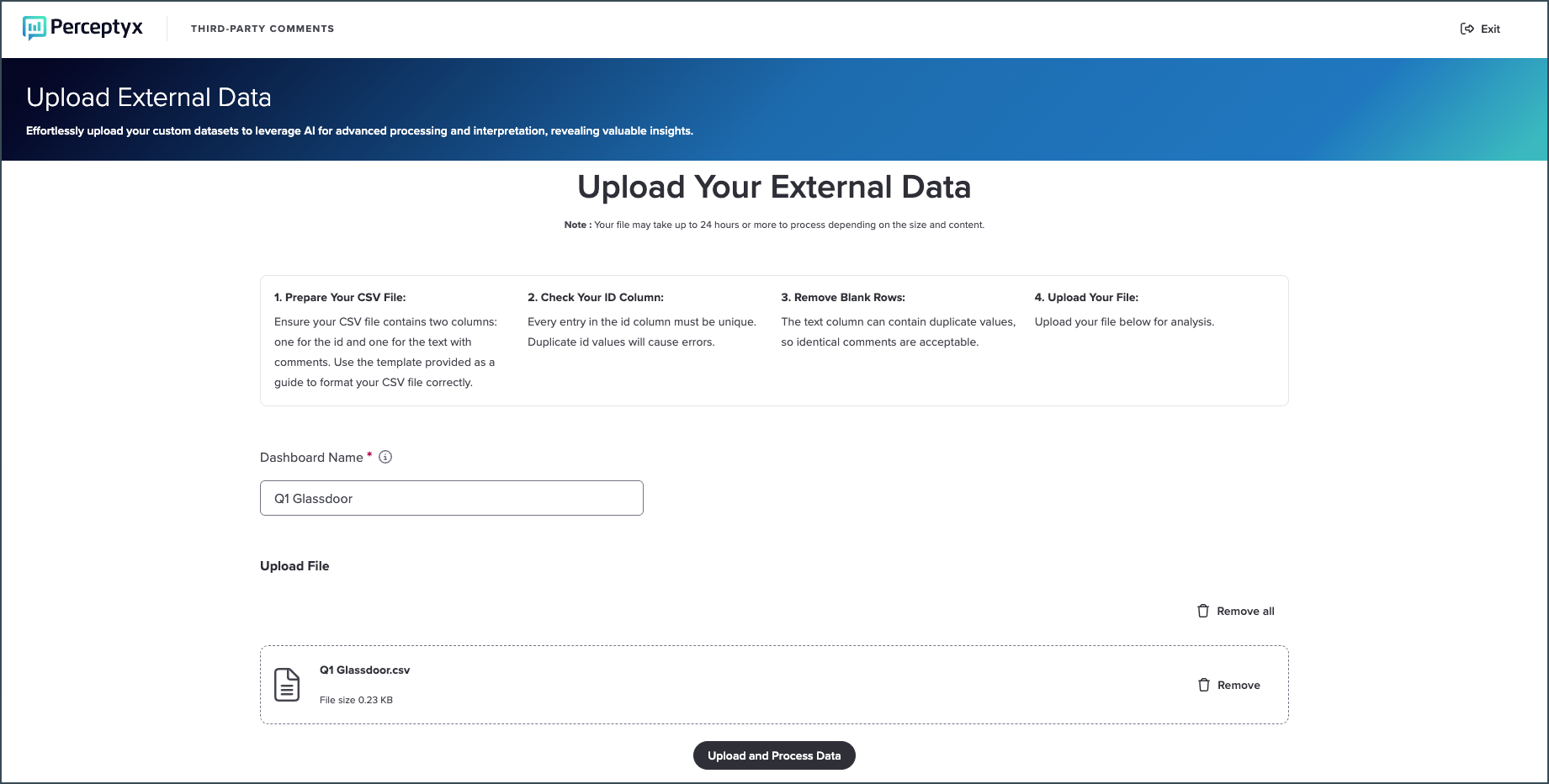
  2. Navigate to your data file and double-click the file name.

The selected file appears on the page.


Review


  1. Confirm that the correct file is selected.

  2. If needed, go back and choose a different file.


Upload


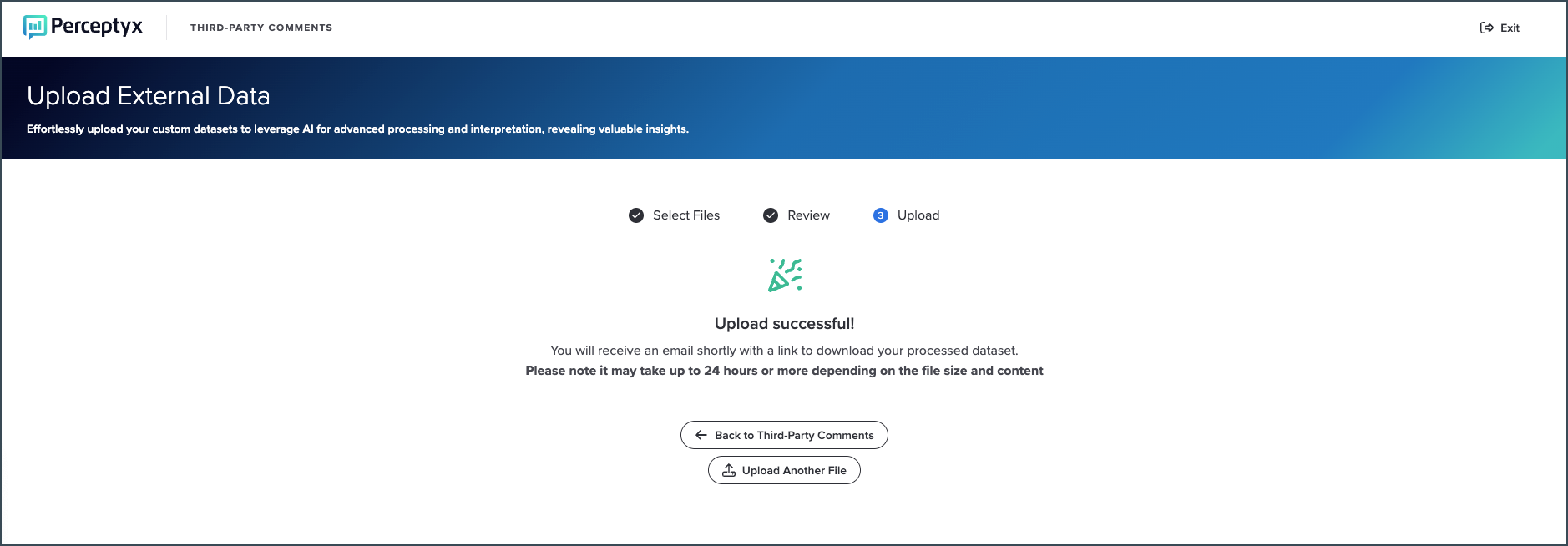
  1. Click Upload and Process.

If successful, an Upload Successful message appears.

If there’s an issue, an error message will explain what needs to be fixed. For example:


If you receive an error, update your file as instructed and upload it again.


After You Upload

Your file is processed in the background.


  • You will receive an email when processing is complete.

  • Processing can take up to 24 hours or longer, depending on file size and content.


Manage Your Files

After uploading a file, you can use File Manager to access, download, rename, or delete your uploaded files.


You can open File Manager either:


  • From the Analyze page via View Report for an uploaded file, or

  • From the File Manager option in the left navigation


The File Manager page displays your uploaded files.


  1. Locate the file you want to manage.

  2. Click the file’s Actions dropdown.

  3. Select an action:


Download

  • Your file is automatically downloaded

  • Open it from your Downloads folder


Rename File

  • Enter a new name in the Enter New Name field 

  • Click Submit


Delete

  • The file is removed from File Manager


Third-Party Comments Models

Third-Party Comments uses four models to process and interpret data:

  • Emotion: Measures nuanced emotions expressed in comments, including anger, fear, love, joy, sadness, and surprise. 

  • Themes: Organizes comment data by topics or themes for efficient categorization and retrieval.

  • Intent: Extracts the intent behind each comment, to further categorize text not only by topic, but also purpose. 

  • Sentiment: Gauges the positivity of a piece of text, on a calibrated sliding scale from low sentiment to high sentiment.


You can learn more about each model by clicking Learn more.


Third-Party Comments uses supervised theme detection. To learn more, see the Comment Analytics Capabilities article.



Report Format and Output

The processed data file is delivered in .csv format with separate columns for each theme, intent, and emotion, as well as a Sentiment column.


  • For every comment in your dataset, the processed file shows a 0 or a 1 to indicate whether a specific theme, intent, or emotion was detected.

  • The Sentiment column displays Positive, Neutral, or Negative to indicate the type of sentiment detected.

  • You can easily aggregate the data for any theme, intent, or emotion.


Overview Video


Was this article helpful?

That’s Great!

Thank you for your feedback

Sorry! We couldn't be helpful

Thank you for your feedback

Let us know how can we improve this article!

Select at least one of the reasons
CAPTCHA verification is required.

Feedback sent

We appreciate your effort and will try to fix the article