Cross-Survey Dashboards let you compare results across multiple listening events in one place, so you can identify trends, spot differences, and better understand how employee experiences change over time.
For example, you can:
Compare results for the same question across different surveys
Track key metrics like engagement or favorability across lifecycle moments
View results side by side to quickly identify patterns or gaps
You can include data from up to five listening events in a single dashboard and use widgets to visualize results across surveys.
Note: Cross-Survey Dashboards are available for Administrator and Creator users.
This article walks through:
- How Cross-Survey Dashboards Work
- Access Cross-Survey Dashboards
- Navigate the Workspace
- Custom Dashboards
To view an overview video:


How Cross-Survey Dashboards Work
In the platform, Cross-Survey Dashboards are built within Cross-Survey Projects.
A project is your workspace for organizing analysis
Each project can contain up to five dashboards
Each dashboard can include up to 20 widgets

Access Cross-Survey Dashboards
There are three ways to access Cross-Survey Dashboards from the Analyze page, depending on what you want to do.
To create a new project:
Click + Cross-Survey Dashboard at the top right corner of the page (opens with a guided workflow for creating a new cross-survey project)
To open an existing project:
Click View Report on an event card for a cross-survey project in the Recent section (opens with the project already selected), or
Click View Report for a cross-survey project in the Action column in the All Reports table (opens with the project already selected).

Navigate the Workspace
When you first access Cross-Survey Dashboards, you are prompted to create a project. After setup, the Cross-Survey Projects workspace opens.
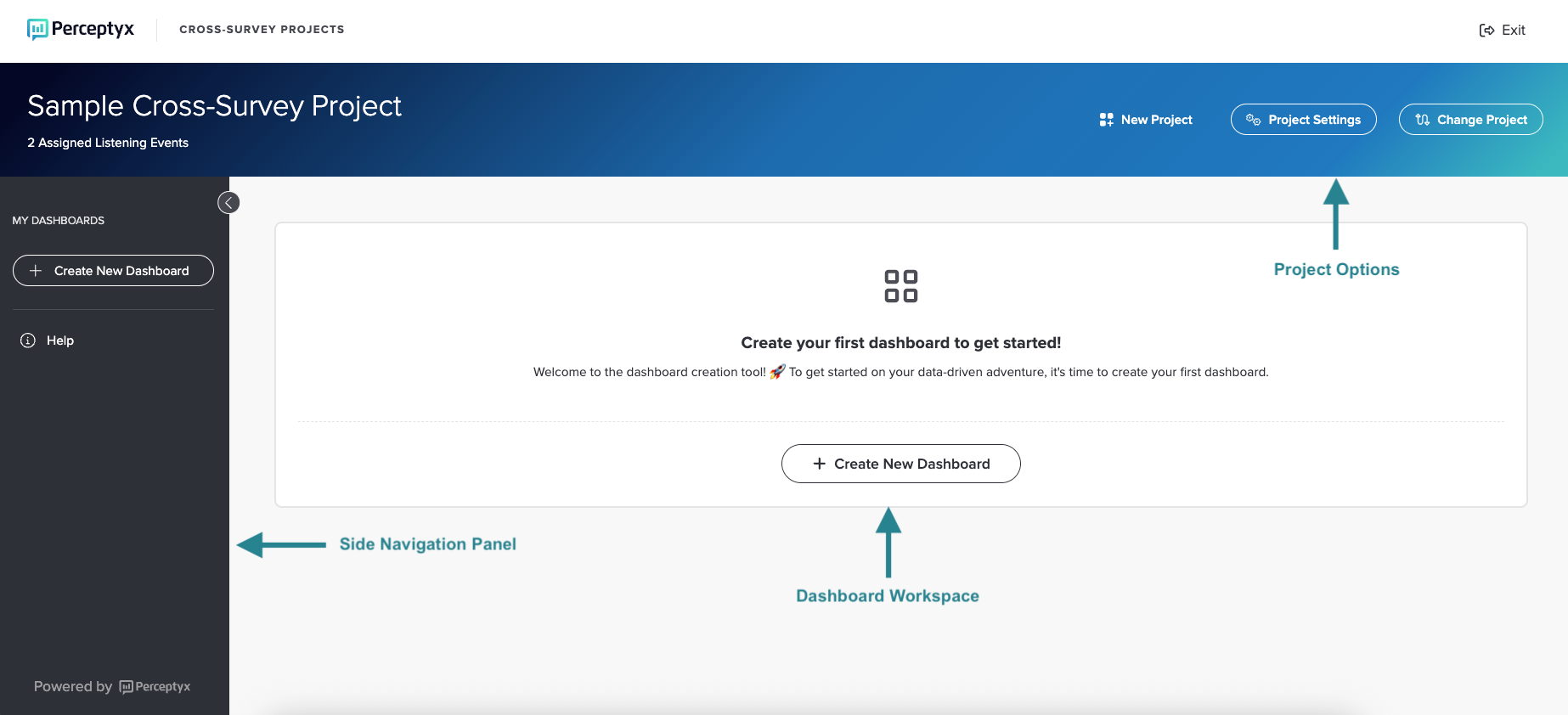
The Cross-Survey Projects workspace has three main areas:
Side Navigation Panel
Switch between dashboards, create new ones, or access help resources. You can expand or collapse this panel.
Dashboard Workspace
Your main area for building dashboards and adding widgets.
Project Options
Create a new project, adjust settings, or switch between projects.
Note: When you open an existing project, the first dashboard in your list displays by default.

Custom Dashboards
Custom dashboards allow you to bring together data from multiple listening events and analyze it in one view.
You can:
Compare results for the same question across surveys
Analyze trends over time using widgets like Favorability Cross Survey Trend
Understand how experiences at different stages of the employee journey (e.g., onboarding, engagement, exit) impact key outcomes
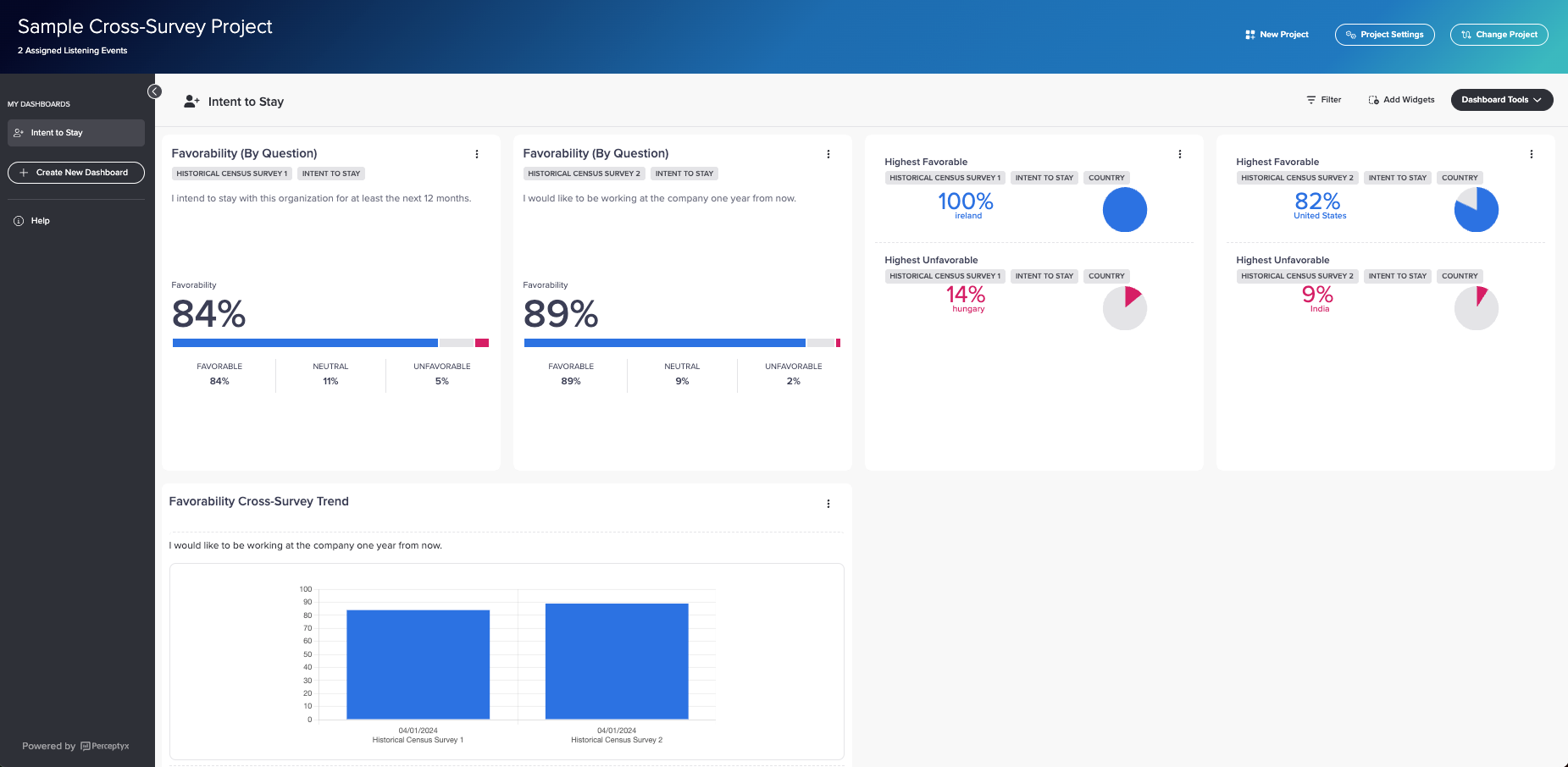
You can use several options to customize a dashboard.
Add Surveys
Select up to 5 surveys per dashboard. You can change them as needed.
Add Widgets
Select from a variety of widgets to visualize your data. Each widget displays the name of the survey it is showing information for, as well as the data category and survey question or demographic, as applicable.
Customize Widgets
Adjust widget settings to display specific questions, categories, or demographics. Customization options vary by widget type.
Reposition Widgets
Drag and drop widgets to organize your layout.
Apply Filters
Apply filters to help you dig deeper into results so you can focus on areas that may require action. Filters are cumulative, allowing you to quickly narrow down your results.
For more information and step-by-step instructions for building and customizing cross-survey dashboards, see the Build Cross-Survey Dashboards article.

Overview Video
Was this article helpful?
That’s Great!
Thank you for your feedback
Sorry! We couldn't be helpful
Thank you for your feedback
Feedback sent
We appreciate your effort and will try to fix the article