The Third-Party Comments Dashboard lets you analyze comment feedback from outside Perceptyx-managed listening channels, including data you upload from sources such as:
Glassdoor reviews
LinkedIn comments
Call transcripts
Other externally collected comment data
Note: The Third-Party Comments Dashboard is available only for Event Administrators and Event Creators.
This article walks through:
- Access the Third-Party Comments Dashboard
- Overview of the Third-Party Comments Dashboard
- Analyze Third-Party Comment Data
- Other Actions
To view an overview video:

Access the Third-Party Comments Dashboard
When you upload a data file with third-party comments, the platform generates a report accessible from the Analyze page. Opening the report loads the Third-Party Comments dashboard with all the comment data ready for analysis.
The report may appear in the Recent section, the All Reports section, or both, depending on how recently you uploaded the file.
To access the Third-Party Comments Dashboard:
Navigate to the Analyze page.
Find your report, then click View Report.
Tip: To quickly narrow down the report list, click the Third-Party Comments tab in the Recent section or filter by Third-Party Comments in the All Reports section. You can also use the Search feature if you know the report name.

Overview of the Third-Party Comments Dashboard
The dashboard is divided into two main sections: the upper workspace for filtering and pattern analysis, and the All Comments section for reviewing individual responses.
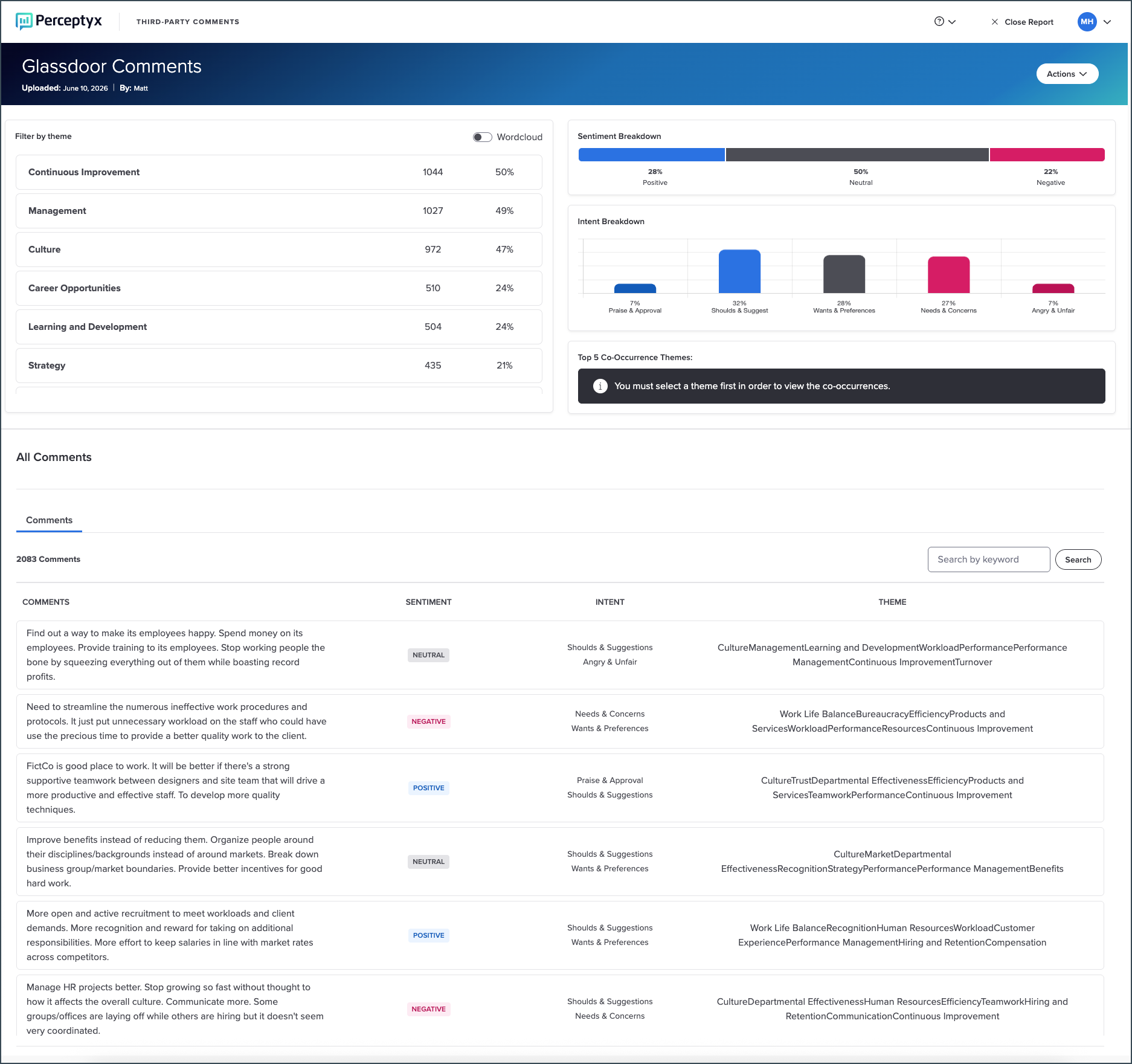
Upper Workspace Components
Clicking any component updates the others automatically, enabling you to progressively narrow your analysis.
All Comments Section
The All Comments section displays all comments for the comment file and any applied filters.
For each comment, you can view:
Sentiment
Intent
Associated theme(s)
Applied filters appear at the top of the section and can be removed individually by clicking X, or all at once by clicking Reset Filters.

Analyze Third-Party Comment Data
Third-party comments are processed using the same natural language process capabilities available for listening events. You can apply filters to analyze themes, sentiment, and intent.
Filter by Theme
Themes categorize feedback into common topics detected across comments. You can:
Select a theme to filter comments to that topic.
Enable the Word Cloud to view themes visually. Word size represents the relative frequency.
Selecting a theme updates sentiment, intent, co-occurrence information, and the comments shown in the All Comments section.
In the Filter by Theme list, click the theme by which you want to filter.
All areas of the dashboard update to reflect the selected theme.
To filter by theme using a word cloud, enable the Wordcloud toggle in the Filter by Theme section, then click a word in the word cloud to apply the filter.
Note: To download the word cloud, click Download Word Cloud. When the confirmation message appears, click Confirm to download the content as a pdf file to your default download location.
Applied themes display as filters at the top of the All Comments section. You can remove a filter by clicking X (or remove all filters by clicking Reset Filters).
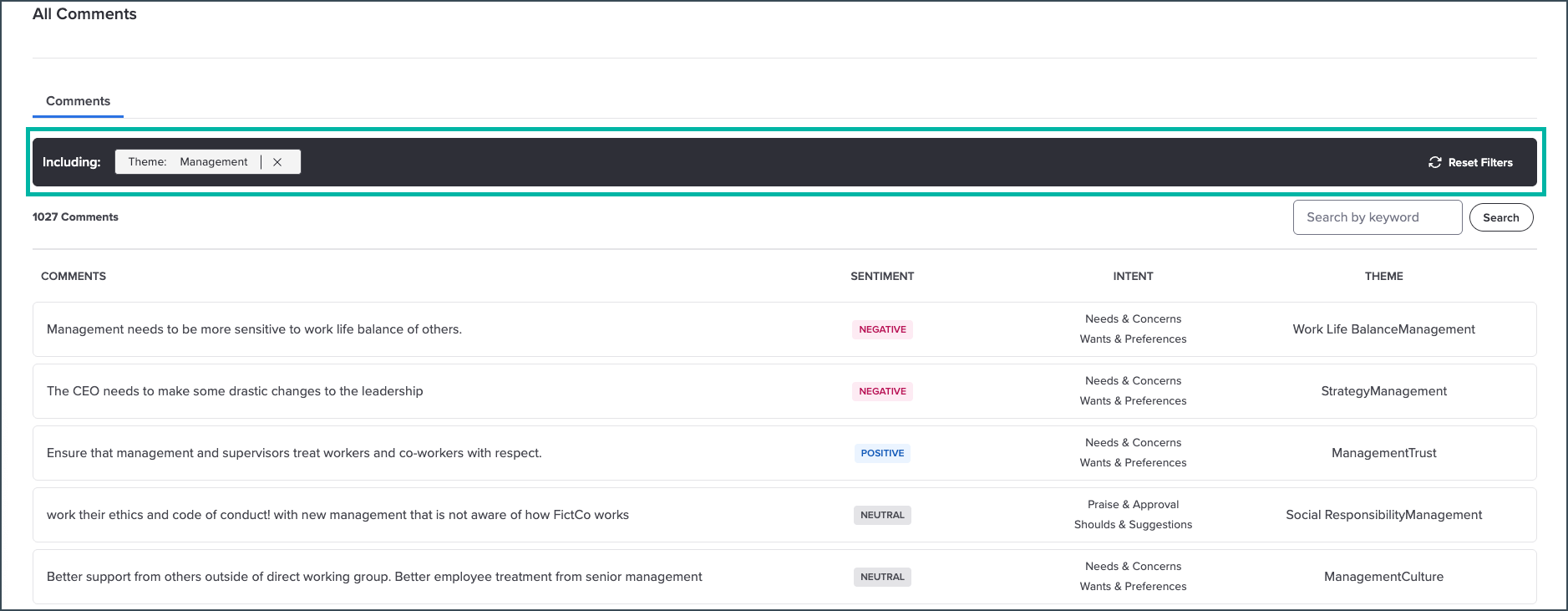
Apply Additional Filters
You can also filter by clicking items in:
Sentiment Breakdown (positive, neutral, negative)
Intent Breakdown (such as praise, suggestions, or concerns)
Top 5 Co-Occurrence Themes (other themes that most frequently appear with the selected theme)
You can apply multiple filters at the same time. All applied filters work together and update the entire workspace consistently.

Other Actions
The Actions dropdown at the top right of the dashboard enables you to:
Download the report
Edit the report name
Delete the dashboard
Download the Report
You can download the processed comment file as a .csv formatted report with separate columns for each detected theme and intent, plus a Sentiment column.
For every comment, the report displays a 0 or a 1 to indicate whether a specific theme or intent was detected.
The Sentiment column displays Positive, Neutral, or Negative to indicate the type of sentiment detected.
The data is structured so you can easily aggregate results.
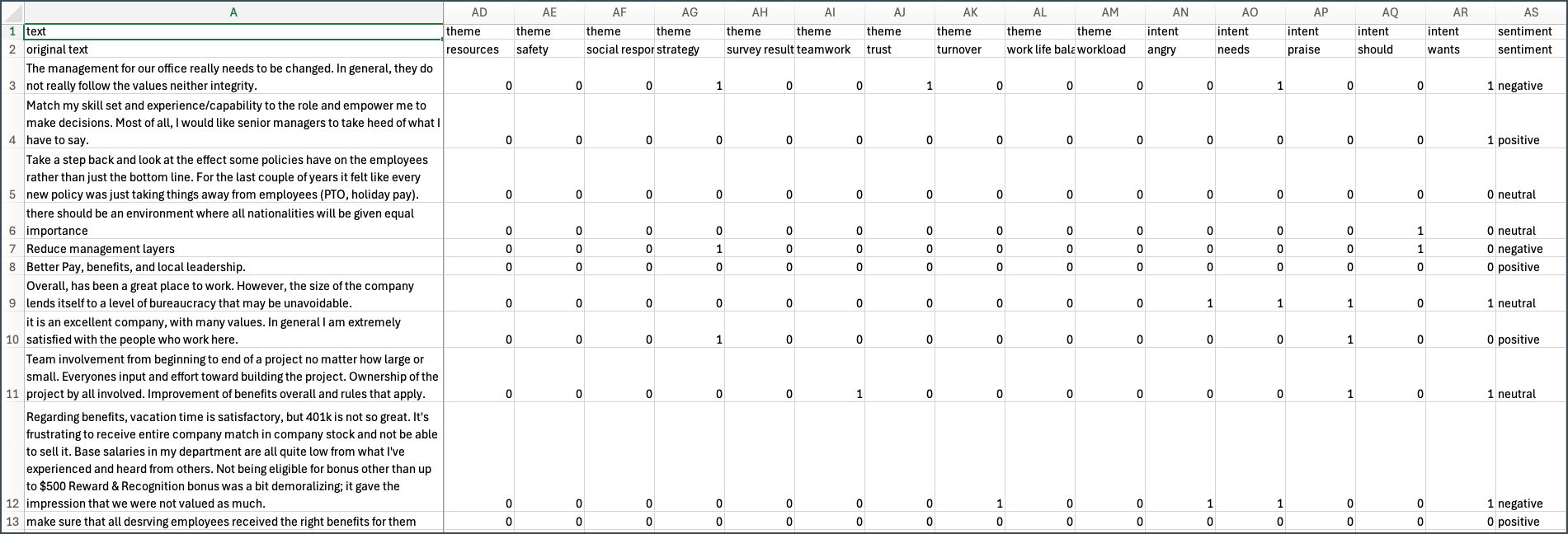
Click Actions (top right), then select Download File.
Navigate to your default download location and open the file.
Edit the Report Name
Click Actions (top right), then select Edit Details to display the Edit Details dialog box.
Enter a new dataset name.
Click Save Changes.
Delete the Dashboard
Deleting the dashboard permanently removes the dataset and all analysis results. This action cannot be undone.
Click Actions (top right), then select Delete Dashboard.
In the confirmation dialog box, click Yes, Delete this File.
Was this article helpful?
That’s Great!
Thank you for your feedback
Sorry! We couldn't be helpful
Thank you for your feedback
Feedback sent
We appreciate your effort and will try to fix the article