Listen
A Conversational Listening Agent swaps the usual survey form for a short chat. The starter agents in the Listening Event Builder are ready to go, so you can pick one, add your support contacts, and launch it yourself.
Instead of working through a page of rating scales and comment boxes, participants have a conversation. The agent asks about a handful of topics, reads each answer, and asks a follow-up or two when it wants to understand more. You end up with richer, more specific comments, and participants get something that feels a lot more like talking than filling out a form.
Each starter agent is built and tested by Perceptyx around a common topic, like AI adoption, manager experience, or well-being. There are no prompts to write and no questions to build. You choose an agent, tell it where to send people who need support, and then finish your event the same way you would any other.
This article walks through
Before you start
A few things worth knowing up front:
- Starter agents are for Point-In-Time events. Lifecycle, 360 feedback, and Crowdsource events use the standard builder.
- Platform admins can set one up. If you don't see the option, check your role with your platform admin.
- The agent comes as it is. Its topics, rating questions, and tone are set by Perceptyx and can't be edited. The one thing you add is your own support contacts, which the agent shares if someone raises something sensitive.
- It uses generative AI from OpenAI. If your organization has opted out of OpenAI as a subprocessor, the Conversational Listening Agent option isn't available to you. See How participant responses are handled for what gets shared and kept.
Set up your agent
Setup happens in a short guided window inside the Listening Event Builder, in five steps: Agent, Scaled questions, Topics, Guardrails, and Review. It takes a few minutes, and nothing is created until you click Create at the end.
Start a new event
- Go to Listen and click Create New Listening Event.
- Pick your business and talent priority, or skip it with the link at the bottom of the page.
- Choose Point-In-Time as your listening type.
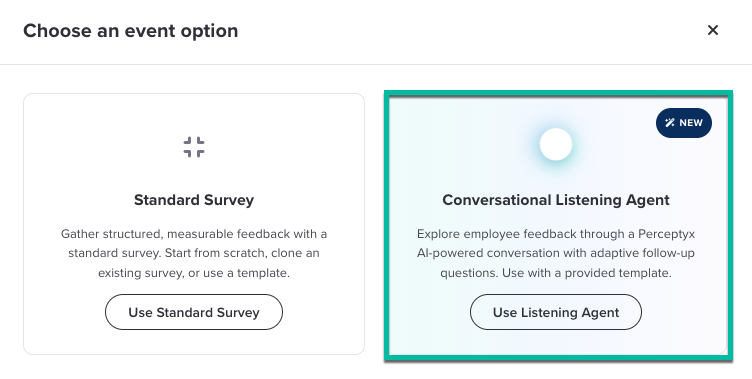
- In the Choose an event option window, pick Conversational Listening Agent and click Use Listening Agent.
Picking Use Standard Survey instead takes you to the usual choices of starting from a template, cloning an event, or creating one from scratch.
Choose your agent
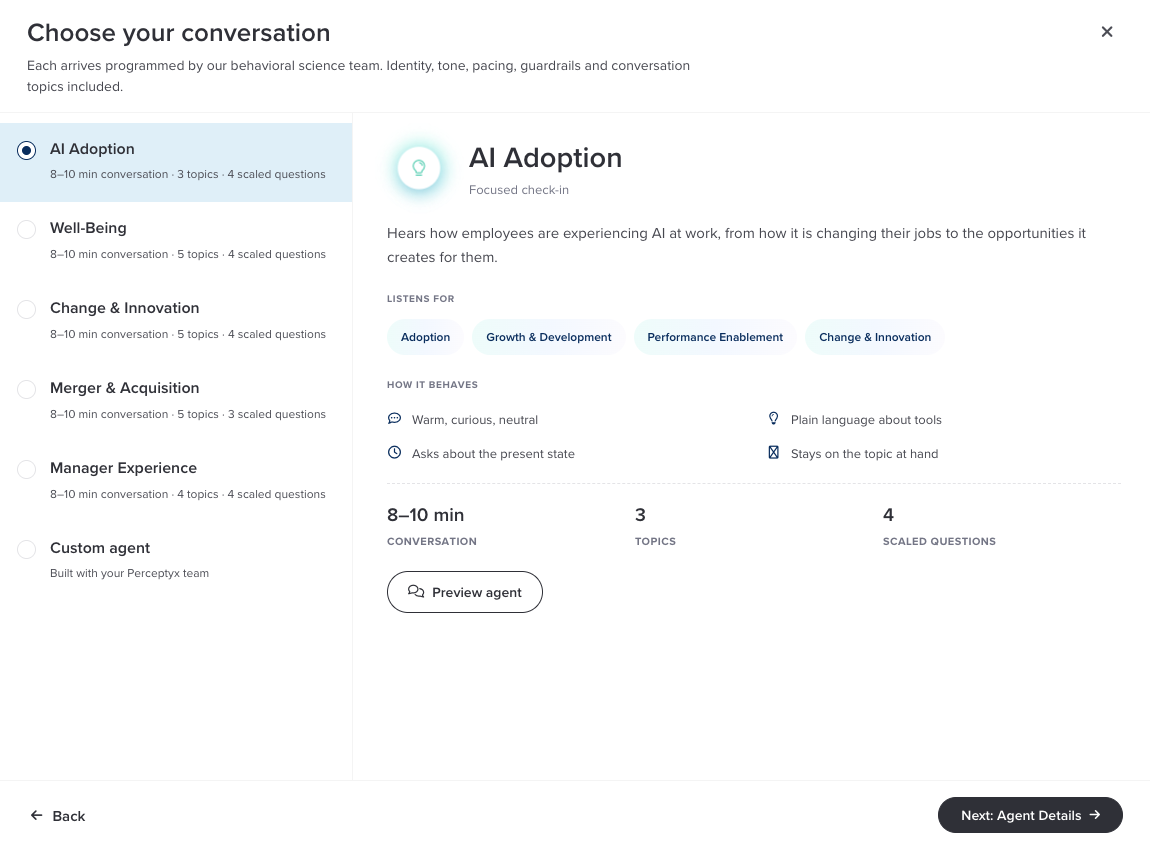
You'll see a short introduction, then the Choose your conversation screen. Each agent arrives set up by the Perceptyx behavioral science team, and each one in the list shows roughly how long the conversation takes, how many topics it explores, and how many scaled questions come first. Pick one to see what it listens for and how it behaves.
Click Preview agent to open a sample version and try the conversation yourself before you commit. If none of the agents fit what you need, Custom agent at the bottom of the list is how you get in touch with us about building one.
Review the scaled questions and topics
The next two steps show you exactly what participants will be asked:
- Scaled questions lists the rating questions participants answer before the conversation starts.
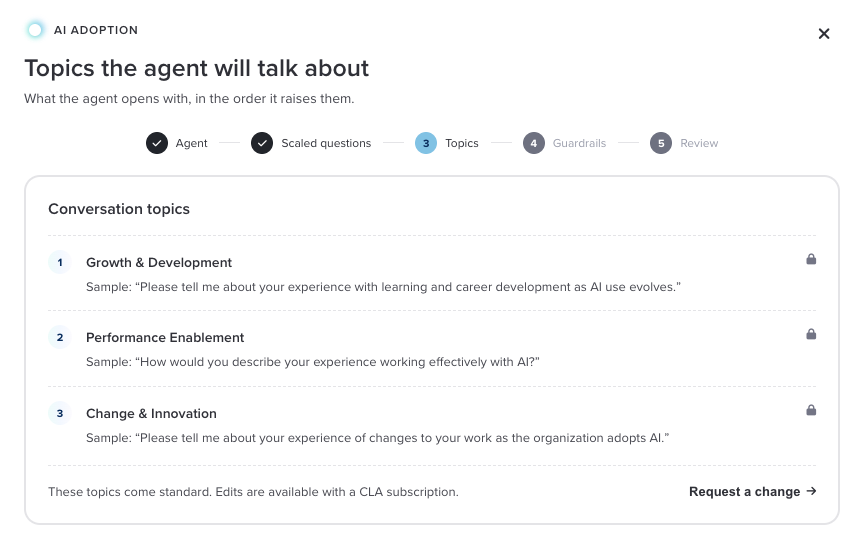
- Topics lists the subjects the agent will talk through, and the opening question for each one.
Both come standard and are read-only. Edits are available with a Conversational Listening Agent subscription, so if you'd like something changed, use Request a change and our team will follow up.
Add your support contacts
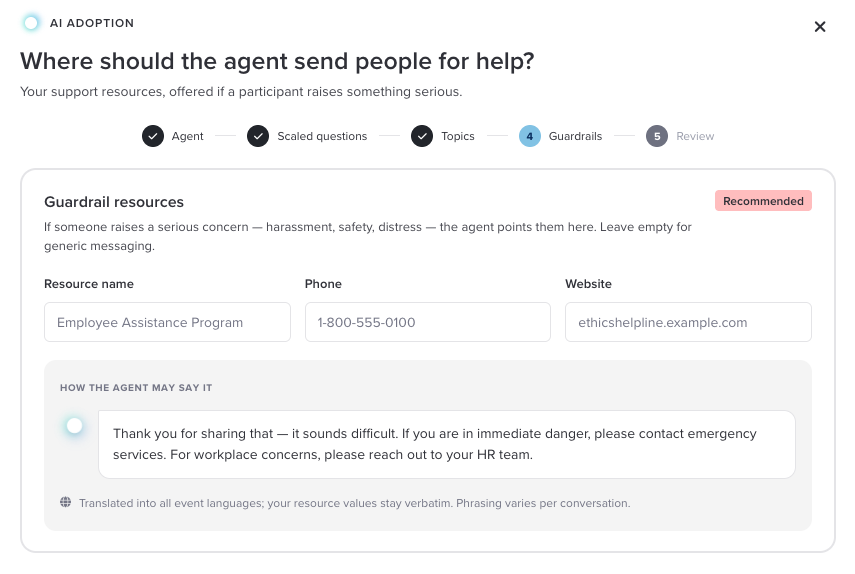
The Guardrails step is the one place you add your own details. If someone mentions something that needs real support, like a safety concern or a personal crisis, the agent pauses the topic, points them to help, and then moves on.
In Resource name, add where you want people sent, such as your human resources team or an employee assistance program. Then add a Phone number, a Website, or both. If you add a name, you'll need at least one of the other two. The How the agent may say it preview updates as you type, so you can see what participants will read. The message is translated into all of your event's languages, while your resource details stay exactly as you typed them.
If you leave all three fields blank, the agent uses a generic default message instead.
Review and create
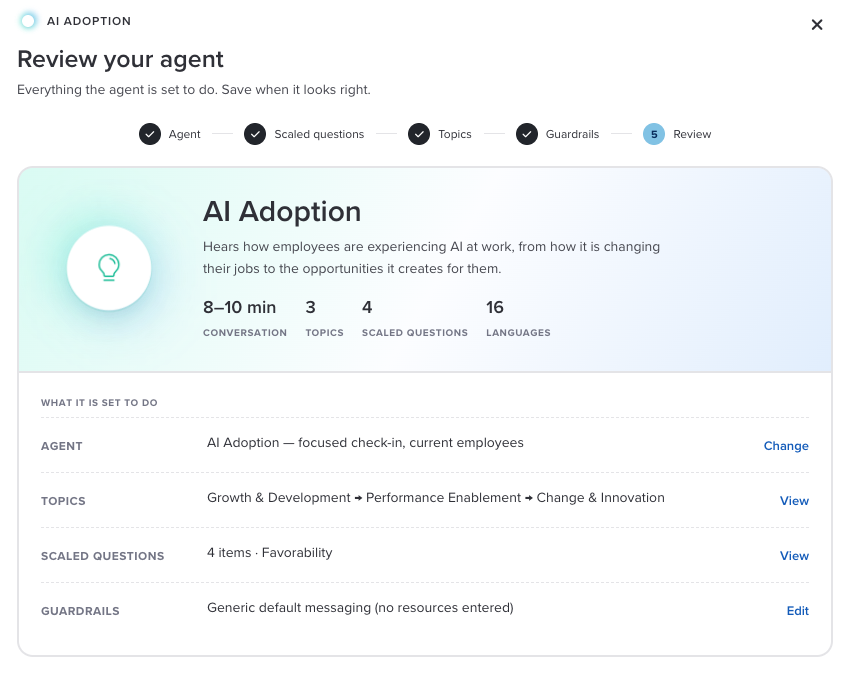
The Review your agent step sums everything up: the agent you picked, how long the conversation takes, its topics and scaled questions, how many languages it's available in, and your guardrails. Each row has a Change, View, or Edit link if you want to go back and check it.
When it all looks right, click Create. You'll see a short Getting your agent ready screen, and then you land on the Overview page of your new event.
Finish and activate your event
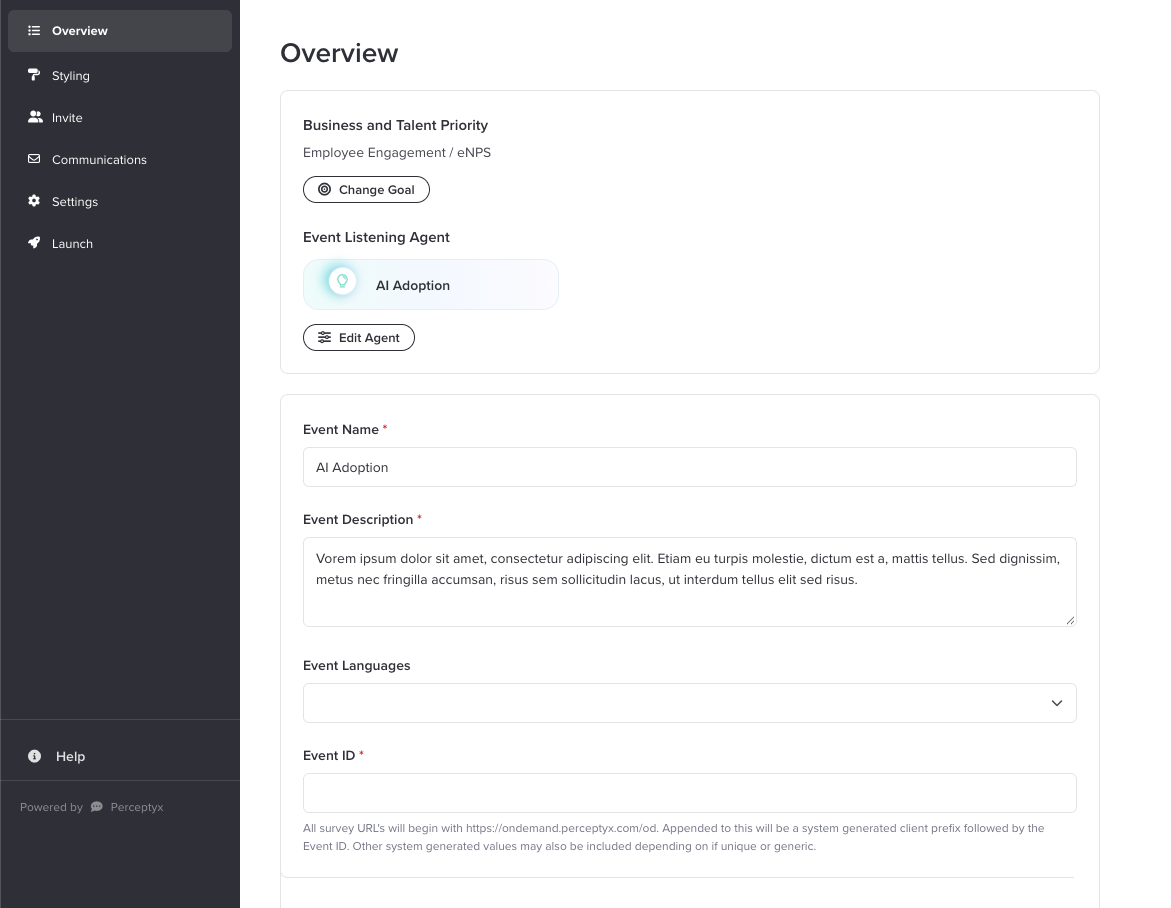
From Overview on, you build the event the usual way. Give it a name and description, choose your languages, then work through styling, invitations, communications, and settings.
After you name your event on the Overview page, you'll see a notice that the event uses AI, along with a checkbox that reads I understand, and have any approvals needed to launch. You can't create the event until you tick it.
That checkbox is a good prompt to make sure the right people have signed off before you go any further. Depending on your organization, that might include your legal or privacy team, a works council, or leadership.
You'll see a Listening Agent badge in the event header, and an Event Listening Agent card on the Overview page with the agent's name and question count.
Because the agent's conversation is set up for you, a few builder options aren't available for these events:
- Content, including questions, the PIN page, and the Consent, Welcome, and Thank You pages
- Page Layout in Styling
- Three settings: Enable Action Planning, Use the New Reporting Look-and-Feel, and Enable Automated Comments
- Live editing once the event is active
Need any of these?
Starter agents launch as they are, so these options are off for them. They're supported when Perceptyx builds a custom agent for you as part of a paid, managed Conversational Listening Agent event, including your own Welcome and Thank You pages. See Asking for something different for how to request one.
Before you activate
Since live editing isn't available, run through your preview and check names, languages, and styling carefully. Once the event is active, that's what participants get.
What participants see
Participants open their survey link the same way they would any other event. Here's what happens next:
- They start with the rating questions. Every question is optional, and they can change an answer any time before submitting.
- Then the conversation starts. A welcome message lists the topics, lets them know it should take about 10 minutes, and a progress bar shows how far along they are.
- For each topic, the agent asks an opening question and may ask up to two follow-up questions when it wants more detail, like a reason, an example, or a suggestion. People can skip anything they'd rather not answer.
- If someone raises something sensitive, the agent shares the support contacts you added and gently moves to the next topic.
- If they leave partway through, they can come back and pick up where they left off.
Your results
Results show up in Advanced Reporting, alongside your other events.
- Rating questions work just like they do in any other survey, so you can trend and compare them.
- Conversation answers come in as comments, one per topic, with each person's follow-up replies kept together.
- The Comments report lets you open the full back-and-forth between the agent and a participant for any topic.
- Comment Copilot and the Narrative Analysis Agent are available to help you make sense of what people said.
Your confidentiality thresholds still apply, and you decide who gets access to the reports.
How participant responses are handled
Because this event uses generative AI, it's worth understanding what happens to what people type. Here's the short version:
- Everything a participant types in the conversation is sent to the AI model, provided by OpenAI. That includes anything personal or sensitive they choose to share.
- OpenAI keeps inputs and outputs only for its standard logging, and is required to delete them within 30 days.
- Perceptyx keeps a transcript of each conversation under its standard data retention practices.
- Responses are processed the same way as other comments, including masking of names and analysis of sentiment, themes, and emotion.
- Your data is never used to train or fine-tune Perceptyx models or any third-party AI models.
- Your organization stays in control. Generative AI features are opt-in, and they can be limited or turned off.
Let participants know
Since the Consent and Welcome pages aren't available for these events, use your invitation and reminder emails to tell people they'll be chatting with an AI agent, and remind them not to share sensitive personal details like health information or identification numbers.
For the full details, see Perceptyx AI Privacy and Legal Resources.
Asking for something different
Starter agents are designed to launch as they are. If you'd like different rating questions, different topics, your own Welcome and Thank You pages, or an agent built around something specific to your organization, there are two ways to ask:
- Use Request a change on the Topics step.
- Pick Custom agent on the Choose your conversation screen.
Either one gets your request to our team, and we'll follow up with you about what's possible. Custom agents are built by Perceptyx as part of a paid, managed Conversational Listening Agent event.
What's next
Once your agent is set up, the rest of the build follows the same path as any other event. Launch Your Listening Event walks through invitations, communications, and activation.
Was this article helpful?
That’s Great!
Thank you for your feedback
Sorry! We couldn't be helpful
Thank you for your feedback
Feedback sent
We appreciate your effort and will try to fix the article