Admin Portal
Listening Events settings are the company-wide defaults that every Point-In-Time and Lifecycle listening event at your organization starts from. Set them once here and you won't have to repeat them event by event.
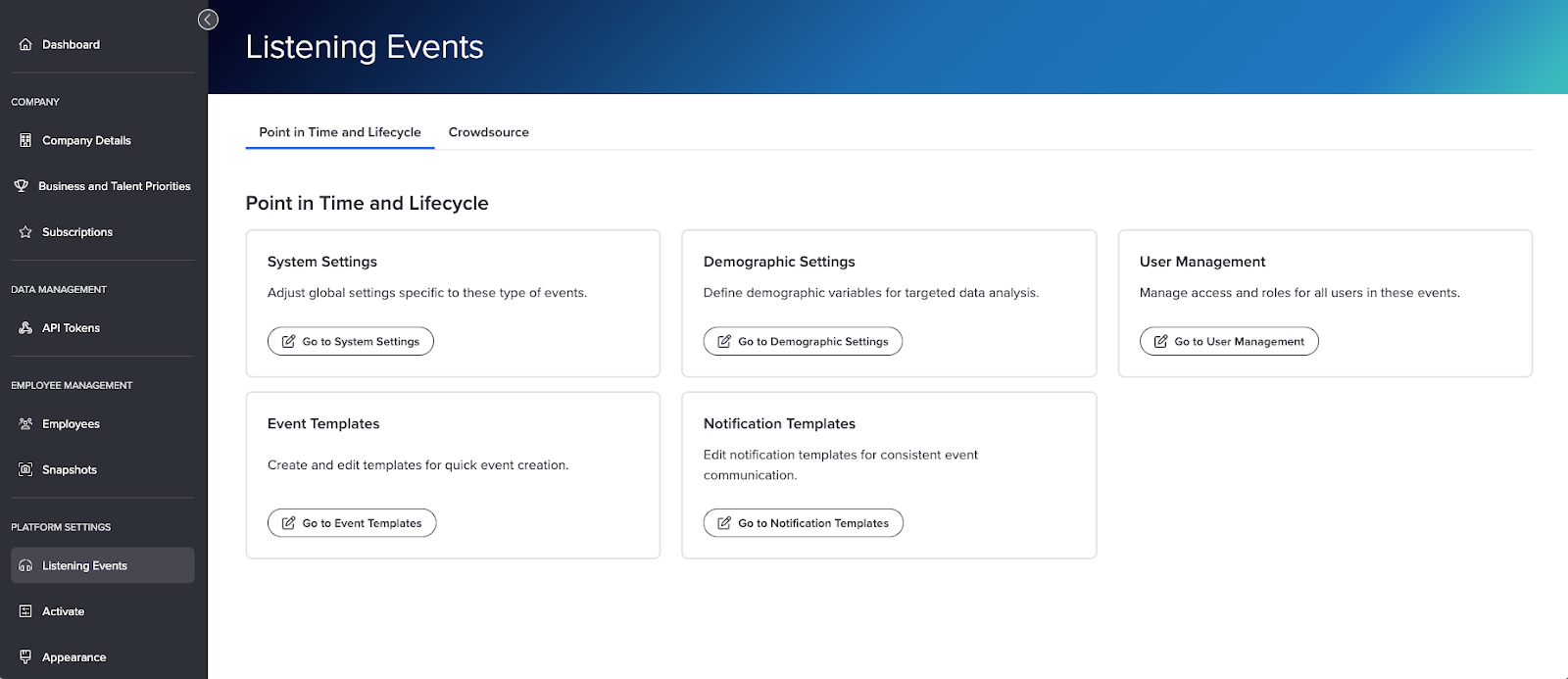
This article is a quick tour. It shows you where these settings live, what each of the five areas is for, and where to go for the full steps. Each area has its own article, linked along the way.
Who can use this
Only Platform Administrators can open the Admin Portal and change these settings. If you need access, ask someone at your organization who is already a Platform Administrator.
This article walks through
Getting to your listening event settings
- Log in to the Perceptyx platform.
- Click the gear icon in the navigation bar at the top of the screen. The Admin Portal opens.
- In the left panel, under Platform Settings, click Listening Events.
- Make sure the Point in Time and Lifecycle tab is selected.
- Each area has its own card. Click the Go to button on the card you want, for example Go to System Settings.
Using Crowdsource events?
If your organization runs Crowdsource events, their settings live on the Crowdsource tab of this same screen. See Listening Event Platform Settings (Platform Admins Only) | Crowdsource.
What each area is for
Here's what you'll find behind each card.
System Settings
The global rules for how results are protected and what's available in your events. This is where you set:
- How many people need to respond before results, comments, or demographic filters show up in reports, so no one can be singled out.
- Whether event creators can add a Demographics page, where participants pick their own answers to demographic questions.
- Extra protection against working out a small group's scores by filtering around it (exclusion rule filtering).
- Whether partly finished responses count in your reports.
- Which languages, beyond English, are available for reporting.
System Settings opens in a separate browser tab.
For the full steps, see Work with System Settings (Platform Admins Only) | Point-In-Time & Lifecycle.
Demographic Settings
Control how the employee details from your HR system show up across your listening events. You can choose which demographics can be used as filters in Advanced Reporting, change the label people see, decide which demographics appear as columns when picking who to invite, and set the order those columns show up in. You can also turn on pasting a long list, like employee IDs or emails, to invite a lot of people at once.
For the full steps, see Work with Demographic Settings (Platform Admins Only) | Point-In-Time & Lifecycle.
User Management
Decide who can work on your Point-In-Time and Lifecycle listening events and who can see their results. You give people a role and pick which listening events they have access to.
Not sure which role someone needs? Understand User Roles and Choose the Right Role compares what each role can do.
A Reporting User only sees the listening events they have been given access to. Which results they can see inside an event is set with reporting groups. See Create & Manage Reporting Groups for an Event - Overview | Point-In-Time & Lifecycle.
Event Templates
A library of ready-made listening events to start from, including best-practice templates from Perceptyx and any your organization creates. You can build a new event from a template, make a copy to customize, create your own from scratch, and choose which templates people can use.
For the full steps, see Create and Edit Event Templates (Platform Admins Only) | Point-In-Time & Lifecycle.
Notification Templates
The email templates used to contact participants, so your messages stay consistent from one event to the next. You can choose which templates are available, edit them, make copies, or create new ones. Changes you save apply to new listening events.
For the full steps, see Create and Edit Notification Templates (Platform Admins Only) | Point-In-Time & Lifecycle.
What's next
Start with the rules that protect your results. Work with System Settings (Platform Admins Only) | Point-In-Time & Lifecycle walks you through each setting and how to change it.
Was this article helpful?
That’s Great!
Thank you for your feedback
Sorry! We couldn't be helpful
Thank you for your feedback
Feedback sent
We appreciate your effort and will try to fix the article