The Event Management area of the Admin Portal gives Platform Administrators a centralized, organization-wide view of all Point-In-Time and Lifecycle listening events. This feature allows you to efficiently audit events and verify access without navigating into each event individually. Additionally, if Comment Copilot or Narrative Analysis Agent is enabled for your organization at the subscription level, you can disable/enable the tool for individual listening events.
You can:
View all Point-in-Time and Lifecycle events in one place
Search for events by name or AppID
Filter events by type, status, or date
Access detailed event information
Disable/enable AI-powered comment analysis (Comment Copilot or Narrative Analysis Agent) for specific listening events
This article walks through:
- Access and Navigate the Events List
- View Event Details
- Disable/Enable AI-Powered Comment Analysis at the Event Level

Access and Navigate the Events List
The Events List provides a unified, organization-wide view of all Point-In-Time and Lifecycle listening events (self-led and Perceptyx-led events created with the Listening Event Builder). From here, you can browse, filter, and search the full set of events created across your company.
Access and Navigate the Events List
Log in to the Perceptyx Platform.
In the navigation bar, click the gear icon to access the Admin Portal.
In the left panel, click Events (in the Event Management section).
The Events List appears.
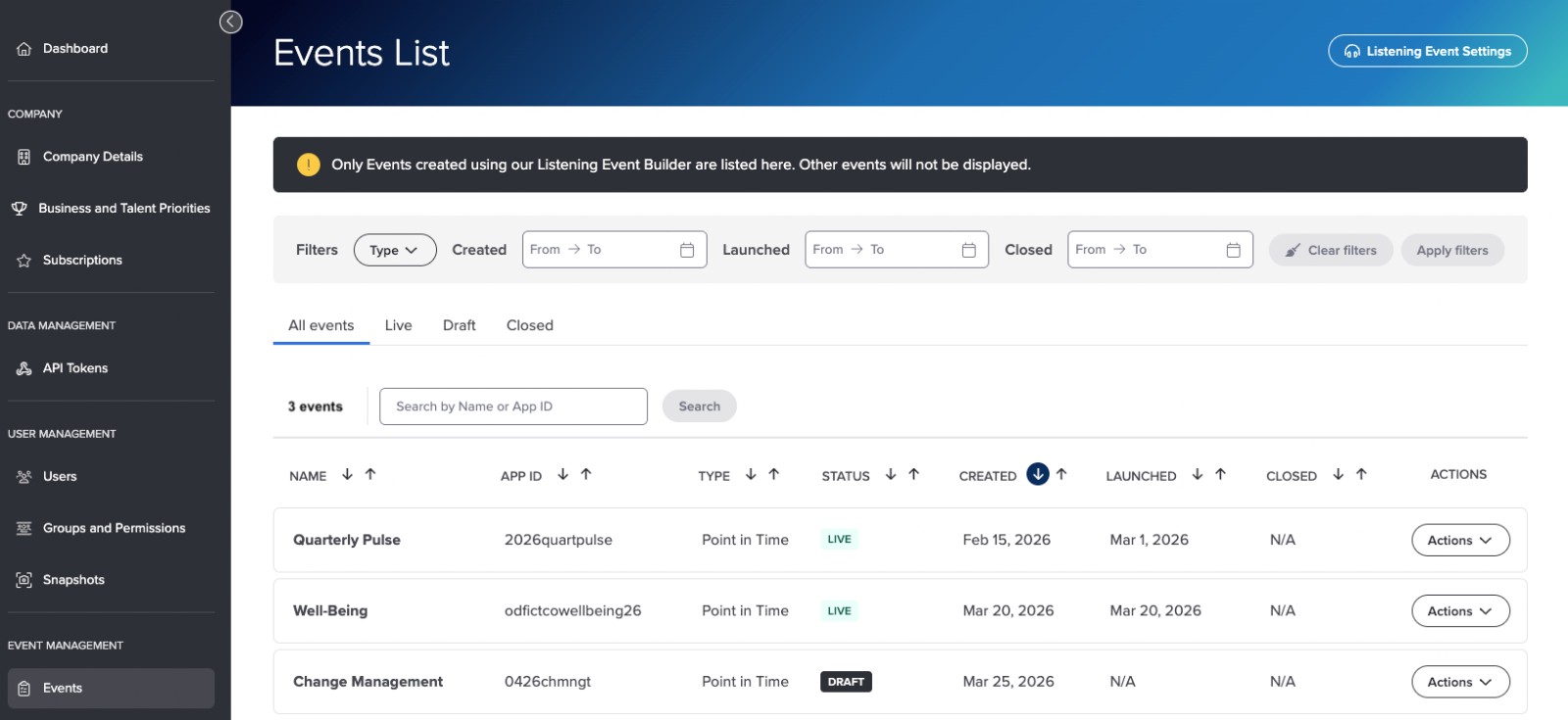
Each event row displays key details, including:
Name: The event name
App ID: The unique identifier for the listening event
Type: The event type (Point-In-Time or Lifecycle)
Status: Live, Draft, or Closed
Created: The date the event was created
Launched: The date the event was launched
Closed: The date the event closed (if applicable)
Actions: A list of actions you can complete for the event
You can sort the list by clicking the Up or Down arrow above any of the column names.
Filter Events
You can filter the Events List to show only the events you want to review.
You can filter by any of the following:
Type
Created
Launched
Closed
Status
You apply and clear filters for event type and date ranges in the Filters section at the top of the screen. You filter by status using the status tabs below the Filters section.

To filter by event type:
Display the Type dropdown, then select an event type.
Click Apply Filters.
To filter by a date range:
Click the From → To box for the date type (created, launched, or closed).
Use the Calendar popup to select a date range.
Click Apply Filters.
To clear a filter:
Click Clear Filters.
To filter by event status:
Click the Live, Draft, or Closed tab to display only the corresponding events.
Click All Events if you want to display all events, regardless of status.
Search for Events
Search helps you quickly locate a specific event. You can search by:
Event Name
App ID
Click the Search by Name or AppID box.
Type your search criteria, then click Search.
The results update to reflect your search criteria.

View Event Details
If you need more information about an event, you can view its details. Available information includes:
Name
AppID
Status
Type
Business and Talent Priority
Created Date
Launched Date
Closed Date
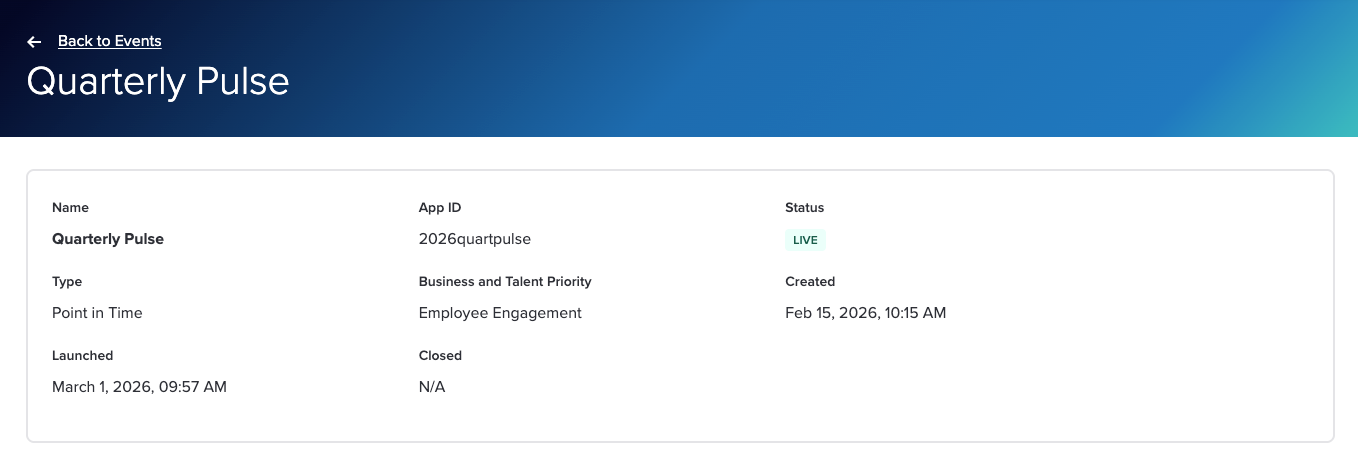
Locate the event in the Events List.
Display the Actions dropdown, then select View Event Details.
To return to the Events list, click Back to Events (top left).
These details provide a quick audit view of how the event was configured.

Disable/Enable AI-Powered Comment Analysis at the Event Level
If your company has either Comment Copilot or Narrative Analysis Agent enabled at the subscription level, it is automatically enabled for all future self-led Point-In-Time listening events. You can disable the comment analysis tool for individual events or enable it for past events created before the tool was enabled.
If Comment Copilot or Narrative Analysis Agent is enabled at the subscription level, a toggle displays in a Settings section when you view event details. You can click the toggle to disable/enable the analysis tool for the event you are viewing.
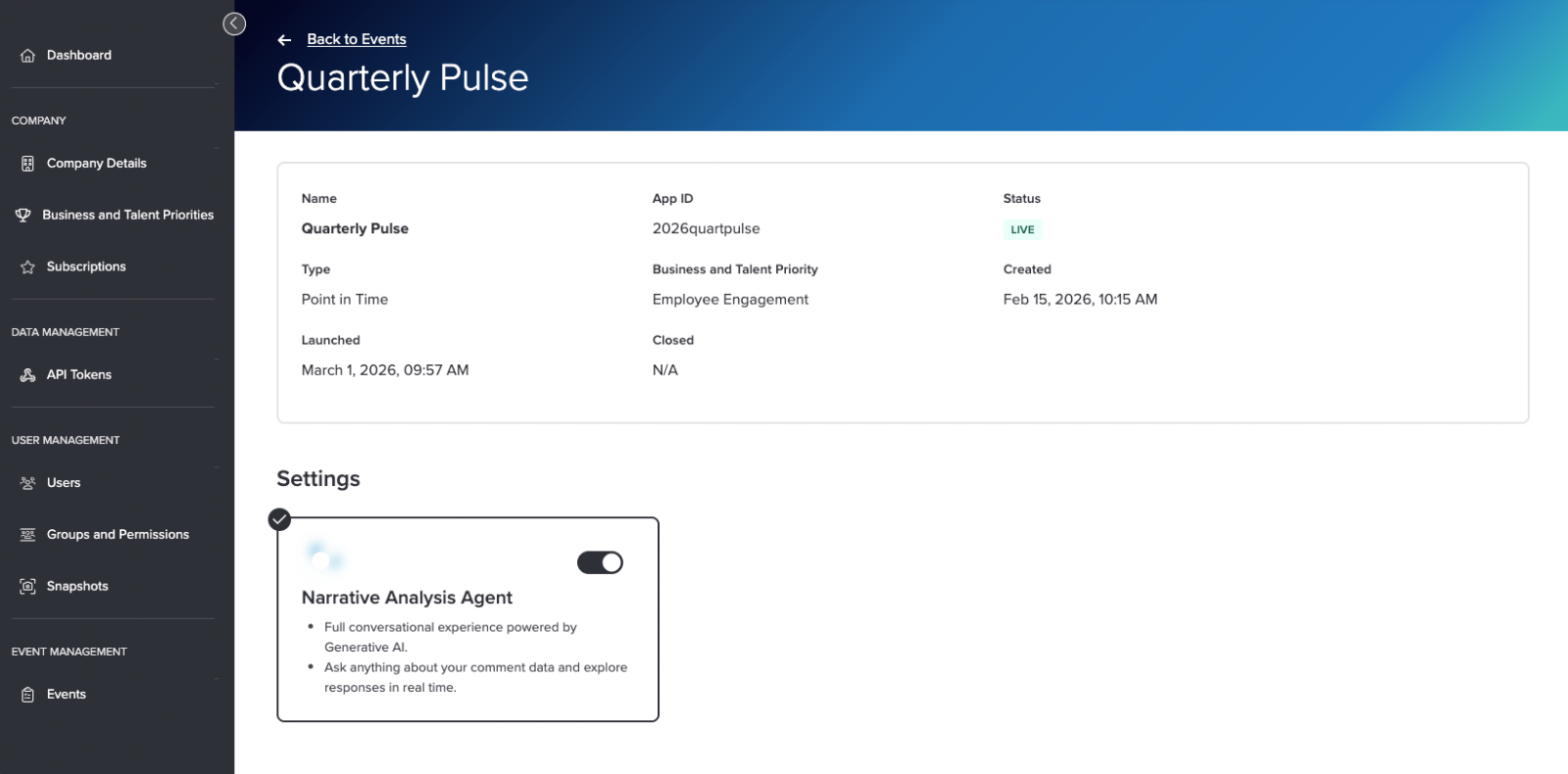
To enable or disable Comment Copilot or Narrative Analysis Agent for an event:
Find the event in the Events list.
Display the Actions dropdown, then select View Event Details.
In the Settings section, click the toggle to enable or disable the AI comment analysis tool.
Click Enable or Disable, as appropriate, in the confirmation message that appears.
Was this article helpful?
That’s Great!
Thank you for your feedback
Sorry! We couldn't be helpful
Thank you for your feedback
Feedback sent
We appreciate your effort and will try to fix the article