Nudges are personalized, science-backed action recommendations powered by AI and delivered by the Activate agent directly in the flow of work. Whether they come from organization-wide listening events or 360 feedback results, nudges help employees turn insights into small, meaningful actions that drive measurable behavior change and lasting business impact.
Nudges complement action plans and support individual development goals. Because they arrive in the flow of work, they are easy to apply in real time. As employees engage with nudges and give feedback, Activate keeps refining its recommendations and increasing their relevance.
Intelligent Nudges are offered in 26 languages; however, not every nudge has been translated into every language. To request additional translations, contact your Perceptyx Customer Success Manager.
Administrators can view nudge engagement data to see how employees are engaging with nudges, which themes are chosen most often for personal focus areas, and nudge view rates over time. For more information, see the Review/Monitor Action Taking in Advanced Tools article.
This article walks through:
- Anatomy of a nudge
- Nudge cadence
- Interact with Intelligent Nudges
Anatomy of a nudge
Nudges contain several components that each serve a specific purpose:
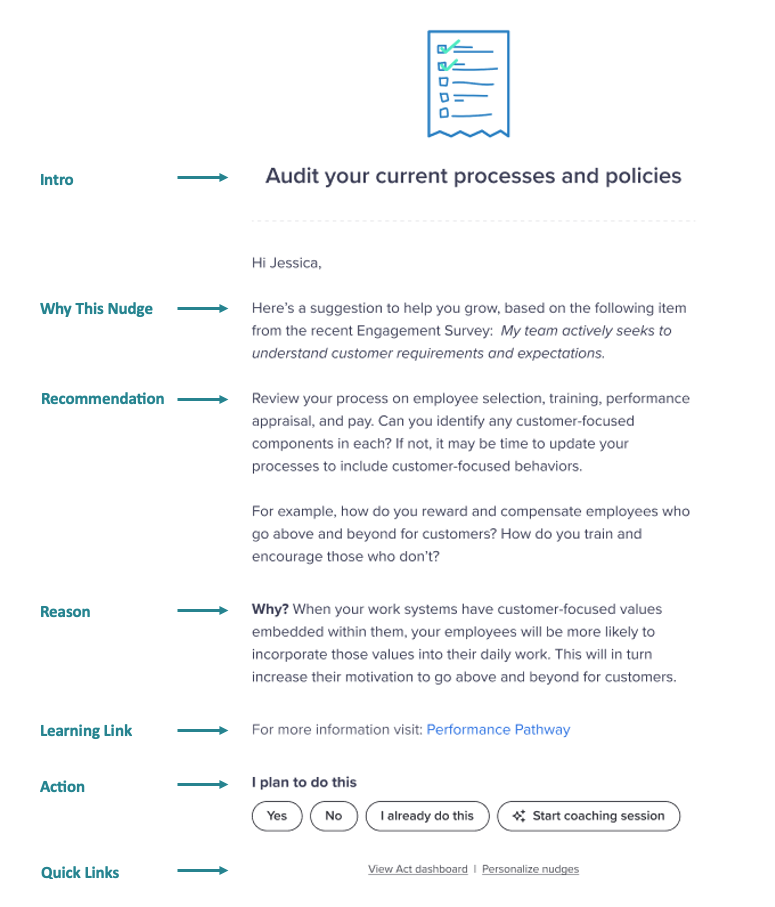
- Intro: Ties each nudge to a priority area identified by you or your organization.
- Why This Nudge: Shares the tie back to a personal focus area, action plan item, or campaign.
- Recommendation: Provides one concrete action you can do this week.
- Reason: Backs up the recommendation using research from people science experts.
- Learning Link (if enabled): Select nudges may include links to internal company resources if enabled by your organization.
- Action: Measures your commitment to act. You can select Yes, No, or I already do this. You can also start an on-demand coaching session to get personalized support.
- Quick Links (email nudges only): Jump into the Act platform page or personalize your nudges from the links.
Nudge cadence
Each week, Activate delivers a nudge based on your action plan commitments, your organization's campaigns, or personal focus area inputs you have provided.
Under typical conditions, nudges rotate across these areas to maintain a balanced experience. The exact order may adjust depending on your configuration and organizational priorities.
For example, cadence may vary when:
- Personal priorities have not been set
- Action plan nudges have not yet started
- A campaign has just launched
- A temporary boost has been applied to reinforce a specific behavior
In these cases, the system adapts the rotation so nudges stay timely and aligned with current goals. The scenarios below show how a typical rotation plays out.
Nudge cadence scenarios
Each row is one week of nudges, read top to bottom.
Fully integrated Standard fully integrated nudge program
| No personal priorities Individual has not set personal priorities
| Org priority start Action plan nudges go into rotation once created
|
Within a campaign, custom nudges created through the Nudge Generator take priority over Perceptyx-created nudges selected as part of that campaign. Perceptyx nudges are delivered only after every eligible custom nudge has been sent.
Interact with Intelligent Nudges
Depending on your company's platform configuration and use of messaging and collaboration apps, you may be able to view and interact with nudges in several places.
In the flow of work:
- MS Teams
- Slack
In the Perceptyx Platform:
- The Home page
- The Action Feed
- Action plan details
Some nudge components, like Learning Links or on-demand coaching, are available only if your company has enabled these features. For more information, see the Add & Manage Custom Learning Links to Nudges [Admins Only] and Use On-Demand Coaching articles. Quick links appear only in nudges received via email.
All nudges include the Action options, which provide valuable feedback used to continuously improve their relevance and effectiveness.
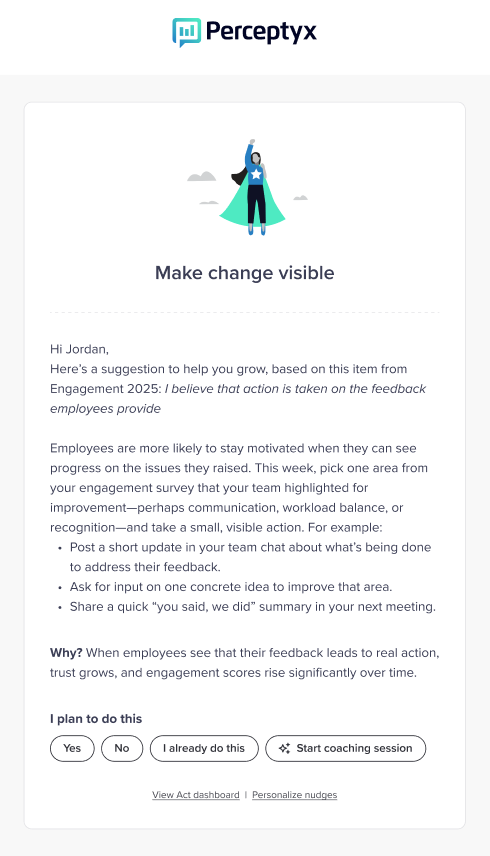
Nudges in email
- Open the nudge email.
- Review the nudge.
- Click Yes, No, or I Already Do This.
- If you want personal support with the nudge, click Start Coaching Session.
- If you want to view the nudge in the Act Dashboard in the platform, click View Act Dashboard.
- To specify your nudge preferences so they align more closely with your role and personal focus areas, click Personalize Nudges.
Nudges in MS Teams
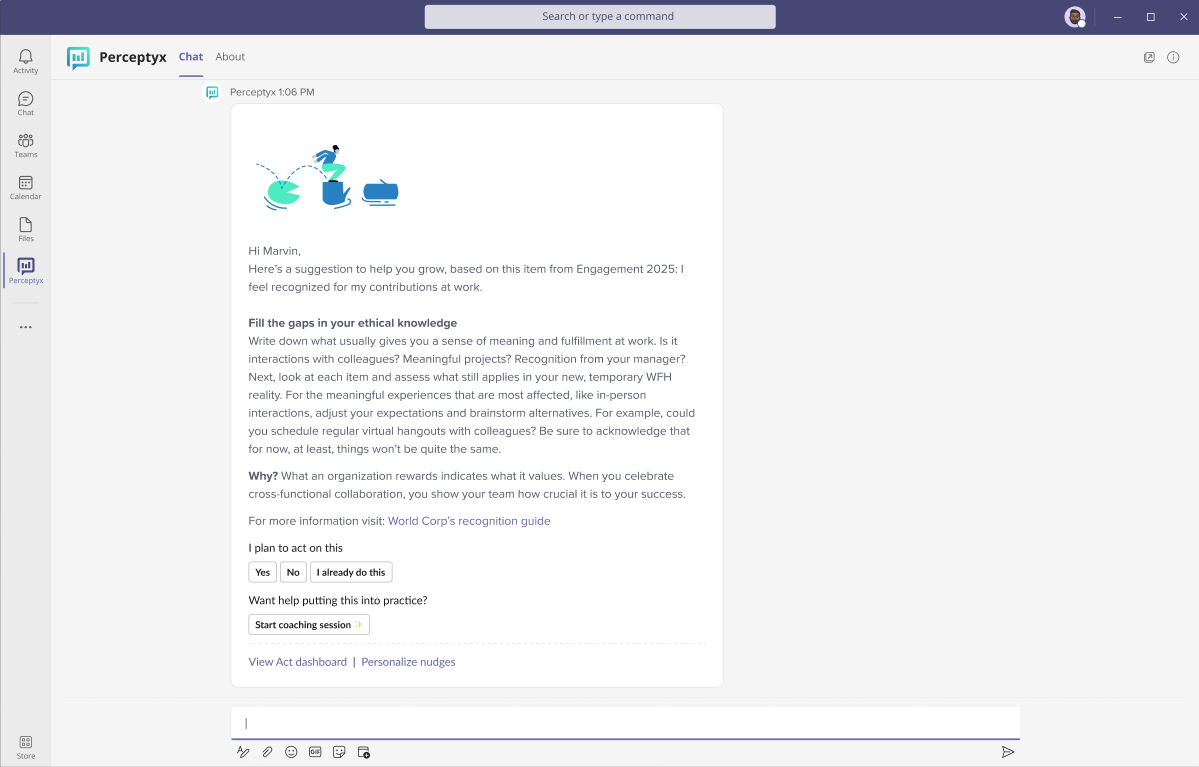
- Click the nudge notification in your MS Teams app.
- Review the nudge.
- Click Yes, No, or I Already Do This.
- If you want personal support with the nudge, click Start Coaching Session.
Nudges in Slack
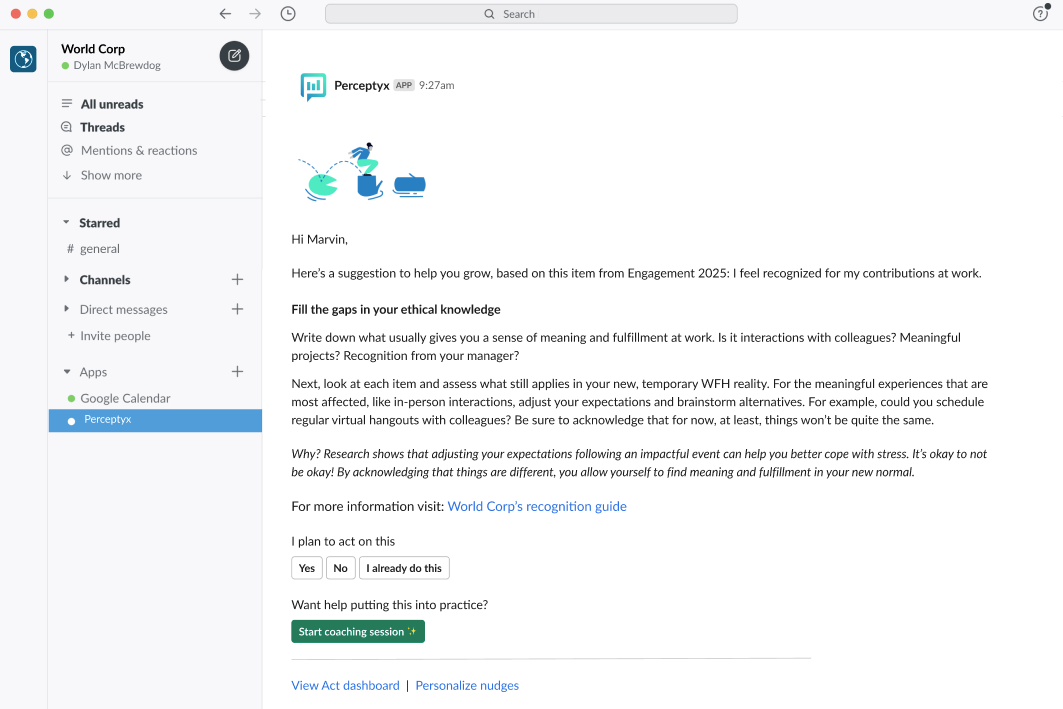
- Click the nudge notification in your Slack app.
- Review the nudge.
- Click Yes, No, or I Already Do This.
- If you want personal support with the nudge, click Start Coaching Session.
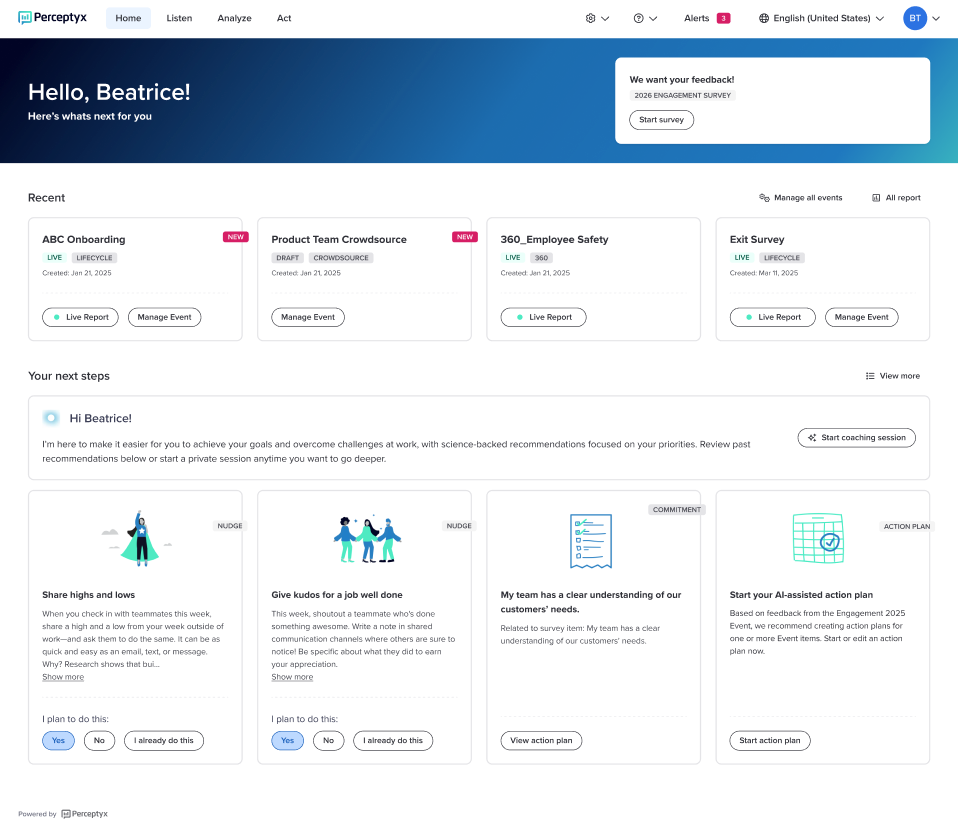
Nudges on the Home page
- Log in to the Perceptyx Platform.
- Navigate to the Home page, if necessary.
- Review the nudge in the Your Next Steps section.
- Click Yes, No, or I Already Do This.
- If you want personal support with the nudge, click Start Coaching Session.
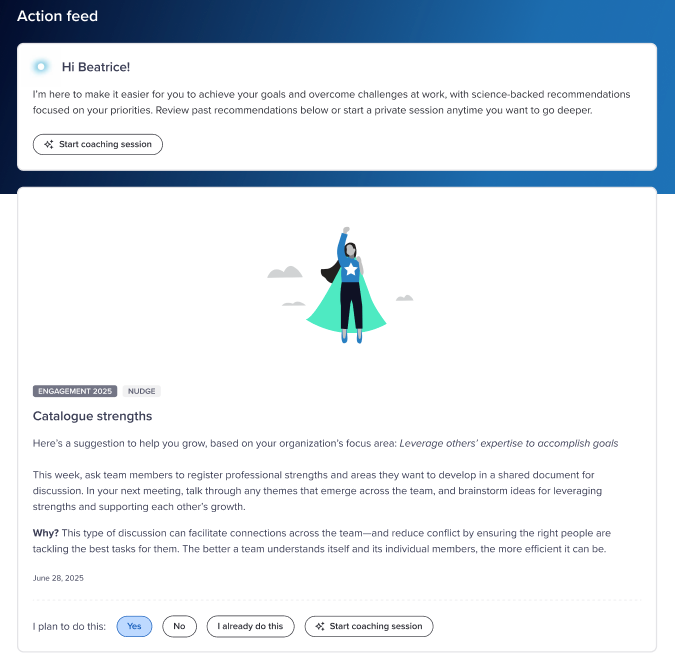
Nudges in the Action Feed
- Log in to the Perceptyx Platform.
- Navigate to the Act page.
Intelligent Nudges display in the Action Feed section in reverse-chronological order, with the most recent nudge at the top.
- Review the nudge.
- Click Yes, No, or I Already Do This.
- If you want personal support with the nudge, click Start Coaching Session.
Nudges within action plan details
The cards in the Active Action Plans section of the Act page display the number of nudges received for each action plan. You can view those nudges from the action plan details.
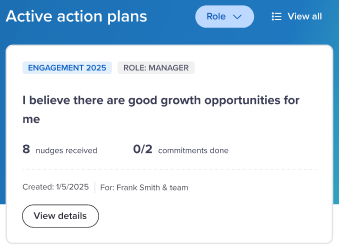
- Log in to the Perceptyx Platform.
- Navigate to the Act page.
- In the Active Action Plans section, click View Details for an action plan.
The action plan details display the nudges that have been sent for that particular action plan.
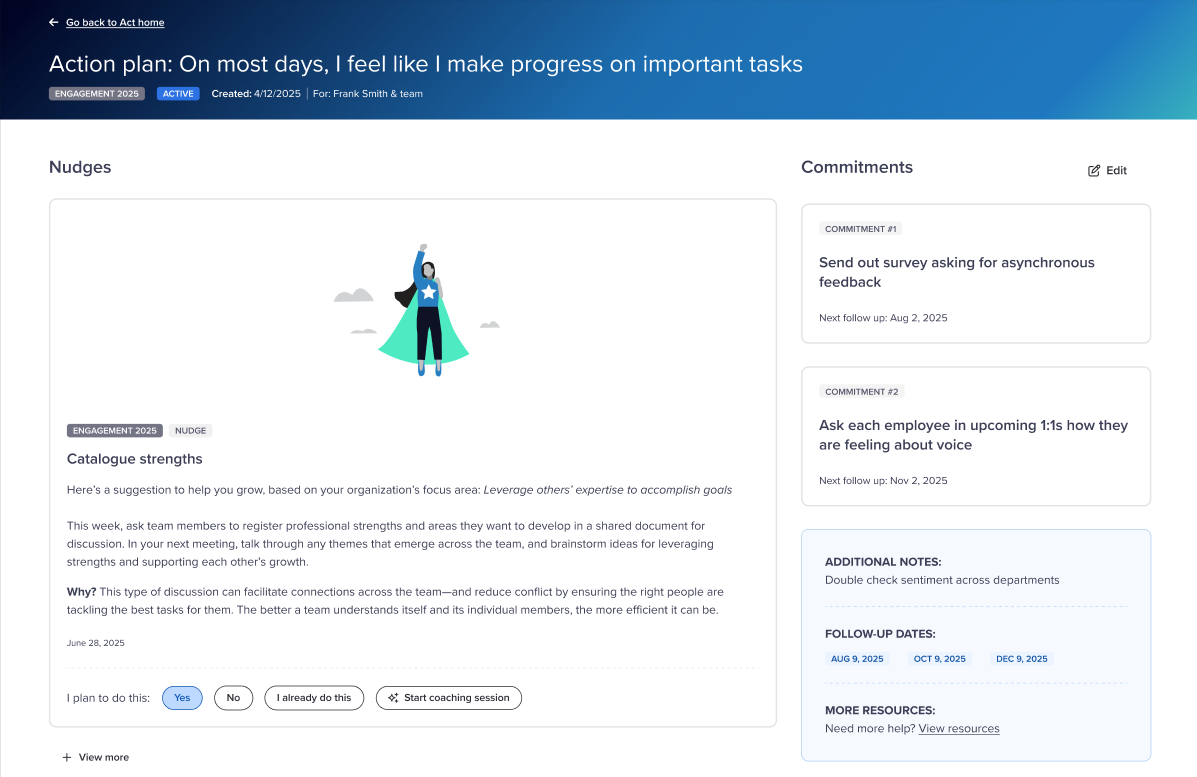
- Review the most recent nudge.
- Click Yes, No, or I Already Do This.
- If you want personal support with the nudge, click Start Coaching Session.
Was this article helpful?
That’s Great!
Thank you for your feedback
Sorry! We couldn't be helpful
Thank you for your feedback
Feedback sent
We appreciate your effort and will try to fix the article