Analyze
Sometimes a summary is not enough and you want to ask specific questions about your comments. Narrative Analysis Agent lets you do exactly that, then follow up, dig into specific groups, and pull real examples as you go.
At Perceptyx, we are always working to improve our products and ensure accuracy in our AI features. However, artificial intelligence may sometimes produce inaccurate, incomplete, or outdated results. We recommend reviewing any AI output for accuracy and suitability before use. Our AI is intended to assist, not replace, human review or professional advice.
Before you start
Narrative Analysis Agent is an optional feature that must be enabled by Perceptyx at the subscription level. If it needs to be enabled for your company, your Platform Administrator should contact the Perceptyx Customer Success Manager.
The Narrative Analysis Agent helps bring the story behind your employee listening data together by making it easier to understand key quantitative results and open-ended feedback. Within the agent, AI Insights surfaces key patterns and signals across your survey results, while its conversational analysis capabilities allow you to explore employee comments in greater depth. Learn more about AI Insights.
This article focuses specifically on the Narrative Analysis Agent’s qualitative analysis capabilities. Admin and Creator users can ask natural-language questions about open-ended employee comments from closed Point-In-Time listening events and receive tailored summaries and insights to help guide their analysis.
If enabled for your company, the Narrative Analysis Agent is available for closed Point-In-Time events you have access to. However, platform administrators can disable the agent for individual events.
While Comment Copilot is ideal for quickly summarizing feedback using predefined prompts, Narrative Analysis Agent offers a more flexible, exploratory experience for users who want to dig deeper into the “why” behind the data. It’s especially helpful when you’re investigating specific issues, following up on emerging themes, or looking for examples that bring your insights to life.
One or the other
Organizations can enable either Narrative Analysis Agent or Comment Copilot, but not both.
Narrative Analysis Agent supports more advanced analysis by processing both comment text and relevant demographic metadata. This additional context allows the AI to respond more accurately to your questions, for example, by comparing themes across departments or identifying patterns within specific groups.
What gets sent, and what does not
Narrative Analysis Agent uses generative AI, which leverages OpenAI. When data is sent to OpenAI for analysis, only the comment text and associated demographic attributes, specifically those visible in Advanced Reporting, are included. Please note that neither Perceptyx nor OpenAI train on customer data.
Before any data is sent to OpenAI, we apply our Named Entity Recognition model to automatically mask names found in open-ended comments. This is a critical privacy safeguard required for processing comment data, however, the original, unmasked comments will appear in the interface and in comment dashboards.
For details about our approach to generative AI, see Perceptyx Perspective on Artificial Intelligence, Machine Learning, Natural Language Processing, and Generative AI.
This article walks through
Narrative Analysis Agent overview
Narrative Analysis Agent empowers you to explore open-text feedback in a flexible and intuitive way. Using a conversational, natural-language interface, you can uncover insights that matter most, whether that’s identifying key challenges, surfacing department-specific themes, or reviewing concrete examples that bring employee voices to life. By making it simple to ask questions and get tailored answers, the agent helps you move quickly from raw comments to actionable understanding.
Narrative Analysis Agent acts as an AI-powered partner that helps you:
- Ask open-ended questions about all your comment data
- Explore your data without applying filters first, making it easier to uncover insights you might not know to look for
- Go beyond summarization to perform a wide range of analyses on comments, from identifying themes to spotting patterns and relationships
- Receive AI-generated summaries aligned to your query
- Drill into specific groups, topics, or themes via follow-up questions
- Request representative verbatim comments for context
- Provide feedback on AI responses to help refine results
This flexible, iterative experience helps reduce the time and effort required to analyze large volumes of unstructured feedback and helps to ensure the insights you find are aligned to your organization’s unique needs.
Language
Narrative Analysis Agent is currently available in English (United States) only.
Built-in protections
Guardrails ensure query responses remain focused on comment analysis. Minimum response thresholds are also enforced to protect respondent anonymity and prevent potential attribution of individual comments.
Access Narrative Analysis Agent
Who has access
- Narrative Analysis Agent is an optional feature that must be enabled by Perceptyx.
- All Event Administrators and Creators have access to Narrative Analysis Agent in events where it is enabled.
- Your Perceptyx Program Manager may have options to enable it for additional event-specific roles.
You access Narrative Analysis Agent from Advanced Reporting.
- Log in to the Perceptyx Platform.
- In the navigation bar, click Analyze.
- Click View Report in the Recent section or the All Reports table for the closed event you want to analyze.
Advanced Reporting opens with an option for Narrative Analysis Agent in the left navigation panel.
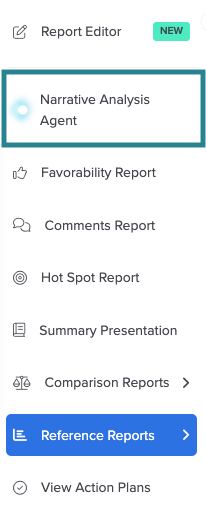
- In the left navigation panel, click Narrative Analysis Agent.
Ask questions, follow up, and explore
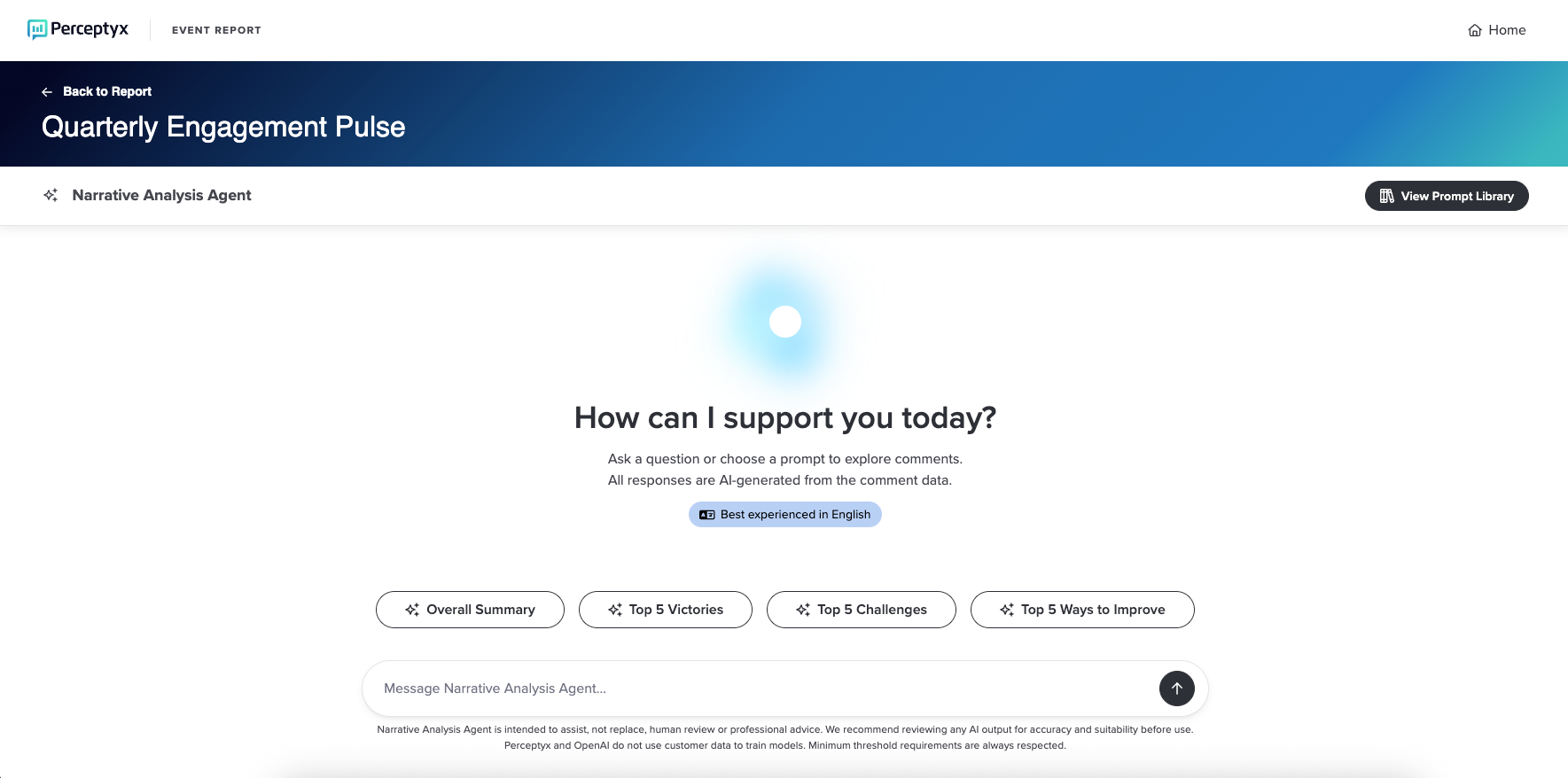
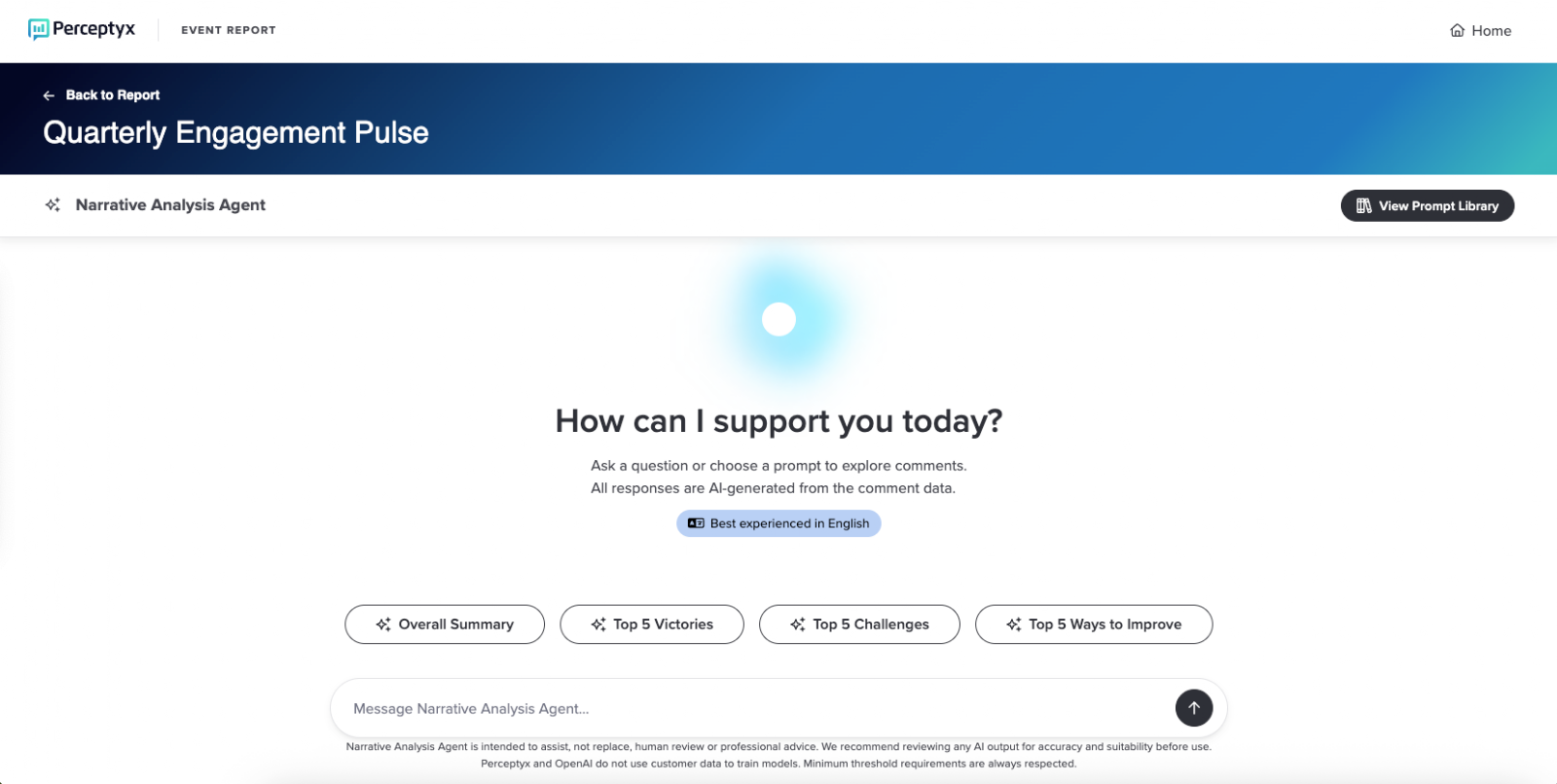
When you first open Narrative Analysis Agent, you’ll see four suggested prompts designed to spark ideas and guide your exploration:
- Overall Summary
- Top 5 Victories
- Top 5 Challenges
- Top 5 Ways to Improve
You can optionally use these prompts to start your analysis or you can go further by entering your own custom questions, such as:
- What concerns were raised about collaboration in the Product team?
- How do comments about leadership vary by region?
- Write a summary of employee feedback that can be shared with the entire organization to acknowledge what we heard.
Need prompt ideas?
For prompt ideas to help you explore your feedback, see the Narrative Analysis Agent Prompt Suggestion Guide. Please note that you must be logged in to the platform to view the guide.
The agent will return a tailored response based on the applicable open-ended comments in the listening event. You can also ask follow-up questions to deepen your analysis. For example:
- Which departments are most affected by this?
- What are the underlying reasons for this challenge?
- What suggestions were shared to improve communication?
As you uncover insights, you can ask the Narrative Analysis Agent to surface specific examples (verbatim comments). You can open the Prompt Library at any time to apply any predefined prompt, without refreshing the page and losing your full conversation history.
Important
If you refresh the browser page or exit the listening event results, the conversation history is not saved.
- If you want to use a predefined prompt to start the process, simply click the prompt you want.
The prompt summary displays. - To explore further, type a question in the Message Narrative Analysis Agent box, then press Enter.
- Continue to ask questions to dig deeper and narrow the results to uncover the insights you are looking for.
- If you want to apply one of the predefined prompts, click View Prompt Library, select the prompt you want to use, then click Use Prompt. The predefined prompts can be used at any point in your conversation and analysis.
For a more detailed example, see the scenario in the next section.
View a scenario
The following example shows a user starting with a default prompt and then asking a series of follow-up questions to explore one theme in more detail, before pivoting to a different topic and asking a complex question.
Step 1: Use a prompt
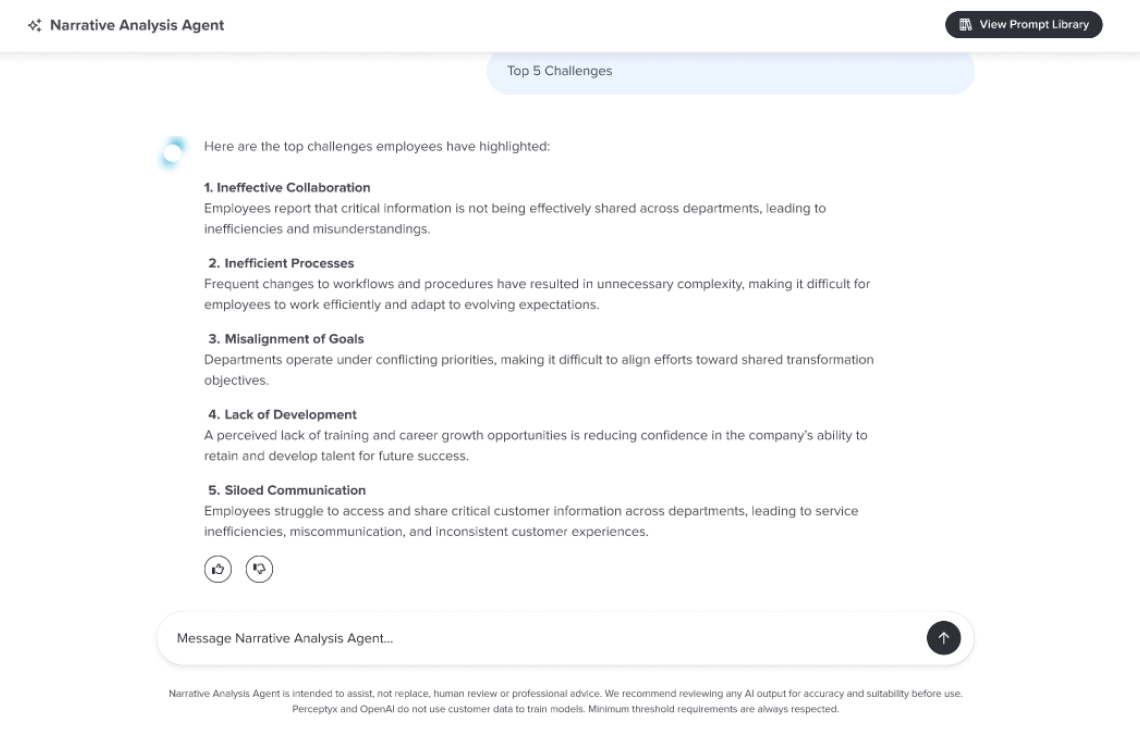
The user clicks the Top 5 Challenges prompt to see a high-level summary of key issues across the event.
Step 2: Narrow by department
The user sees “ineffective collaboration” as a challenge and asks which departments are most concerned about collaboration.
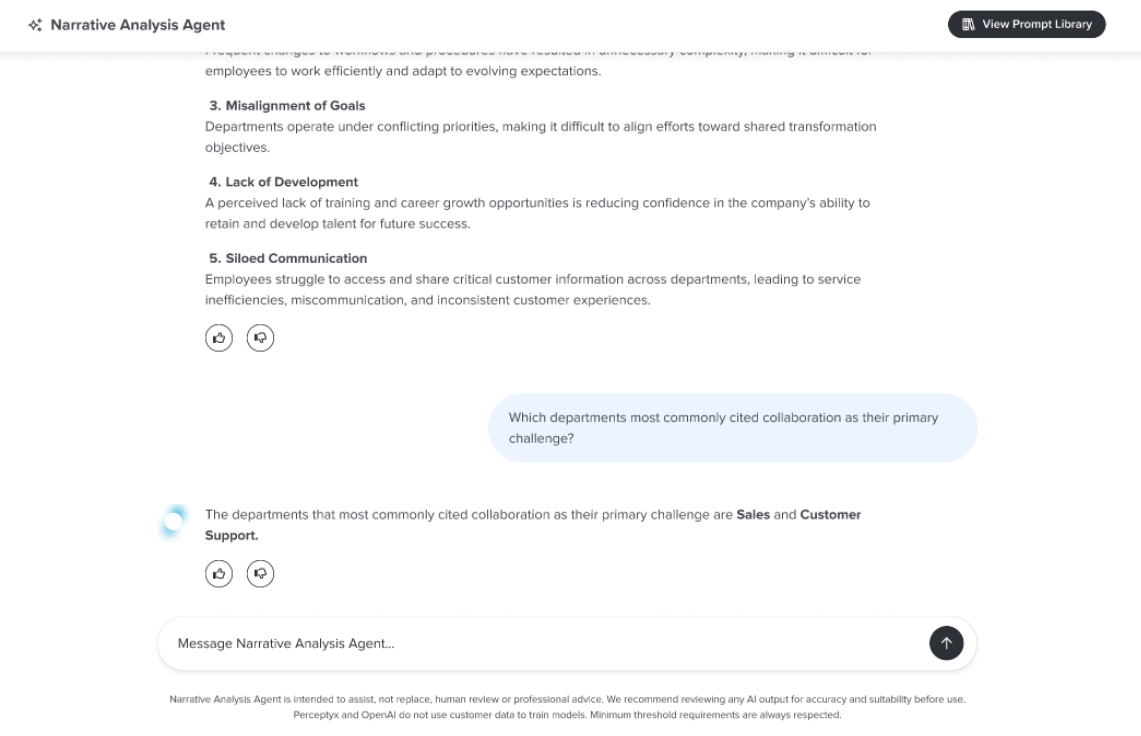
Step 3: Focus on suggestions
The agent lists departments with the most collaboration concerns. The user asks what suggestions employees from those departments provided.
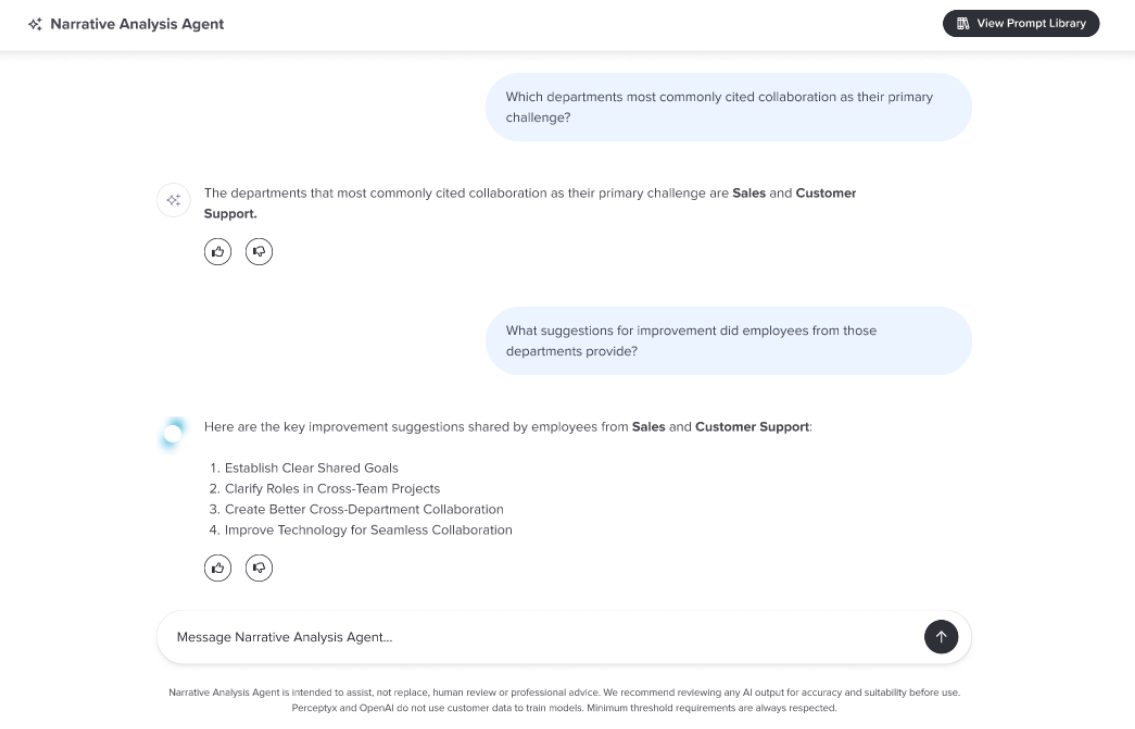
Step 4: Request example comments
To add context, the user asks to see example comments about cross-department collaboration.
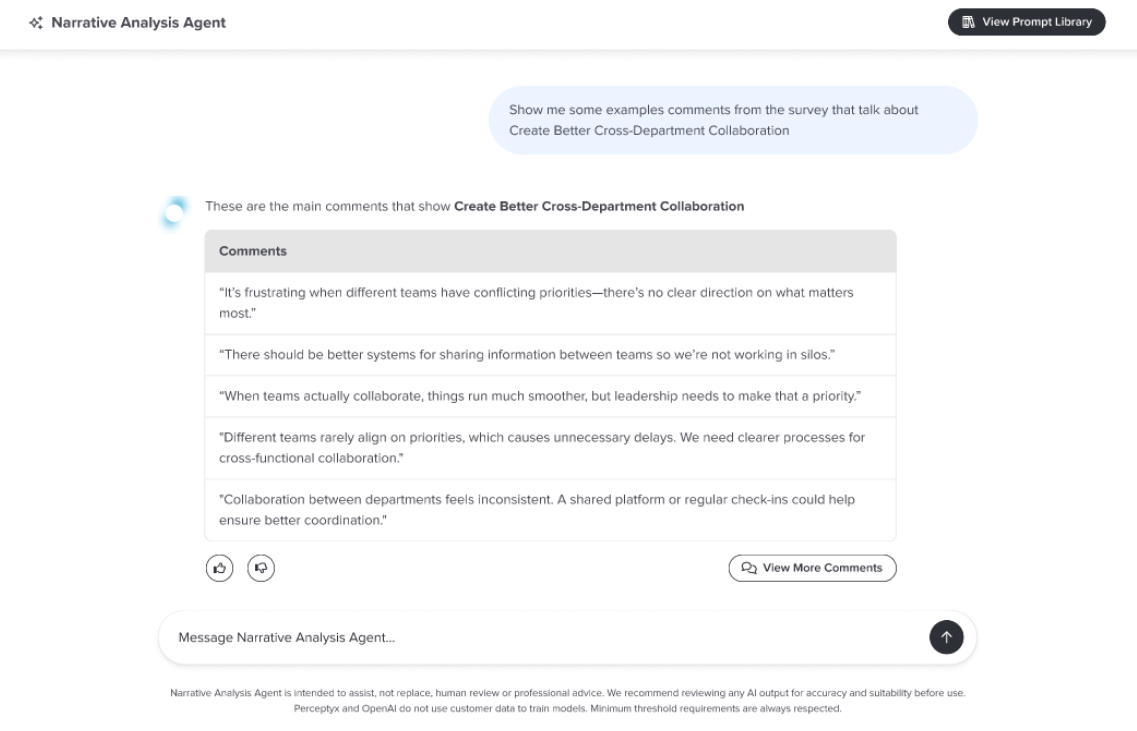
Step 5: Explore a new topic
The user now asks how employees perceive the company culture.
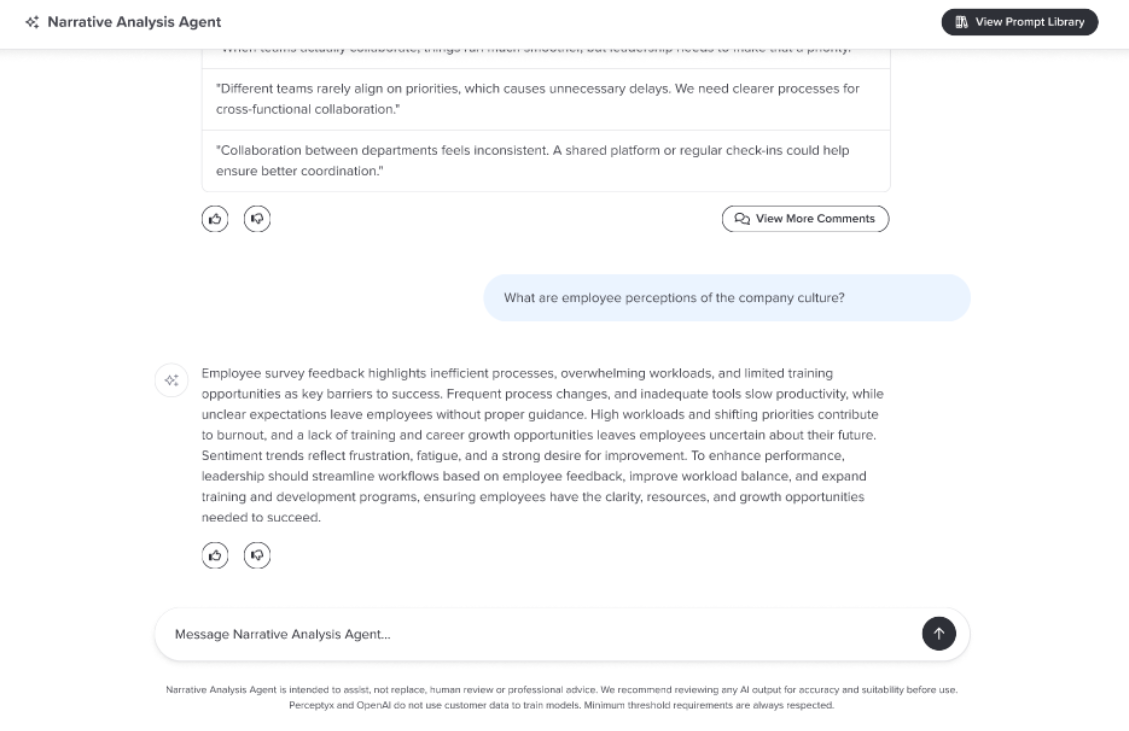
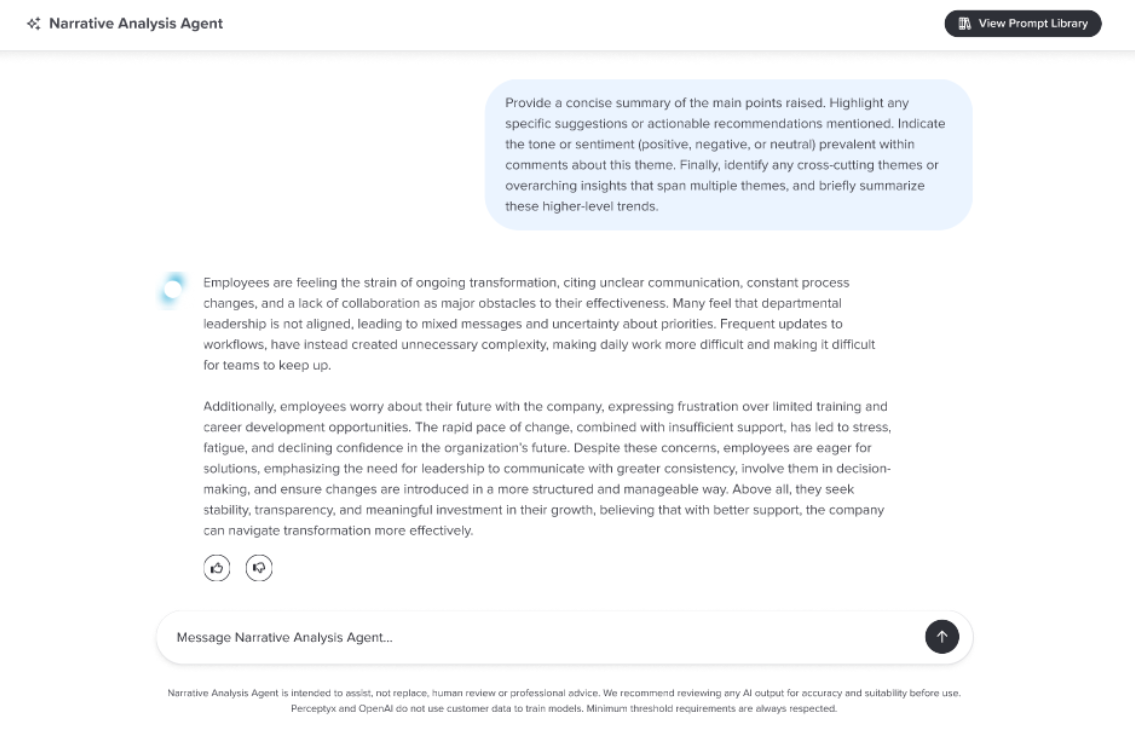
Step 6: Ask a multi-layered question
The user asks a complex query that includes a summary of points raised, identification of actionable recommendations mentioned, an analysis of the sentiment, and identification of cross-cutting themes.
Where to go next
A few articles that come up alongside Narrative Analysis Agent:
- AI Insights, for the patterns and signals the agent surfaces across your survey results.
- Use Comment Copilot, if your organization uses predefined prompt summaries instead.
- Access Your Results, for getting into Advanced Reporting.
- Filter Your Data, for applying demographic filters in Advanced Reporting.
- Favorability Report
- Trend Report
- Event Management (Platform Admins Only)
Was this article helpful?
That’s Great!
Thank you for your feedback
Sorry! We couldn't be helpful
Thank you for your feedback
Feedback sent
We appreciate your effort and will try to fix the article